Webmail: Managing tasks intelligently with AI chat
This article explains how you can use the AI chat in Webmail to manage tasks efficiently, and organise emails and appointments intelligently. The AI chat is a feature of the paid AI Email Assistant.
If you have activated the AI Email Assistant in Webmail, you can use the AI chat function Smart Tasks to have certain tasks carried out in Webmail.
For example, you can use the AI assistant to
- Search for emails by sender, subject, or content.
- Move emails to specific folders, archive or delete them.
- Read emails aloud.
- Summarise emails.
- Compose and send new emails.
- Optimise email texts.
- Reply to or forward emails.
- Create new appointments in the calendar.
- Search for existing appointments.
- Search for contacts in the address book to find their email addresses.
Note
The AI Email Assistant is a paid extension and is therefore not included in Webmail by default. We show you how to order the AI Email Assistant in the article Webmail: Adding AI Email Assistant.
The AI chat is located on the right-hand side of Webmail. If the AI chat is closed, click on the button with the three star symbols in the top left of the menu bar (recognisable by the AI chat tooltip).
Open AI chat
You have the following options for opening the AI chat:
Access via the navigation bar on the right
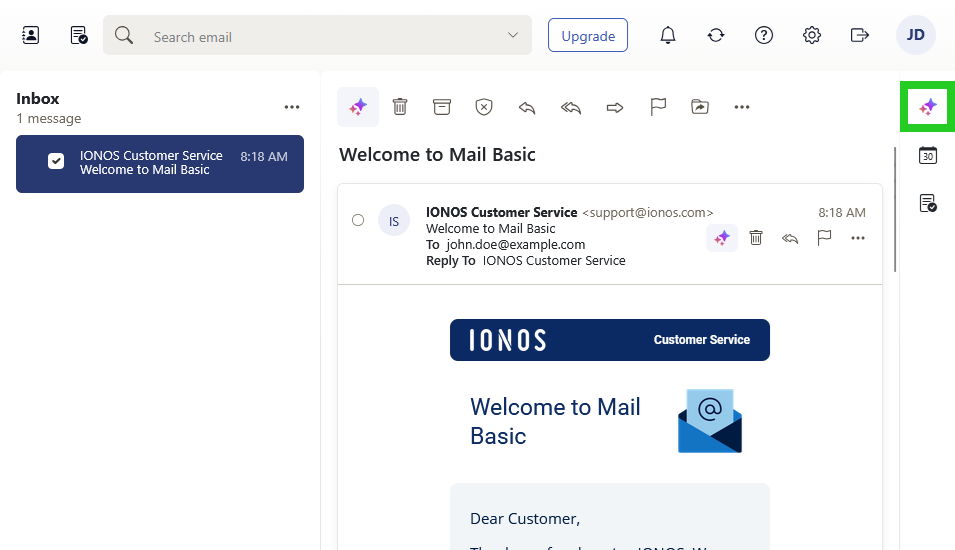
In Webmail, the AI chat can be opened in all areas such as email and calendar in the navigation bar on the right. To open the AI chat via the navigation bar on the right, complete the following:
Log in to Webmail.
- in the navigation bar on the right, click on the button with the three star symbols (AI integration tooltip).
Access in the inbox
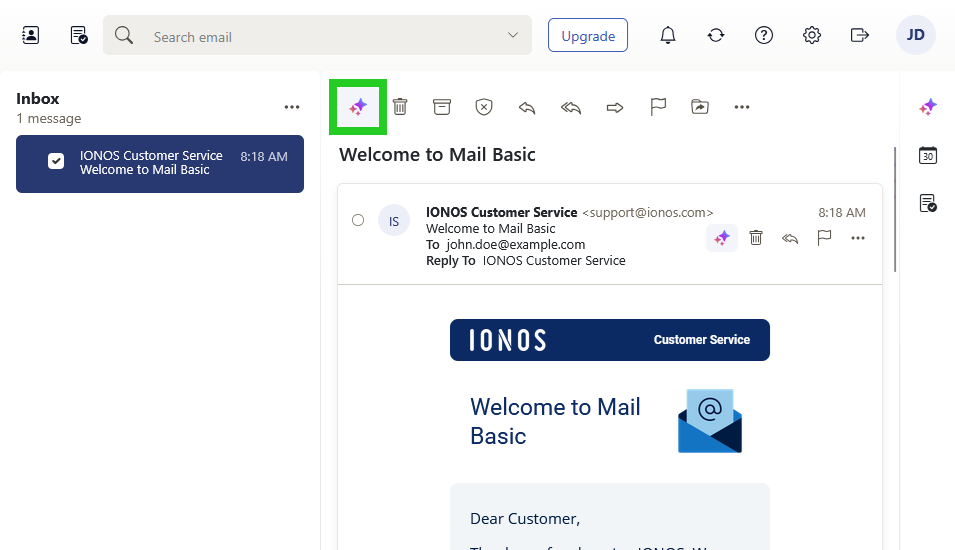
If you are in the email section of Webmail, you can also open the AI chat in the navigation bar that appears above a displayed email.
Log in to Webmail.
In the navigation bar on the left, click on Inbox and select the desired email.
In the toolbar above the email, click on the button with the three star symbols (AI integration tooltip).
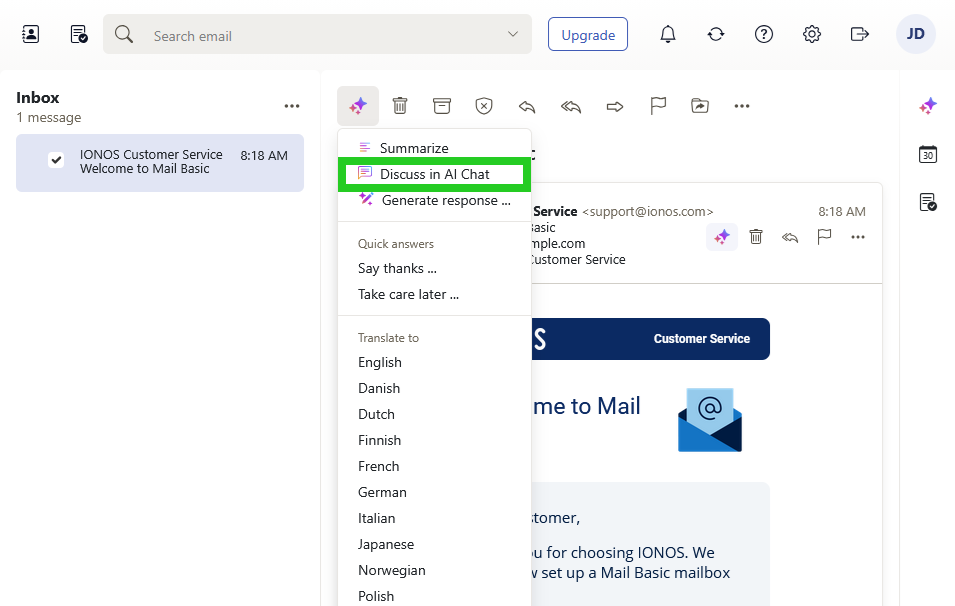
- Then click on Discuss in AI Chat. The AI chat opens in an additional column.
Read out emails with the AI chat
To have the AI chat read out an email in Webmail, complete the following:
- Open the desired email.
- In the toolbar above the email, click on the button with the three star symbols (AI integration tooltip).
- Then click on Discuss in AI Chat. The AI chat then asks whether you would like a summary or a translation of the content.
- To have a summary of the email read out, enter the following information in the Send a message to the AI field: "What is in the email?"
To have the full email read out, enter the following information in the Send a message to the AI field: "Read the email to me in full."
The summary or the full text of the email is displayed in the AI chat column. - Click on the loudspeaker symbol (Read aloud tooltip) below the text in the AI chat column.
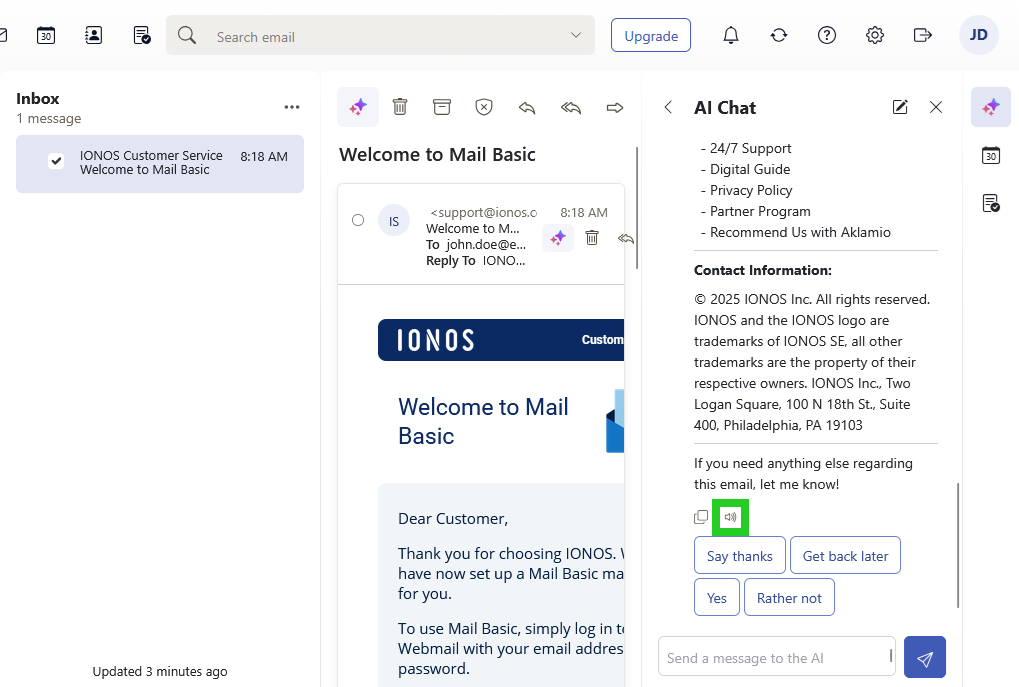
The email is read out loud.