Accessing a server via the VNC Console (Dedicated Server)
Valid for Dedicated Servers and Server Power Deals managed in the Cloud Panel.
If your Dedicated Server is running but can no longer be reached via SSH or remote desktop connection, you can log in to the server using the VNC console. You can use the VNC console to rectify errors in the configuration or in the network settings. To establish a connection to your server via the VNC console, proceed as follows:
Dedicated server with Linux operating system
- Log in to your IONOS account.
- Click on Menu > Servers & Cloud in the title bar.
Optional: If you have multiple server contracts, select the desired contract.
The Cloud Panel opens.
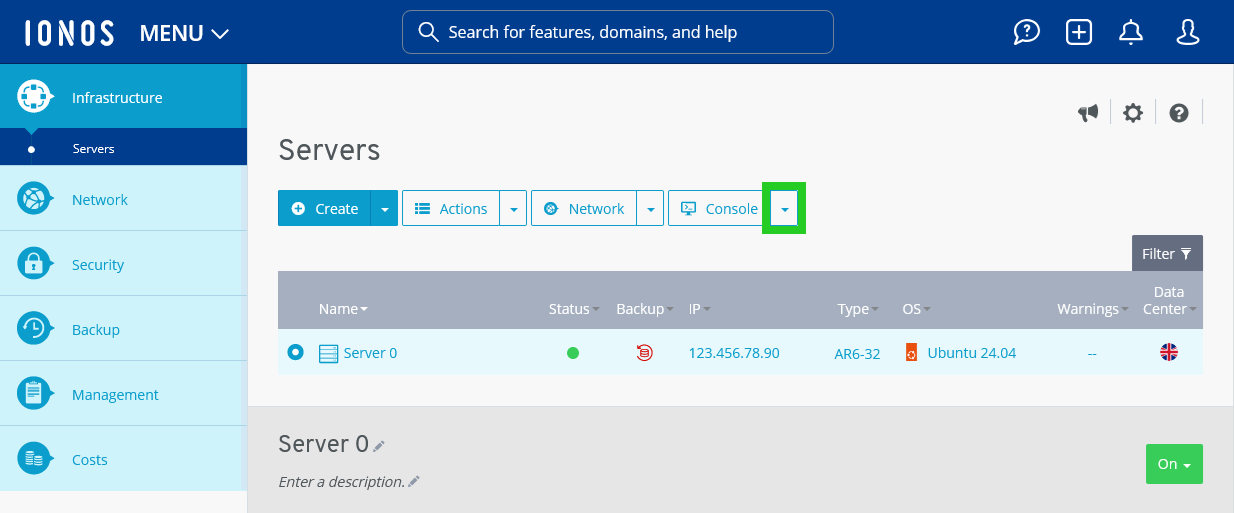
- In the Infrastructure > Servers area, click on the desired server.
- Click on the downwards pointing arrow next to the Console button.
- Click on VNC Console. The VNC console opens in a new tab.
- Log in to the server.
Dedicated server with Windows operating system
- Log in to your IONOS account.
Click on Menu > Servers & Cloud in the title bar.
Optional: If you have multiple server contracts, select the desired contract.
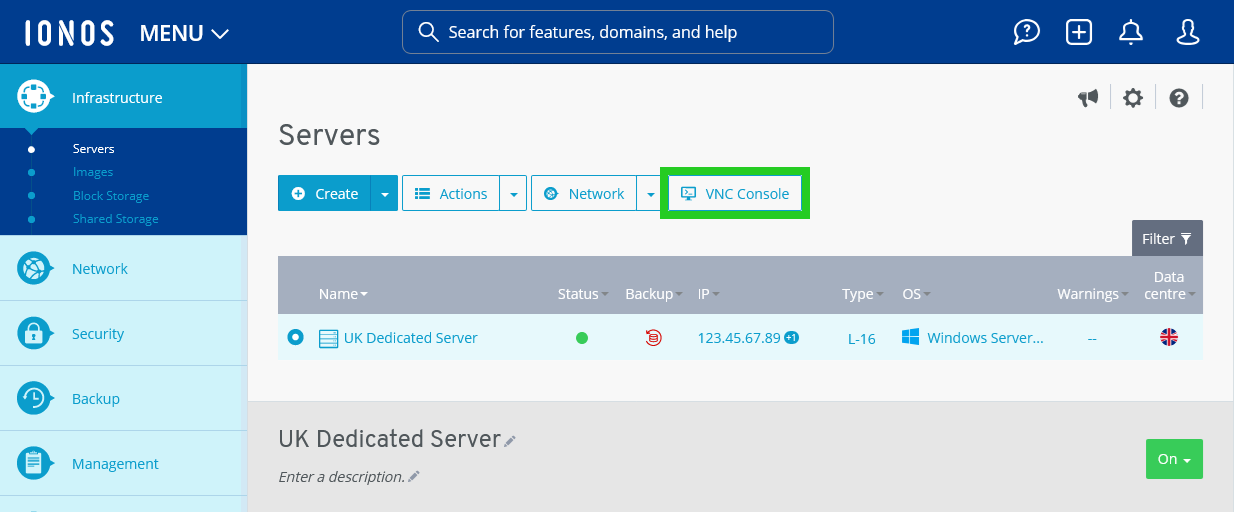
- In the Infrastructure > Servers area, click on the desired server.
- Click on VNC Console. The VNC console will open in a new tab.
- In the VNC console, click on Send Ctrl+Alt+Del.
- Log in to the server.