Adjusting the logical volume after enlarging the SSD in Microsoft Windows Server 2025 (Cloud Server)
Valid for Cloud Servers with the Windows Server 2025 operating system.
This article explains how you can adjust the logical volume of your SSD after increasing the storage space on a Cloud Server with Microsoft Windows Server 2025.
If you add more SSD storage space to your Cloud Server, you must adjust the disk configuration on the server. In this guide, we will show you how to do this using the example of enlarging the logical volume C:
Requirements
- You have added additional SSD storage space for your cloud server.
or
You have changed the existing configuration of your cloud server and selected a configuration that includes a larger SSD storage space. - You have restarted the server after increasing the size of the SSD.
- You have logged in to the server as an administrator.
- Right click the Windows start menu.
- Click on Disk Management in the menu.
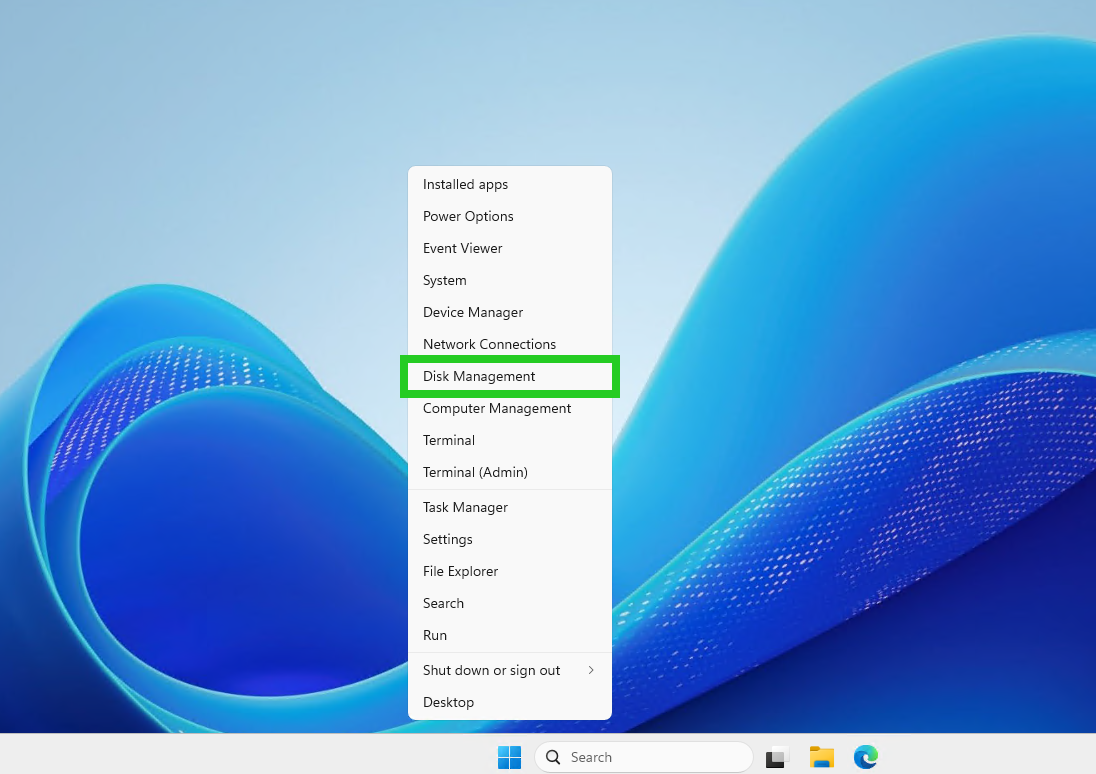
The partitioning of your SSD(s) is displayed. The added storage space is displayed with the status "Unallocated".
Notes
- If no free storage space is displayed in Disk Management, press F5 to refresh.
- If you add further SSDs to your server in the Cloud Panel, they will be listed in Disk Management with consecutive numbering (disk 1, disk 2 ...).
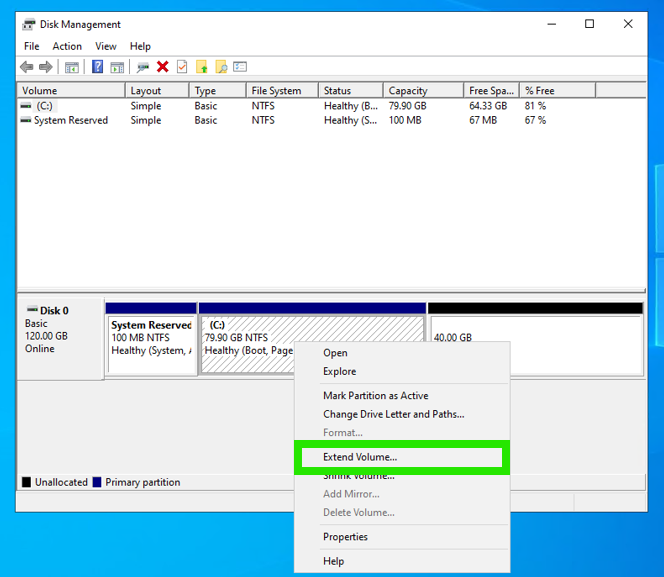
- Right-click on the partition that you want to extend.
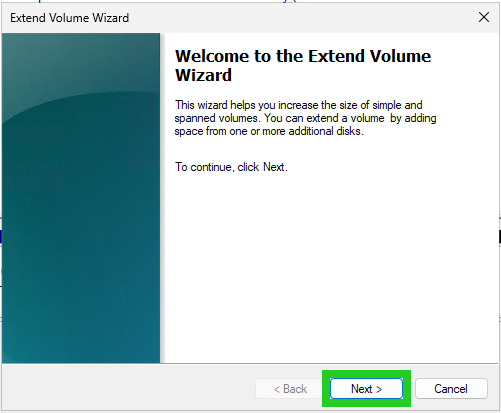
- Click on Extend Volume. The Extend Volume Wizard opens.
- Click on Next.
- Specify the size of the storage space to be added. The maximum available storage space is preset.
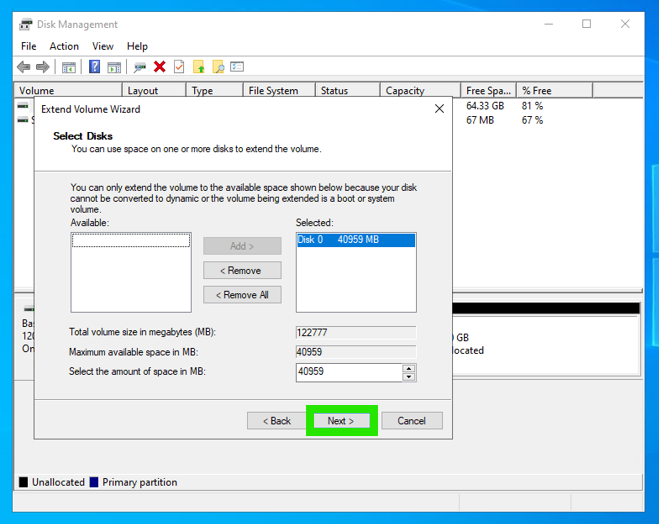
- Click on Next.
- Click on Finish.
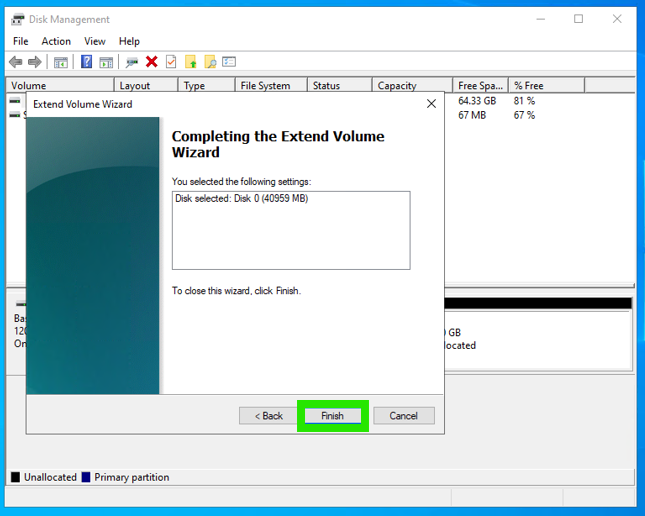
The volume is now increased in size.