Setting up Microsoft Exchange®
Valid for Microsoft Exchange as an additional product feature or as a stand-alone contract.
This article explains how to set up Microsoft Exchange with an email address for the first time.
Note
This product uses the latest Exchange Server Subscription Edition (SE). For details on the changes, see the Microsoft article What's New in Exchange Server SE.
Requirement
A domain must be assigned to the same customer number as Microsoft Exchange. You can find out how to transfer a domain in the articles within the Domain Transfers Help Centre category.
Create email address
To be able to use Microsoft Exchange, it is essential to use your own email address. This email address must be created with a domain that is assigned to the same customer number as your Microsoft Exchange contract.
To create a new email address in your Microsoft Exchange contract, complete the following:
- Log in to your IONOS account.
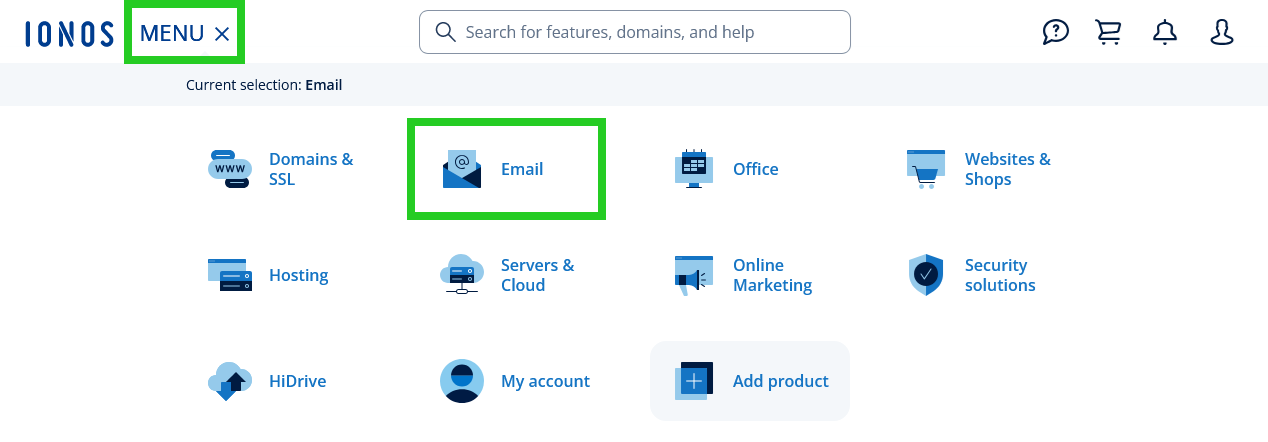
In the main navigation, click Menu in the top left corner and then click Email.
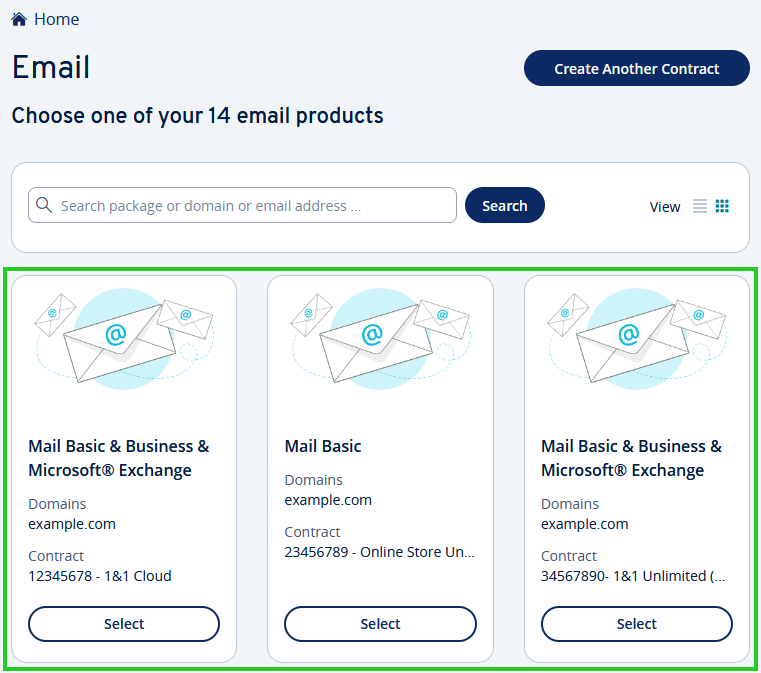
- If you have more than one email contract, select the contract in which you want to perform the desired action.
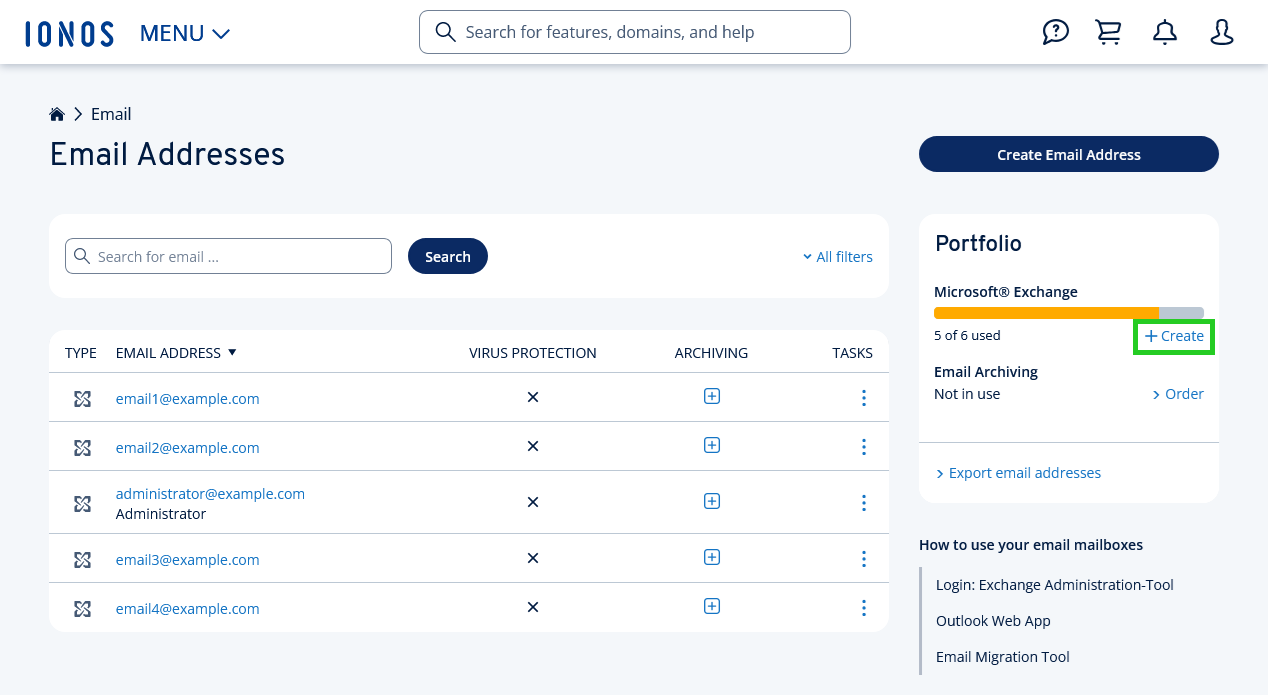
On the Email Addresses page, click Create in the Portfolio section.
Enter the desired email address, display name, and password on the Configure your account page and click Save.
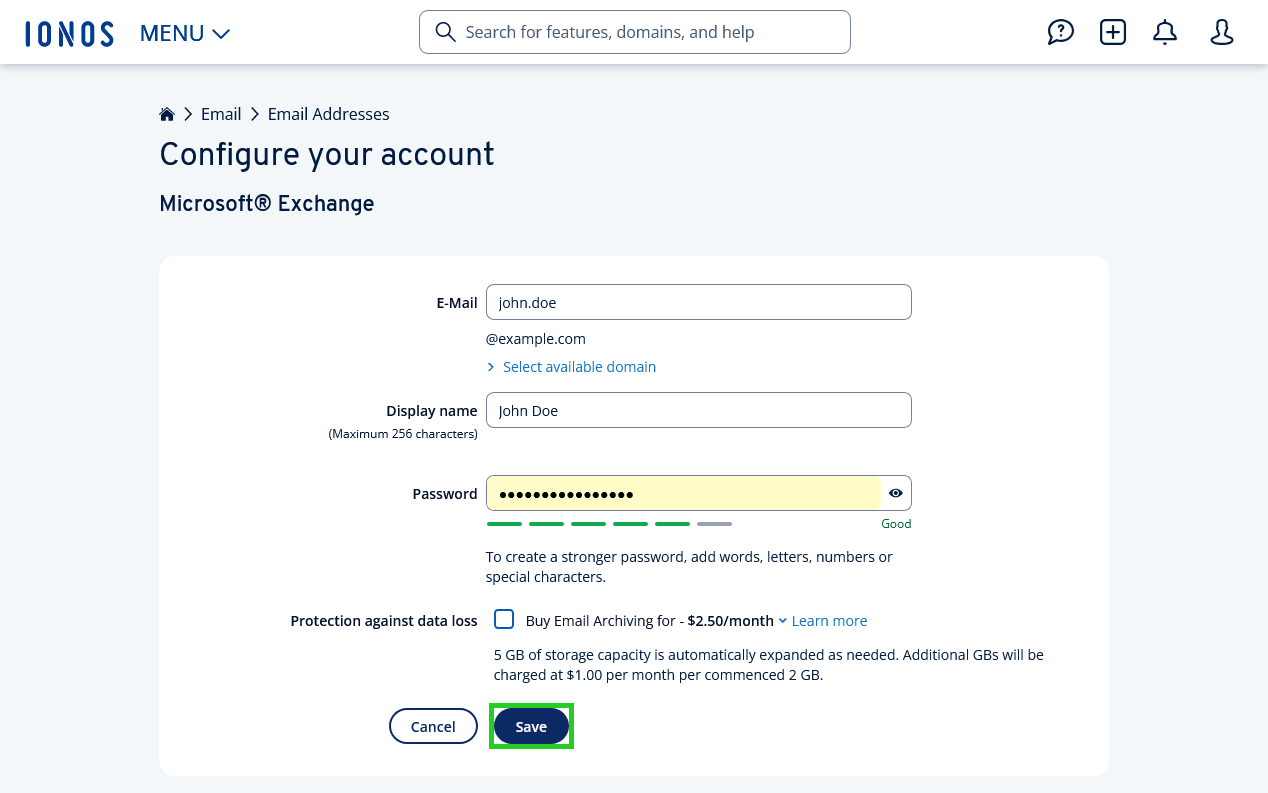
The email address is created and is ready for use after a few minutes. You can find out how to use this address in your email program in the articles on setting up Microsoft Exchange .
Note
When assigning the password, do not use any parts of the display name or the email address. Otherwise you will receive an error message and it will not be possible to complete the email attachment.