Changing the language and time zone in IONOS Webmail
Valid for: Mail Basic and Mail Business
With the language option, you can switch Webmail to your preferred language. By selecting a time zone, you can adjust the date and time information to your local time.
- Log in to IONOS Webmail.
- In the main navigation at the top right, click the gear icon (tooltip Settings).
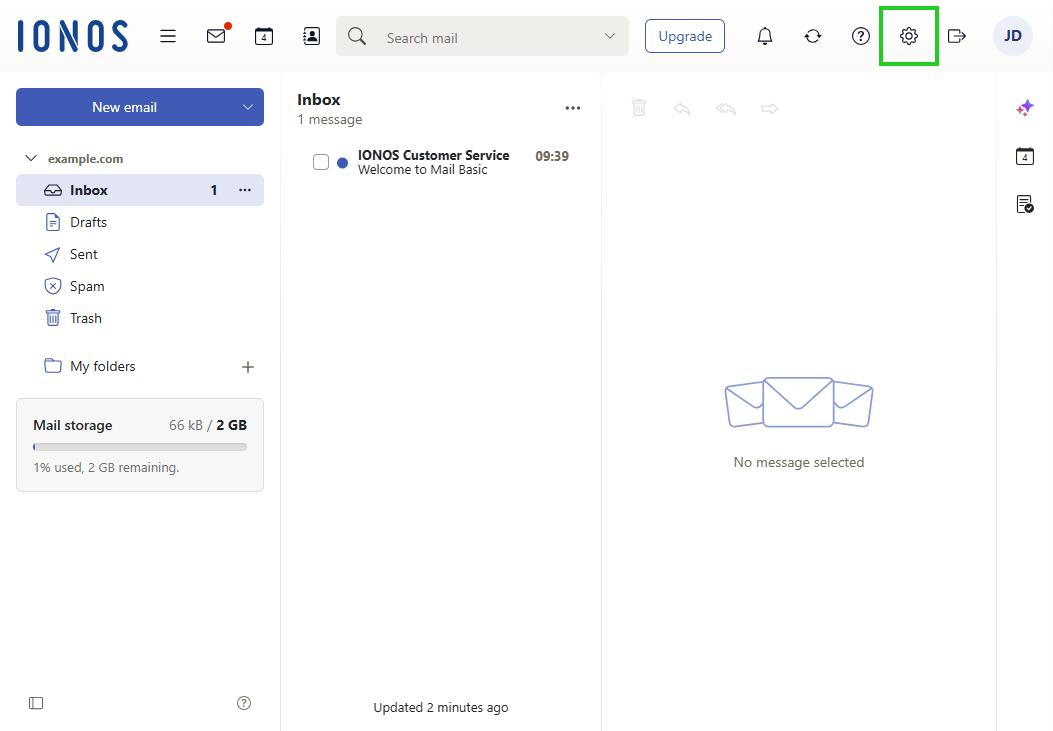
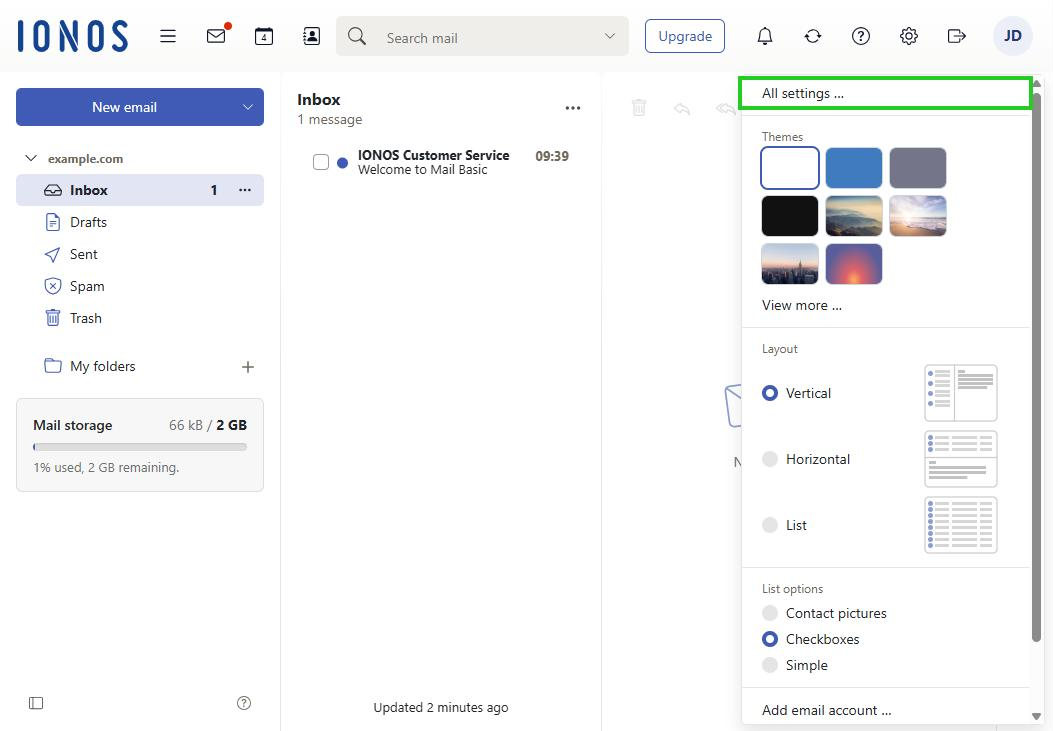
- Click All settings …. The Settings window opens.
- In the navigation bar on the left, select General.
- Click Language & Time zone.
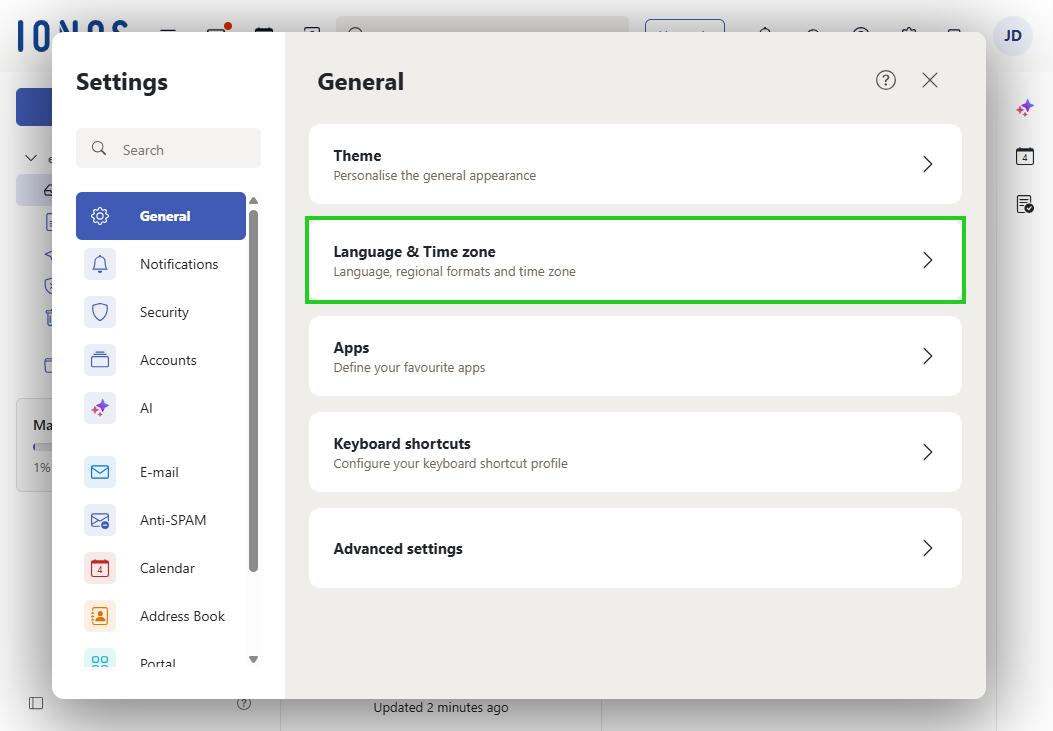
- Select the language and time zone you want. The changes are saved automatically and take effect as soon as you click Reload page or log in again.