Valid for: Mail Basic and Mail Business

This article explains how to enable the display of HTML emails in Webmail.

  • Log in to IONOS Webmail.
  • In the main navigation at the top right, click the gear icon (tooltip Settings).
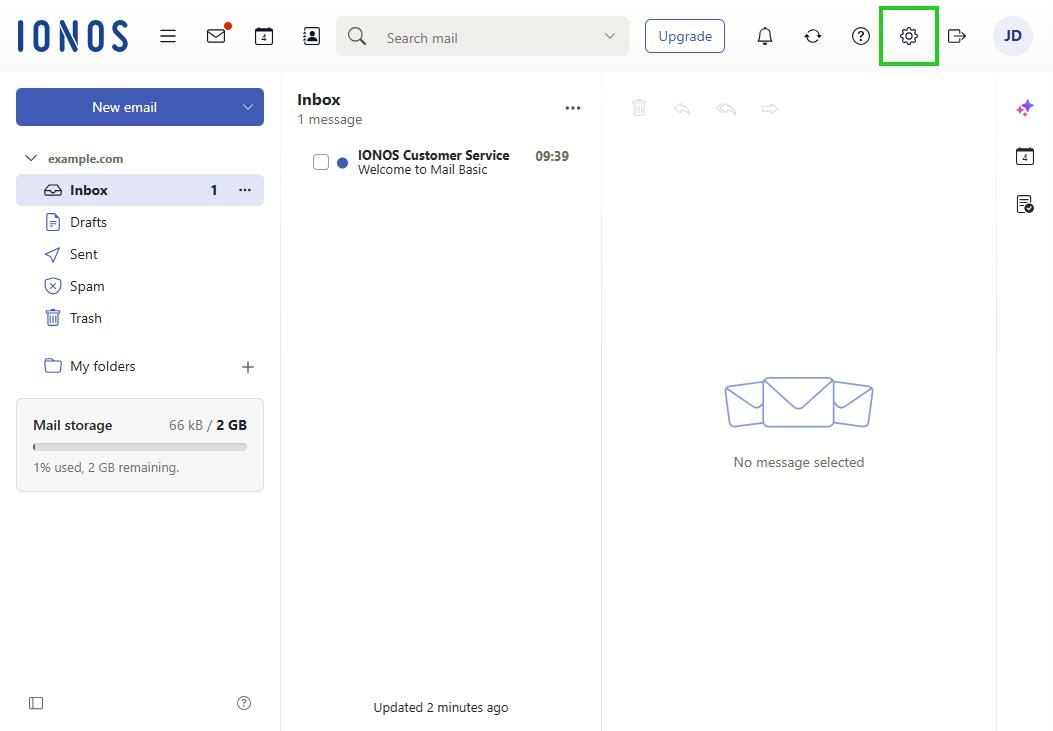
The Settings icon is highlighted in the main navigation in Webmail.
  • Click All settings …. The Settings window opens.
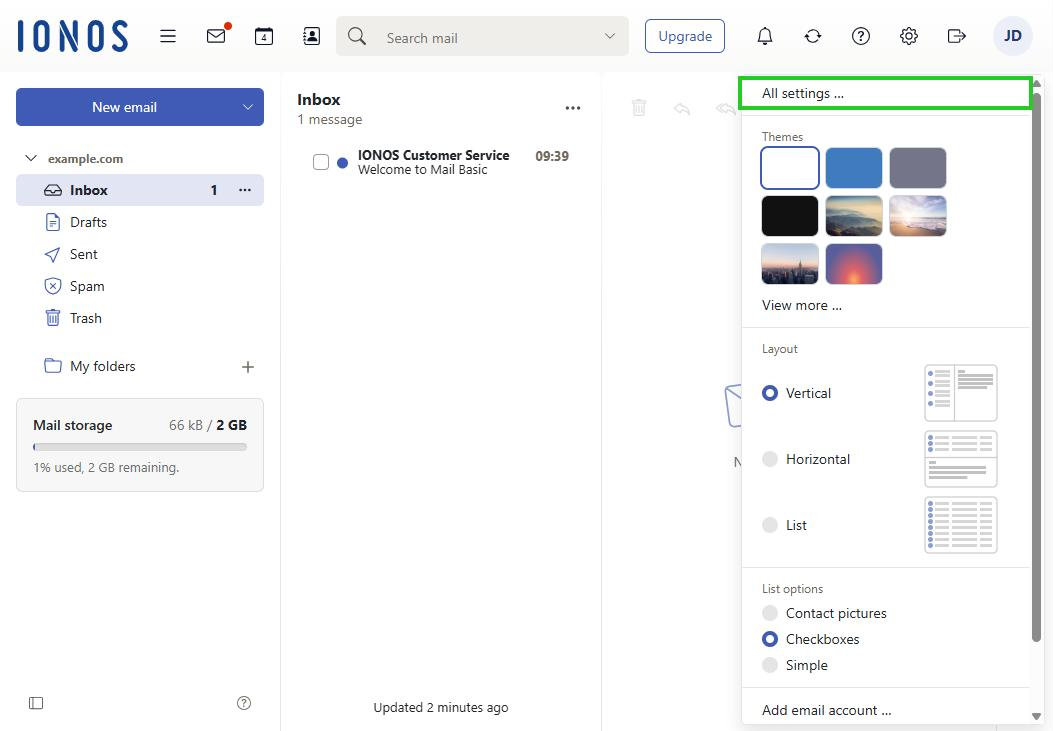
The All settings menu item is highlighted in the Settings menu in Webmail.
  • In the navigation bar on the left, click E-mail.
  • Scroll down and click Advanced settings.
  • Under Reading, enable the Allow displaying HTML formatted email messages option.
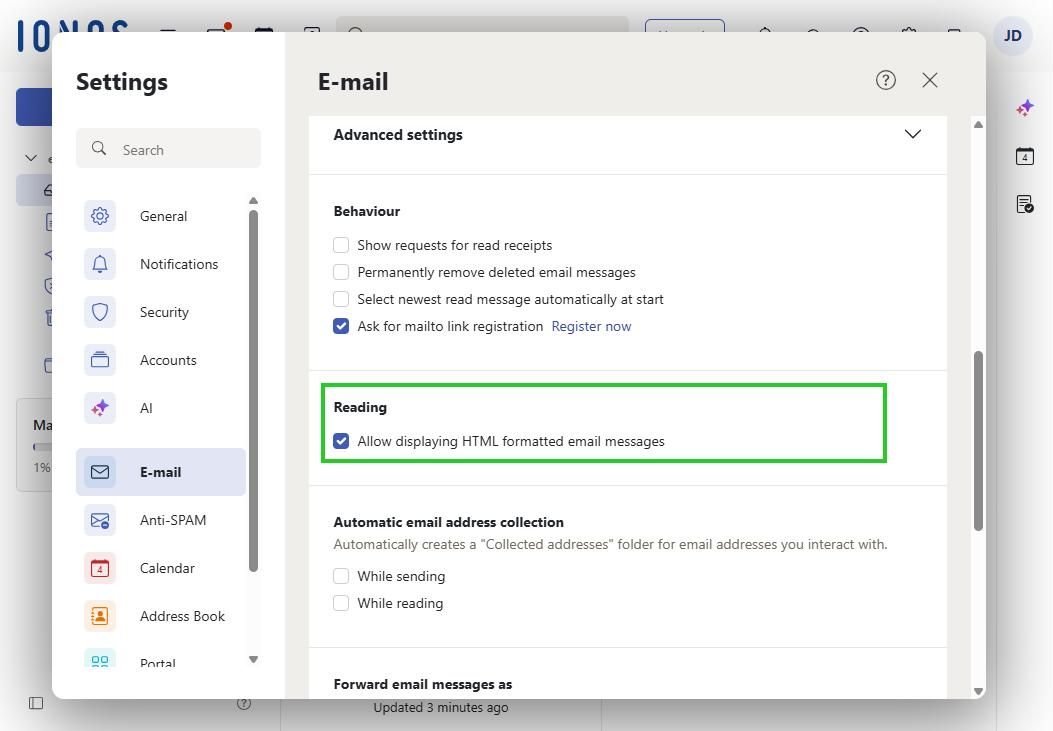
The Allow displaying HTML formatted email messages option is highlighted under Advanced settings in the E-mail section of the Settings window.

The settings are saved automatically.