Importing appointments into IONOS Webmail
Valid for: Mail Basic and Mail Business
This article explains how to easily transfer appointments from other applications to Webmail.
- Log in to Webmail.
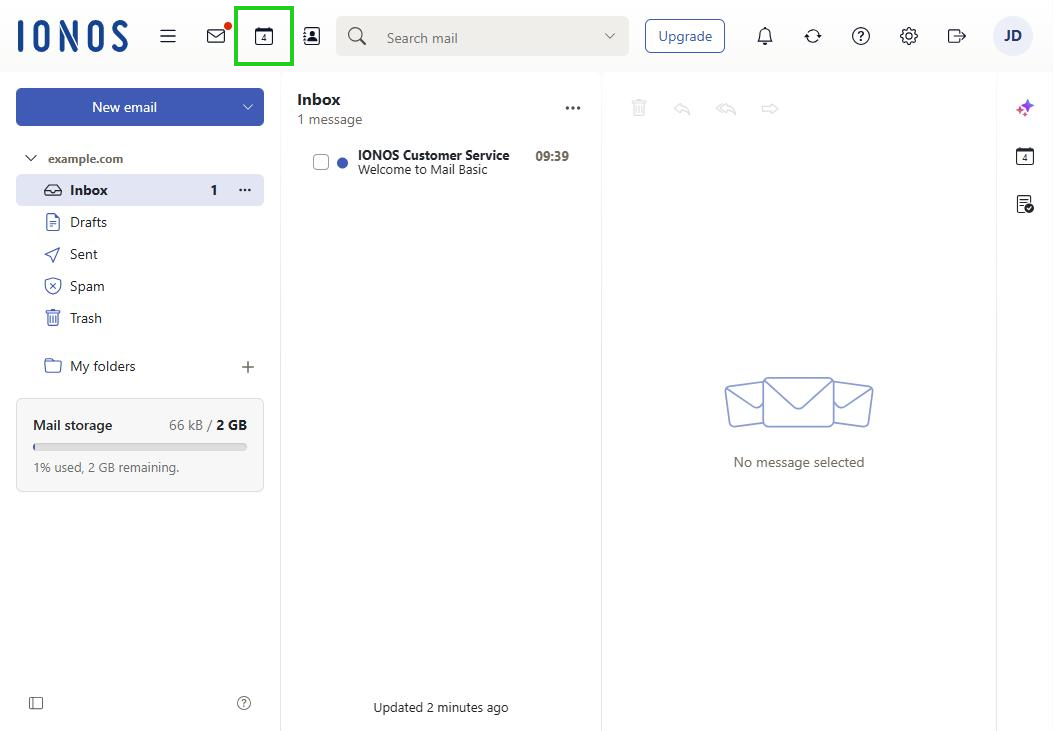
- In the main navigation at the top left, click the calendar icon (tooltip Calendar).
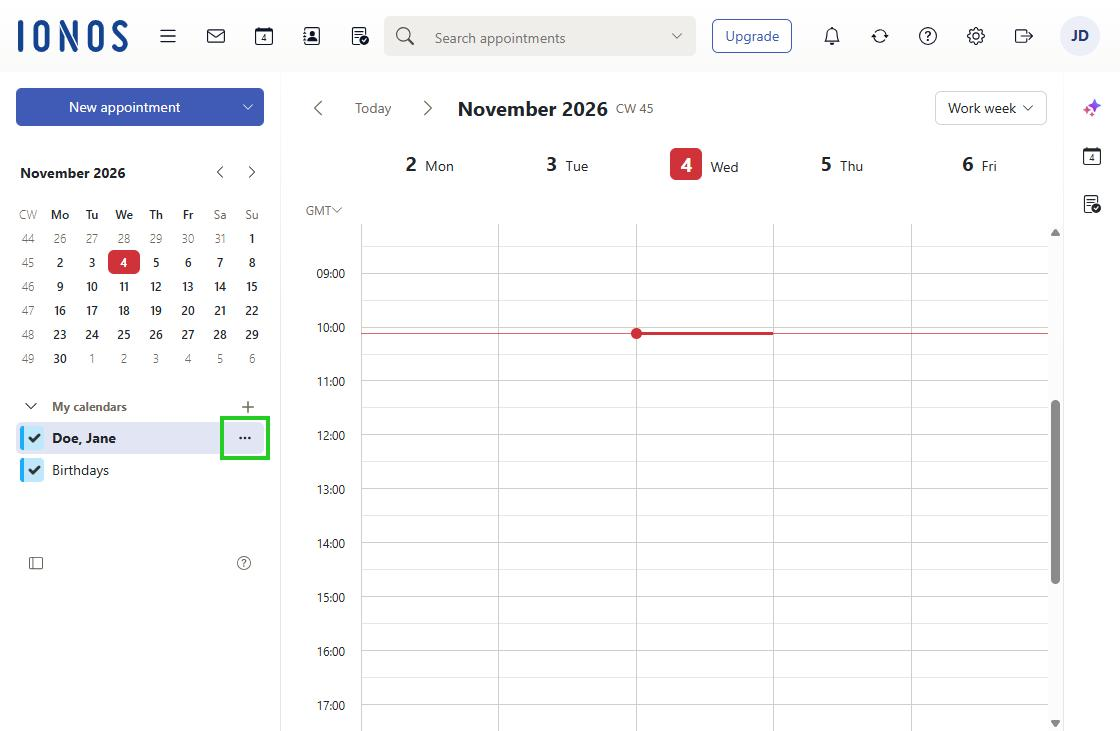
- In the navigation bar on the left, under My calendars, click the three-dot icon next to the calendar you want (tooltip Actions for followed by the name of the calendar).
- Click Import.
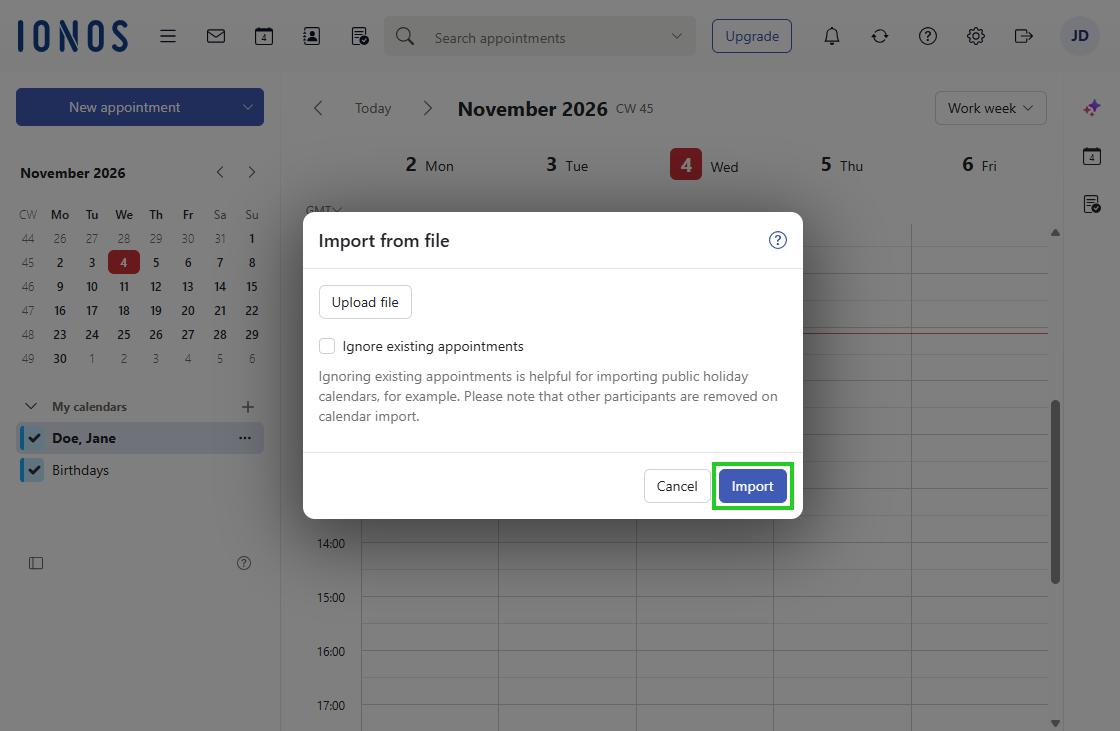
- Click Upload file and select the file you want in ICS or iCal format.
- In the Import from file window, click Import.
The appointments are imported.