Resetting the root password for a VPS or migrated Cloud Server (AlmaLinux and RockyLinux)
Valid for VPS+, VPS, and migrated Cloud Servers with AlmaLinux 8, AlmaLinux 9, Rocky Linux 8, or Rocky Linux 9 that are managed in the Cloud Panel.
This article explains how to reset the root password of a VPS+, a VPS, or a migrated Cloud Server running AlmaLinux 8, AlmaLinux 9, RockyLinux 8, or RockyLinux 9.
Caution
These instructions list steps that can lead to data loss if performed incorrectly. Therefore, always create a backup before resetting the root password.
Requirements
The server is switched on.
You have created a backup of the server.
Load rescue system
- Log in to your IONOS account.
Click on Menu > Servers & Cloud in the title bar.
Optional: Select the desired Servers & Cloud contract.
Click on the desired server in the Infrastructure > Servers area.
Click on DVD Drive.
Activate the Gparted latest_iso DVD.
Click on Load DVD.
Click on Yes.
The server is restarted and the DVD is loaded. This may take a moment.
Starting the rescue system
Click on Action > Open remote console.
Select GParted Live (Default Settings) from the menu.

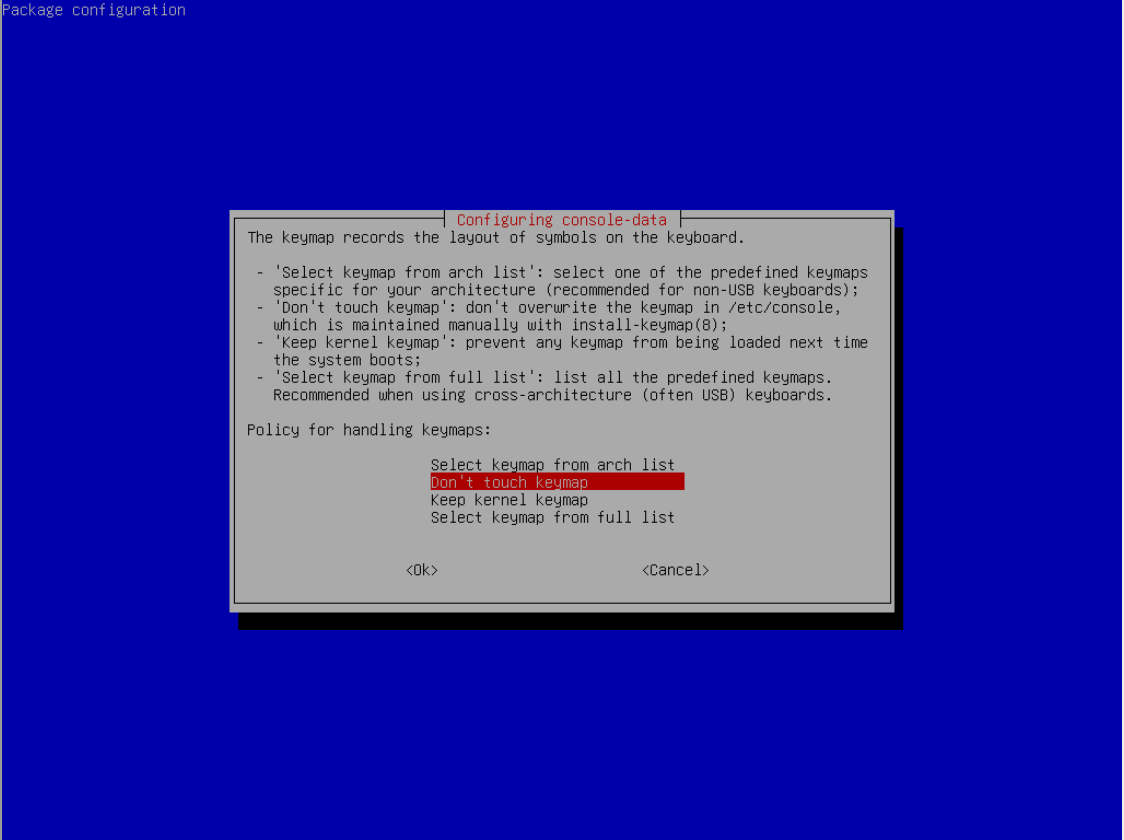
Select any policy and confirm it with OK.
Select a language. The default is 33 for English.

Enter 0 for the start method.

Change password
Close the GParted window by clicking on the black rectangle.

Start the Terminal program.

To switch to the root user, enter the following command:
user@debian:$ sudo su
Read the hard disc/partition layout with the lsblk command.
user@debian:$ lsblk
Hint
The name of the root file system is required for the next steps. This is usually the largest partition. In this example, vda is the name of the virtual hard disk and vda 1 is the root file system.
To mount the root file system, enter the following command and replace the placeholders:
root@debian:/home/user# mount /PATH/PARTITION /mnt
Examples:
Rocky Linux 8.6root@debian:/home/user# mount /dev/vda5 /mnt
AlmaLinux 9root@debian:/home/user# mount /dev/vda4 /mnt
Check whether loading was successful by executing the lsblk command again. In the example below, the current mount point /mnt is listed in the line vda1.
root@debian:/home/user# lsblk
NAME MAJ:MIN RM SIZE RO TYPE MOUNTPOINTS
loop0 7:0 0 423M 1 loop /usr/lib/live/mount/rootfs/filesystem.squashfs
/run/live/rootfs/filesystem.squashfs
sr0 11:0 1 488M 0 rom /usr/lib/live/mount/medium
/run/live/medium
vda 254:0 0 240G 0 disc
├─vda1 254:1 0 239.9G 0 part /mnt
├─vda14 254:14 0 3M 0 part
└─vda15 254:15 0 124M 0 partFor the next steps, it is necessary to mount the directories /dev, /proc, and /sys. To do this, enter the following commands:
root@debian:/home/user# mount -o bind /dev /mnt/dev
root@debian:/home/user# mount -o bind /proc /mnt/proc
root@debian:/home/user# mount -o bind /sys /mnt/sysChange to the root file system with the command chroot /mnt.
root@debian:/home/user# chroot /mnt
Open the SELinux configuration file. To do this, enter the following command:
root@debian:/home/user# vi /etc/selinux/config
Notes
- The vi editor has an insert mode and a command mode. You can call up insert mode with the [i] key. In this mode, the characters entered are immediately inserted into the text. To call up command mode, press [ESC]. If you use command mode, your keyboard input is interpreted as a command.
- To exit vi and save the file, enter the command :wq and then press Enter.
Press the [i] button and set the value in the SELINUX=enforcing line to SELINUX=permissive.
To call up the command mode, press the [ESC] key.
To exit vi and save the file, enter the command :wq and then press Enter.
To start the password change, enter the following command:
root@debian:/home/user# passwd root
Enter the new password and repeat it.
Note
While you are entering the new password, it will not be displayed for your protection. After you have entered and confirmed your desired character string twice, the password is changed.
Caution
Finally, carry out the following steps before switching back to your regular operating system. Failure to do so may result in data loss.
Terminate access to the root file system with the exit command.
[root@debian:/]# exit
exit
root@debian:/home/user#Enter the following command:
user@debian:~$ touch /.autorelabel
To ensure that all changes are correctly applied to the system files, enter the following command:
user@debian:~$ sync
To unmount the /dev, /proc and /sys directories, enter the following commands:
user@debian:~$ umount /mnt/dev
user@debian:~$ umount /mnt/proc
user@debian:~$ umount /mnt/sysTo unmount the root file system, enter the command below. Replace the placeholders.
umount /PATH
Example:
root@debian:/home/user# umount /mnt
To check whether the unmount was successful, execute the command lsblk. If your root file system is no longer followed by /mnt, you have successfully unmounted the file system.
root@debian:/home/user# lsblk
NAME MAJ:MIN RM SIZE RO TYPE MOUNTPOINTS
loop0 7:0 0 423M 1 loop /usr/lib/live/mount/rootfs/filesystem.squashfs
/run/live/rootfs/filesystem.squashfs
sr0 11:0 1 488M 0 rom /usr/lib/live/mount/medium
/run/live/medium
vda 254:0 0 240G 0 disc
├─vda1 254:1 0 239.9G 0 part
├─vda14 254:14 0 3M 0 part
└─vda15 254:15 0 124M 0 part
Eject DVD and restart server
Switch back to Cloud Panel.
In the Infrastructure > Server area, click on the gparted latest_iso DVD.
Click on Yes.
Click on Actions > Restart.
Click on Yes.
The DVD is ejected and the server is restarted. This may take a moment.
Log in and customise SE-Linux configuration file
- Click on Actions > Restart
- Click on Yes.
- After restarting the server, click on Actions > Open remote console.
- Log in to the server.
Open the SELinux configuration file. To do this, enter the following command:
root@debian:/home/user# vi /etc/selinux/config
- Press the [i] key and reset the value in the SELINUX=permissive line to SELINUX=enforcing.
- Save the changes and exit vi. To do this, press the [ESC] key. Then enter the command :wq and press Enter.