Changing the display language for Windows Server (2019 and 2022)
Valid for servers with the operating systems Microsoft Windows Server 2019 and Microsoft Windows Server 2022.
This article explains how to change the display language in the Microsoft Windows Server 2019 and Microsoft Windows Server 2022 operating systems.
When you install Microsoft Windows Server 2019 or Microsoft Windows Server 2022, English is set as default display language. You can add other display languages at any time.
To configure a new Windows display language, complete the following:
Create a Remote Desktop connection to your server and log in to the server as an administrator.
Click Start, then click Settings.
Select Time & Language.
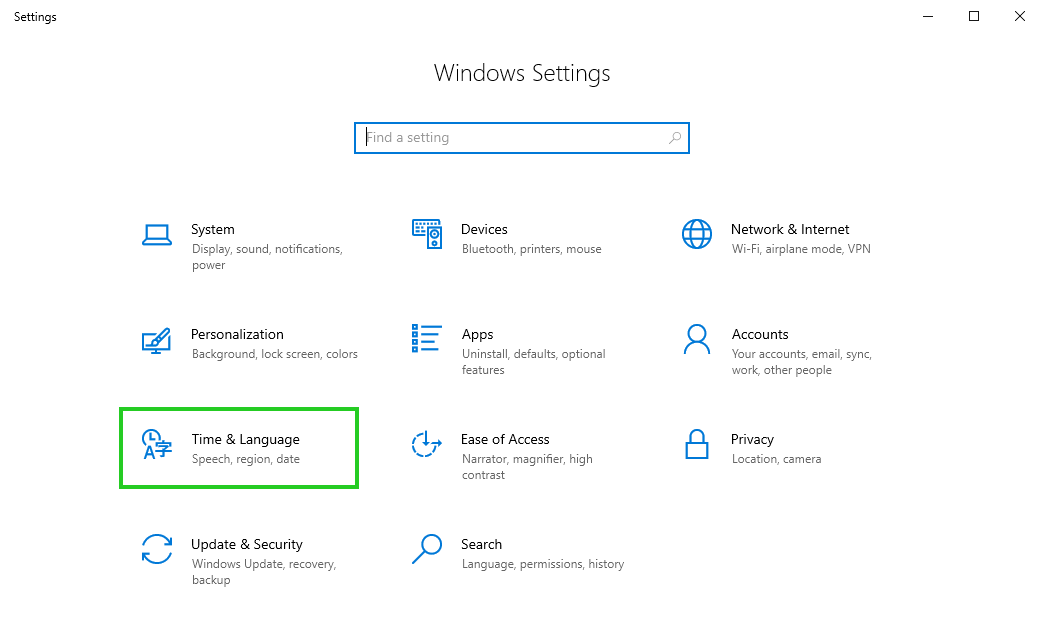
In the left bar, click Language.
Click Add a language.
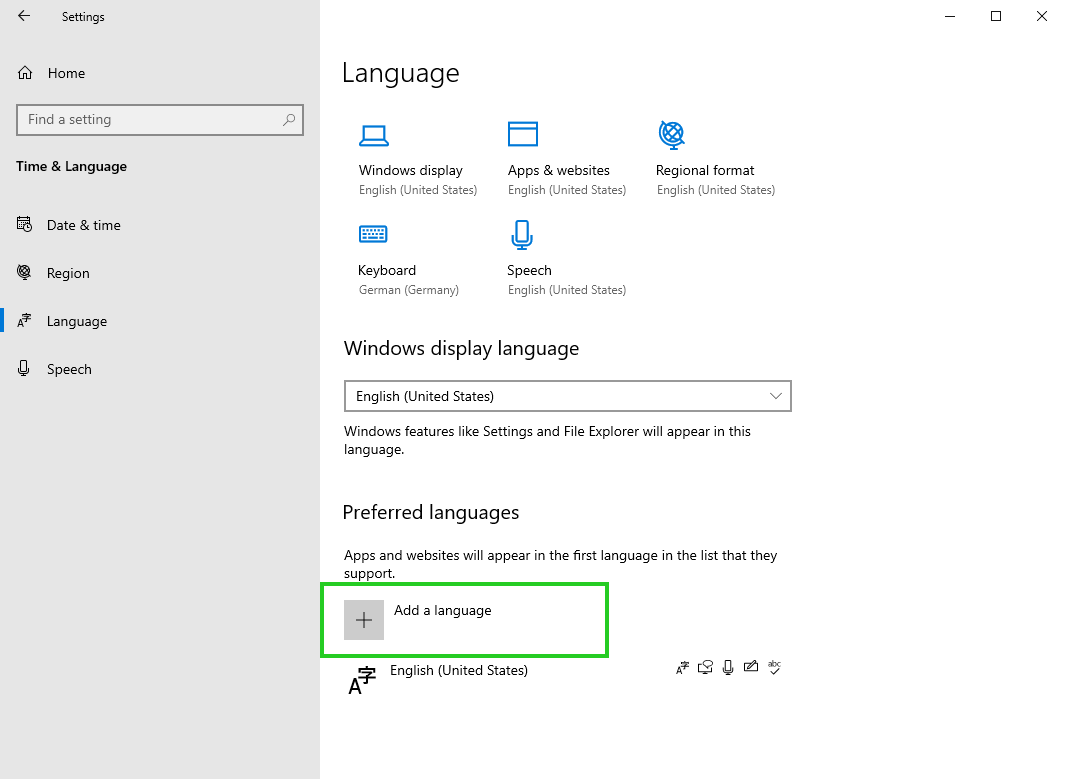
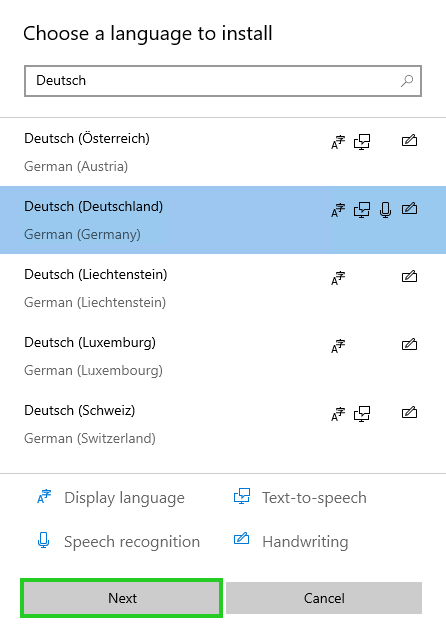
In the Choose a language to install field, enter the desired language and then select it.
Click Next.
If you are using Windows Server 2022, enable the Set as my Windows display language option. If you are using Windows Server 2019, skip to the next step.
Click Install.
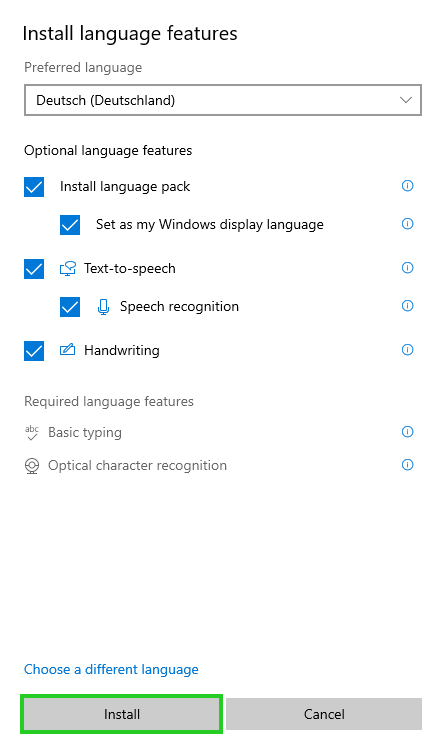
The language you chose is now installed. It will be displayed in the overview and automatically selected as the Windows display language next time you log in.