Object Storage: Managing cross-origin resource sharing (CORS) rules
Valid for VPS+ and migrated Cloud Servers.
This article walks you through adding, editing, disabling, and deleting cross-origin resource sharing (CORS) rules for a bucket.
Cross-origin resource sharing (CORS) lets you control exactly which outside websites are allowed to access the files in your storage. CORS is useful if you need to provide resources from your bucket to web applications hosted on different domains.
Add a rule to cross-origin resource sharing (CORS)
- Log in to your IONOS account.
Click on Menu > Servers & Cloud in the title bar.
Optional: If you have multiple server contracts, select the desired contract.
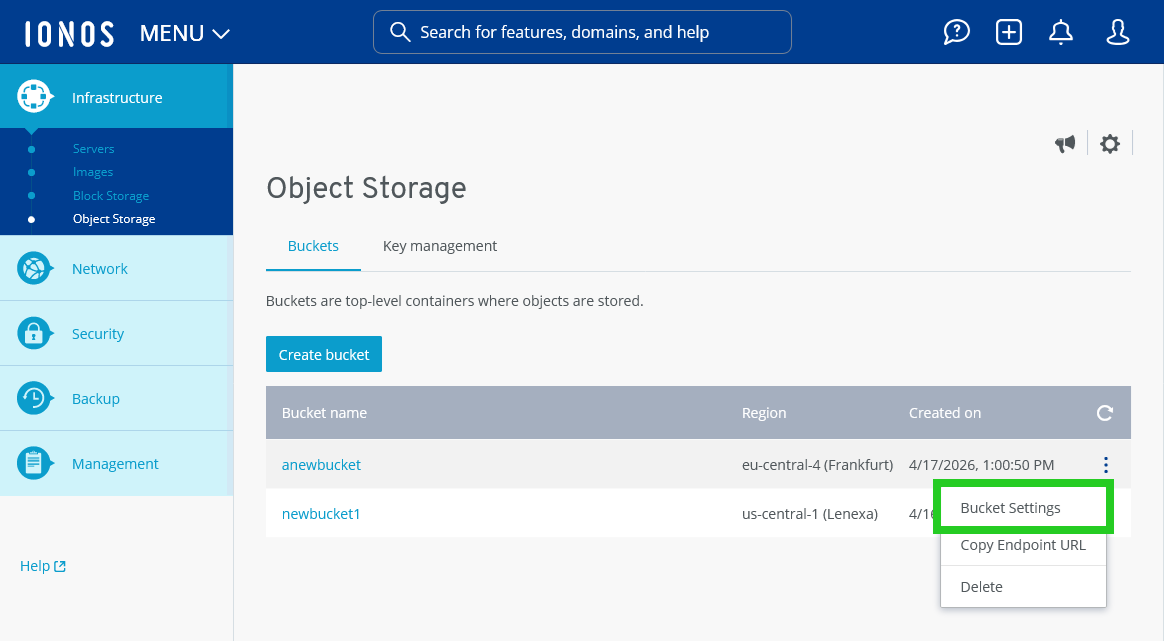
- Click on Infrastructure > Object Storage.
- Click on the three-dot icon in the line with the bucket name.
- Click on Bucket Settings. The Bucket settings area opens.
- Click on Cross-Origin Resource Sharing (CORS) in the Access management section.
- Click on Add a rule. The CORS Rule window opens.
- Enter the desired rule name in the Rule name field.
- Find the Allowed origins field, and enter the full domain of the client from which you want to access the content of your bucket. The domain should start with a protocol identifier such as HTTPS and end with a host name, e.g. https://*.example.com. You can add one or more origins.
- Find the Allowed headers (Optional) field, and enter the headers that are specified in the Access-Control-Request-Headers header.
- Find the Allowed methods section, and select the desired method (e.g. GET). to allow interaction with your Object Storage bucket. You can activate or restrict the following API methods:
GET: Retrieve the CORS configuration of the bucket.
POST: Create a new bucket.
PUT: Update the properties or content of the bucket.
HEAD: Retrieve the metadata of the bucket.
DELETE: Delete a bucket. - Find the Expose headers (Optional) section, and select the header in the response that customers should be able to access through their applications.
- Find the Max age (optional) section, and enter the maximum duration that a browser can cache the preflight response. The Object Storage bucket can accept additional requests of the same origin while the preflight response is being cached.
- Click on Add a rule.
The rule will be added.
Edit a rule for cross-origin resource sharing (CORS)
Requirement
You are in the Infrastructure > Object Storage > Bucket settings area of the Cloud Panel.
- Click on Cross-Origin Resource Sharing (CORS) in the Access management section.
- Click on the pencil icon to the right of the method with the desired rule. The CORS Rule window opens.
- Customise the desired settings.
- Click on Save Changes.
Delete a rule from cross-origin resource sharing (CORS)
Requirement
You are in the Infrastructure > Object Storage > Bucket settings area of the Cloud Panel.
- Click on Cross-Origin Resource Sharing (CORS) in the Access management section.
- Click on the recycle bin icon to the right of the method with the desired rule. The Remove the rule ? window opens.
- Click on Delete.
The rule will be deleted.