Object Storage: Managing the Lifecycle
Valid for VPS+ and migrated Cloud Servers.
This article walks you through adding, editing, disabling, and deleting Lifecycle rules for a bucket. The Lifecycle automates the retention management of objects and their versions. Define rules for deleting or archiving data according to specific prefixes for granular control.
Add a rule to the Lifecycle
- Log in to your IONOS account.
Click on Menu > Servers & Cloud in the title bar.
Optional: If you have multiple server contracts, select the desired contract.
- Click on Infrastructure > Object Storage.
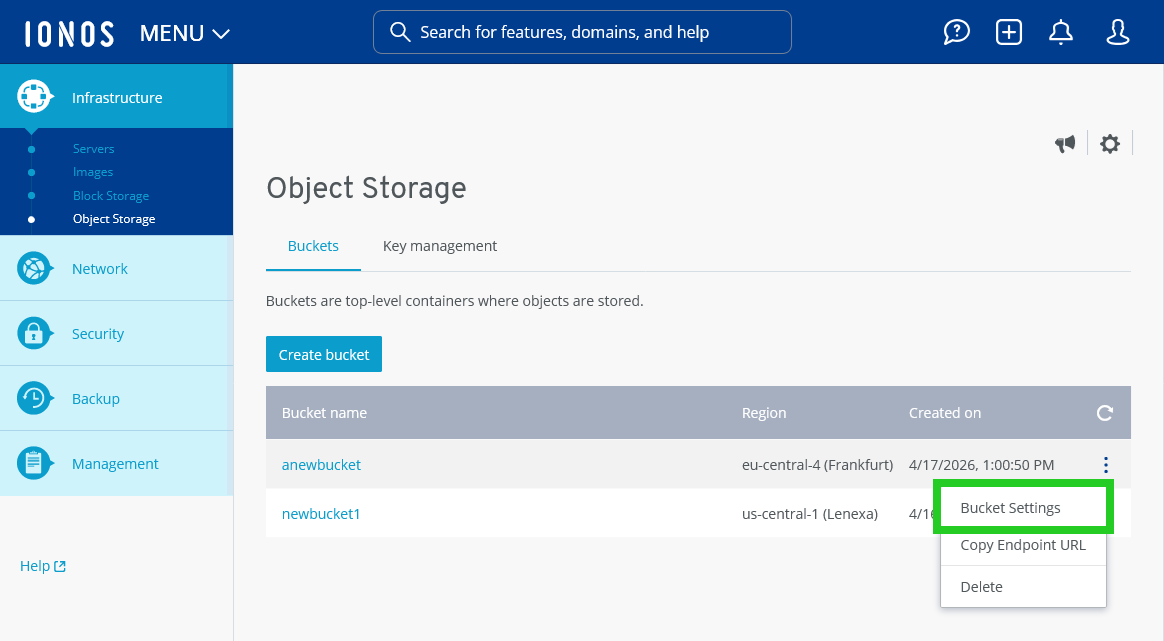
- Click on the three-dot icon in the line with the bucket name.
- Click on Bucket Settings. The Bucket settings area opens.
- Click on Lifecycle in the Data management section.
- Click on Add a rule. The Add Lifecycle Rule window opens.
- In the Set Rule Scope section, select whether the Lifecycle rule should apply to all objects in this bucket, or objects filtered by prefix.
- In the Select an action section, activate one or more actions.
Expire current versions: This action sets a time limit for how long an object remains the "current" version. When that timer runs out, the outcome depends on your bucket:
If Versioning is ON: Your data is not deleted. Instead, the system moves the object to a "non-current" version and creates a "deletion marker" to take its place as the current version. To keep your bucket clean, this rule also automatically permanently deletes orphaned deletion markers (markers left behind after all underlying older versions are gone).
If Versioning is OFF: Because there is no version history to fall back on, the object is permanently deleted from storage.
Permanently delete noncurrent versions of objects: This action requires bucket versioning to be enabled. This rule automatically frees up storage by permanently deleting "non-current" versions of an object after a set time. An object version becomes non-current the moment you upload a newer version of it or delete it (which creates a deletion marker).
Object Lock rules always override lifecycle expiration. If a non-current version reaches its scheduled expiry date but is still protected by an active Object Lock, the system waits. It will automatically delete the file shortly after the lock officially expires.
Delete expired object delete markers: This action requires Versioning enabled and "Expire current versions" active. This action automatically cleans up your bucket by removing "orphaned" deletion markers. When you delete an object in a versioned bucket, the system doesn't erase the data. Instead, it creates a delete marker to act as the newest version. If your lifecycle rules eventually delete all the older, underlying versions of that file, the delete marker is left behind with nothing to mark. This rule detects these useless, orphaned markers and automatically deletes them within a few hours to keep your system organised.
Delete incomplete multipart uploads: This action stops all incomplete multi-part uploads and allows for the automatic deletion of incomplete multipart uploads, freeing up storage space, and ensuring the bucket remains clean and organised. The multipart upload makes it easier to upload large objects in parts. However, if an upload is incomplete, it will consume storage space. - Click Save to add the new rule to the Lifecycle.
Edit Lifecycle rules
Requirement
You are in the Infrastructure > Object Storage > Bucket settings area of the Cloud Panel.
- Click on Lifecycle in the Data management section.
- Click on the pencil icon to the right of the rule to edit it. The Edit Lifecycle Rule window opens.
Make the desired changes.
Set rule scope: Select whether the Lifecycle rule should apply to all objects in this bucket or objects filtered by prefix.
Expire current versions: This action sets a time limit for how long an object remains the "current" version. When that timer runs out, the outcome depends on your bucket:If Versioning is ON: Your data is not deleted. Instead, the system moves the object to a "non-current" version and creates a "deletion marker" to take its place as the current version. To keep your bucket clean, this rule also automatically permanently deletes orphaned deletion markers (markers left behind after all underlying older versions are gone).
If Versioning is OFF: Because there is no version history to fall back on, the object is permanently deleted from storage.
Permanently delete noncurrent versions of objects: This action requires bucket versioning to be enabled. This rule automatically frees up storage by permanently deleting "non-current" versions of an object after a set time. An object version becomes non-current the moment you upload a newer version of it or delete it (which creates a deletion marker).Object Lock rules always override lifecycle expiration. If a non-current version reaches its scheduled expiry date but is still protected by an active Object Lock, the system waits. It will automatically delete the file shortly after the lock officially expires.
Delete expired object delete markers: This action requires Versioning enabled and "Expire current versions" active. This action automatically cleans up your bucket by removing "orphaned" deletion markers. When you delete an object in a versioned bucket, the system doesn't erase the data. Instead, it creates a delete marker to act as the newest version. If your lifecycle rules eventually delete all the older, underlying versions of that file, the delete marker is left behind with nothing to mark. This rule detects these useless, orphaned markers and automatically deletes them within a few hours to keep your system organised.
Delete incomplete multipart uploads: This action stops all incomplete multi-part uploads and allows for the automatic deletion of incomplete multipart uploads, freeing up storage space, and ensuring the bucket remains clean and organised. The multipart upload makes it easier to upload large objects in parts. However, if an upload is incomplete, it will consume storage space.- Click on Save.
The modified Lifecycle rule will be saved.
Disable Lifecycle rule
Requirement
You are in the Infrastructure > Object Storage > Bucket settings area of the Cloud Panel.
- Click on Lifecycle in the Data management section.
- Click on the blue slider to the right of the rule to disable it. The slider moves to the left.
The Lifecycle rule will be deactivated.
Delete rule from the Lifecycle
Requirement
You are in the Infrastructure > Object Storage > Bucket settings area of the Cloud Panel.
- Click on Lifecycle in the Data management section.
- Click on the recycle bin icon to the right of the rule. The Delete lifecycle rule window opens.
- Click on Delete.
The rule will be deleted from the Lifecycle.