Object Storage: Static website hosting
Valid for VPS+ and migrated Cloud Servers.
This article walks you through enabling, editing, and disabling static website hosting from a bucket.
With Object Storage, you can host static website content such as HTML, CSS, JavaScript, and images, eliminating the need for an external web server. You have the option of defining an index page and an error page, and linking a custom domain to your bucket.
Notes
- The hosting of static websites is disabled for a bucket by default. If you activate this setting, all objects in the bucket become publicly readable.
- Static website hosting is not suitable for dynamic websites that require server-side processing, such as PHP and Python.
Activate static website hosting
To activate static website hosting, complete the following:
- Log in to your IONOS account.
Click on Menu > Servers & Cloud in the title bar.
Optional: If you have multiple server contracts, select the desired contract.
- Click on Infrastructure > Object Storage.
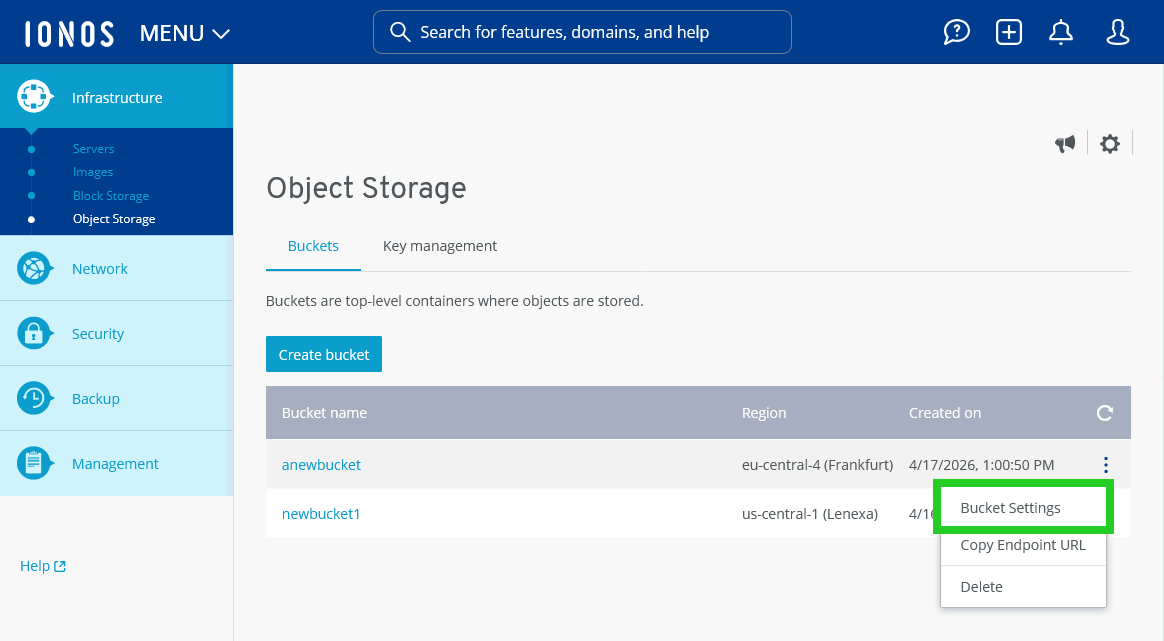
- Click on the three-dot icon in the line with the bucket name.
- Click on Bucket Settings. The Bucket settings area opens.
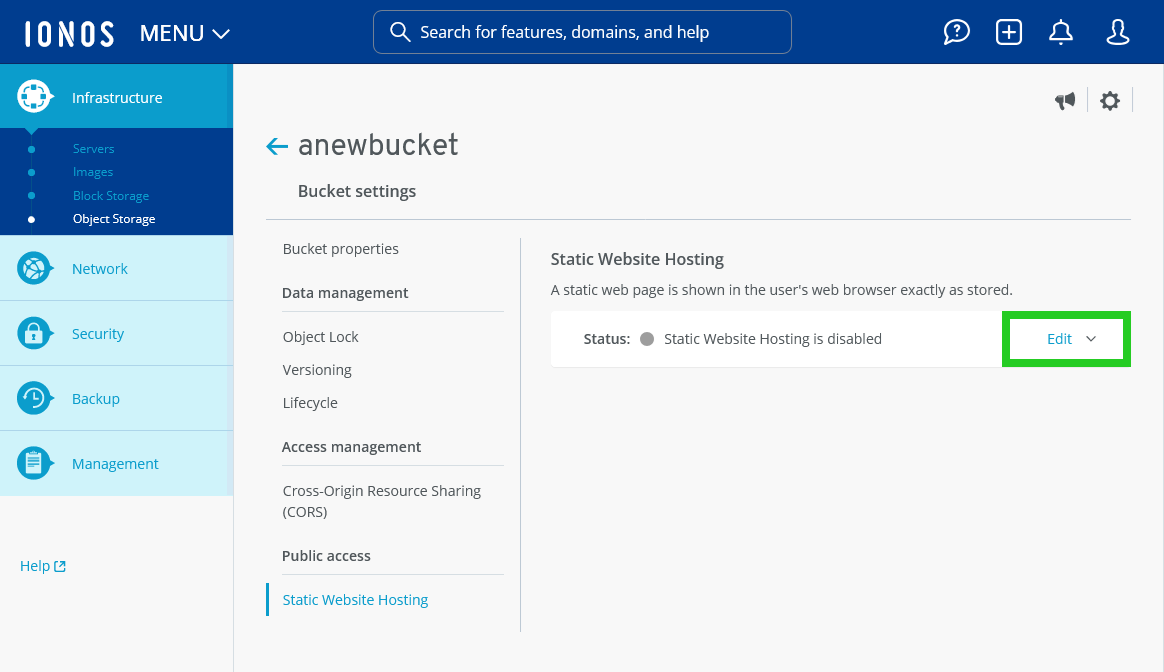
- Click on Static Website Hosting in the Public access section.
- Click on Edit.
- Enter the desired index or home page of the website in the Index document field.
- Enter the desired error page in the Error document field.
- Click on Enable.
Edit static website hosting
Requirement
You are in the Infrastructure > Object Storage > Bucket settings area of the Cloud Panel.
- Click on Static Website Hosting in the Public access section.
- Click on Edit.
- Make the desired changes.
- Click on Save Changes.
Disable static website hosting
Requirement
You are in the Infrastructure > Object Storage > Bucket settings area of the Cloud Panel.
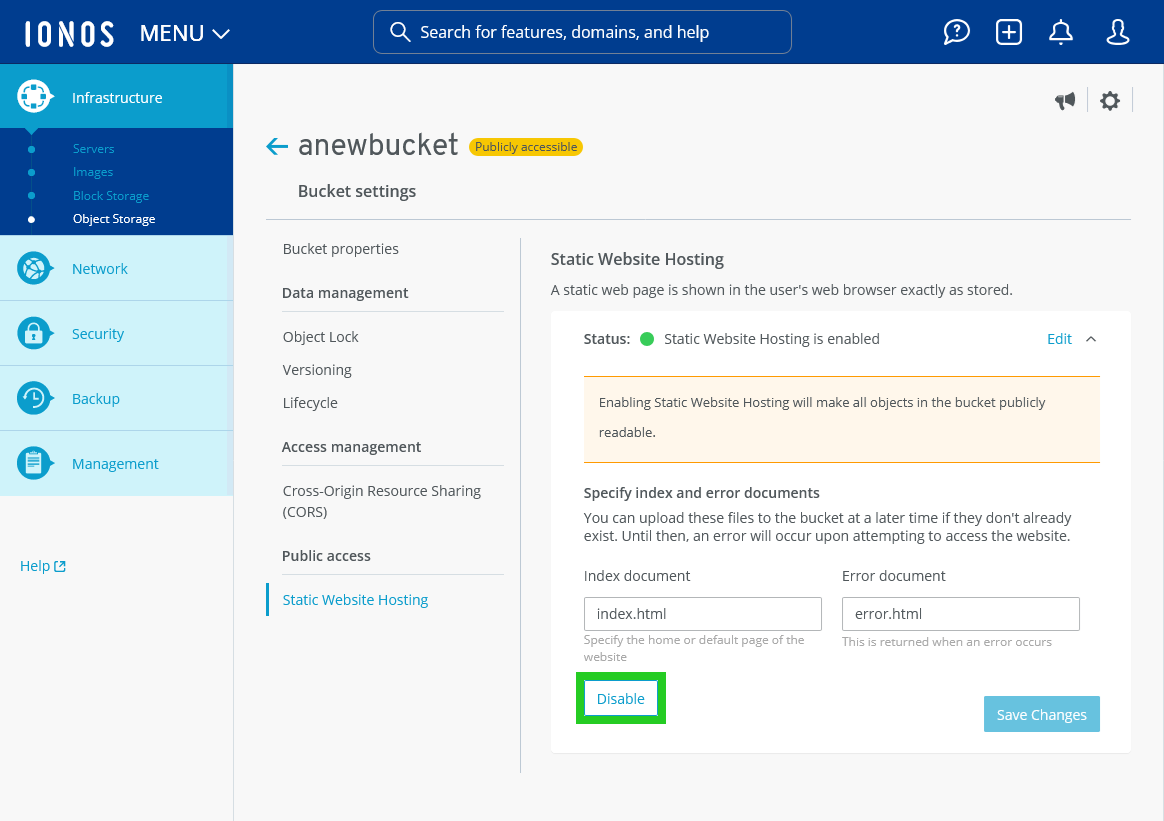
- Click on Static Website Hosting in the Public access section.
- Click on Edit.
- Click on Disable.