Checking server storage space
Valid for VPS+, VPS, migrated Cloud Servers, Cloud Servers, Dedicated Servers, and Bare Metal Servers.
This article explains how to check the free and used space of a hard disk or SSD.
Linux
To view the free space of the entire file system, enter the following command:
root@localhost:~# df -h
To view the used space of the entire file system, use the following command:
root@localhost:~# du -sh /
Use the following command to display the size of the subdirectories of the current path:
root@localhost:~# du -shx ./* | sort -h
Microsoft Windows
Double-click Explorer at the bottom of the taskbar.
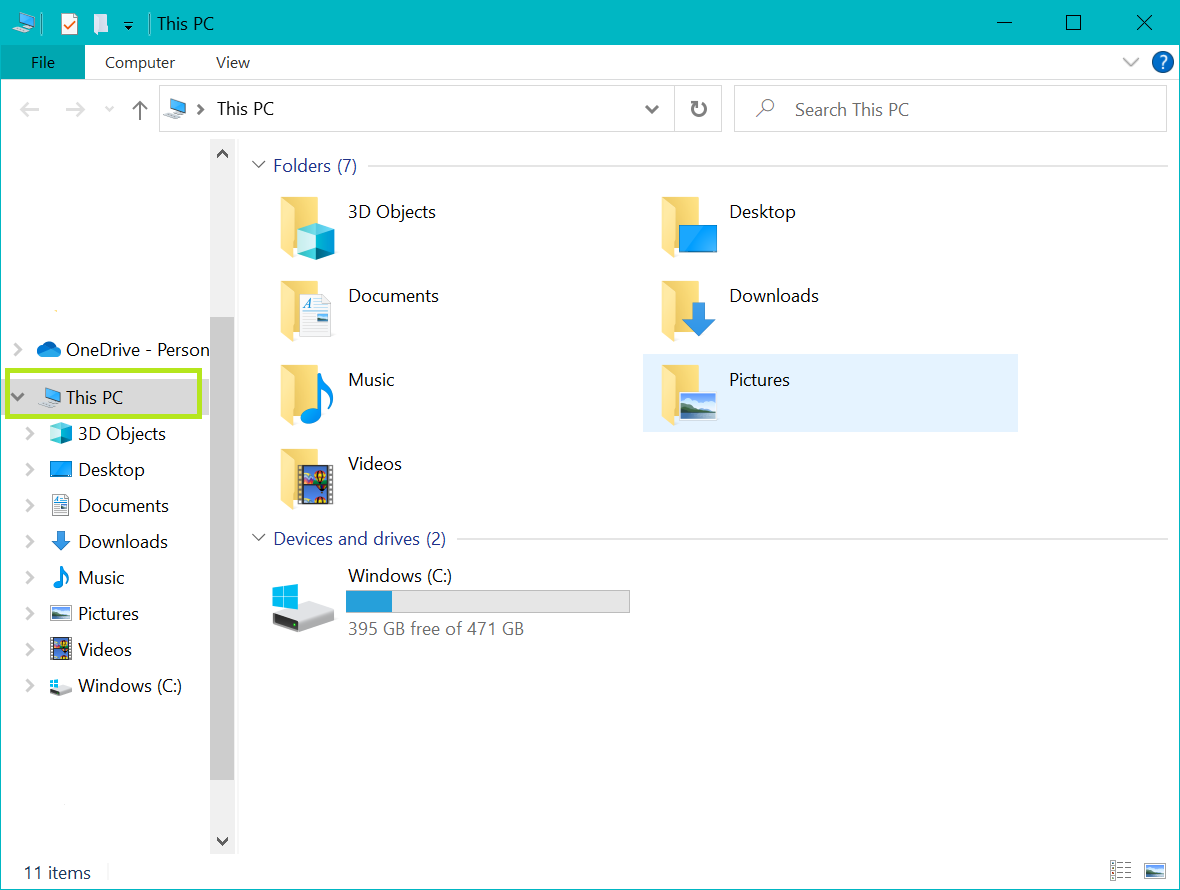
On the left side, click This PC.
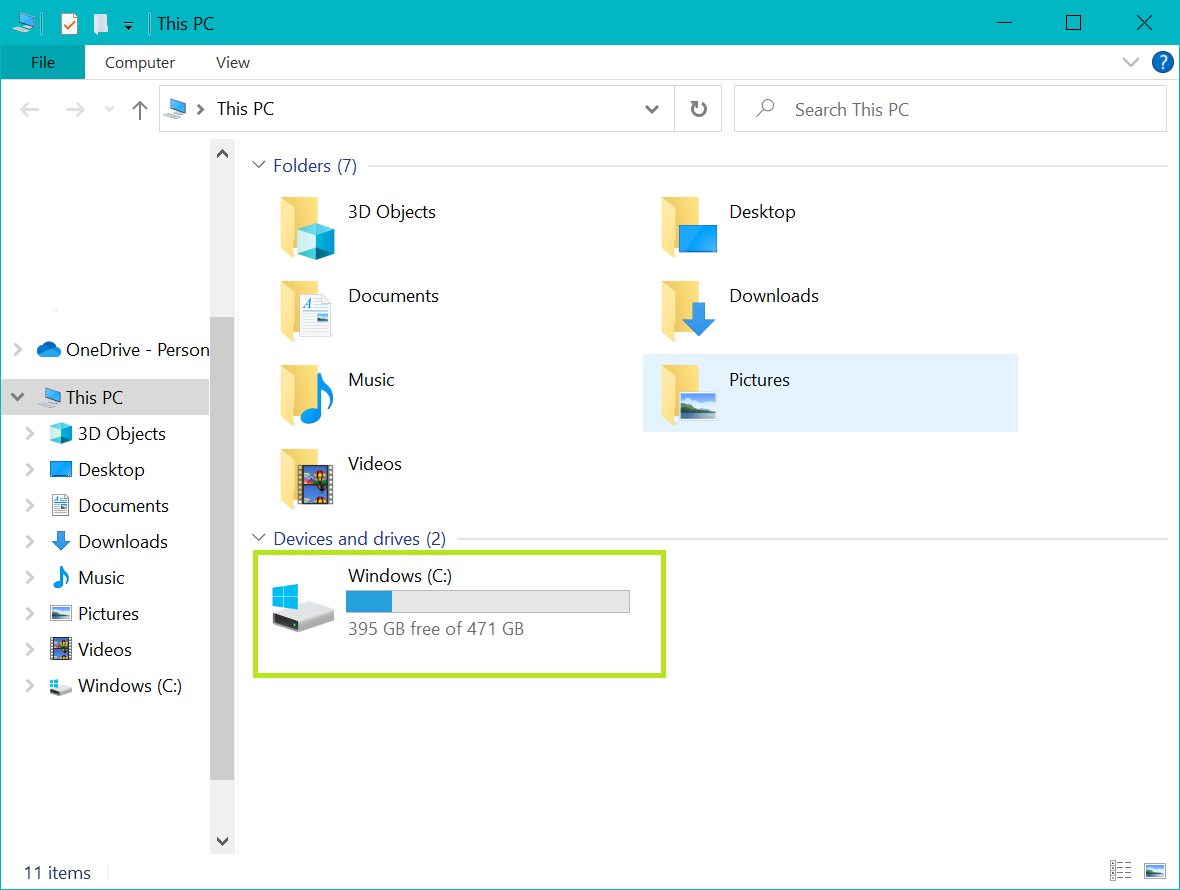
The available and used space is displayed in the Devices and Drives area.
Plesk
To check disk space usage using Plesk, you need Diskspace Usage Viewer.
Install Diskspace Usage Viewer
To install Diskspace Usage Viewer, do the following:
Log in to Plesk.
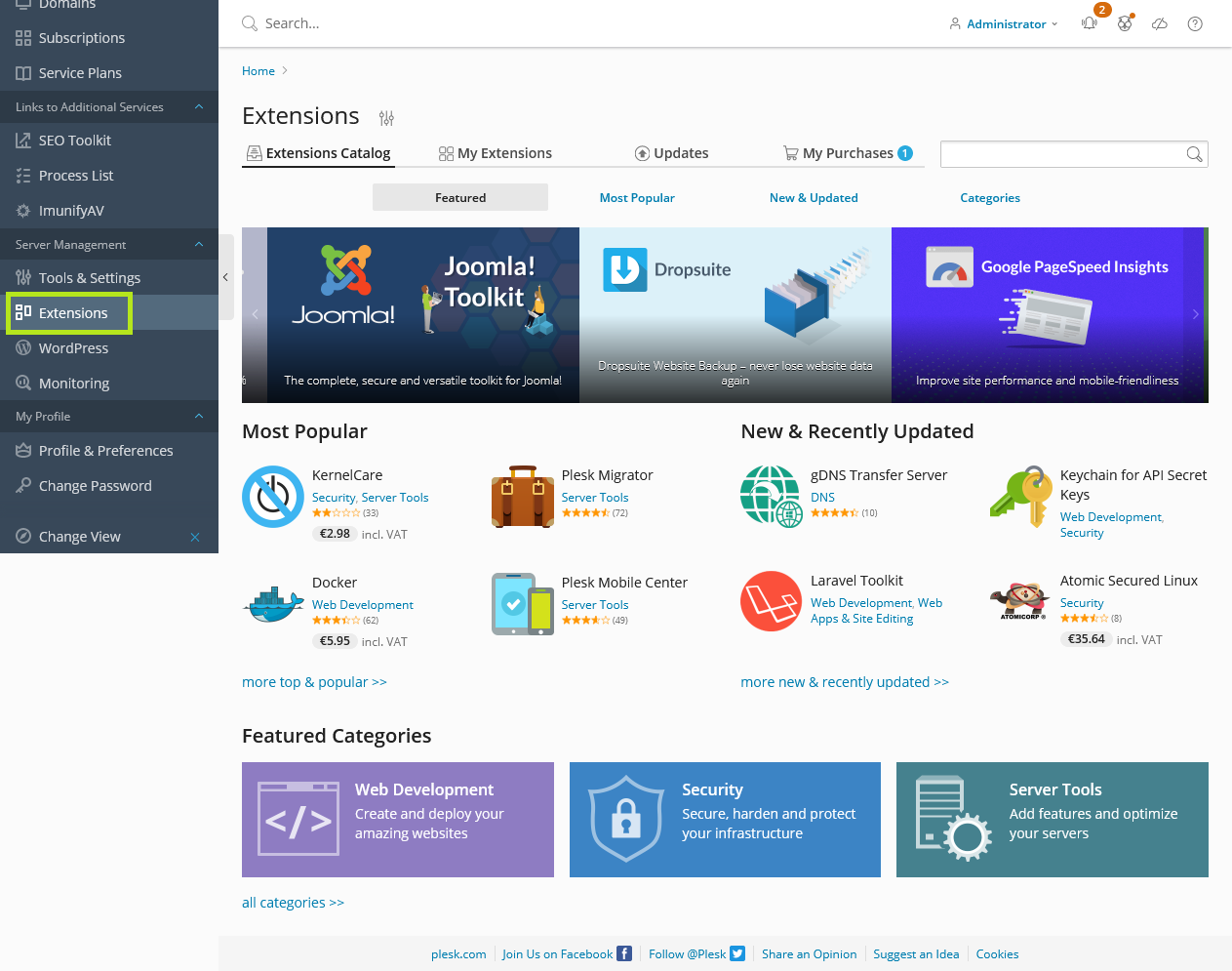
In the navigation bar on the left, click Extensions.
Enter the term Diskspace Usage Viewer in the search bar at the top right.
To install Diskspace Usage Viewer, click Use for free.
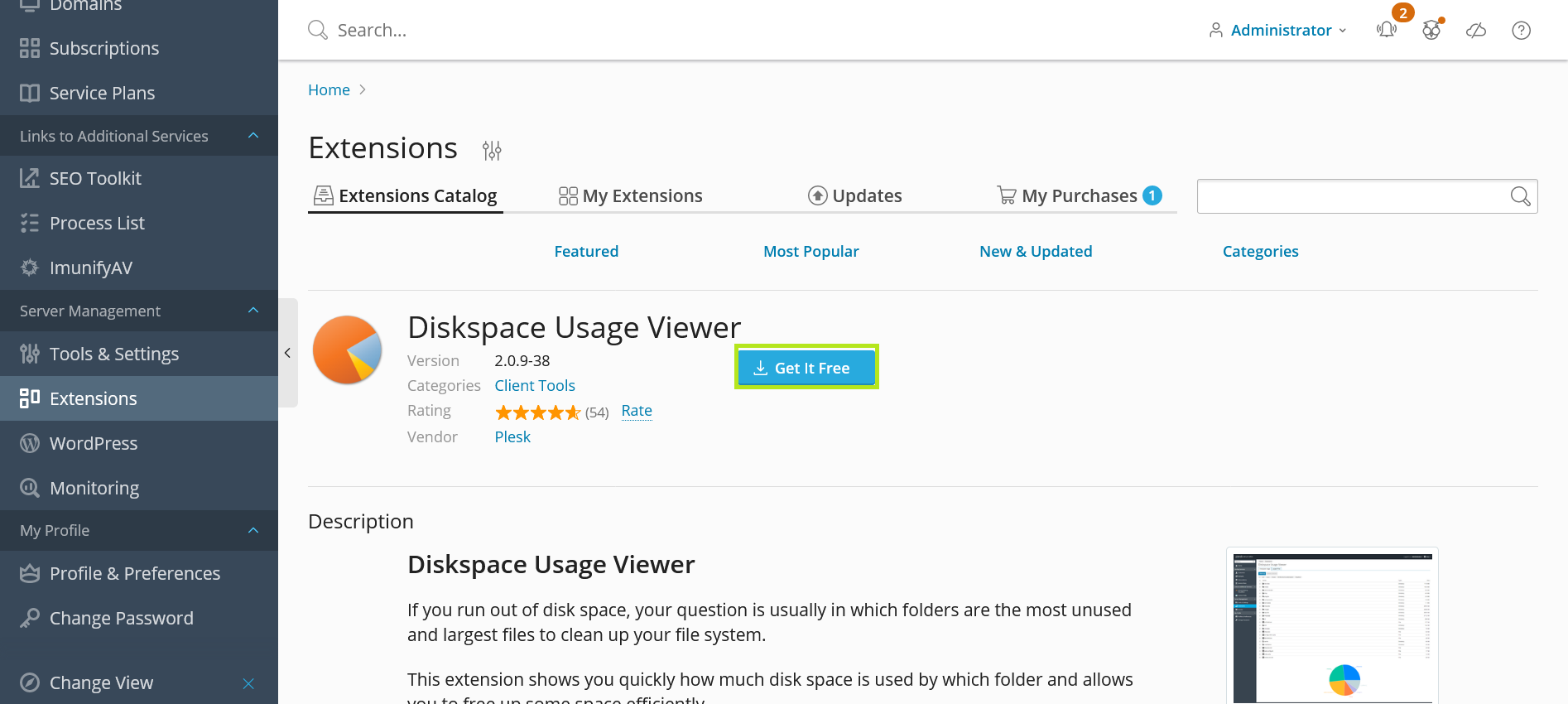
The Diskspace Usage Viewer will now be installed.
View used disk space
In the Extensions > My Extensions section, click Open in the Disk Space Usage Viewer area. You will then see the existing directories and their respective used disk space.