Managing SSL certificates in your IONOS account
This article explains which management options are available for your SSL certificates in your IONOS account and how to use them.
Do you need basic instructions for setting up your SSL certificate? The following article walks you through the first steps: Secure Your Website with SSL Encryption
SSL management at a glance
In the SSL management of your IONOS account, you can perform the following actions:
- View information about your certificates and their status
- Change the usage of a certificate
- Assign an SSL certificate to another domain
- Reissue an SSL certificate
- Unassign a certificate from a domain
- Download certificate files for manual installation
Opening SSL management and viewing certificate information
To open the management page for your SSL certificates and view detailed information about an SSL certificate, complete the following steps:
- Log in to your IONOS account.
- Click Menu > Domains & SSL in the title bar. The overview of your domains opens.
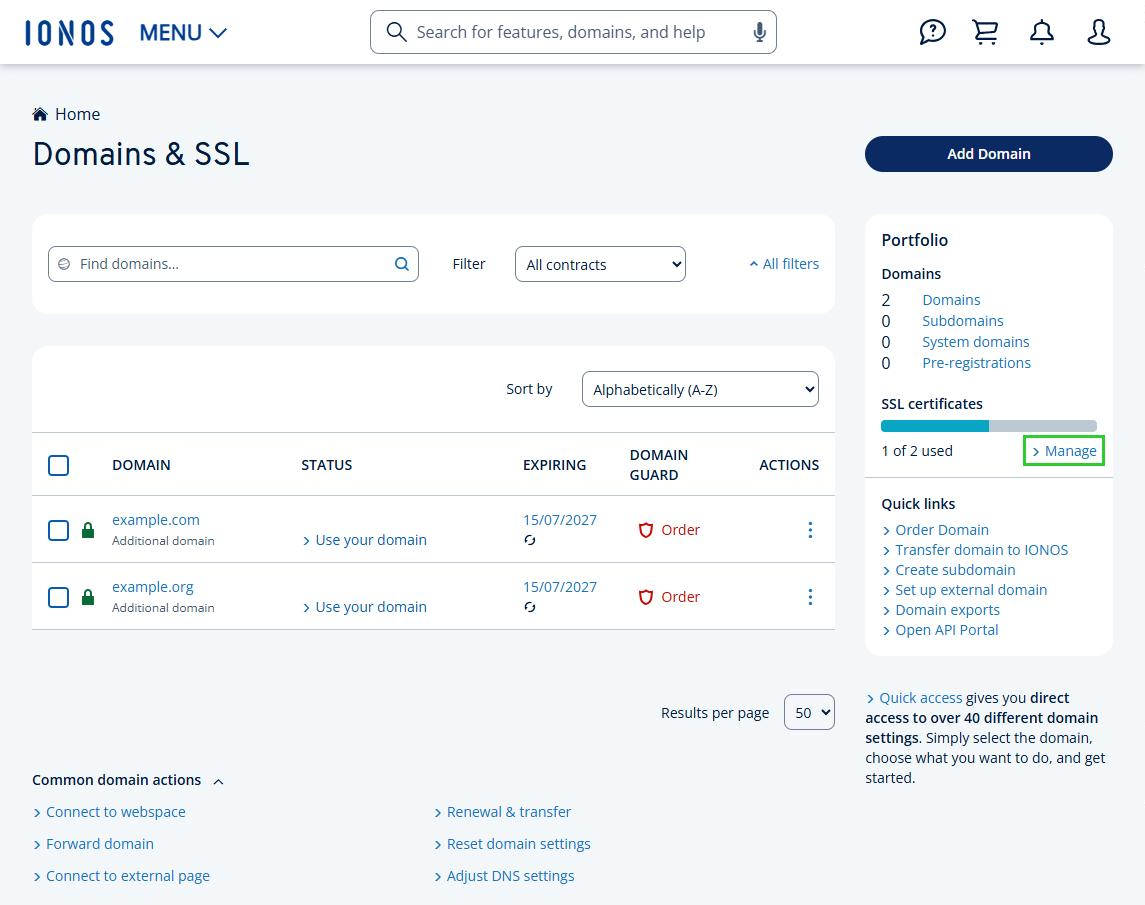
- In the Portfolio tile, under SSL certificates, click Manage. The overview of your SSL certificates opens.
- Click the SSL certificate you want to manage. The Certificate Information tab of the certificate settings opens. It shows the certificate type, the validity period, the current status, and more.
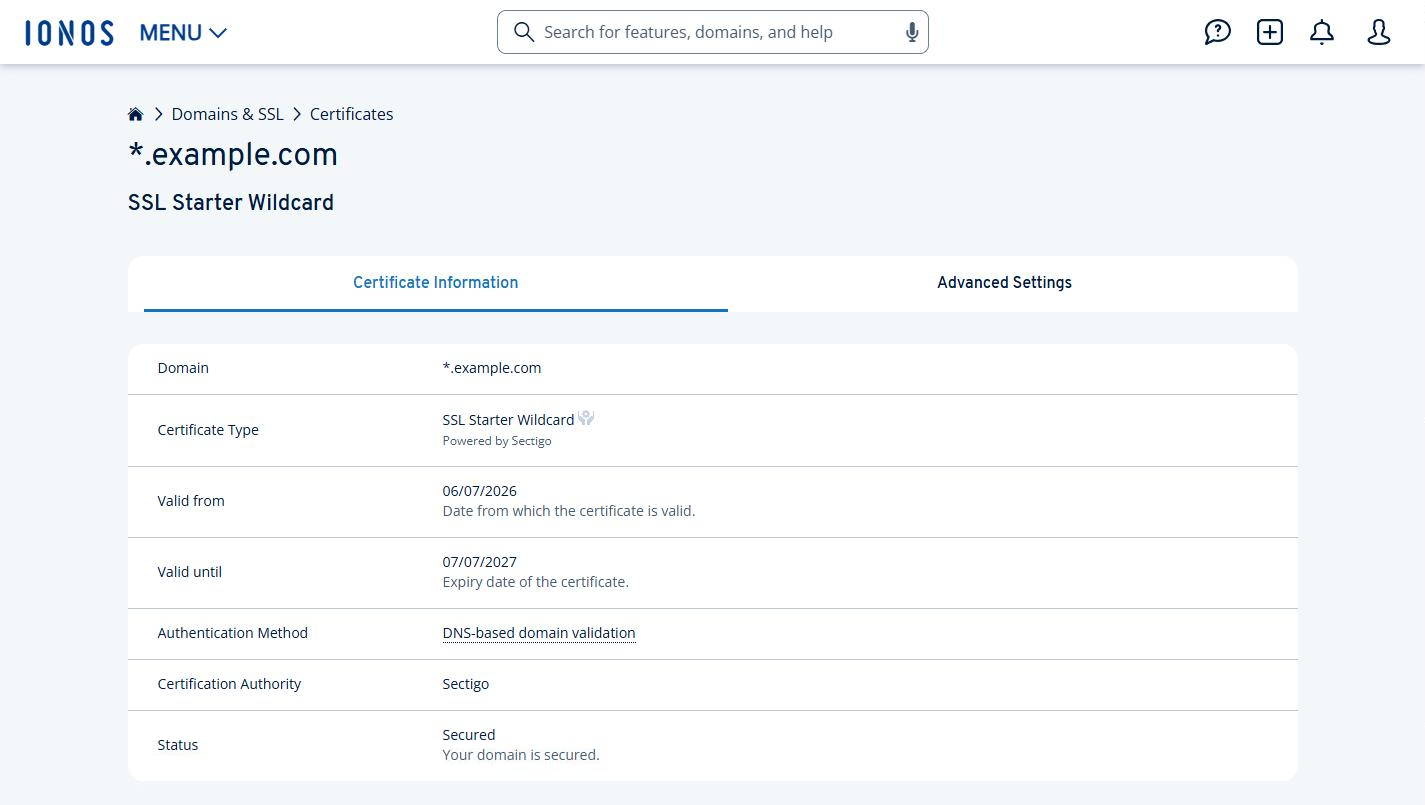
- To display the management actions available for your certificate, click the Advanced Settings tab.
The management actions for SSL certificates are explained below. Please note that some options are only available for user-managed SSL certificates.
Advanced Settings tab
In the Advanced Settings tab, the following management actions are available:
Changing the usage
You can change the usage of an SSL certificate at any time. This is necessary, for example, if you want to use an SSL certificate that was previously used with an IONOS website on your own server in future.
- Use with my IONOS website: The certificate is reissued and used to secure your IONOS website. You can no longer download the certificate afterwards.
- Use with my own server: The certificate is reissued, and you can download the private and public key to install the certificate yourself on a server to which you have root access.
Reassigning an SSL certificate
You can assign an SSL certificate to another domain in your web hosting package 30 days after the last assignment. The other domain must use the IONOS name servers. For more information, see the article Assigning an SSL Certificate Managed by IONOS to Another Domain.
Reissuing an SSL certificate
Use this action to have an SSL certificate reissued. For instructions, see the article Reissuing an SSL Certificate / Revoking an Old Certificate.
Unassigning an SSL certificate
This option is only available for IONOS-managed SSL certificates.
If you no longer need SSL encryption for your domain, want to change the certificate type, or want to use the SSL certificate with another domain, you can unassign it.
Please Note
If you unassign the certificate, you can no longer access website content via HTTPS for the domain in question. If your visitors are automatically redirected to the HTTPS version of your website, they will no longer be able to reach it.
Revoking an old certificate
After a new SSL certificate has been issued, we recommend revoking the old certificate. You cannot have the certificate reissued again until you have revoked the old one. For instructions, see the article Reissuing an SSL Certificate / Revoking an Old Certificate.
Certificate Files tab
In the Certificate Files tab, various actions are available for downloading the certificate files.
Note
The following actions are only available for user-managed SSL certificates. Certificates from Redirect Shield and Redirect Shield+ cannot be downloaded, because IONOS installs and renews them automatically.
- Certificate: Here you can download the certificate (public key).
- Intermediate Certificate: Here you can download the intermediate certificate. An intermediate certificate is a digital certificate issued by a certification authority. It sits in the certificate chain between the root certificate and the end-user certificate, ensuring the trustworthiness and security of the SSL/TLS connection.
- Create and Download .PFX File: If you want to install the certificate on a Windows server for use with the IIS web server, you need a certificate file in PFX format. Here you can easily create a PFX file with your certificate data.
For more information on this topic, see the article Downloading SSL Certificate Files for Manual Installation.
For more information on Redirect Shield and Redirect Shield+, see the following article: Ordering and setting up Redirect Shield and Redirect Shield+