Grouping website elements
Valid for MyWebsite Now.
This article explains how to combine individual MyWebsite Now elements into a group.
Requirement
The flexibility feature must be activated for grouping elements, as described in the Help Centre article "Positioning website elements".
What is a group?
A group, or group element, combines several individual website elements. This is used, for example, in the template for team or service pages, where each team member or service is assigned a heading, a description, and an image. Elements can be added or removed from group elements independently of other groups.
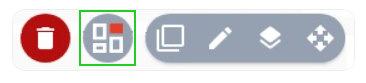
Editing options in a group:
Stack
Edit (e.g. add element)
Copy
Ungroup
Delete
Open the MyWebsite Now editor
- Log in to your IONOS account.
- Click on Menu > Websites & Shops in the title bar.
- Click on Manage website in the tile with the name of your online project, if you have multiple contracts.
The Presence Suite for this project opens. - Select Website > Website Editor in the left menu bar of the Presence Suite. The MyWebsite Now Editor opens in a new window.
Create group
If several elements in a section are functionally or graphically related, you can permanently combine them in a group. This allows you to move the entire group instead of many individual elements.
- Move your mouse over the element to be moved. The element is highlighted and a square symbol appears in the top left-hand corner.
- Click on the square icon to select the element.
- Repeat the previous step for all elements that you want to add to the group. Note that you can only add elements to the group that are surrounded by a dashed line.
- In the Multiple Select column next to the menu bar on the left-hand side, click on the Make new group button. This button is only displayed from the second selected element onwards.
- Move the mouse pointer over the newly created group. An arrow symbol is displayed in the top right-hand corner of the group.
- Move the group by moving the mouse pointer over the arrow symbol and dragging it with the left mouse button pressed. Just like when moving individual elements, a shaded grid is displayed to assist you.
Ungroup elements
To ungroup a group of elements, move the mouse pointer over the three-dot symbol and wait a short moment until it expands. The three-dot symbol is displayed in the top right-hand corner of the group next to the arrow symbol when the mouse pointer is positioned over a group.
Click on the rectangle icon to ungroup the elements.