Webmail: Creating automatic responses to an email
Valid for: Mail Basic and Mail Business
This article explains how you can use Webmail AI to reply to emails using predefined responses in IONOS Webmail.
Requirement
Webmail AI is a paid extension and is therefore not included in Webmail by default. We show you how to order Webmail AI in the article Adding Webmail AI
Log in to Webmail.
In the navigation bar on the left, click on Inbox and select the desired email.
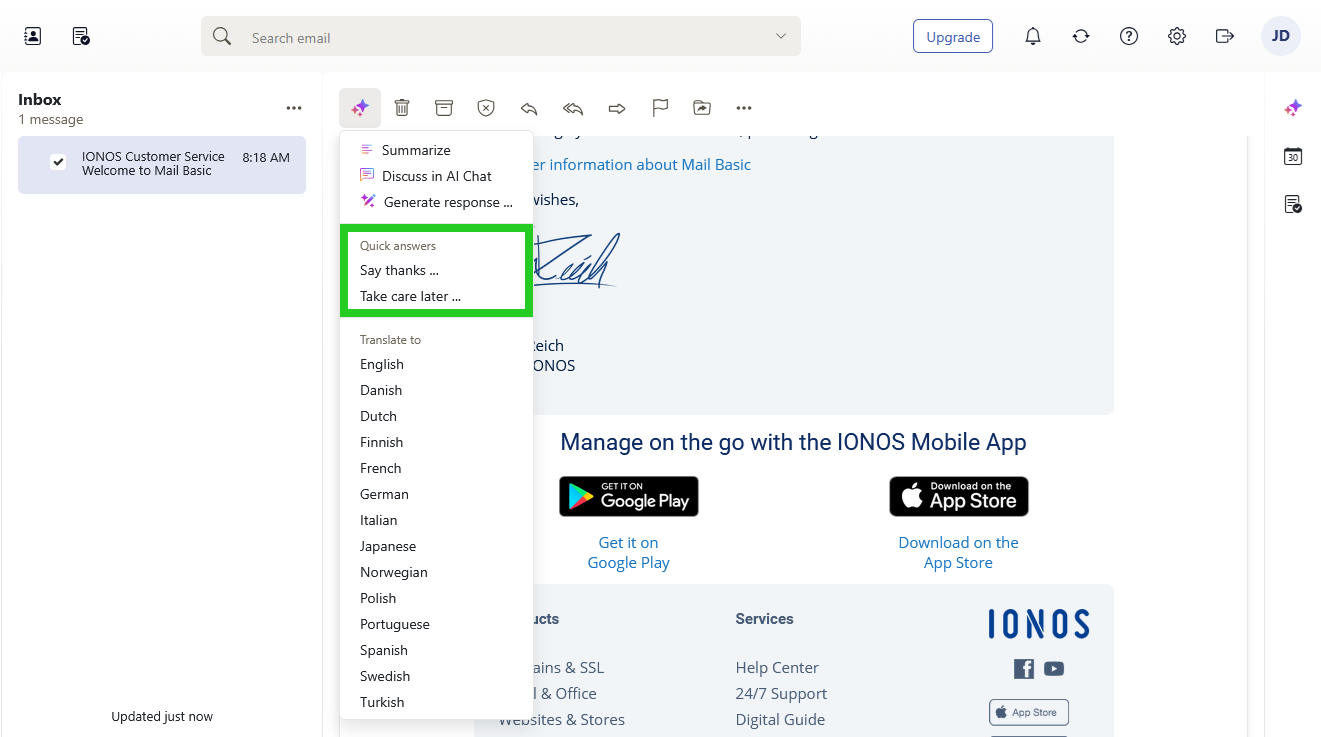
In the toolbar above the email, click on the button with the three star symbols (AI integration tooltip). A menu is displayed.
Select the desired response in the Quick answers area. The response is generated and inserted by Webmail AI.
- To have Webmail AI change text, select the desired text and click on Refine.
- Select the desired option from the list:
- Rephrase
- Proofread
- Shorten
- Elaborate
- formal
- informal
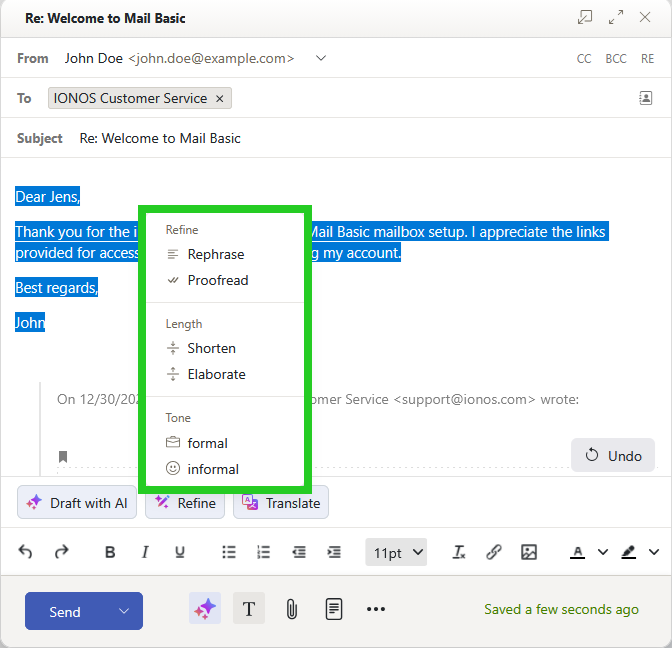
After selection, the text suggestion is automatically optimised by the AI.