Adding Webmail AI
Valid for: Mail Basic and Mail Business
With the innovative Webmail AI for Webmail, you can write, translate and summarise your emails quickly and easily with the help of artificial intelligence (AI).
In this article, we explain how to order Webmail AI and activate it for a mailbox. You will then be able to use the AI functions in Webmail.
Note
IONOS Webmail AI is an optional, chargeable extension and is not included as standard in Webmail.
Order Webmail AI
To order Webmail AI for your IONOS Webmail, complete the following:
- Log in to your IONOS account.
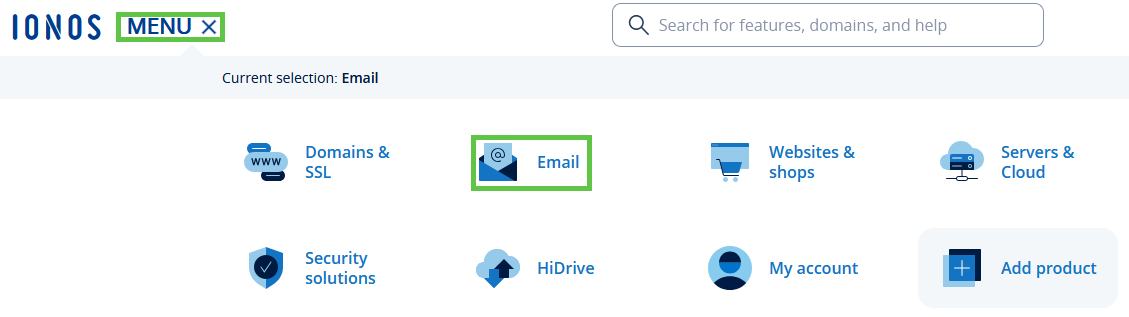
In the main navigation at the top left, click on Menu and then on Email.
Optional: If you have several email contracts, select the appropriate contract.
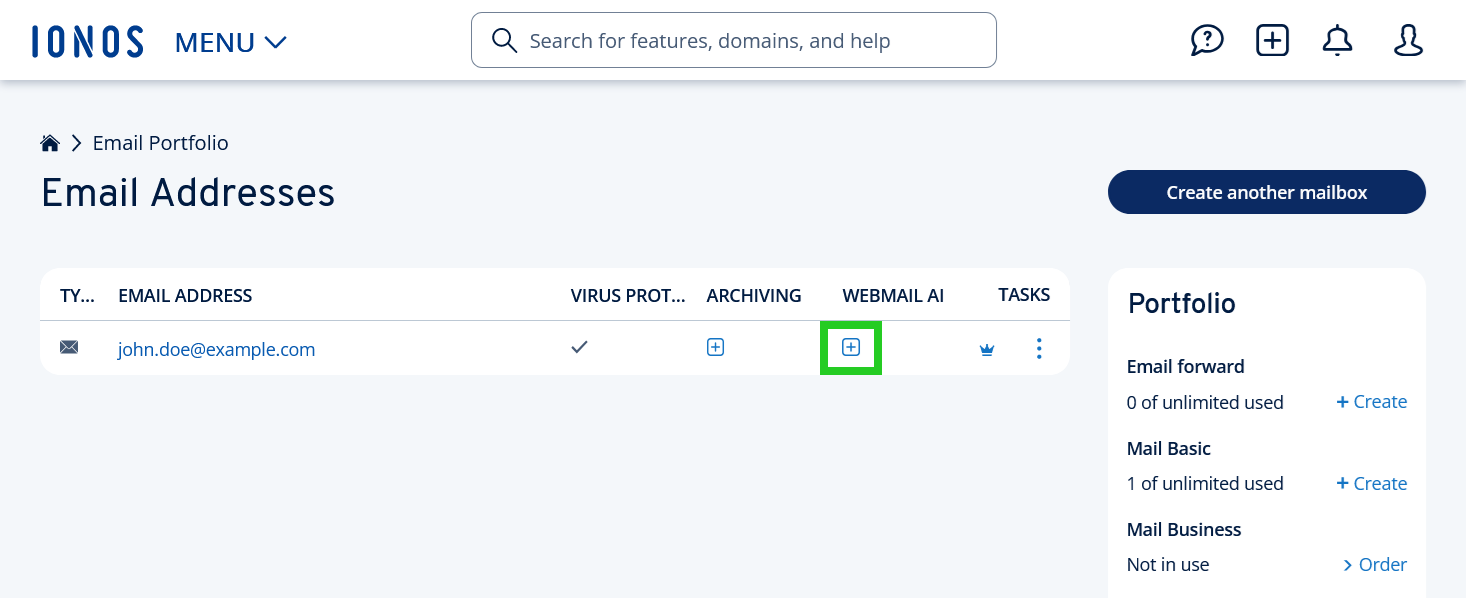
- Click on the plus sign for the desired email address in the Webmail AI column.
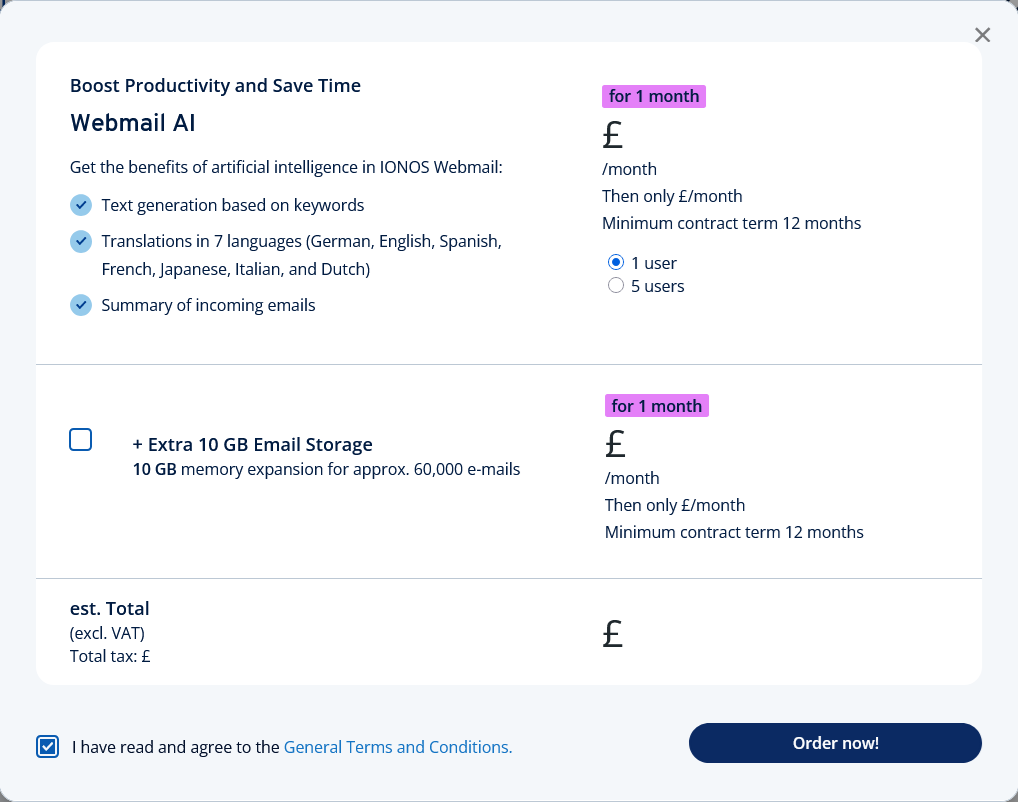
- On the page that opens, tick the checkbox indicating that you agree to the General Terms and Conditions.
- Click on Order now!
Activate Webmail AI
After ordering, you must activate Webmail AI for the desired email address:
- Log in to your IONOS account.
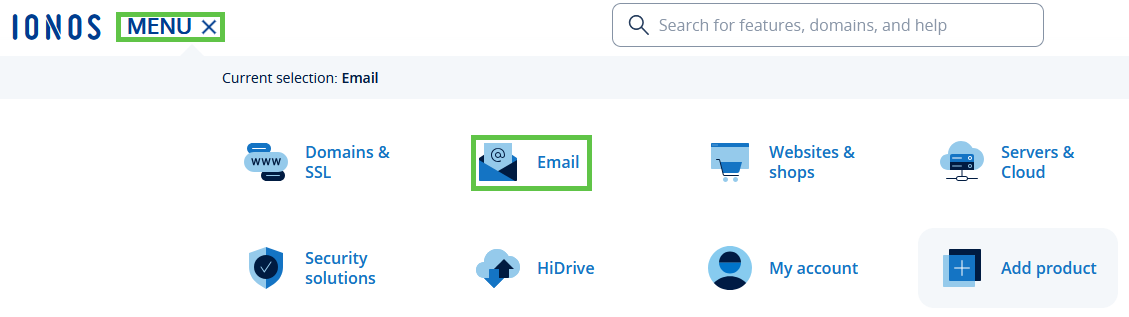
In the main navigation at the top left, click on Menu and then on Email.
Optional: If you have several email contracts, select the appropriate contract.
- Select the email address for which you would like to activate Webmail AI. A new page opens.
- Click on Webmail AI.
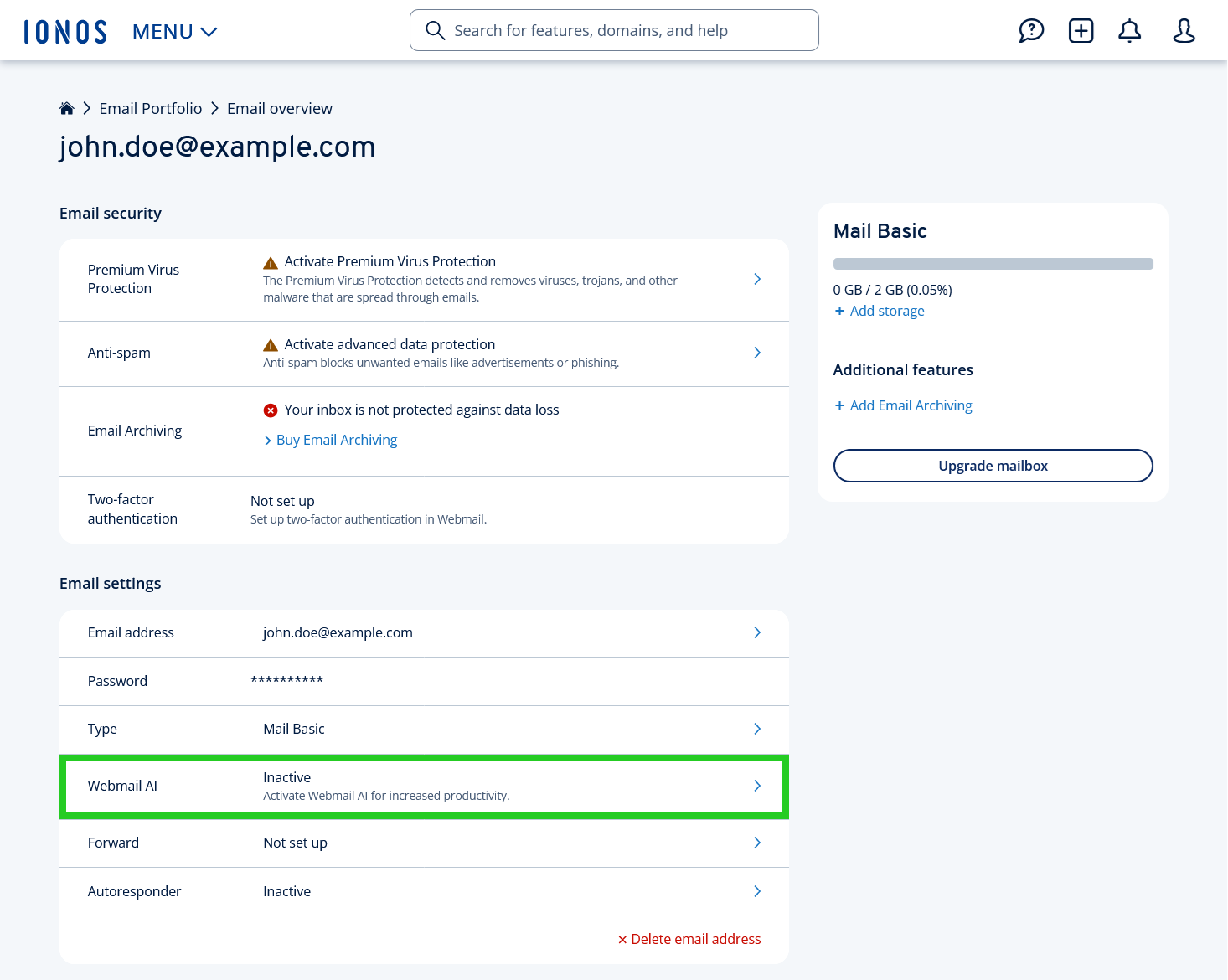
- Activate Webmail AI by moving the corresponding switch to the right.
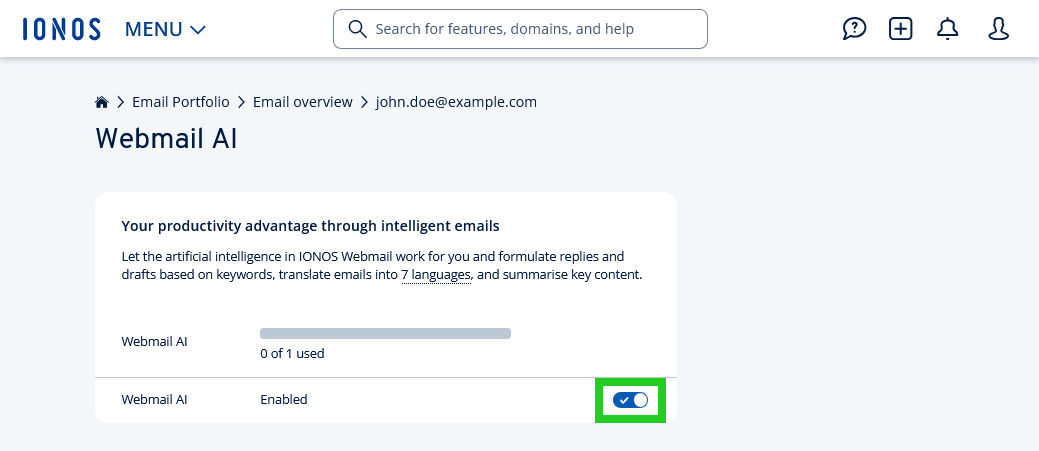
You can now use Webmail AI in your IONOS Webmail.
Please Note
If you would like to deactivate Webmail AI again, please see the following article:
Disabling Webmail AI
Additional information
In the following articles you will find useful information about Webmail AI:
Creating automatic responses to an email with Webmail AI
Translating emails with Webmail AI
Summarising emails with Webmail AI
Drafting emails with Webmail AI