Webmail: Summarising emails with Webmail AI
Valid for: Mail Basic and Mail Business
With Webmail AI, you can write, translate, and summarise your emails quickly and easily with the help of artificial intelligence (AI).
In this article, we show you how you can use AI to summarise the content of your emails in IONOS Webmail.
Note
Webmail AI is a paid extension and is therefore not included in Webmail by default. You can learn how how to order Webmail AI in the article Adding Webmail AI.
Summarising the text of an incoming email with Webmail AI
To summarise the text of an incoming email with Webmail AI:
- Log in to IONOS Webmail.
- In the left-hand navigation bar, click on Inbox and select the desired email.
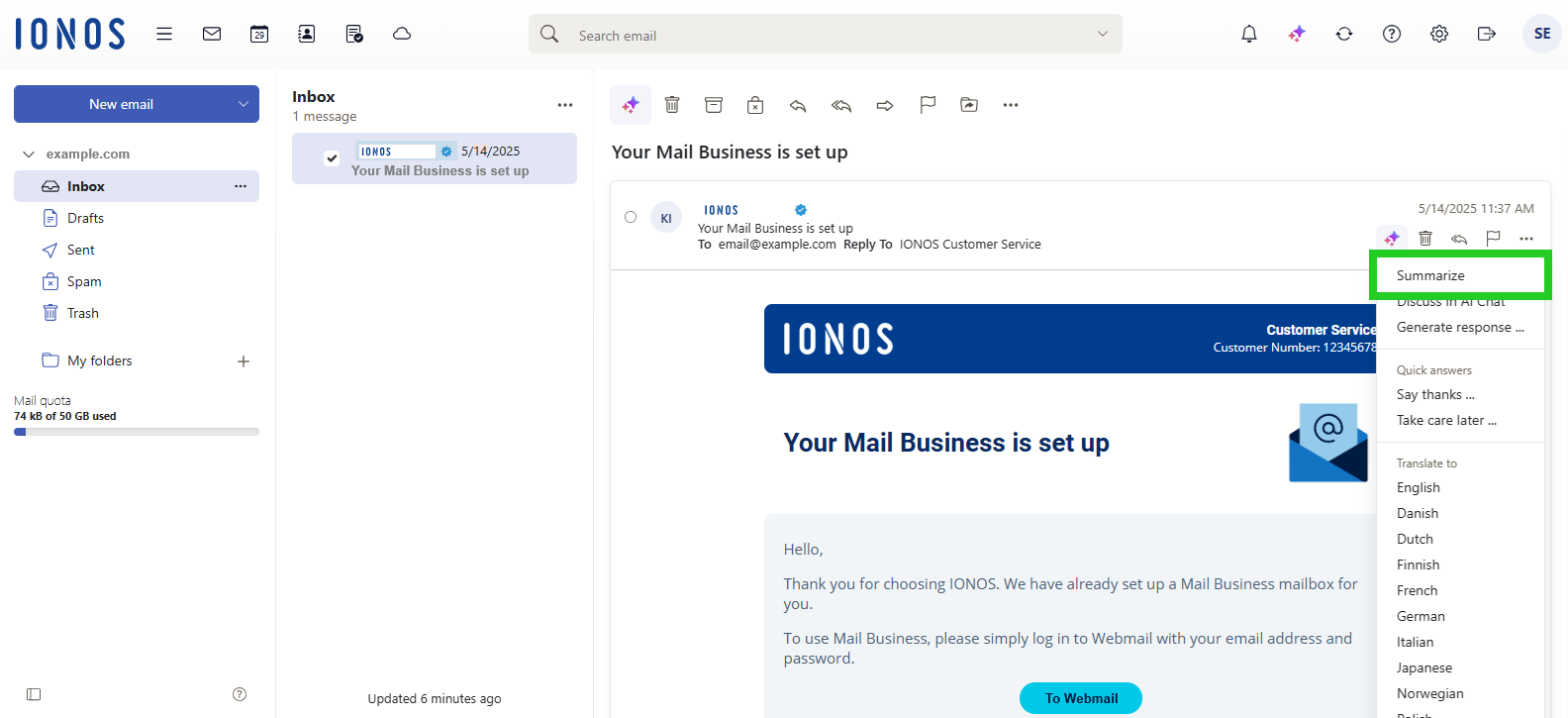
- Click on the AI button in the email toolbar and select Summarize.
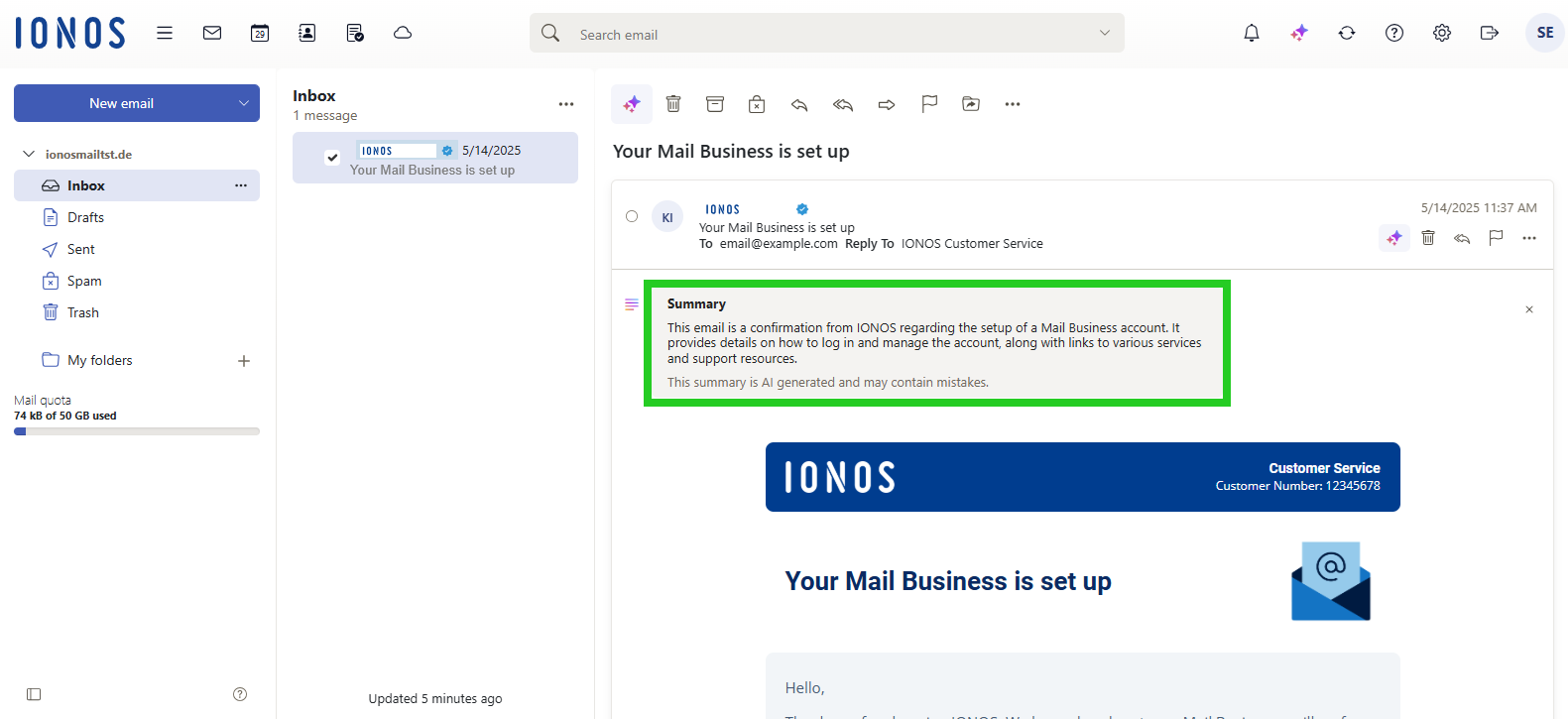
- The summary is displayed above the original email text.
Activate automatic email summary
If you have activated Webmail AI, you can also have the content of incoming emails summarised automatically. This function creates a summary for the last 10 emails in your inbox. The summary is displayed in a separate section in each summarised email. In the settings for AI usage, you can specify whether the summaries should be displayed in the list view, in the detailed view, or both.
In the AI usage settings, you can also define whether the summaries consist of 1 sentence, up to 3 sentences, or up to 5 sentences. To activate the automatic email summary, complete the following:
- Log in to IONOS Webmail.
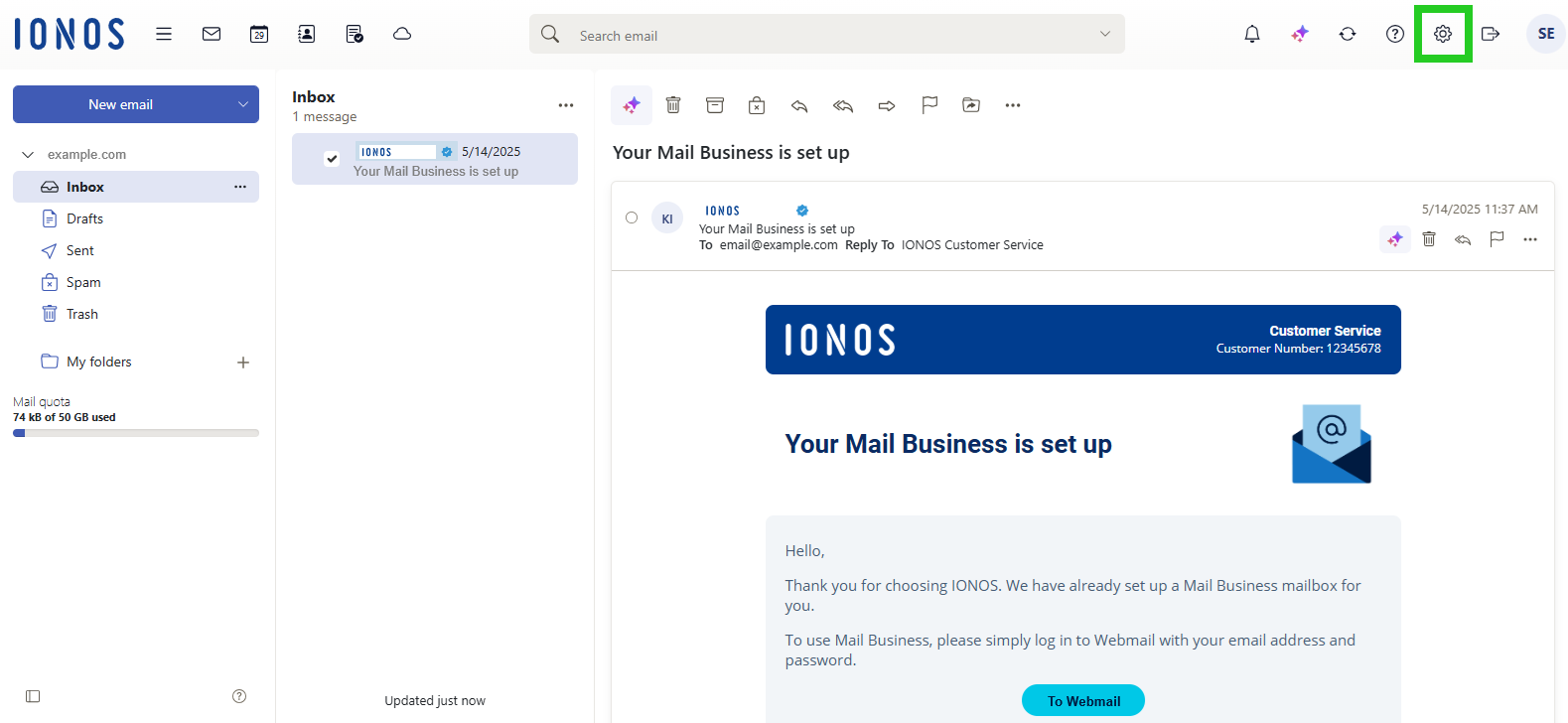
- Click on the cogwheel symbol in the menu bar at the top (Settings tooltip). A menu opens.
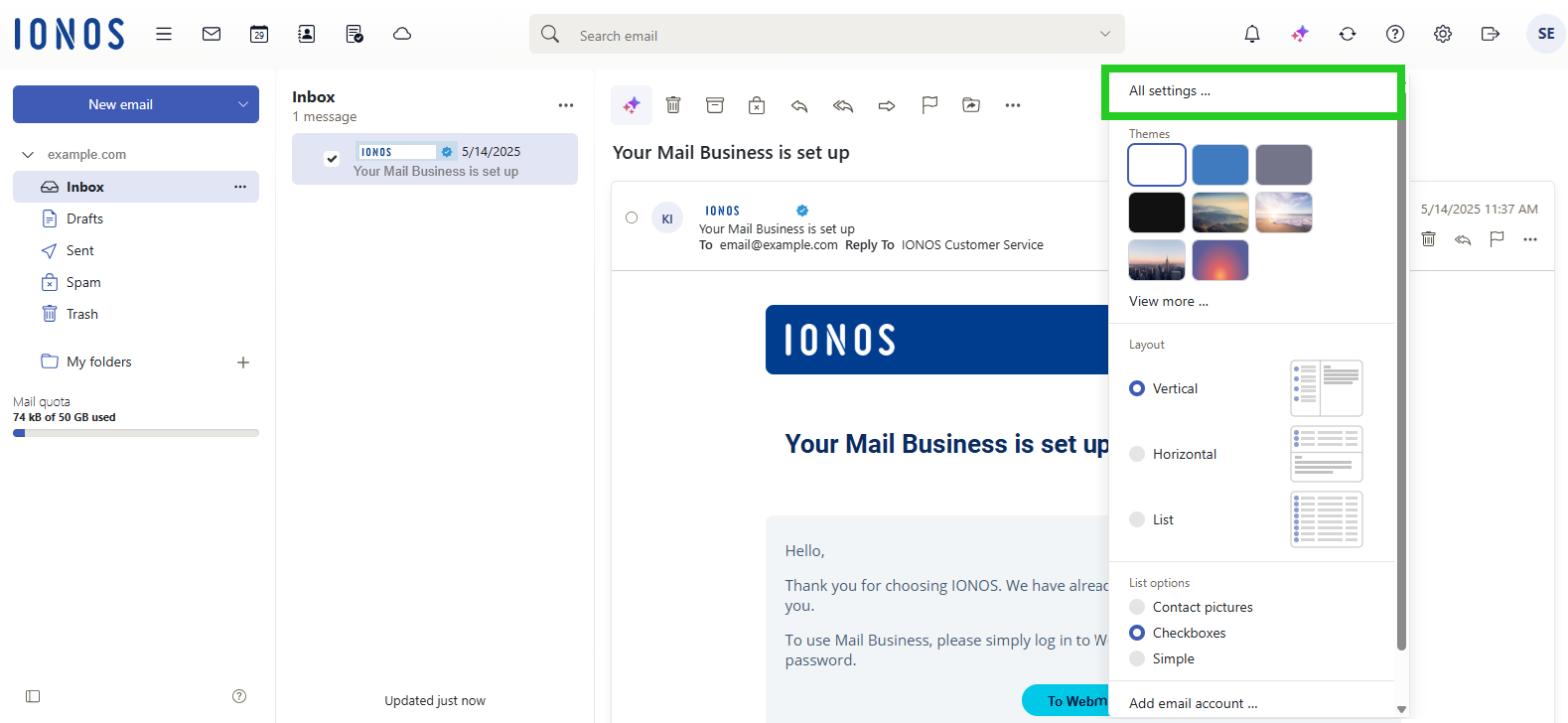
- In the menu that opens, click on All settings ... . The Settings window opens.
- Click on AI in the navigation bar on the left.
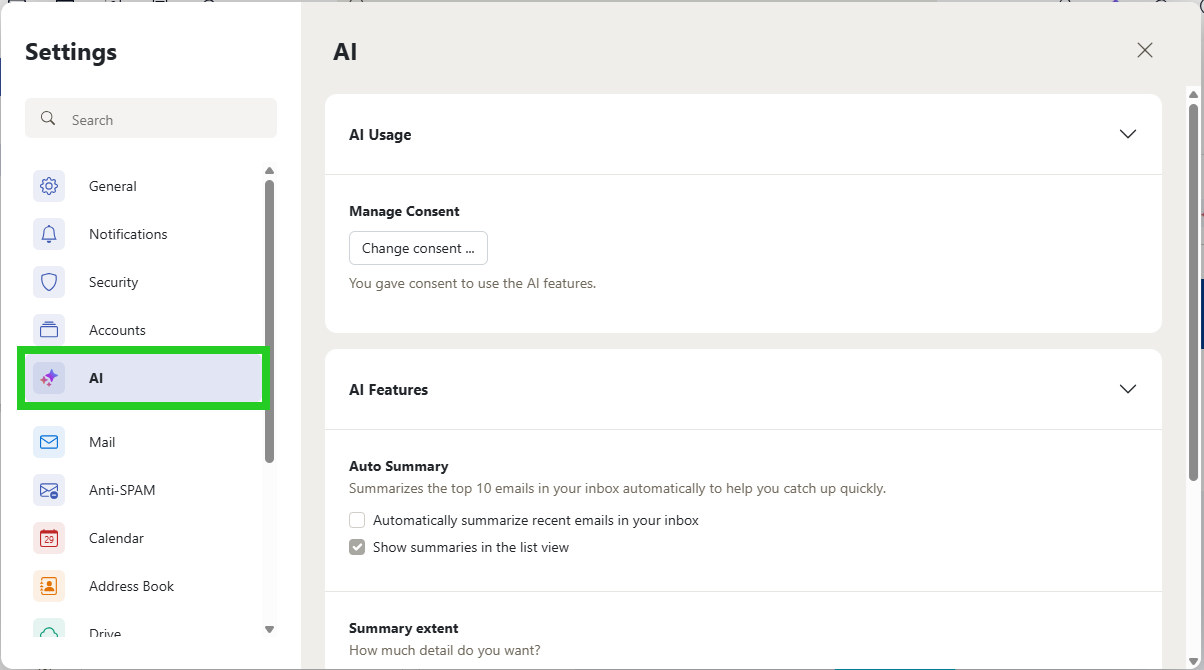
- In the AI area in the AI functions section, activate the option Automatically summarize recently received emails in your inbox.
- Specify whether the summaries should be displayed in the list view.
- In the Summary extent section, select whether the summaries should consist of 1 sentence, up to 3 sentences or up to 5 sentences.
- Close the Settings window.
Additional information
You can find useful information about Webmail AI in the following articles:
Creating automatic responses to an email with Webmail AI
Translating emails with Webmail AI
Drafting emails with Webmail AI
Disabling Webmail AI