Reinstalling an image (migrated Cloud Servers and VPS+)
Valid for VPS+ and migrated Cloud Servers.
Your server has a virtual DVD drive. You can use this to load image files (ISOs) of operating systems or applications. This guide shows you how to do this in the Cloud Panel.
Caution
If you reinstall an image on an existing server, all existing data on the server will be irretrievably deleted and replaced by the data of the newly installed image. This process can no longer be undone. Make sure that a backup of the server is created before installing the image. Otherwise there is a risk of data loss.
Notes
- The access data is identical to that of the server from which the image was created.
- If you create an image from a server on which Plesk Obsidian is installed and use this image in the Cloud Panel to restore another server, you must change the Plesk activation code on the newly created server in the Plesk license settings. You can find instructions here:
Changing the Plesk Activation Code
To reinstall an image, proceed as follows:
- Log in to your IONOS account.
Click on Menu > Servers & Cloud in the title bar.
Optional: If you have multiple server contracts, select the desired contract.
- Activate the desired server.
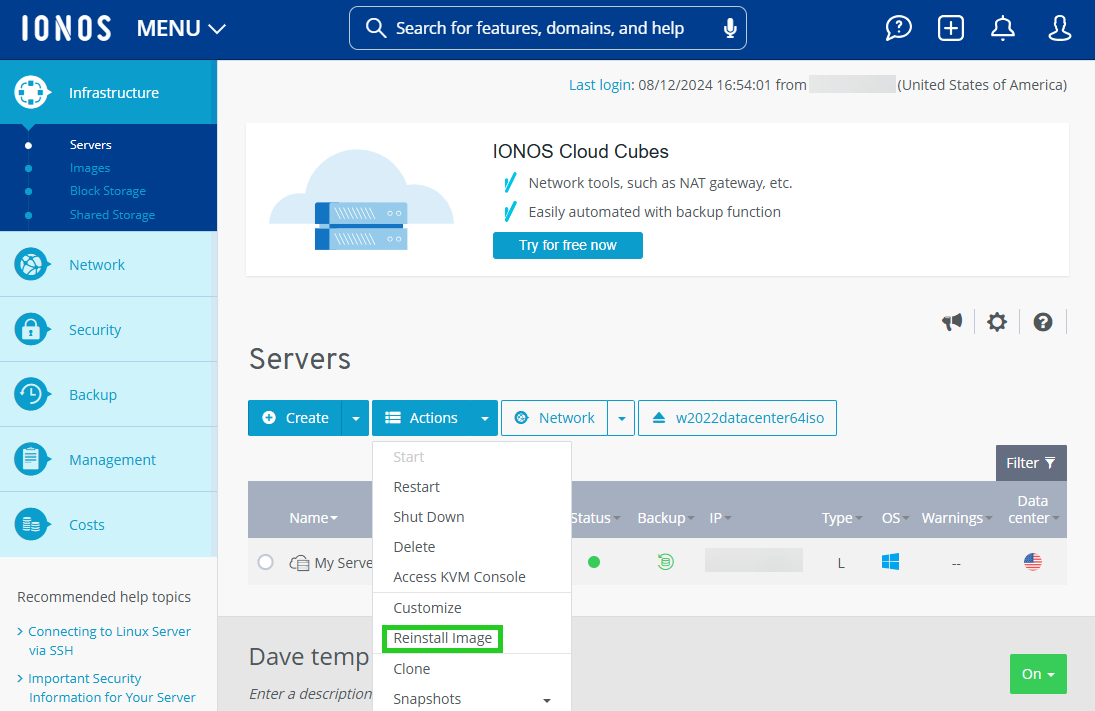
- Click on Actions.
- Click on Reinstall image.
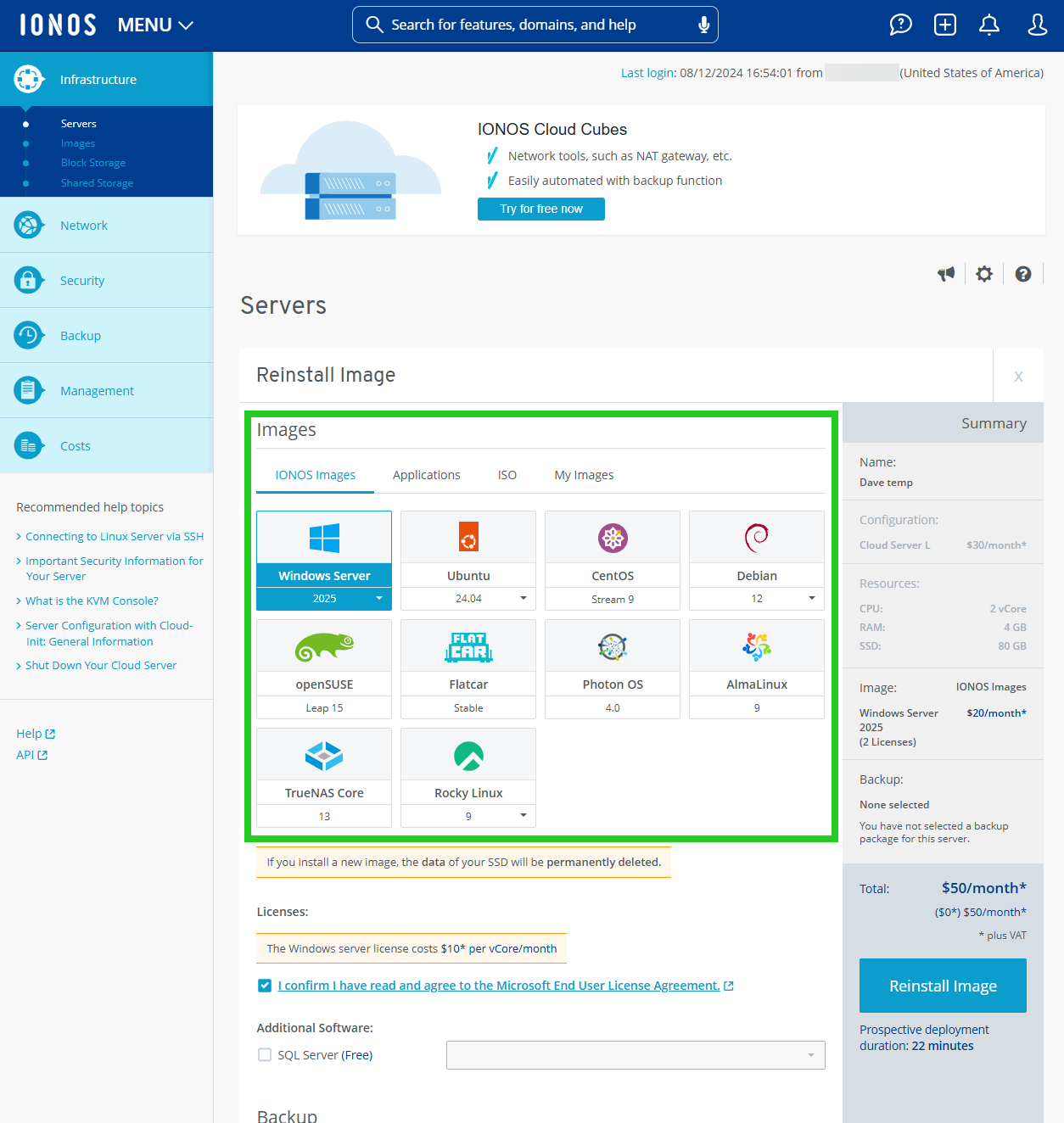
- Select the desired image. Images of various operating systems provided by IONOS are displayed in the IONOS Images tab.
Standard operating systems are offered in the ISO tab. If you use such an image, you may need a license key.
The My images tab displays images that you have created yourself from your Cloud Server.
- This step is only possible after selecting an IONOS image: Click on Show in the Show additional settings area.
- This step is only possible after selecting an IONOS image: Enter the password for access to the server in the Password field and repeat it.
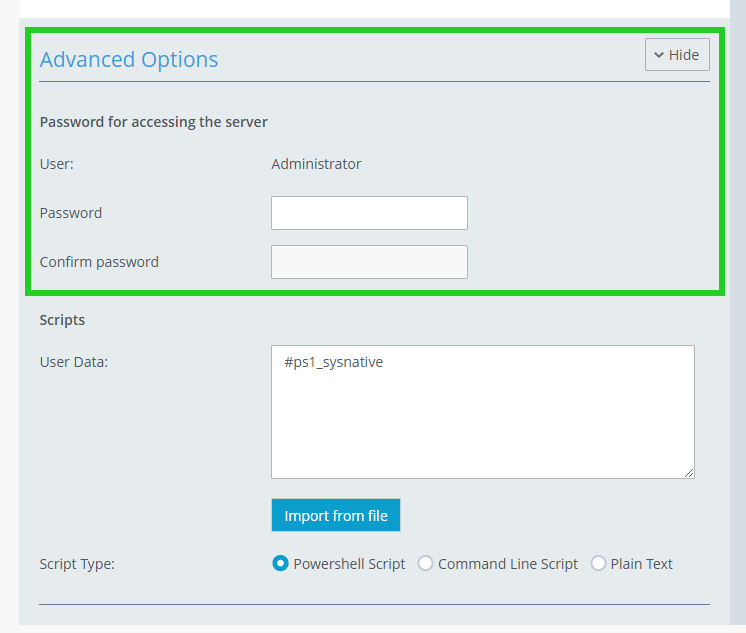
- This step is only possible after selecting a IONOS image that contains a Linux distribution: To configure your server individually after the reinstallation, add the desired post-creation script in the User data field.
- Click on Reinstall image.
The server is reinstalled. This process may take a few minutes.