Cloning a VPS+ server
Valid for VPS+.
This article explains how to clone, or duplicate an existing VPS+ in order to obtain multiple servers with identical settings.
When you duplicate an existing server, all settings are automatically transferred. Duplicating a server is useful, for example, to migrate a server from a test phase to a development phase, or to add an additional web server.
Note
If you duplicate an existing VPS+ with Plesk Obsidian in the Cloud Panel, you must change the Plesk activation code on the newly created server within the Plesk license settings. You can find instructions in the following article:
How to duplicate a server:
- Log in to your IONOS account.
Click on Menu > Servers & Cloud in the title bar.
Optional: If you have multiple server contracts, select the desired contract.
- Click on the desired server in the Cloud Panel.
- Click on Actions > Clone at the top. The Cloning server window is displayed.
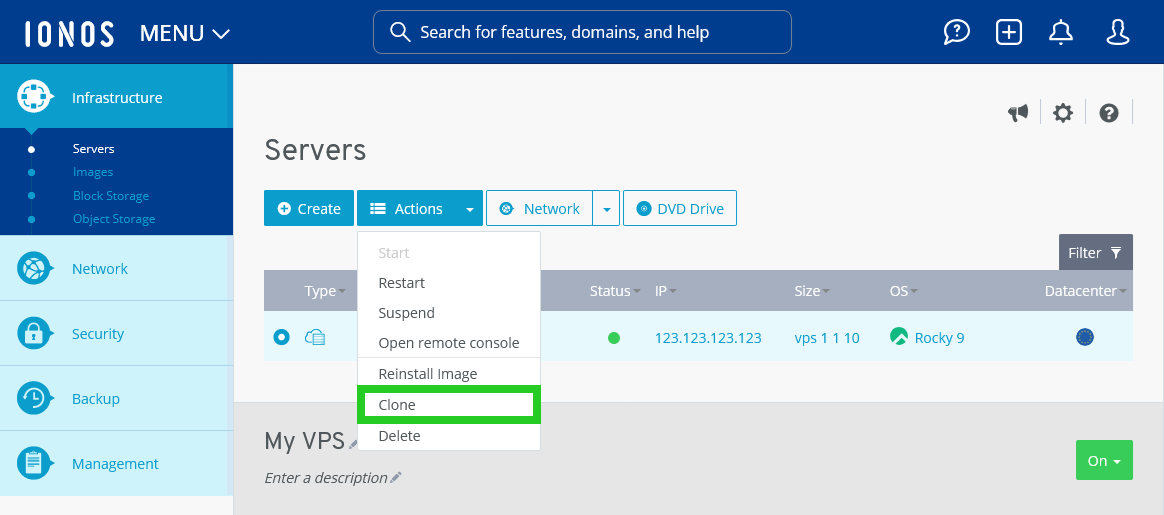
- Read the instructions.
- Click on the Yes button.
The server is duplicated.