Required information for network tickets
Valid for Virtual Server Clouds, Cloud Servers, VPS, migrated Cloud Servers, VPS+, Dedicated Servers, and Bare Metal Servers that are managed in the Cloud Panel.
Below you will find instructions for collecting the information required by IONOS Customer Service for troubleshooting.
When troubleshooting network latency issues, we ask that you first check your server for configuration issues, updates, plugins, custom code, and other settings.
If the problem persists, IONOS Customer Service will require specific diagnostic data in order to narrow down the cause in the network. In order for your request to be processed as quickly as possible, it is important that you provide us with all 4 of the following information points in full.
MTR (My Traceroute)
MTR instructions
For each of the directions listed below, we require an MTR evaluation that combines both ping and traceroute:
From the server to your local computer
From your local computer to your server
Make sure that the ICMP protocol is at least temporarily enabled for ping in your firewall policies so that the MTR results are more accurate. You can find more information on the firewall policies in the following articles: Editing a firewall policy and Editing a firewall policy (VPS, migrated Cloud Servers, and VPS+).
The MTR evaluation allows IONOS Customer Service to see the entire route. Please let each test run for at least 10 minutes. Then export the MTR results as a .txt file.
The following article explains how to install and run the MTR network diagnostics tool:
Using MTR for network diagnostics
Throughput tests: General information
Carry out tests both with Speedtest (for the general internet connection) and with iPerf3 (for detailed packet analysis).
Install and run speedtest
Install the official CLI client from Ookla to get accurate results.
Windows
- Download the CLI version of speedtest.net.
- Execute the installation file and follow the instructions.
Linux
AlmaLinux 9 and 10, and Rocky Linux 9 and 10
To install curl, enter the following command.
root@localhost:~# dnf install -y curl
To add the Ookla repository, enter the following command:
root@localhost:~# curl -s https://packagecloud.io/install/repositories/ookla/speedtest-cli/script.deb.sh | bash
Install Speedtest with the following command and accept the license conditions at the first start.
root@localhost:~# sudo yum install speedtest
Ubuntu 22.04 and 24.04, and Debian 12 and 13
To install curl, enter the following command.
root@localhost:~# apt-get update && apt-get install -y curl
To add the Ookla repository, enter the following command:
root@localhost:~# curl -s https://packagecloud.io/install/repositories/ookla/speedtest-cli/script.deb.sh | bash
Install Speedtest with the following command and accept the license conditions at the first start.
root@localhost:~# apt-get install -y speedtest
Perform speed test
To run the speed test with an automatically selected server, enter the following command:
root@localhost:~# speedtest
Note
Please send us the "Result URL" link or a screenshot of the results.
Install iPerf3
iPerf3 tests the pure TCP/UDP performance without protocol overhead. As public iPerf servers often change, we use reliable alternatives here (e.g. Hurricane Electric or Bouygues).
Microsoft Windows Server:
Download the iPerf executable from the official iPerf website Iperf.fr or use a package manager such as Chocolatey (command: choco install iperf3).
You can download the Chocolatey package manager from the official Chocolatey Software website: Chocolatey Software
Linux:
Use the package manager of your distribution.
Debian/Ubuntu
root@localhost:~#sudo apt-get install iperf3
CentOS/AlmaLinux/Rocky Linux
root@localhost:~#dnf install iperf3
Perform tests with iPerf
Execute these commands and make a note of the results. Alternatively, you can take a screenshot of the results.
Download test (from the test server to your IONOS server)
This command downloads data from Hurricane Electric to your IONOS server.
iperf3 -c iperf.he.net -P 4 -R
This command is used to test downloads from a data centre in France. It downloads data from Bouygues Telecom to your IONOS server.
iperf3 -c bouygues.iperf.fr -p 5202 -P 4 -R
Upload test (from your IONOS server to the Internet)
This command is used to upload data from your IONOS server to a Hurricane Electric server.
iperf3 -c iperf.he.net -P 4
This command is used to upload data from your IONOS server to a Bouygues Telecom server.
iperf3 -c bouygues.iperf.fr -p 5202 -P 4
Export the results or create a screenshot.
Note
If these public servers report "Busy", please try again a few minutes later or use another public iPerf3 server from the list on iperf.fr.
You can find more information on running iPerf in the following article:
Utilisation of server resources
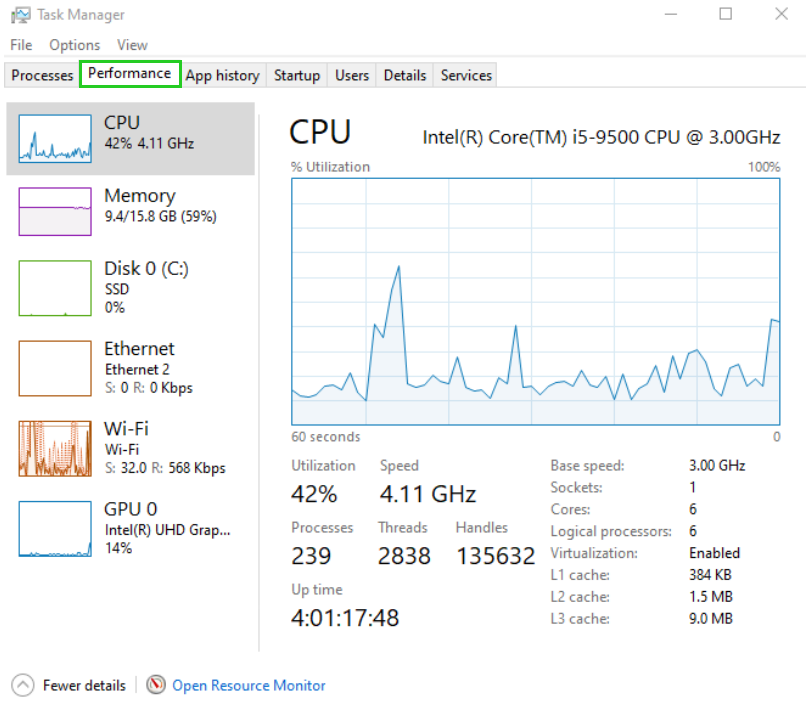
To rule out the possibility that a high CPU or RAM load is slowing down the network traffic, we need to check the utilisation of the server resources. To do this, take a screenshot of the utilisation while the problems are occurring.
Windows: Open the Task Manager and switch to the Performance tab.
Linux: Run top from the command line. You can find out how to install top under Linux in the following article:
Analyse the current system load with the top program (Linux)
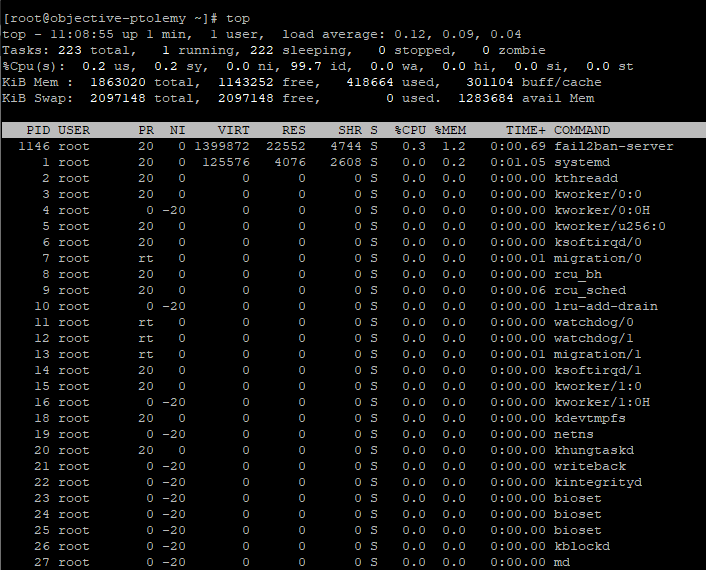
Then take a screenshot of the results.
ISP, IP, and other additional information
To determine your upload/download speed, please provide the following information:
The name of your Internet Service Provider
The IP address of the local computer you are using to access the server
The location where the problem occurs (town, county, country)
The time (date/time) when the problem first occurred or was noticed
If applicable, the application or protocol that is causing the problem (e.g. if problems occur when downloading via FTP or frequent disconnections during SSH sessions)
Transmission of the results
Once you have collected all the 4 pieces of required information from above, please send the results to IONOS Customer Service. IONOS Customer Service will investigate the issue and contact you if a solution is found, or if additional information is required.
Additional information
Further information can be found in the following articles:
Cloud Server: Troubleshooting