Setting up an SSH connection on macOS
Article translated by machine
This text is a machine translation. A revised version is planned.
For Web Hosting
This article explains how to establish an SSH connection from your Mac to your webspace at IONOS.
Secure Shell (SSH) is a network protocol that enables secure communication between two computers. It is used to access remote servers and execute commands via an encrypted connection. With IONOS web hosting, SSH offers a secure way to manage your webspace, edit files and much more.
Prerequisites
To use SSH connections, you will need an SFTP account set up at IONOS account that supports SSH. Availability varies depending on the start date of your contract:
- Contracts from 10 September 2024: For these contracts, SSH connections are possible with any SFTP account for which SSH was enabled when the SFTP account was set up. Further details can be found in the article: Create an SFTP/SSH account
- Contracts prior to 10 September 2024: For these contracts, SSH connections are only possible with the main SFTP user. Any additional SFTP users created cannot use SSH.
How to establish an SSH connection to your webspace:
- Open the Terminal app on your Mac.
In the Terminal window, enter the ssh command as follows:
ssh user@host
Replace ‘user’ with the username of your SFTP account.
Replace ‘host’ with the name of your IONOS SFTP server.
The following article explains how to obtain the relevant information: Connection details for FTP/SFTP in IONOS Web Hosting
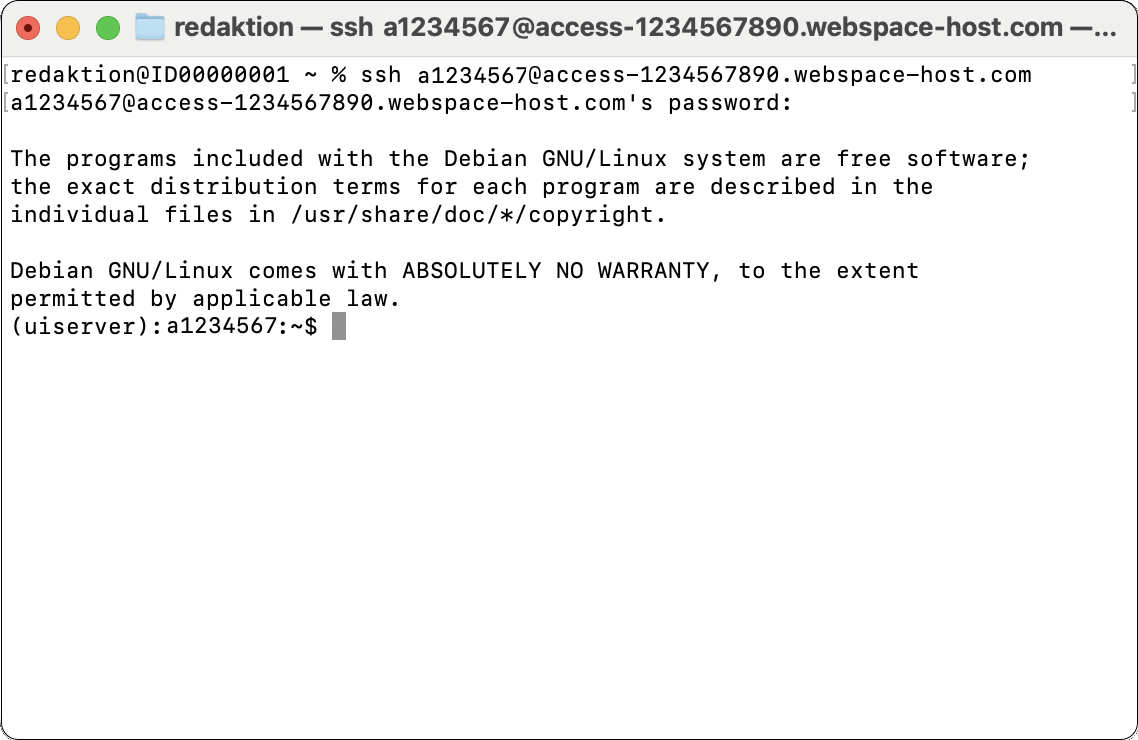
Example:ssh a1234567@access-1234567890.webspace-host.com
- Press the Enter key to execute the command.
- When establishing the connection for the first time, you will be notified that the host’s authenticity cannot be verified, and the hosting server’s ‘fingerprint’ will be displayed. To be on the safe side, compare the fingerprint with those listed in the article ‘Overview of SSH fingerprints in IONOS Web Hosting’. To continue, type ‘yes ’ and press the Enter key.
- Enter the password for your SFTP account and press Enter.
The SSH connection is established. You are now in the home directory (document root) of your webspace and can execute commands.
Further information
You can find instructions for other operating systems here: