Configuring anti-spam via Webmail
Valid for Mail Basic and Mail Business.
If you set up a Mail Basic or Mail Business mailbox, anti-spam is activated automatically. You can use anti-spam to prevent or restrict the delivery of spam emails. Anti-spam automatically scans all incoming emails in your email inbox.
This article explains how to:
Note
Deactivating anti-spam is not recommended. If you would still like to deactivate anti-spam, you will find instructions on how to do this in the following article: Deactivating anti-spam.
Open anti-spam settings
How to open the anti-spam settings:
Log in to Webmail.
Click on the cogwheel symbol in the top right-hand corner of the main navigation.
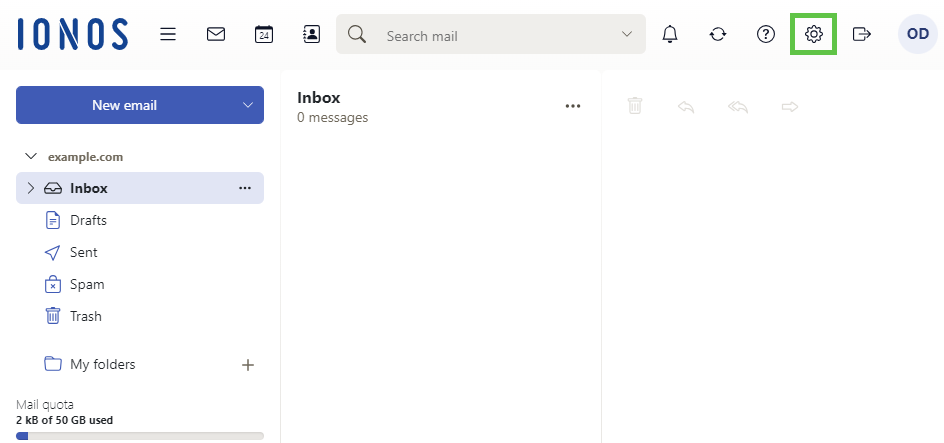
- Click on All settings....
Click on Anti-SPAM in the navigation bar on the left.
You now have the option of selecting your preferred spam filter settings.
Open and move emails categorised as spam
The following article explains how to open and move emails that have been categorised as spam by Spam Protection: Opening and moving emails categorised as spam
Automatically move emails from desired senders to the inbox
How to specify email addresses of senders that should be automatically sorted in the inbox is explained in the following article: Always allow emails from specific senders in IONOS Webmail
Treat emails from specific senders as spam in IONOS Webmail
If you repeatedly receive unwanted spam or advertising emails from a particular sender, you can set up a list of blocked senders in IONOS Webmail. You can find instructions on how to do this in the following article: Treat emails from certain senders as spam in IONOS Webmail
Access the Spam folder with an email program
If you retrieve your emails via IMAP, the Spam folder is automatically displayed in your email program.
If you retrieve your emails via POP3, you can only access the Spam folder in Webmail. In this case, access is not possible via an email application such as Microsoft Outlook.
Access spam emails (POP3)
If you retrieve your emails via POP3, you cannot synchronise the spam folder with your local email program (e.g. Outlook). To access your spam emails, we recommend that you use IMAP. If you continue to retrieve emails via POP3, you must deactivate the anti-spam protection in order to download the spam emails you receive.