

Web app Paletton

Not every website has a designer feel to it, but the color concept of your online presence doesn’t have to suffer. A popular color scheme designer comes with a new look: the free web app, Paletton helps you to create harmonious colour schemes with just a few clicks. The online tool is based on the science of color and creates a complementary colour palette for every tone. This tool enables you to give the design elements of your website a professional touch. A well thought-out colour composition can look impressive in presentations or infographics.
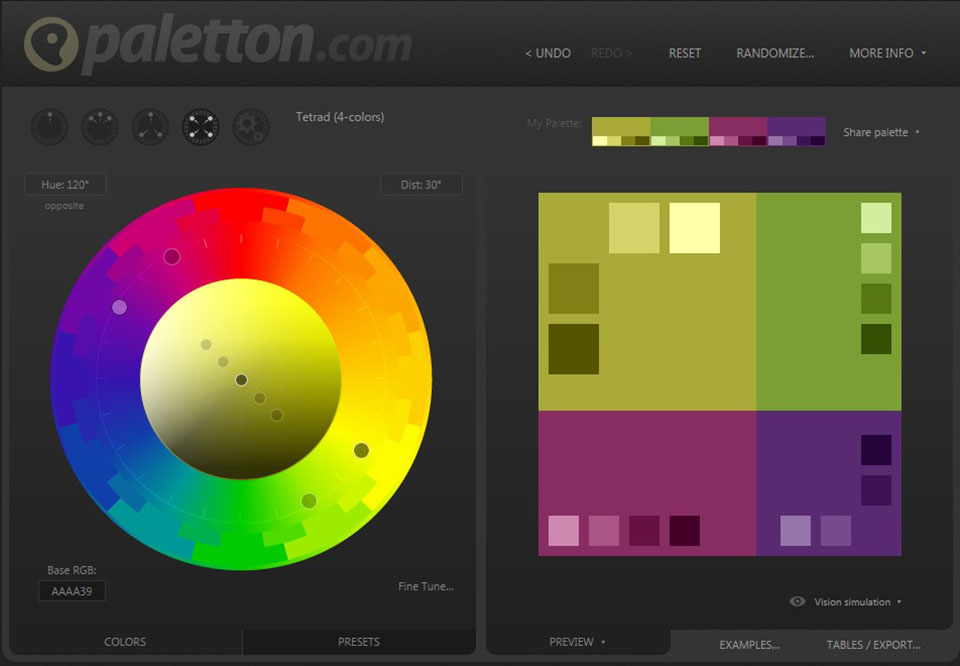
How to use Paletton for your colour concept
You can create a colour concept with five different modes: Monochromatic, Adjacent Colors, Triad, Tetrad, and Free Style. The starting point is always a base colour, which you then combine with up to three other colors and the respective complementary colour. Use the following buttons to do this:


The various modes at a glance:
-
Monochromatic: if you choose the Monochromatic mode, your colour scheme will be made up of five different shades of the single tone you chose.
-
Adjacent Colors: in this mode, Paletton creates colour palettes in which two similar colours are assigned to your base colour. Each of these colors will appear in five shades. A complementary colour can be added to the base colour.
-
Triad: colour schemes created in this mode consist of three harmoniously matched colours in five shades. In this mode, it’s also possible to add a complementary color to the base colour.
-
Tetrad: this mode lets you combine your base colour with two secondary colours and a complementary colour. Five shades are generated for each colour.
-
Free-Style: the free style mode isn’t bound by the rules of the colour wheel, so you have the freedom to combine four colours individually. This mode offers the maximum leeway, but does not necessarily generate harmonious colour palettes.
The colour wheel
The choice of base tones and secondary colours is based on a colour wheel. Depending on where you place the cursor for the basic and complementary colours, Paletton generates a colour palette based on your settings. If you use one of the modes: Adjacent Colours, Triad, or Tetrad, the colour concept is based on pre-programmed combination rules, which guarantee a harmonious compilation. You can define the colour values using the outer colour ring, and then use the interior of the colour wheel to adjust the shading of the selected colours.
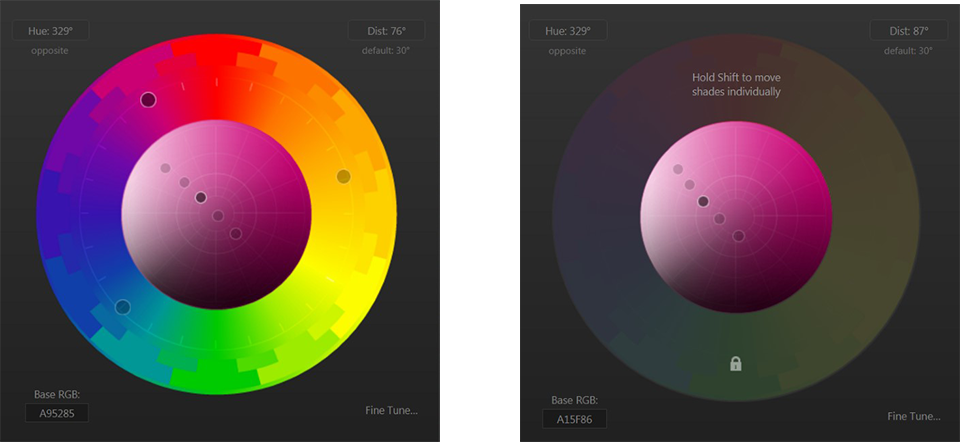
Test the colour palette on sample graphics
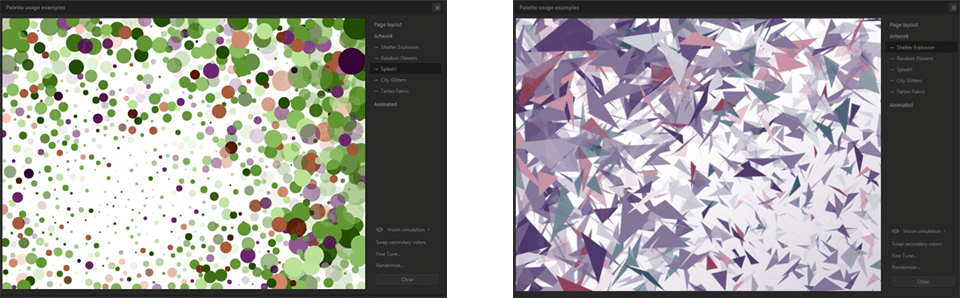
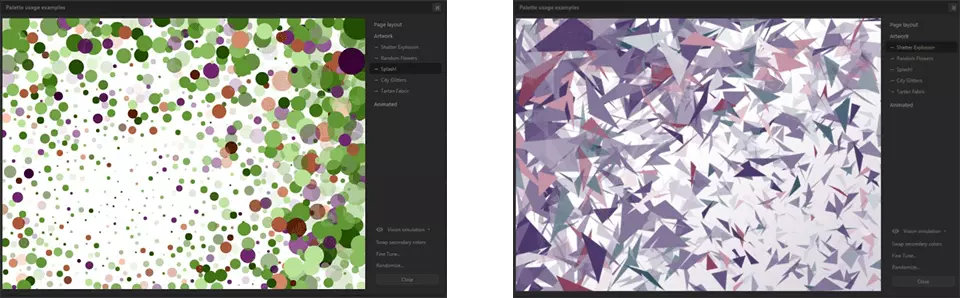
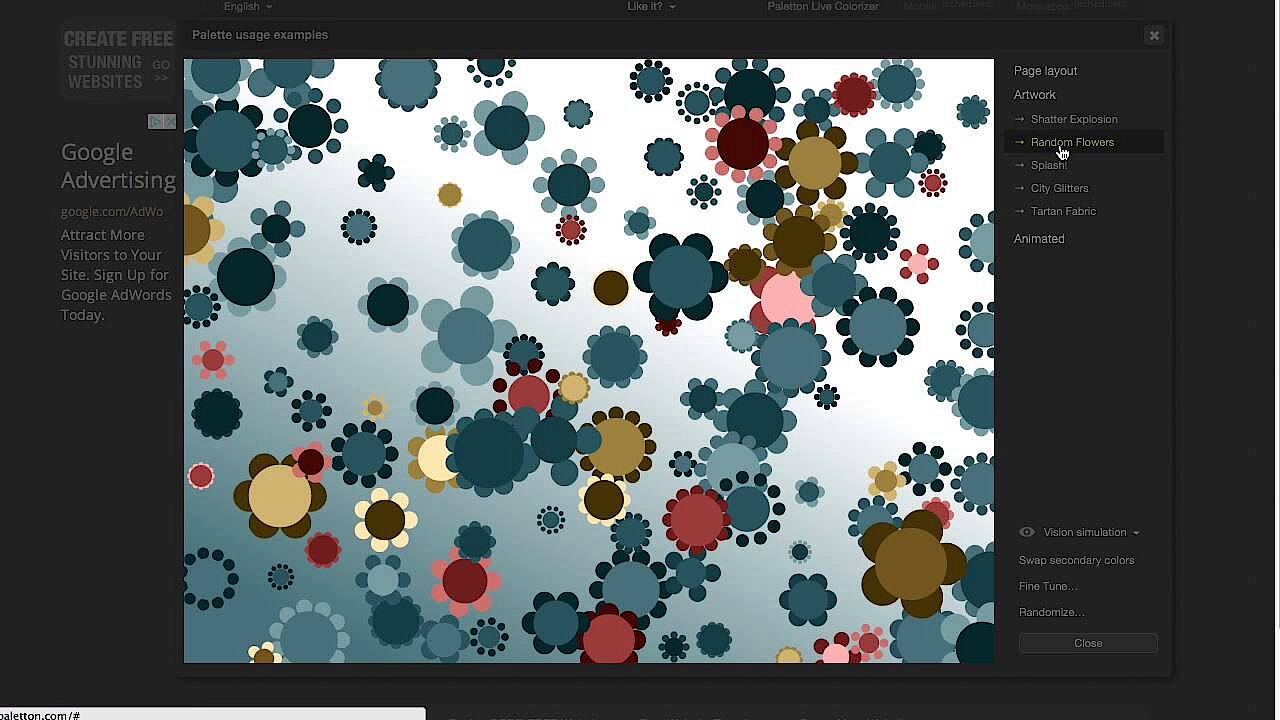
Once you have your colour concept, you can see how your chosen compilation looks on sample graphics. Click on the Examples button and choose between Page Layout, Artwork, or Animated.
Export colours
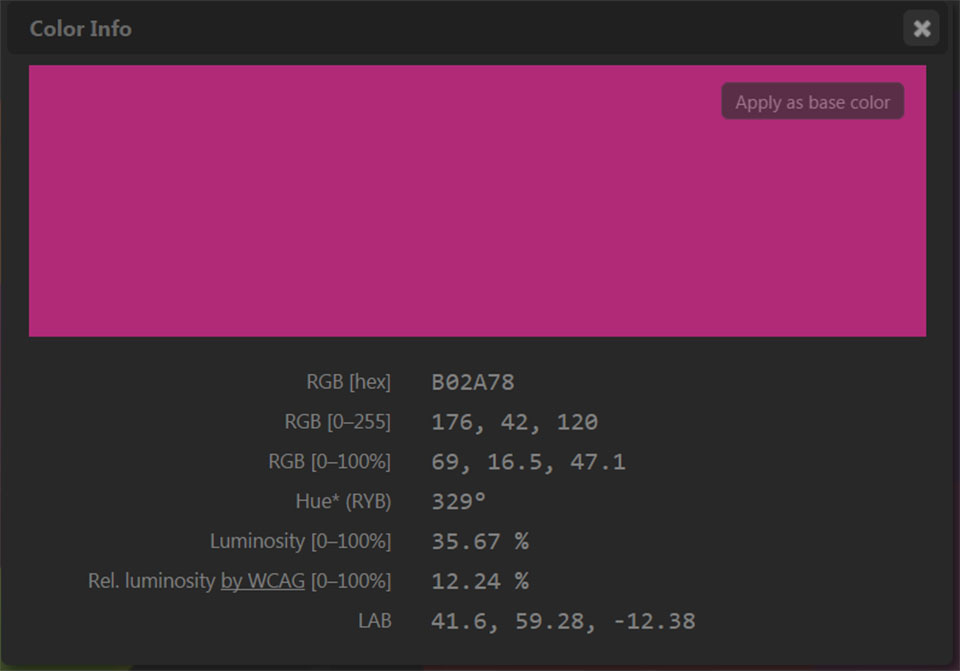
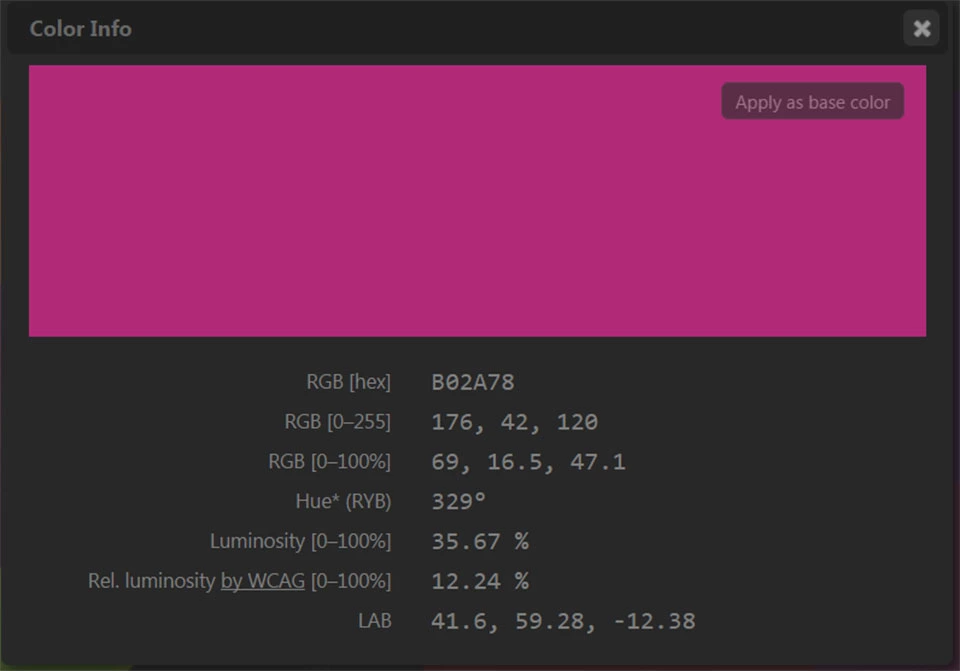
In order to obtain the hexadecimal code and other information about your created colour concept, simply click on the colour field of your palette to display the Colour Info window.
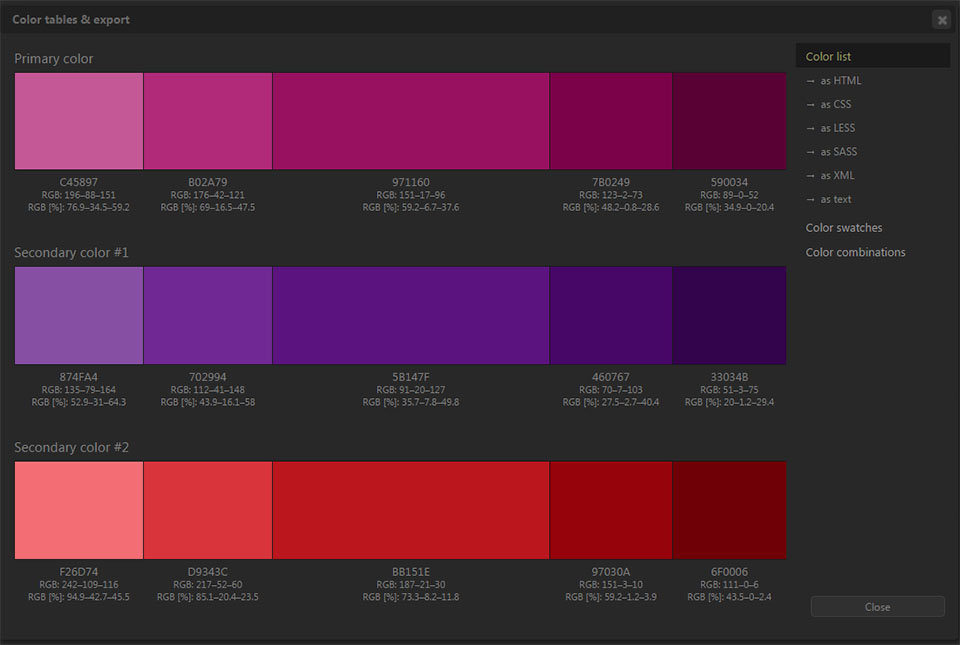
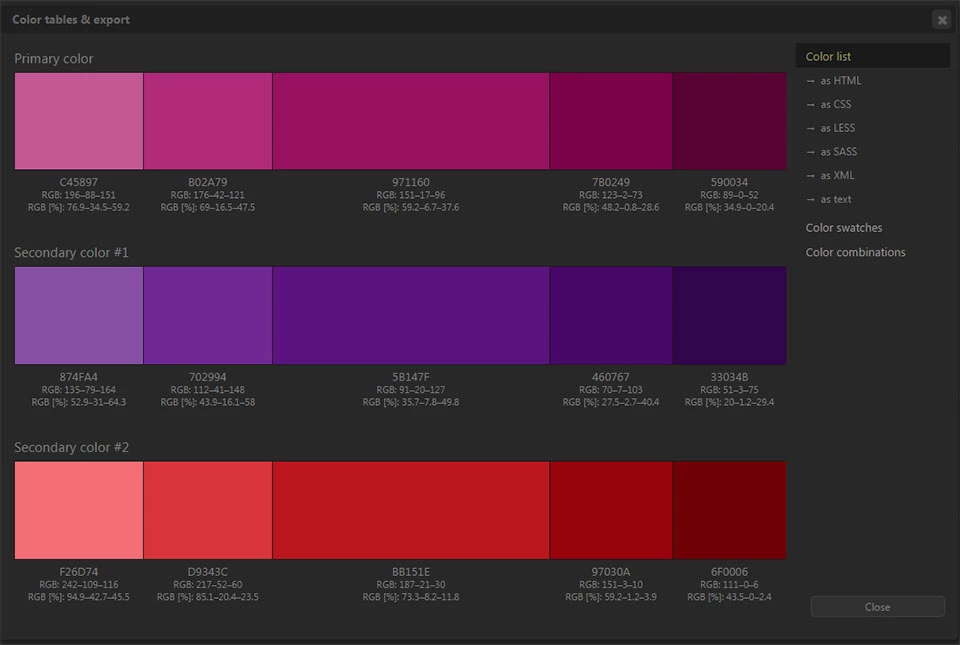
Paletton also offers the possibility of exporting individual colour palettes in various formats such as CSS, LESS, SASS, XML, or Swatch files for Photoshop. Click on the Tables/Export button and select the desired format.
Here is a short introduction to Paletton:
 To display this video, third-party cookies are required. You can access and change your cookie settings here.
Reviewer

Melissa Senn
Melissa Senn has been with IONOS since 2016 and focuses on website, e-commerce, social media, and AI in the Digital Guide. As a digital strategist, she uses her extensive SEO and GEO experience to transform complex technological trends into practical content.