
How to get started with WordPress lazy loading

You should choose lazy loading to improve the performance of your WordPress website. The function is now part of the WordPress core but can still be extended by plugins.
Ask, create and research with the European alternative to ChatGPT. Robust security and unlimited chats give you peace of mind.
What is lazy loading?
Lazy Loading is a technique for improving performance when a website is called up. Instead of loading all content at the same time, the images and videos in the first viewport are loaded. Everything outside of the viewport is loaded later.
Thanks to lazy loading, visitors can work with the website much faster. After they finish reading the visible area, the area ‘below the fold’ is also loaded.
What does lazy loading add to WordPress?
Lazy loading can make your WordPress faster. This does not speed up the actual loading, but it does improve the user experience. The users of a website get the content that is initially most important delivered quickly. Everything else can then be loaded unnoticed in the background.
Google like this too. The Core Web Vitals serve as ranking factors that target the speedy delivery of website elements. The faster a website can be interacted with, the more positively its ranking in search results is influenced. That means Lazy loading is counted as search engine optimization (SEO). Along with other WordPress SEO elements, it helps bring your website to the top.
You can also improve the performance of your page by compressing images. This loads graphic content considerably faster. It is also useful if you know the WordPress image sizes to choose the perfect image crops.
You can also make WordPress faster by relying on the right hosting. With Hosting for WordPress from IONOS, performance is actively supported by SSD storage, caching and a Content Delivery Network (CDN).
How to use lazy load images in WordPress
Lazy loading for images and graphic content has been enabled by default since version 5.5 of WordPress. Whenever you place an image in your pages and posts, WordPress automatically adds an attribute to the files. This can be recognised in the source code like this:
<img loading="lazy">The attribute is now supported by Chrome, Firefox and Safari. However, this also means that other browsers do not respond to the attribute. It is also possible for video content to benefit from lazy loading. However, the attribute is only attached to images. So, if you want to use the technique more extensively on your website, you have to rely on other options. For example, with the help of plugins you can extend lazy loading to embed videos in WordPress.
Lazy load plugins for WordPress
To better control lazy loading in WordPress, it is recommended to use plugins. Here is an overview of some good extensions:
| Plugin | Images | Videos | Additional functions |
| LazyLoad | ✓ | ✓ | ✗ |
| a3 Lazy Load | ✓ | ✓ | ✗ |
| Optimole | ✓ | ✗ | Image optimisation |
| Smush | ✓ | ✗ | Image optimisation |
| Lazy Loader | ✓ | ✓ | ✗ |
LazyLoad
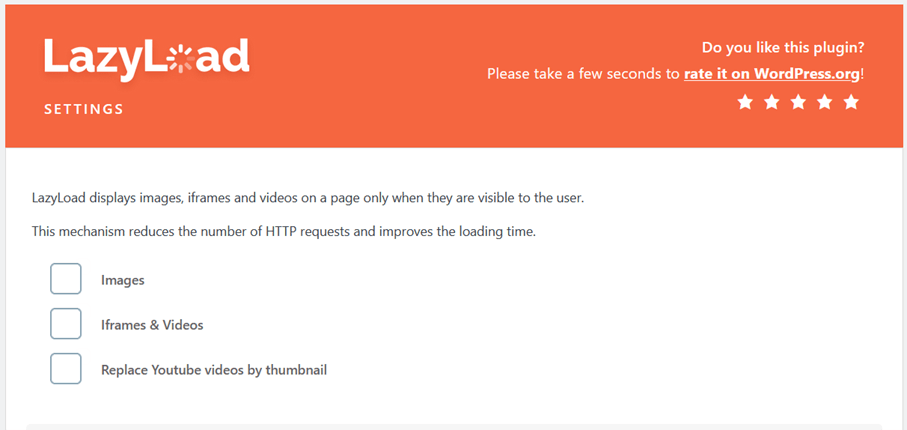
The LazyLoad plugin by WP Rocket enables lazy loading for images, videos and iFrame, going beyond the possibilities of the default setting. It also remains very small at just 10 KB. Even avatars and smileys are covered by the plugin. It is also interesting that you can replace embedded YouTube videos with thumbnails first, before they are loaded properly. This reduces the loading time when the page is loaded.
The plugin is ready to use right away and does not need to be configured. But this is also one of the disadvantages, LazyLoad offers hardly any setting options. Although you can enable or disable lazy loading for different media types independently.
Anyone looking for more features can upgrade to the paid WordPress caching plugin WP Rocket. Lazy Loading is included in this along with other optimization options.
| Pros | Cons |
| ✓ Lightweight | ✗ Lack of customisable settings |
| ✓ Media types can be addressed independently of each other | |
| ✓ Thumbnails for YouTube-Videos |
a3 Lazy Load
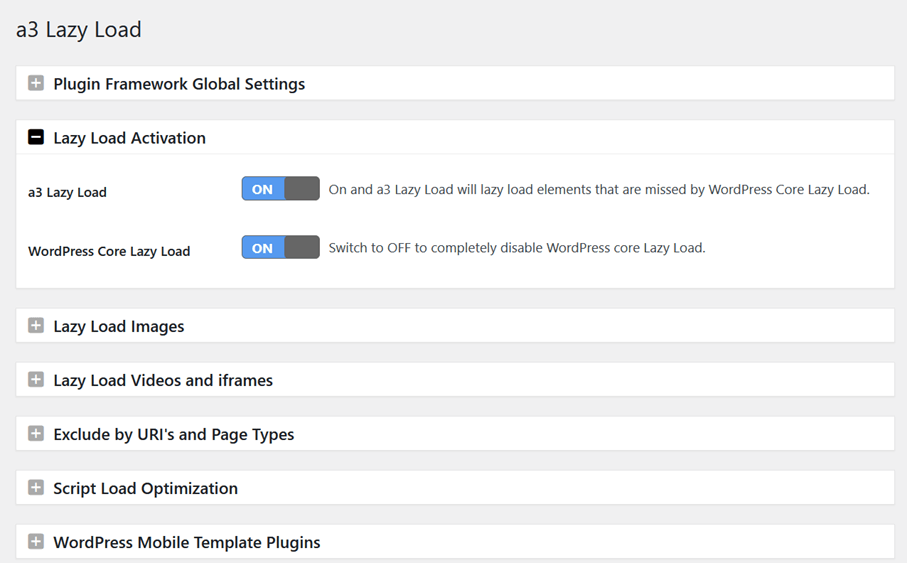
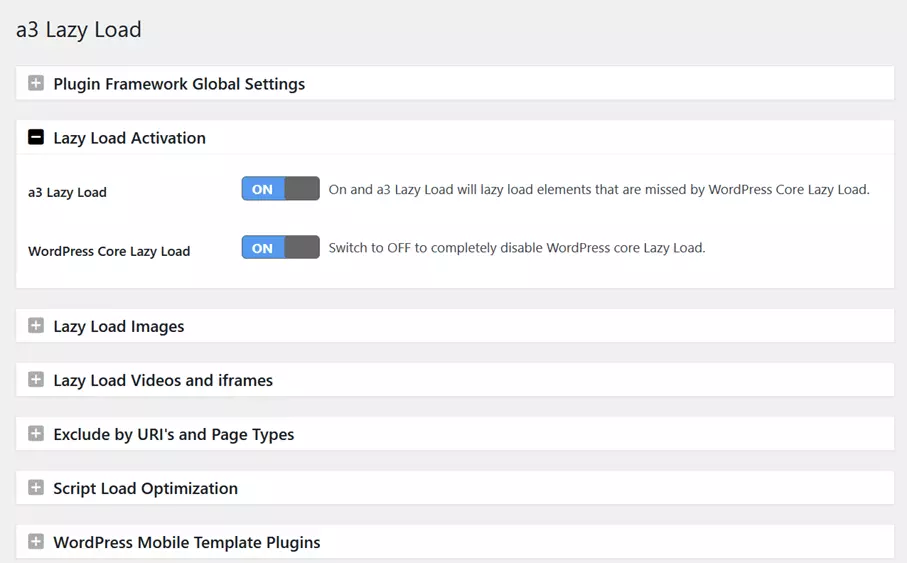
You get many more options with a3 Lazy Load. For example, the plugin gives you the option to enable lazy loading independently for images or videos and iFrames. But the choice does not end there. You can even specify what kind of images should be covered by lazy loading. For example, you can exclude gravatars or thumbnails. You can also disable the feature on different types of pages (such as the home page). You can go into even more detail by using the URI to exclude individual objects from lazy loading.
In addition, a3 Lazy Load offers the possibility to determine the appearance of the reload. Should the images fade in slowly or should the plugin display a loading icon? Technically more important, however, is that you can expand the viewport. This way you can set it up so that parts of the actually not yet visible area are loaded directly.
Another special feature of the plugin is that via a3 Lazy Load, you can disable the default lazy loading, which is already included in the core of WordPress. This way you make sure that the functions of the plugin and the CMS don’t get in each other’s way.
| Pros | Cons |
| ✓ Very detailed choices available | ✗ No additional functions |
| ✓ Exceptions made via URI or page type | |
| ✓ Loading design is adaptable | |
| ✓ Extendable viewport | |
| ✓ Can run without the core lazy load function |
Optimole
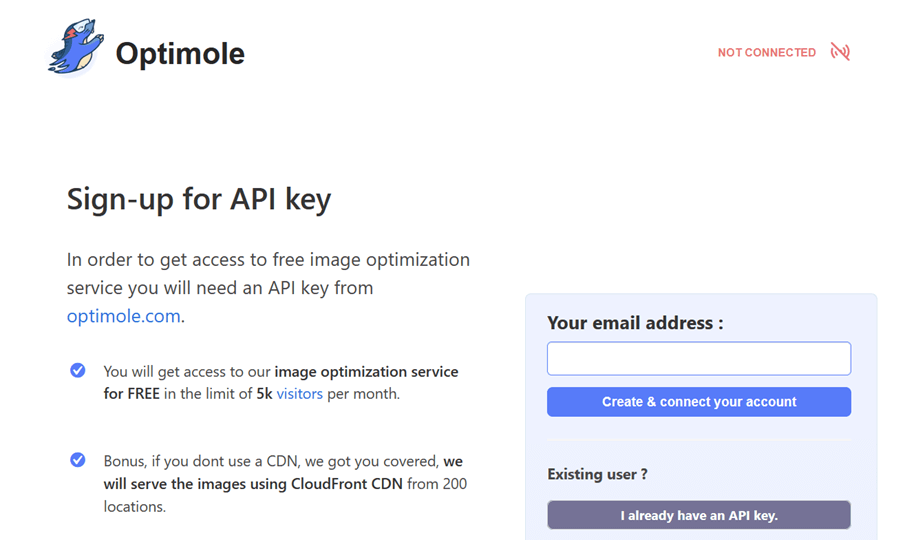
The Optimole plugin goes beyond lazy loading and generally tries to improve the delivery of images on your WordPress website. In addition to smart loading, your images are compressed using the plugin. Furthermore, the image size is adapted to the end device of the respective user. A separate content delivery network (CDN) is also used to play out the images. This can shorten the loading time even more.
However, there are hardly any options for lazy loading. Besides deciding whether you want to use the feature, you can only exclude background graphics from lazy loading. On top of that, you have to register with Optimole before you can use the features.
| Pros | Cons |
| ✓ CDN | ✗ Requires registration |
| ✓ Image optimisation | ✗ Lazy loading for images only |
| ✓ Easy to use | ✗ Few configuration options |
Smush
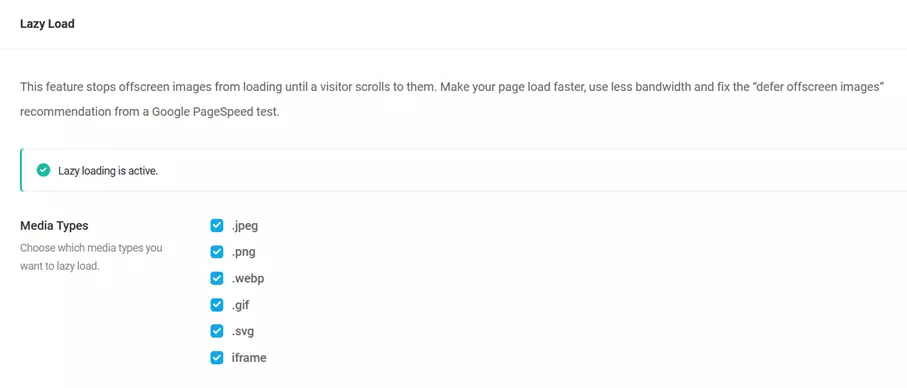
Smush is another comprehensive suite to make your WordPress site faster. This plugin can automatically compress images and also deletes EXIF data to further reduce the file size. Just like Optimole, Smush also offers a CDN to speed up image delivery even more.
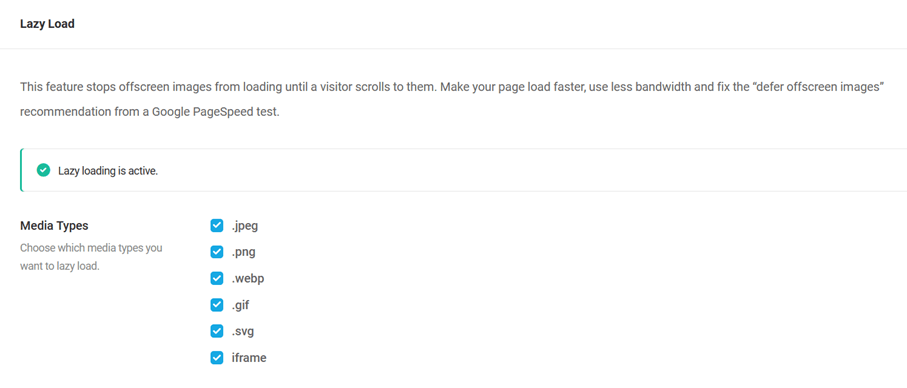
However, unlike Optimole, Smush has a few more options for lazy loading on board. You can specify the graphic formats you want the function to work on and can also add or deselect iFrames. In addition, you determine the locations or purposes. For example, should thumbnails or images in widgets also be covered by lazy loading? Individual page types can also be excluded. You can define lazy loading even more precisely by excluding specific URLs or URIs.
As with a3 Lazy Load, Smush also lets you customise the load design. A fade-in is possible as well as a rotating load icon or a placeholder graphic.
| Pros | Cons |
| ✓ CDN | ✗ Too broad for pure lazy loading |
| ✓ Image compression | |
| ✓ Very detailed choices available | |
| ✓ Adaptable loading design | |
| ✓ Exceptions via URI, URL or page type |
Lazy Loader
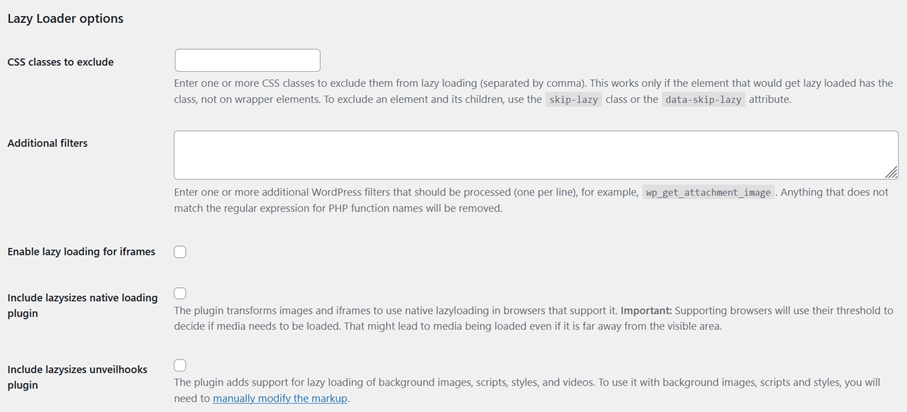
The Lazy Loader by Florian Brinkmann does not work with the loading attribute but uses a script. This can be used to set the reloading of images, iFrames, videos and audio files. For refinement, you can specify CSS classes that should be excluded from lazy loading. By enabling a certain option, you determine whether each page or post should be covered by lazy loading.
To make loading a bit more graphical, you can activate an animated circle and set its colour.
| Pros | Cons |
| ✓ Lightweight | ✗ No additional functions |
| ✓ Detailed choices available | |
| ✓ Adaptable loading design | |
| ✓ Exceptions via CSS classes |
A Step-by-step guide to lazy loading on WordPress
If you don’t want to rely on the default function of WordPress, you should choose a plugin. Since a3 Lazy Load comes with many features, we choose this extension for the tutorial.
If you are still planning your WordPress website, you also need a suitable address. At IONOS you can register a domain with a few clicks and quickly get your own web presence.
Step 1: Carry out preparation
Before you make major changes to your site, you should always create a backup in WordPress. This will ensure that you can quickly revert to a working version in case of complications. You should also think about a WordPress child theme. This duplicate of the actual theme ensures that all your settings still work after an update by the theme provider.
Step 2: Install & activate
Call the plugin area in the WordPress backend and switch to the ‘Install’ item there. If you now enter ‘a3 Lazy Load’ in the search field, the corresponding plugin will be displayed. With one click you can now install it and then activate it with another click.
Step 3: Create settings
The plugin options can be found in the ‘Settings’ menu item of the WordPress dashboard. a3 Lazy Load now has its own entry there. Alternatively, you can access the settings of the extension via the plugin overview. Directly in the second menu item (‘Lazy Load Activation’), you can also turn off the function again without deactivating the plugin. You can also specify whether you want to disable the default lazy loading feature of WordPress, which is a good idea to avoid complications.
Step 4: Choose options
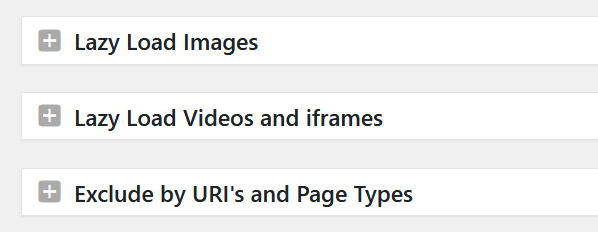
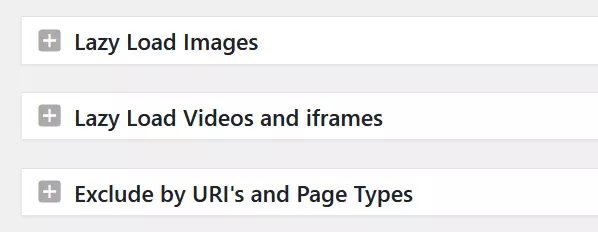
Now you define which objects should be affected by lazy loading. There are various options available for this:
- Lazy load images: Here you specify where images lazy load on WordPress. For example, you can specify that only images in the content area and not within widgets are included.
- Lazy load videos and iFrames: Determine whether videos and iFrames in content and/or widgets should benefit from lazy loading.
- Exclude by URIs and page type: Use the slider to specify which page types you want to include in lazy loading. For example, you can exclude the home page or a category page. You also have the option to exclude certain objects by URI.
Step 5: Choose a design
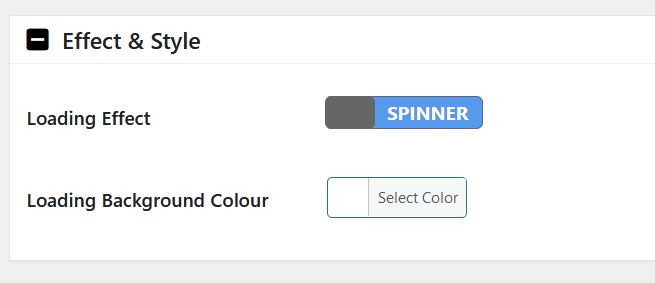
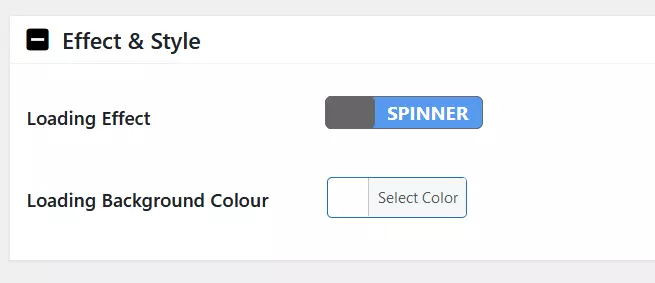
The plugin also gives you the option to visually enhance the loading of images and videos. Under the item ‘Effect & Style’ you make the appropriate settings. You have the choice between a fade-in or a rotating circle. In addition, you set the background colour, which you can adapt to the background of your website, for example.
The most important settings are done here to benefit from lazy loading in WordPress. However, the plugin can do a few more things. If you are a bit more familiar with the technology behind lazy loading, you can, for example, extend the viewport (via ‘Image Load Threshold’).
Turn off lazy loading through WordPress core
The lazy loading default feature is part of the WordPress core. It is actually not intended that you disable this feature. That’s why WordPress doesn’t have a corresponding function for it in its own settings. Nevertheless, it can be useful to disable the feature, for example if you use a plugin with lazy loading option. This way you prevent conflicts between the two functions.
For deactivation you can use a plugin like a3 Lazy Load. With Disable Lazy Load, you can even find a specially programmed plugin. You only have to activate it, and the lazy load function of the core doesn’t work anymore.
However, you do not necessarily need a plugin. The deactivation of the function can also be achieved via an entry in the source code. Before doing so, you should create a child theme to ensure that your changes are not simply lost after a theme update. Then go to the ‘Theme file editor’ via the ‘Design’ menu item and call up the functions.php file. There you add a new line:
add_filter( 'wp_lazy_loading_enabled', '__return_false' );If you now click on ‘Update file’, the changes are applied, and lazy loading is deactivated.
In WordPress, lazy loading is now part of the standard features. The core function is very practical, but also very limited. With the help of a plugin, the performance optimisation can sometimes be improved and extended, for example of videos. To make sure that a plugin and the core function do not get in each other’s way, you should deactivate the latter.
Reviewers

Melissa Senn
Melissa Senn has been with IONOS since 2016 and focuses on website, e-commerce, social media, and AI in the Digital Guide. As a digital strategist, she uses her extensive SEO and GEO experience to transform complex technological trends into practical content.

Julia Hertler
With over 18 years of experience in content marketing, Julia Hertler has deep expertise in digital communications. For the past 10 years, she has specialised in the areas of domains and hosting at the IONOS Digital Guide, making complex technical topics easy to understand.