

What is the best password manager?

Generating a password that is truly secure is no easy task. Finely tuned software can easily work out simple patterns, granting cyber criminals access to your most sensitive data within a matter of seconds.
The primary safeguard in any password protection strategy is password generators. This is because of their ability to produce intricate passwords using a blend of letters, numbers and symbols. While these passwords are challenging to decipher, they can also be hard to recall. Password managers play a crucial role in managing and storing these complex passwords.
What password managers are there? A comparison
Password managers can make everyday business and activities on the internet more secure. If you use a lot of applications with logins or work with confidential, sensitive information, security programs cannot only provide you with practical protection, they can also simplify your login processes. However, before you can create a customised password system, you first need to find the right password manager. But this is easier said than done given the large selection of solutions, which includes both proprietary and open-source tools.
To find the right tool, you should consider what requirements the software needs to fulfill. An important factor is whether the manager should run exclusively on a local computer or whether you also want to run it on an external device via a mobile storage medium (for example, a USB stick).
Another crucial factor is whether you want the tool to have a generator function or not. Password manager tools also differ in terms of algorithms. Personal preferences play an important role here as well. Whatever tool you decide on, you should make sure that it uses an up-to-date encryption method.
The storage location of the password database is also an important factor when deciding on a password manager. Some programs automatically store passwords in the provider’s cloud, which enables constant availability. However, you only have maximum control over your own passwords with solutions that allow them to be saved locally on your own system.
- Regular virus scans
- Automatic backups and simple file recovery
An overview of the best password managers
The various criteria outlined above demonstrate just how important it is to inform yourself before deciding which password manager is best for you. If you jump the gun, you could end up choosing a proprietary program prematurely, only to later find out that it’s not possible to use the provider’s cloud. This will result in you having to pay for a tool that you really have no use for and have no intention of using. On the other hand, quickly jumping into an open-source product is not without its own risks. Using an unreliable provider could quickly put your passwords and the information they protect in jeopardy. Here are several password managers compared:
| Password manager | Special feature |
|---|---|
| KeePass | Open source |
| Password Safe | RSA-4096 encryption for long-term keys |
| LastPass | Supports login via fingerprint |
| 1Password | Locally stored access key |
| Dashlane | Safety warnings and dashboard |
In order to assist you with finding a password manager, we’ve done some research on several interesting contenders. In our evaluation, we focused on cost, license model, flexibility and special features in particular.
KeePass
One highly recommended password manager is the open-source solution KeePass, which was released in 2003 by Dominik Reichl. Since then, this GPL licensed program has been continuously developed by its very active community. Nowadays there are over 45 different language packages as well as countless plugins which you can add to the KeePass base model. In addition to the official versions for Windows, macOS and Linux, there are other ports for mobile operating systems like Windows Phone (e.g. WinPass, WinKee, 7Pass), iOS (e.g. iKeePass, MiniKeePass, MyKeePass) and Android (e.g. KeePassDroid, KeePass2Android, KeepShare). To use the password manager tool, you either need to install it onto the desired system or copy it as a portable version onto a USB stick.
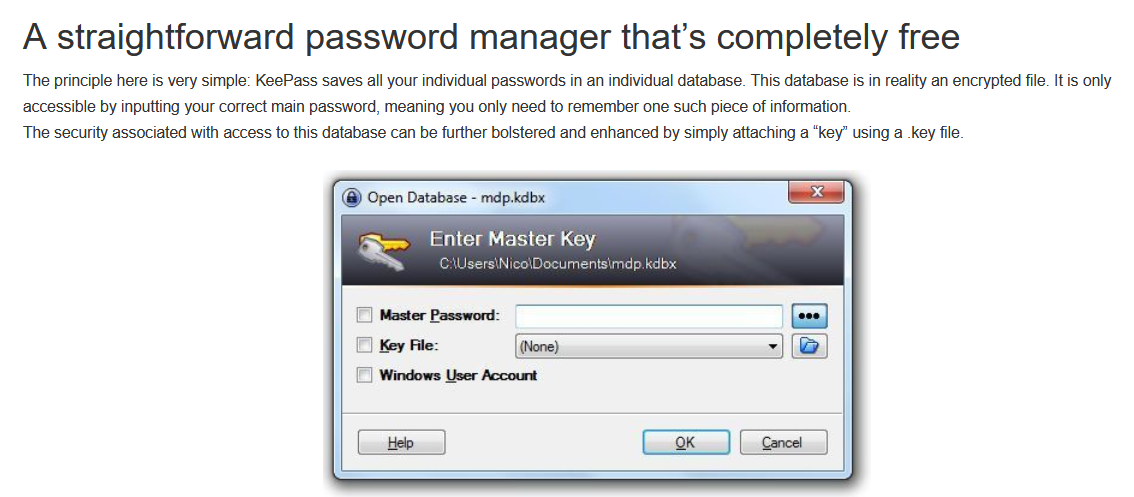
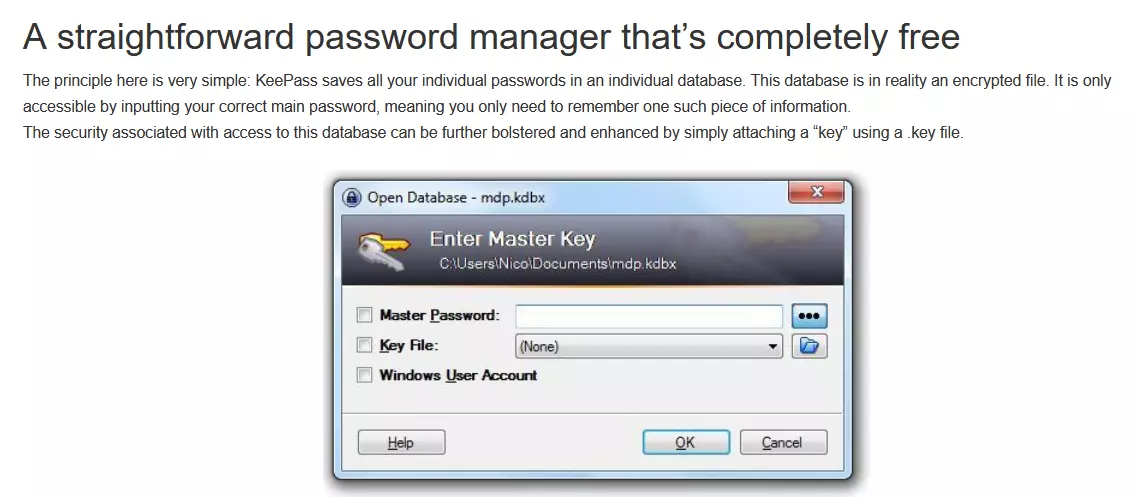
KeePass is an impressive password manager and, unlike other solutions, enables two-factor authentication and encryption of the entire password database, among other things. AES or the Twofish algorithm are available for this. When it comes to the protection of individual passwords, KeePass uses the hash algorithm SHA-256.
Users have three possibilities for accessing the database: a classic master password, a Windows account or the key file variable. According to the developer, the last of these options is the safest of the three. However, with the last option, you’ll always need to have the key file with you (for example, on a USB stick or a CD). It’s also possible to use a combination of the main password and a key file. Other features of this password manager are:
- Various export formats like TXT, HTML, XML and CSV
- Over 35 import formats
- Password categorisation possible
- Time specifications for the time of creation, the last modification, the last login and password(s) expiration
- Search and filter function
- Personal plugin framework available
KeePass makes a good impression and not just because of its comprehensive database functions. Its integrated password generator allows you to quickly create secure passwords for logins. In the settings, you can determine the length of the generated passwords along with the underlying character set (uppercase letters, lowercase letters, numbers, special characters, etc.). Alternatively, you can also select a pattern or your own algorithm as a basis for these.
| Advantages | Disadvantages |
|---|---|
| All data is stored on your own computer | Very complex operation |
| Two-factor authentication possible | Not all plugins are verified |
| A lot of potential for expansion | When creating passwords manually, KeePass often accepts weak passwords |
Password Safe (MATESO)
The software Password Safe, published in 1998, is available in various fee-based editions, whereby the offer is primarily tailored to SMEs and large companies. MATESO is now part of the U.S. IT security company Netwrix, meaning that additional editions are now offered, including smaller versions for private individuals. A demo version can also be requested. Here is a summary of the packages that they offer:
- Netwrix Auditor for Active Directory: The entry-level Starter edition provides basic Active Directory activity monitoring capabilities and can be extended with the Standard and Enterprise editions to include features such as real-time monitoring, compliance and analysis of AD activity.
- Netwrix Auditor for Azure AD: Similar to Active Directory, Netwrix offers different editions for Azure AD monitoring, customised to the needs of different companies.
- Other packages such as Netwrix Auditor for Office 365, Netwrix Data Classification or Netwrix Data Access Governance provide monitoring and security capabilities for Office 365 applications, data classification and labelling, as well as data access monitoring and management to minimise security risks.
According to the company, over 10,000 companies worldwide work with this feature-rich password manager. The program runs on all common Microsoft operating systems (starting with Windows 7) and is also available as an app for iOS, Windows Phone and Android. In all paid versions, Password Safe can be installed or used via a USB stick.
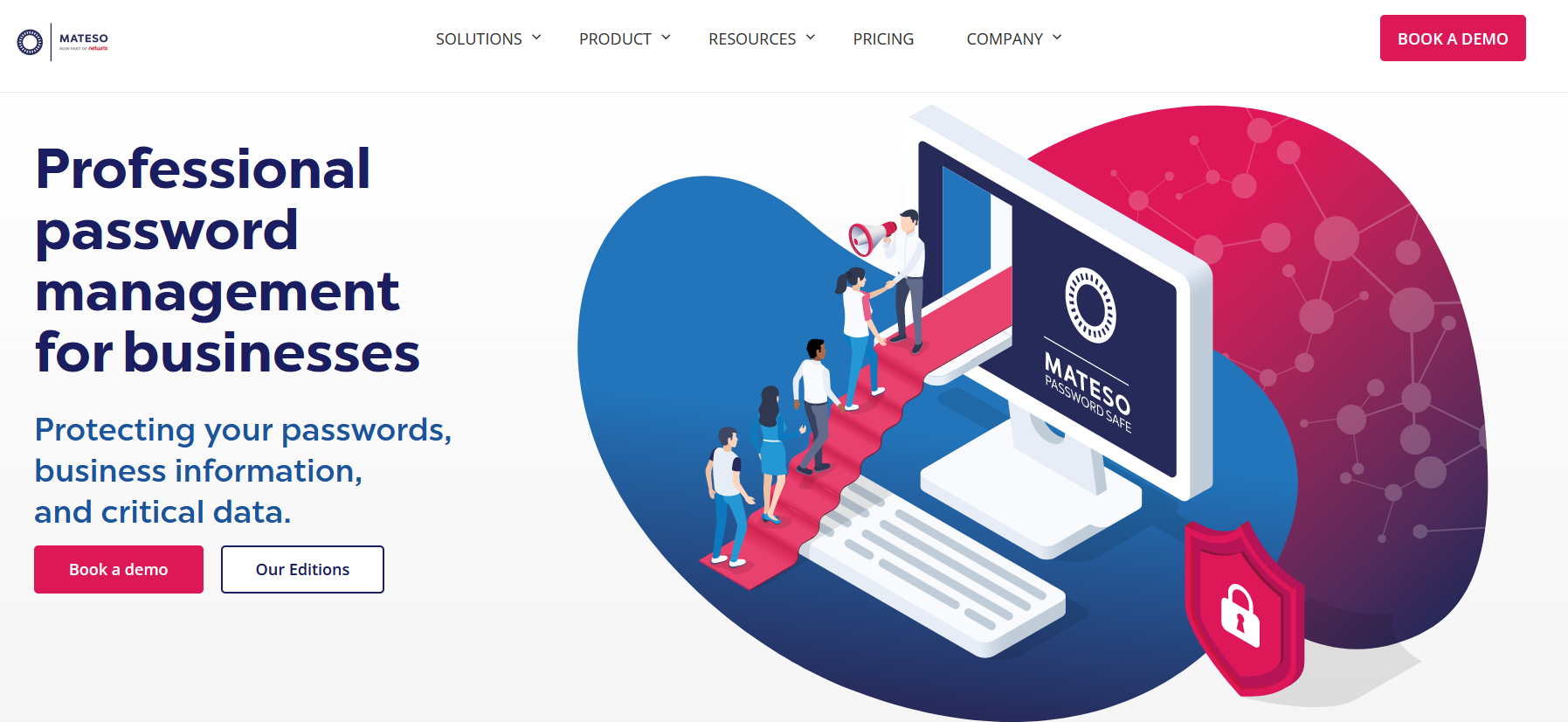
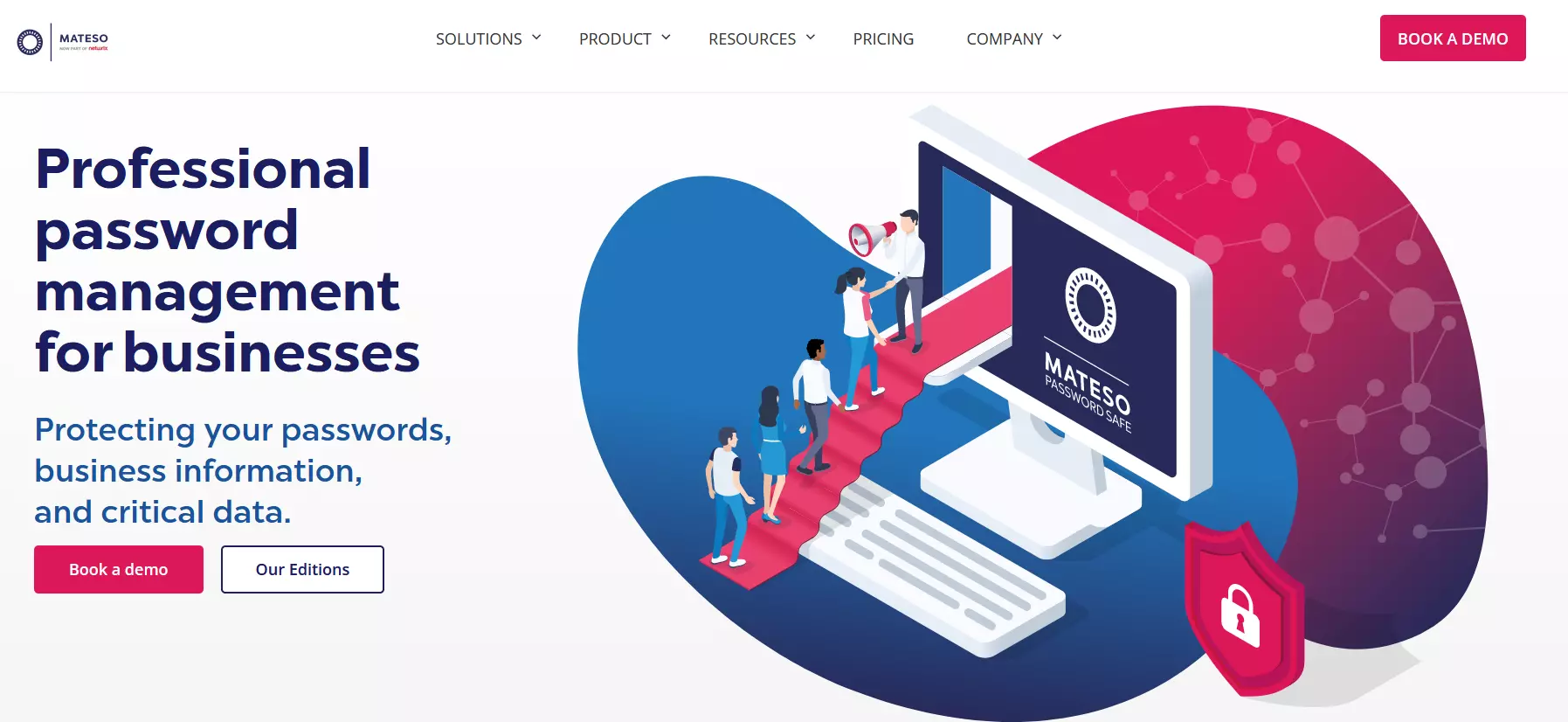
Password Safe is based on a clear folder system, making it easy to keep track of all entries in the password manager database.
Password Safe demonstrates its company-oriented nature through the wealth of multi-user features available in all the professional editions. One such feature is a centralised team database, which you can easily set up role-based access control for. It’s also possible to require an appropriate reason for password retrieval. Database and password security is ensured by AES 256, PBKDF2 and RSA 4096 encryption (for long-term keys).
You can establish a connection to the database by entering a master password or using a key file. Depending on the edition, you can also combine both methods to further increase the level of security. Some additional features of the password manager are:
- Cloud-enabled through end-to-end encryption
- Database firewall in some versions
- Customisable dashboard
- Intelligent search and filter functions
- Virtual keyboard for keylogger protection
- Automatic live backups
| Advantages | Disadvantages |
|---|---|
| Ideal for secure team collaboration thanks to various multi-user features | Password database is stored on the provider’s server |
| Dashboard and interface design can be customised | Free version only available as a 30-day demo |
| Automatic password entry and virtual keyboard |
LastPass
Since its inception in 2008, LastPass has been providing a password management service to securely store and manage passwords for daily online activities. This tool operates through various browsers, including Google Chrome, Firefox, Safari, Opera and Microsoft Edge, and can be added as an extension to your browser’s toolbar. LastPass also offers versions for mobile devices such as Windows Phone, Android and iOS. The basic web application is available for free. Additionally, private users can opt for the premium package, and businesses can choose from two packages that offer additional features for a small monthly fee.
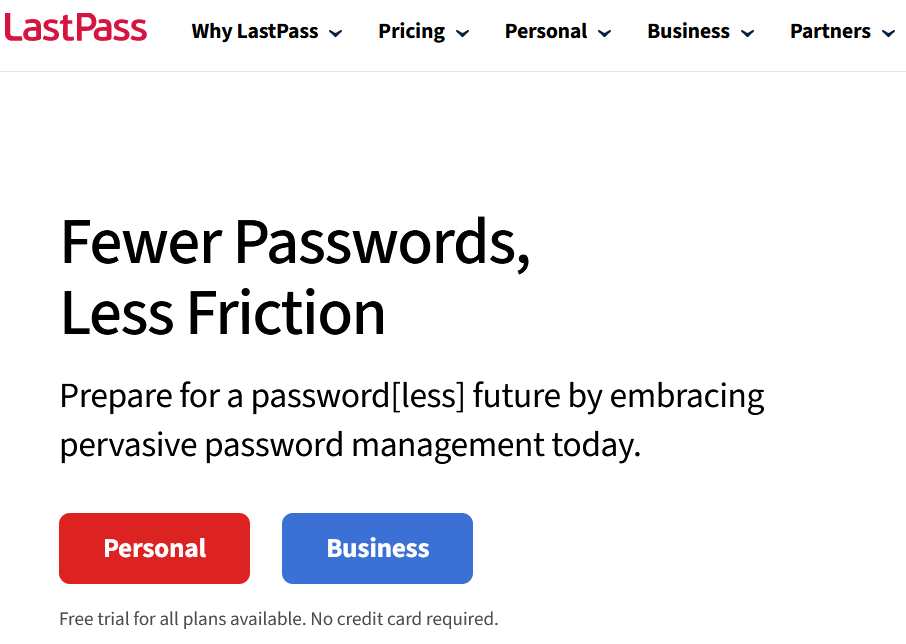
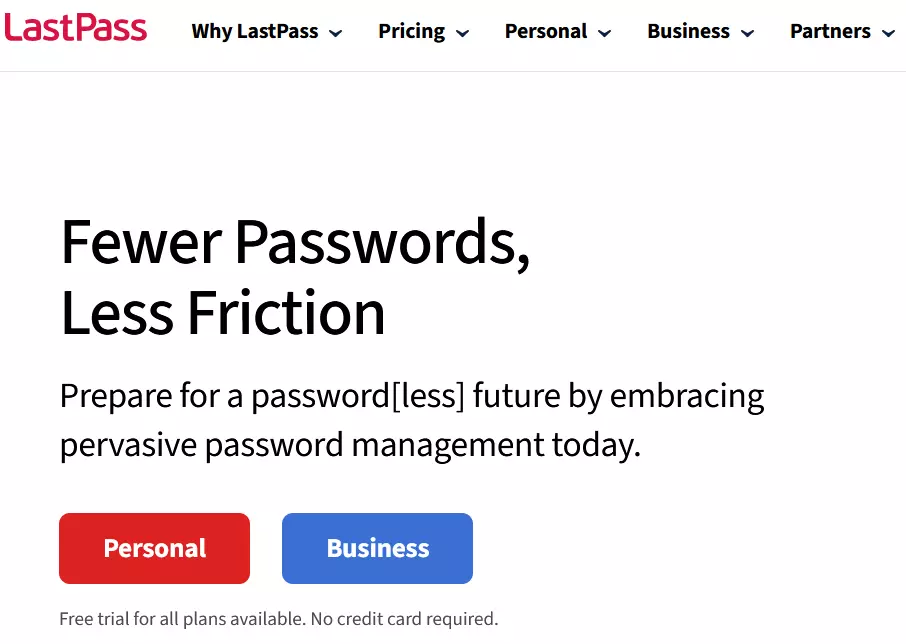
The password database, which in LastPass is known as the ‘Vault’, can be accessed at any time and on any of your devices. You can access the Vault via the button in the browser bar or the web application. Passwords are protected by AES 256-bit encryption and 600,000 rounds of PBKDF2-SHA-256 hashing with salting.
Encryption always takes place at the level of the individual device. This means that the master password and coding/decoding key is always saved locally and is never sent to the LastPass server. On top of this, you can choose from several multi-factor authentication options, for example, an SMS code or additional hardware components. LastPass also offers the following features as well:
- Automatic password entry
- Support for fingerprint authentication
- Secure release of passwords
- Password vault synchronises automatically with all devices
- Integrated password generator
- 1 GB encrypted file storage space (Premium edition)
The business package from LastPass equips companies with enhanced and centralised administrative tools for managing various employee access rights. Each employee receives a personal password vault, which they manage independently. For larger organisations, the Enterprise version provides additional benefits such as dedicated customer support in addition to other features. Furthermore, companies can establish their own security policies and receive access to the password manager’s API.
| Advantages | Disadvantages |
|---|---|
| Encryption takes place on the individual device level | Browser plugins do not always work 100% smoothly |
| Automatic synchronisation with all devices | Expandable password generator |
| Plugins available for all major browsers |
1Password
After AgileBits was founded in 2006 with the intention of developing innovative web products for businesses, the people behind the software soon realised that, with their internal tool for the management of passwords and formula information, they already had a great idea right in front of them. Since then millions of happy users have worked with this password manager, which they named 1Password.
The fee-based application is available for the desktop systems macOS and Windows, as well as for the mobile operating systems Android and iOS. Thanks to the browser extensions for Google Chrome, Opera, Firefox and Safari, it’s also possible to use 1Password across other platforms.
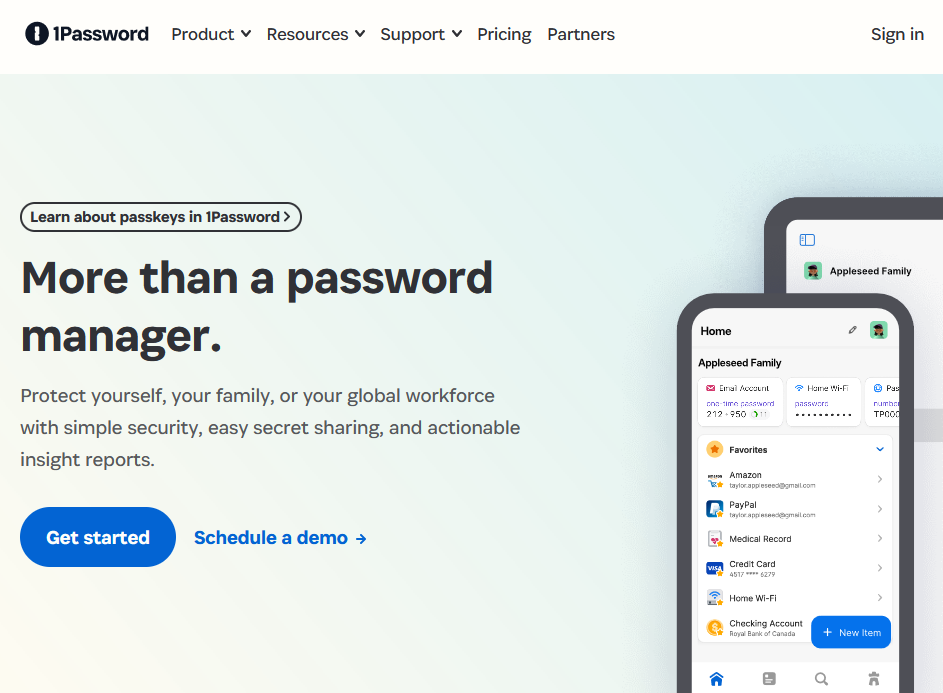
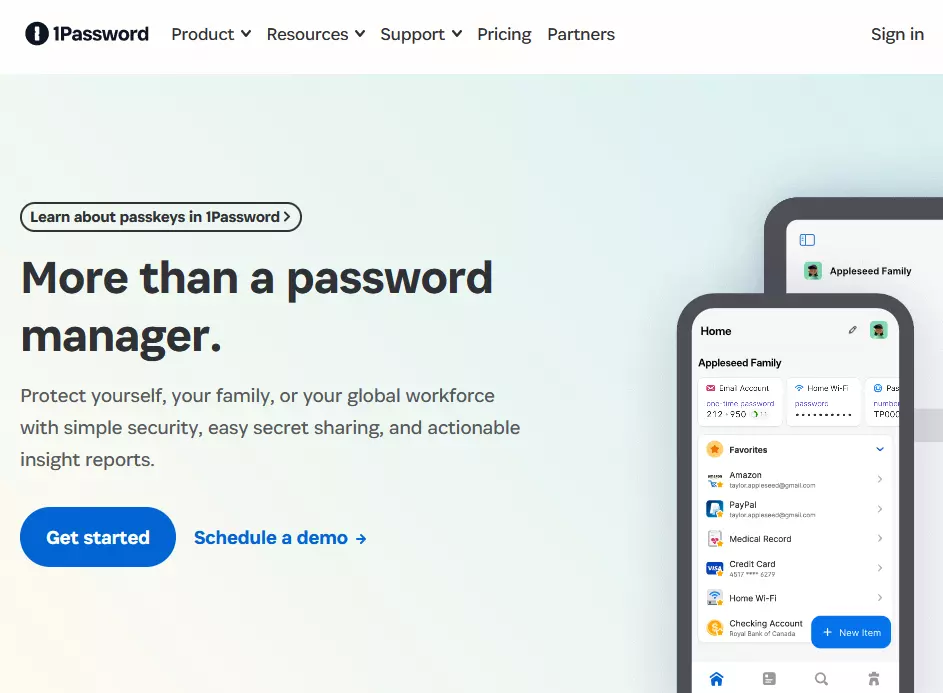
1Password uses end-to-end encryption (AES-256) to secure all imported contact information and passwords. This data is encrypted before it leaves your device. Additionally, encryption keys are safeguarded by the master password and are further secured by a locally stored 128-bit security key.
You’ll automatically receive the access key to the provider’s server as soon as you finish registering for the password manager. Even if hackers manage to make it onto this server, which like the web application itself is hosted on Amazon Web Services (AWS), your data will still remain encrypted. There are also several other features which make 1Password stand out as a password manager tool:
- Offline access available
- Automatic synchronisation with all devices in use
- Automatic evaluation of the security level of all passwords
- Easy integration of existing logins
- Personalised shortcuts for automatic registration
- Grouping of passwords possible (file or day system)
This password manager tool offers its own generator for creating secure passwords. It is possible to adjust the settings in relation to length, pronounceability and even desired characters and symbols. The generator can also be used to create new passwords for accounts that already exist.
Various licensing options are available for 1Password. Individual users are adequately served by the standard edition (for one person) or the family package (for up to five people). Agencies and corporations have the choice of two business packages: Teams (for up to 10 team members) and Business (suitable for small to large enterprises), which include additional features like an administrative console, advanced access control and dedicated account management.
| Advantages | Disadvantages |
|---|---|
| Usable across many platforms | Subject to a fee after 14-day trial version |
| Extensions available for all major browsers | Provisioning with Azure AD, Google Workspace, Okta, OneLogin, Rippling and JumpCloud |
| Storage of detailed account information possible | Customised reports only available in the Business version |
Dashlane
In 2012, the American company Dashlane released the proprietary tool of the same name, which is regarded as being one of the most successful solutions available on the market today. After a free trial, you can opt to continue with a fee-based version of the software. Dashline offers two versions for private individuals (Premium/Friends and Family) as well as two versions for companies (Business/Enterprise). The latter include features for shared use such as a central administration console and a password sharing option. In addition to desktop versions for Windows and macOS as well as apps for iOS and Android, there are plugins for Chrome, Firefox, Safari, Opera and Edge. These plugins allow users to integrate Dashlane into the internet browser of their choice.
Dashlane’s user interface is divided up into three sections: Password Manager, Wallet and Contacts. Under the heading Password Manager, you’ll find the registered passwords (AES-256 encrypted). The software also automatically implements already existing login data. Under the menu heading Wallet, you can save personal contact information, payment receipts and document copies (e.g., IDs or driving licenses). The Contacts section contains all features required for communal use of the password manager tool.
One standout feature of Dashlane is the password changer, which enables the automatic update of passwords on any supported websites. Dashlane can autonomously log in to a specific web project and handle the password update. Additionally, users can access the security dashboard and create personal, password-protected notes. Other features include:
- Automatic completion of forms and login sections
- Security warnings for unsafe passwords
- Password categorisation
- Various interfaces for importing passwords (this includes for browsers like Chrome and Firefox, but also for other tools like KeePass, LastPass or 1Password)
- Data exporting (Excel or CSV format as well as in your own dashboard format)
- Password expiry
As with many of its password manager counterparts, Dashlane has an integrated generator, which you can create passwords of up to 28 characters in length with. You can also choose whether letters, numbers, symbols, upper-case or lower-case letters (or both) should be used.
In addition, you can synchronise the data and passwords that you enter across devices so that you can access the information anytime and anywhere. Dashlane also offers the option of two-factor authentication. In this case, the standard master password is combined with a U2F-YubiKey, which is located on an external storage medium.
| Advantages | Disadvantages |
|---|---|
| VPN for WLAN protection, phishing notifications in real time | Subject to a fee after test version |
| Plugins available for all major browsers | Windows Phone not supported |
What risks are there with password managers?
Password managers are useful for creating and maintaining secure passwords. However, issues may occur if the master password is misplaced or forgotten. In these situations, users will be locked out and unable to access their secured applications.
You are always reliant on the database that has been established. With local installations, the benefits of password managers are limited to your home PC. When you opt for a mobile or cloud solution, the security risk inherently rises. This is due to the fact that none of these solutions offer 100% protection.
Check the authenticity of an IONOS email, find out straightaway if it is a phishing attempt and report it to remove the phishing content.
- Validate email
- Easy to use
- Remove phishing
Are ‘homemade’ passwords a viable alternative?
If you want to maintain independence from databases and software, you have to depend on your own memory. A practical approach involves using a password system where you adapt a secure master password based on a specific pattern for each website you visit. Simple memory tactics can help you memorise the master password. Read more about these in our article “How to choose a strong password”.
Reviewers

Melissa Senn
Melissa Senn has been with IONOS since 2016 and focuses on website, e-commerce, social media, and AI in the Digital Guide. As a digital strategist, she uses her extensive SEO and GEO experience to transform complex technological trends into practical content.

Christian Heldmaier
Christian Heldmaier is an experienced online marketing and SEO specialist from Karlsruhe. He has been working as an SEO Manager at IONOS since July 2020.