

How to disable WordPress comments

WordPress began as a blogging platform where visitor comments were a central feature. Today, it’s widely used to build all types of websites—and comments aren’t always necessary or beneficial for every page or post.
IONOS offers Hosting for WordPress with comprehensive support, allowing you to quickly, easily, and securely create various websites, shop systems, and platforms.
Whether you want to disable comments for specific pages or posts or for your whole site, WordPress has simplified the process. All it takes is a few mouse clicks. The quickest and easiest way to turn off comments in WordPress is via the settings in the backend. Alternatively, you can use a plugin or edit certain lines in your WordPress code.
- Stress-free, no matter your skill level with easy AI tools
- Full customisation with themes and plugins
- Hassle-free updates and less admin
How to disable WordPress comments for your entire site
By default, WordPress comments are disabled on pages but enabled on posts. If your website only contains pages (and no posts), you don’t need to turn off comments manually.
WordPress websites can contain both dynamic content (‘posts’) and static content (‘pages’). On pages, the content doesn’t change, whereas for posts, the content is rearranged each time a new post is added. Most ‘standard’ websites created today mainly use pages. Posts are used when content is constantly being added, because they display new content at the top and shift older articles down the page.
Here’s how to turn off comments for all of the posts on your WordPress website:
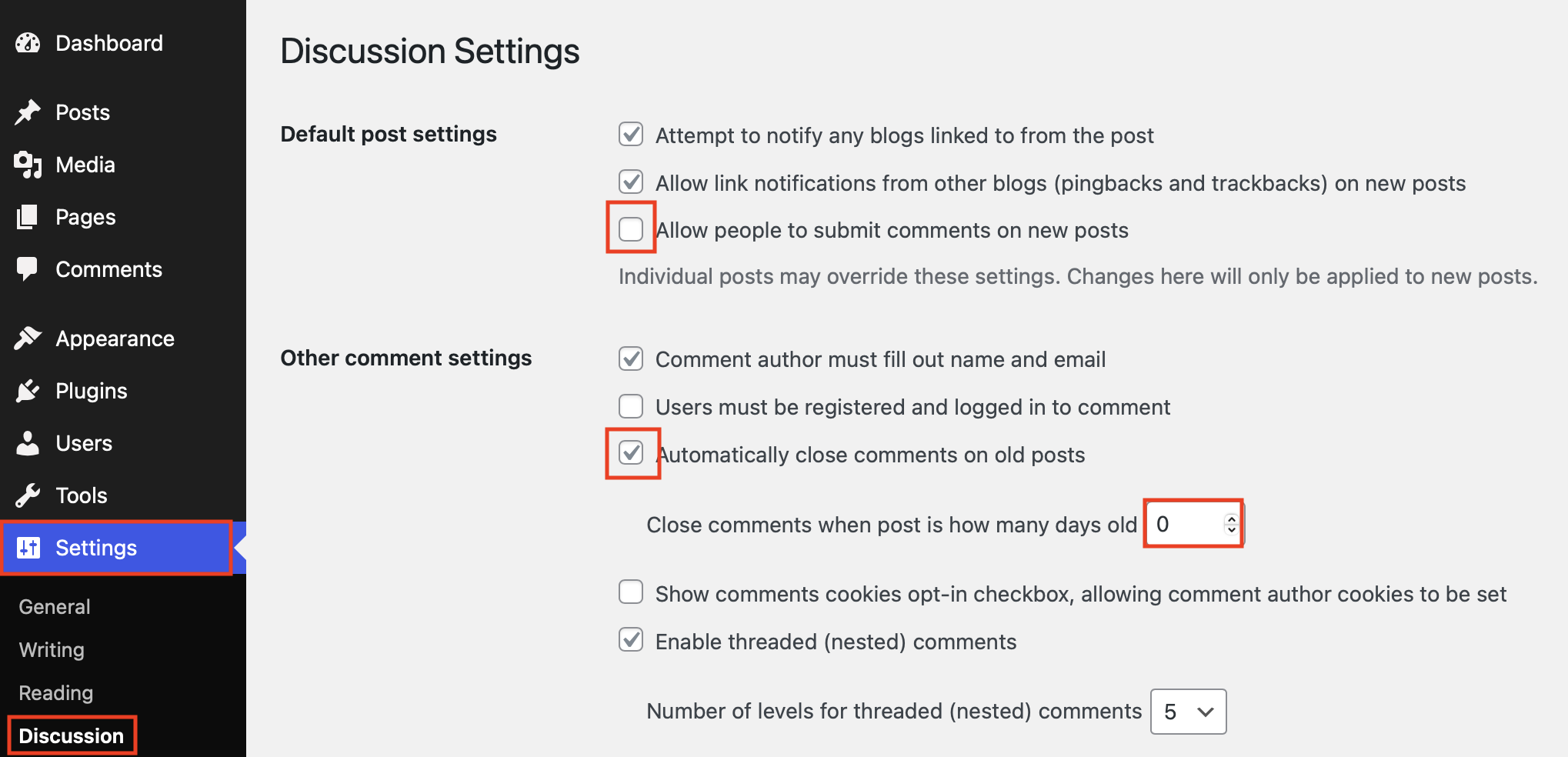
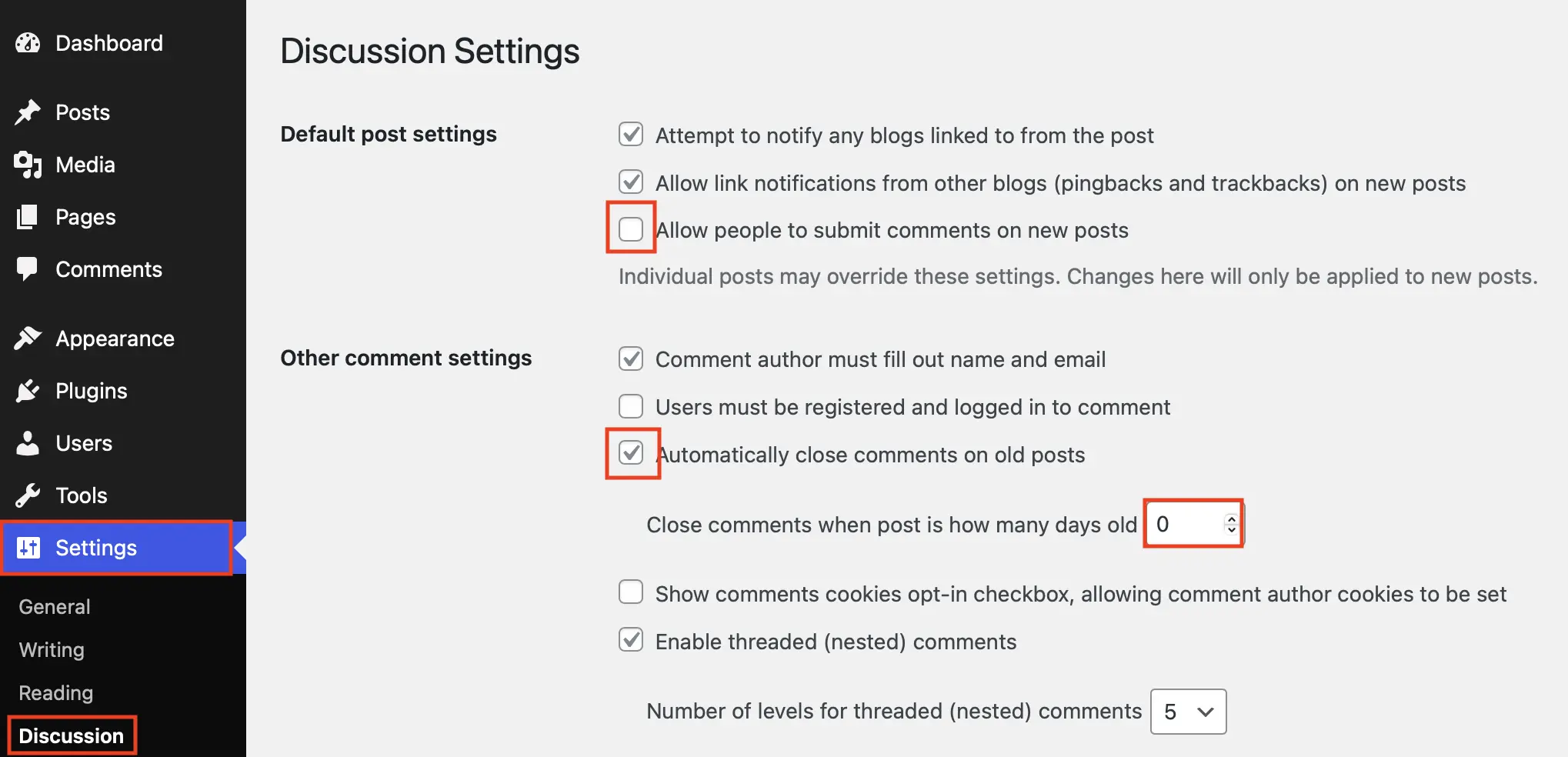
Step 1: In your WordPress backend, go to ‘Settings’ and then to ‘Discussion’.
Step 2: In the window that now opens, untick the box next to ‘Allow people to submit comments on new posts’. Now, your visitors will no longer be able to leave comments on new posts, although they can still comment on existing ones. This is why the next step is extremely important.
Step 3: Tick the box next to ‘Automatically close comments on old posts’. Instead of the usually suggested ‘14’ days, enter ‘0’ next to ‘Close comments when post is how many days old’. This effectively closes existing comments immediately, making them no longer visible. To activate all changes, click the ‘Save Changes’ button at the bottom.
Once you’ve made the changes, it’s a good idea to check that comments are indeed disabled on all of your posts.
How to disable WordPress comments for specific posts and pages via ‘Quick Edit’
You can turn WordPress comments on and off for specific posts and pages using the ‘Quick Edit’ function in the backend. As mentioned above, by default, comments are enabled for pages and for posts.
How to disable WordPress comments for specific posts using ‘Quick Edit’
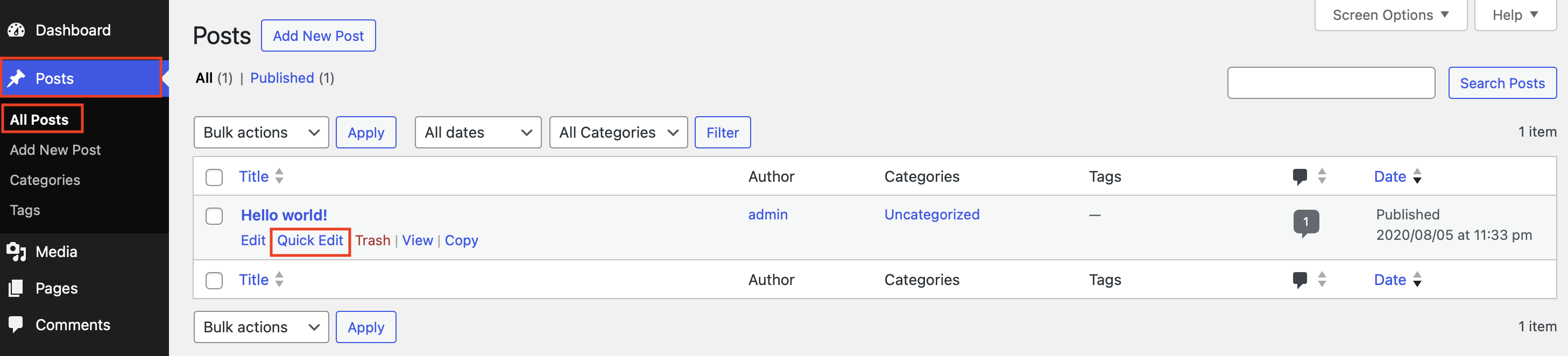
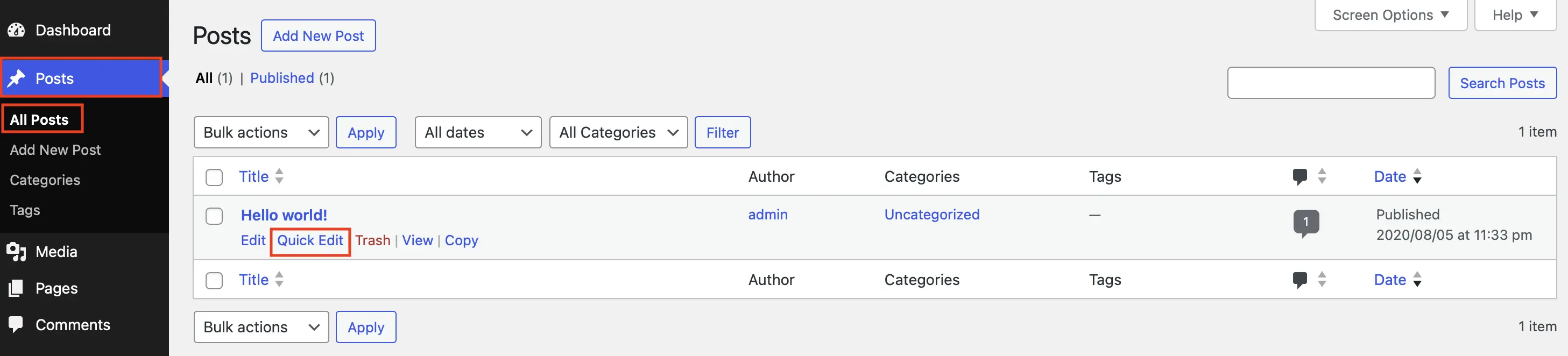
Step 1: To disable WordPress comments on individual posts, go to your WordPress backend, first click on ‘Posts’ in the left sidebar, and then select ‘All Posts’. All your posts will be displayed.
Step 2: Now hover your mouse pointer over the post for which you want to disable the comments. Below the post name, you will see the fields ‘Edit’, ‘Quick Edit’, ‘Move to Trash’, ‘View’, and ‘Copy’. Click on ‘Quick Edit’.
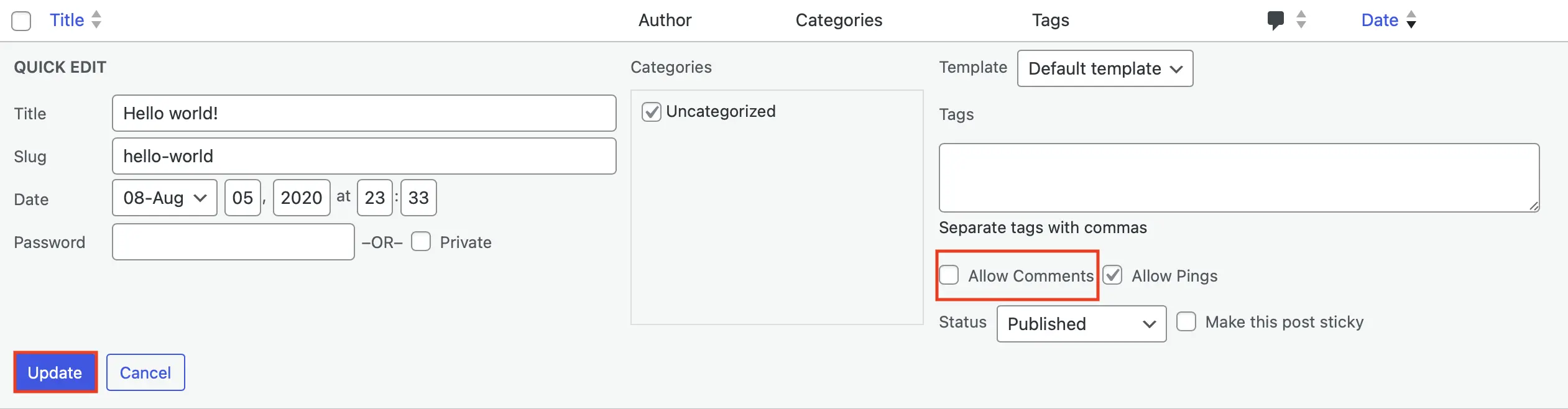
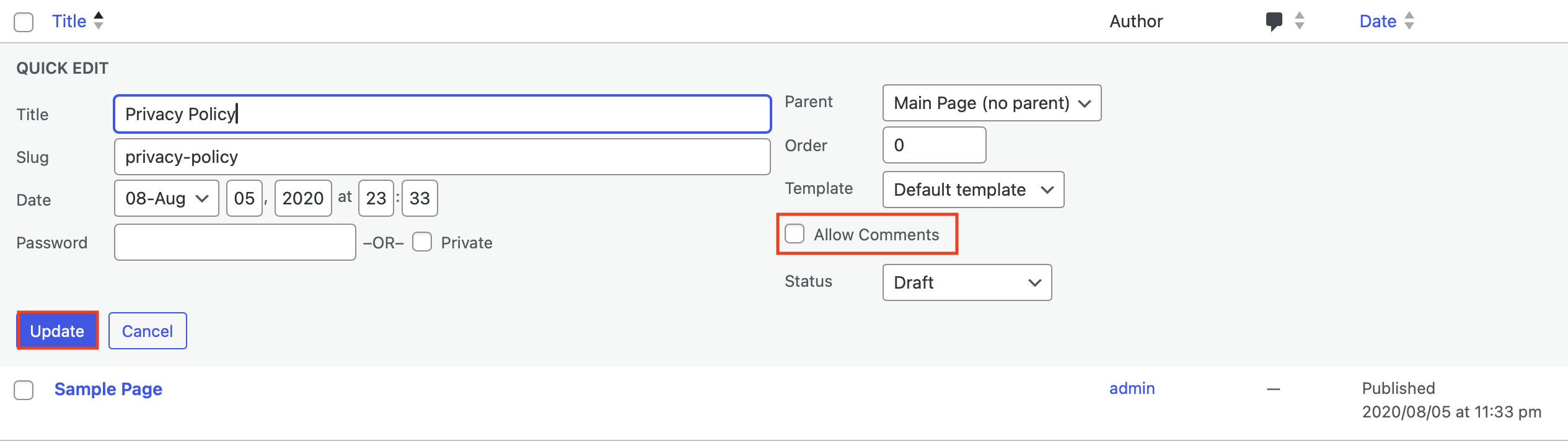
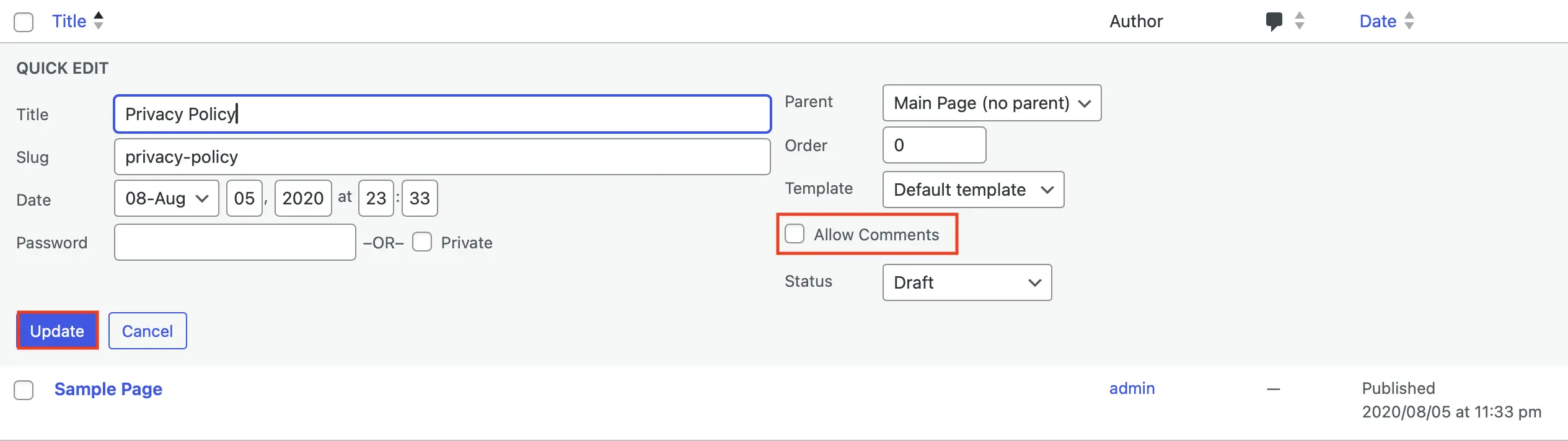
Step 3: A field will now open where you can make various ‘Quick Edit’ settings. You just need to untick ‘Allow Comments’ and then click the ‘Update’ button. This will disable new comments on the post you have selected.
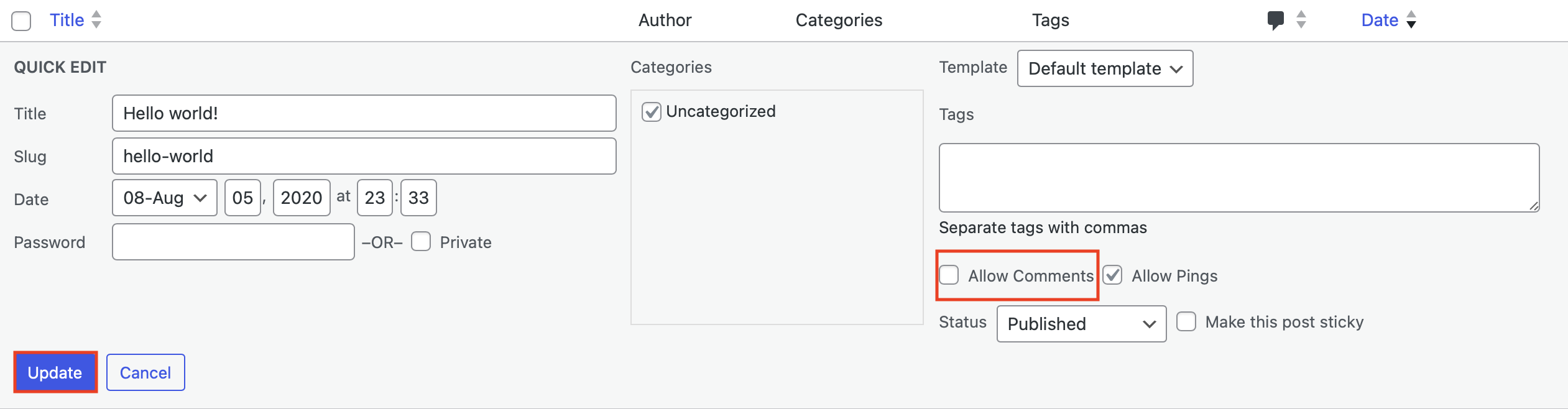
How to enable WordPress comments for specific pages using the ‘Quick Edit’ function
In the basic settings of WordPress, the comment function is generally disabled for pages. However, with just a few clicks, you can enable comments on pages as well. The process is quite similar to changing the comment function for WordPress posts.
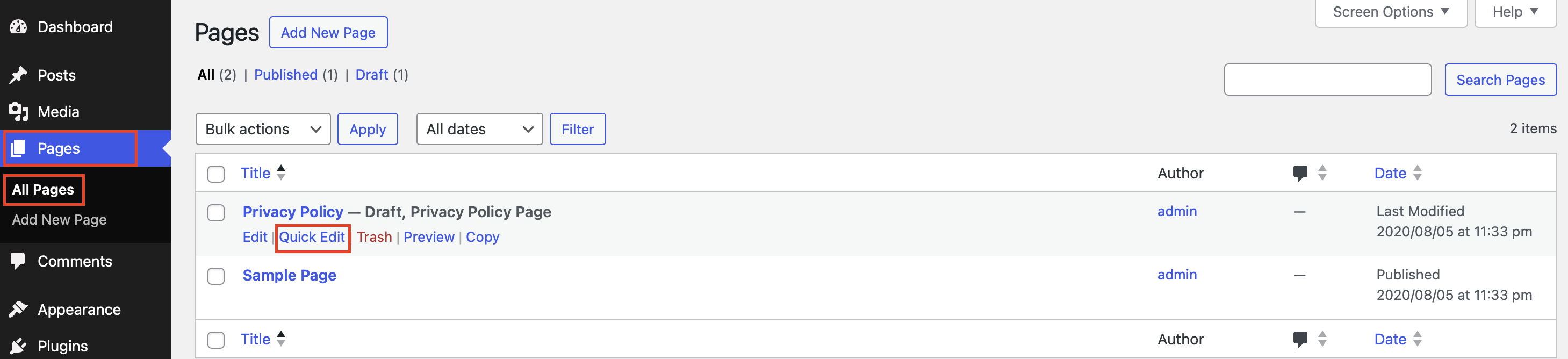
Step 1: First, go to ‘Pages’ in the WordPress backend, then click on ‘All Pages’. This will display all the pages of your WordPress website.
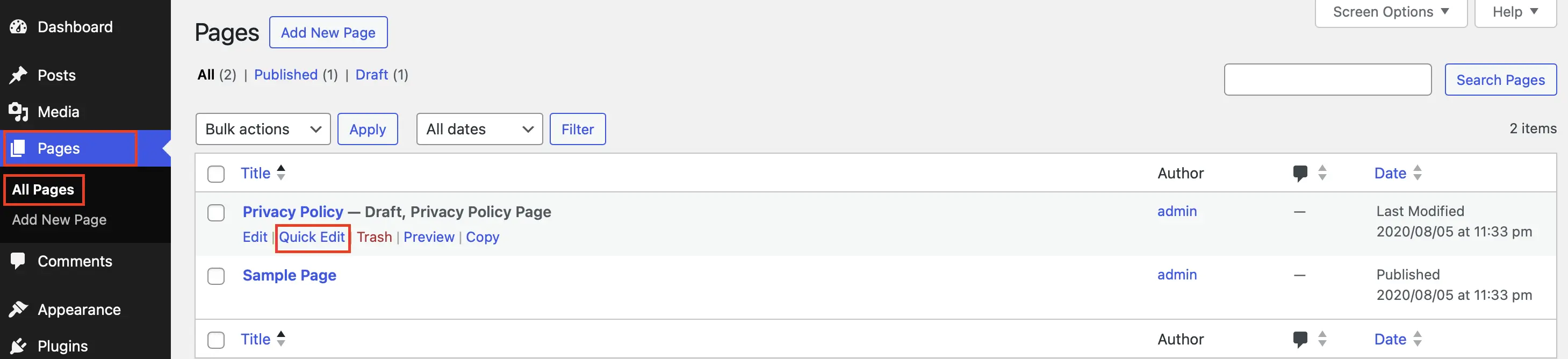
Step 2: Now move your cursor over the page where you want to enable (or change) the comment function. Several options will appear under the page name—click on ‘Quick Edit’.
Step 3: The ‘Quick Edit’ field will now appear, allowing you to make quick settings for the relevant page. Simply tick the box for ‘Allow Comments’ and then click the blue ‘Update’ button. This will enable comments for the specific page. If you want to disable WordPress comments, just remove the tick from the respective page and click ‘Update’.
How to disable WordPress comments for specific posts or pages using Gutenberg
Another very simple way of enabling or disabling comments on your WordPress site is to use Gutenberg, which is the default editor in the latest versions of WordPress.
Step 1: In the WordPress backend, open a specific page or post. First, go to ‘Pages’ or ‘Posts’ and then ‘All Pages’ or ‘All Posts’. Now you’ll see the list with all your pages or posts. Click on the name of the page or post where you want to change the comment settings.
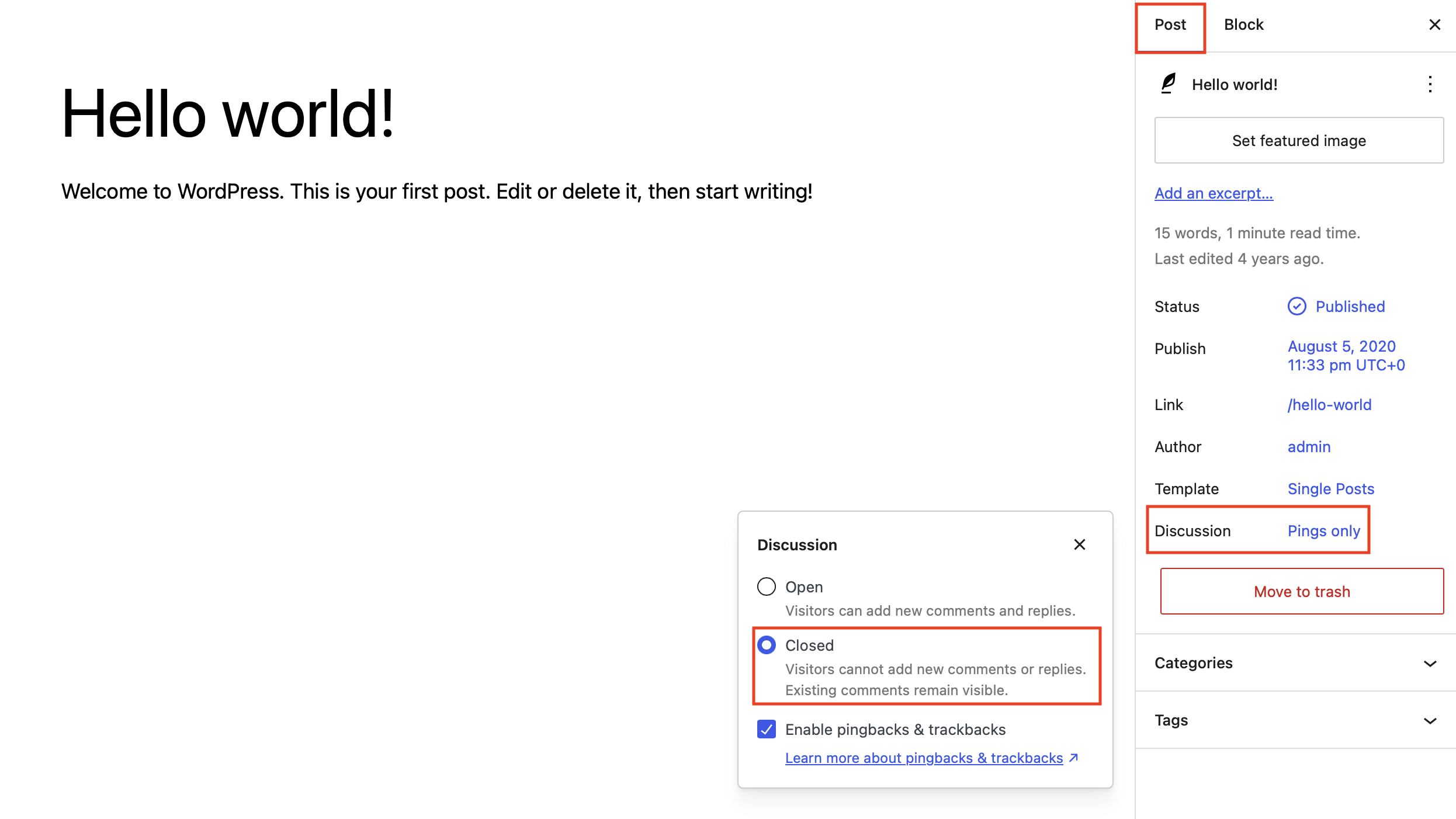
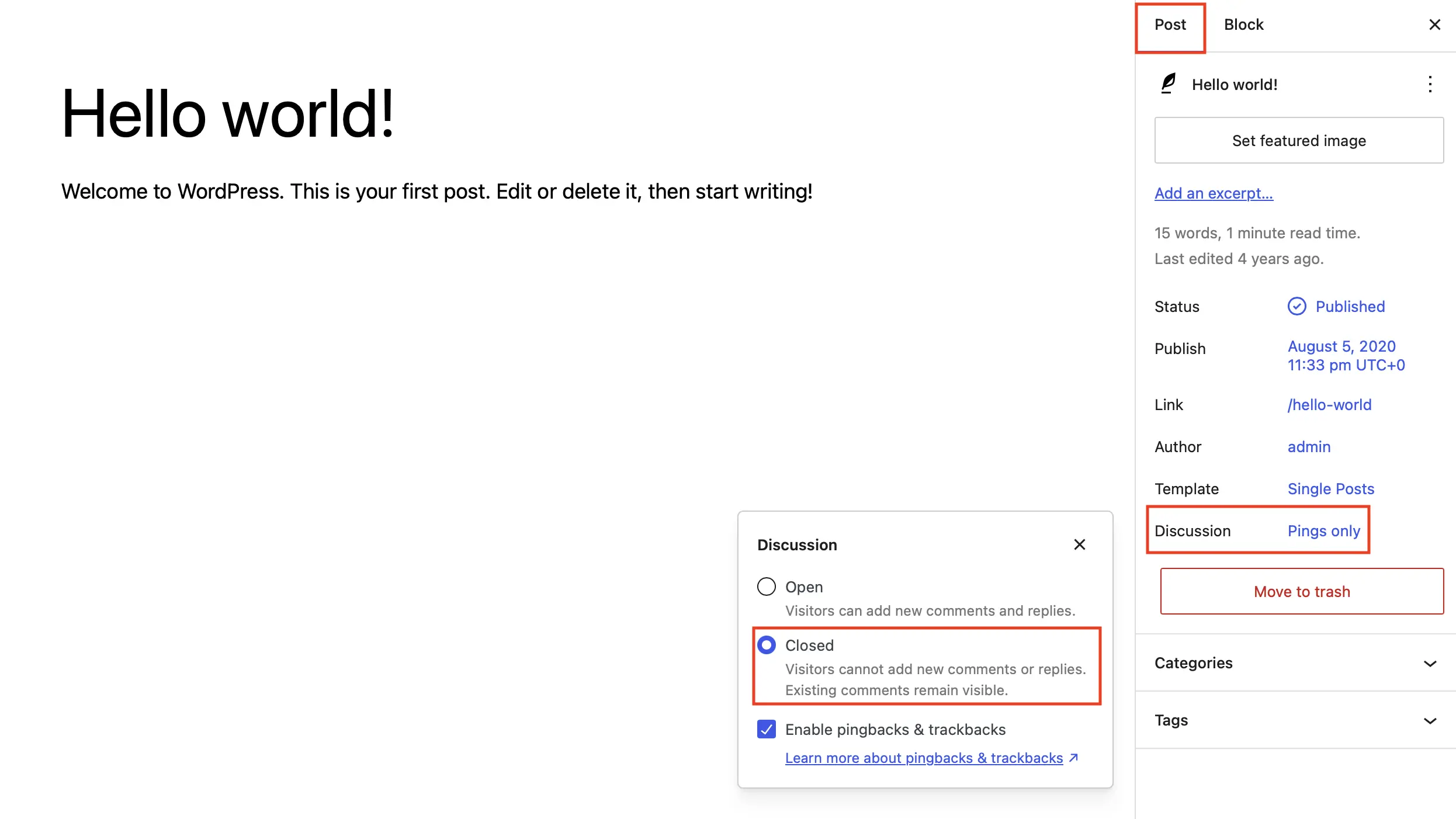
Step 2: The corresponding page or post opens in the Gutenberg Editor. Now click ‘Post’ in the right sidebar (‘Info Box’) and then on the ‘Discussion’ entry. You can tick ‘Closed’ if you want to disable WordPress comments. To apply the changes, click ‘Update’ at the end.
The options listed above allow you to disable new comments on specific WordPress posts or pages, or remove comments completely. However, depending on the structure of your site, you might have no other option but to delete existing comments individually if you no longer want visitors to see them.
How to disable WordPress comments using a plugin
WordPress offers several easy ways to disable and manage comments. However, if these aren’t sufficient, you can install a plugin designed specifically for this purpose. One of the most popular choices for making WordPress comments disappear is ‘Disable Comments’ by WPDevelopers – it’s currently installed on more than one million WordPress sites! The plugin is ideal if you’re looking for a quick and easy way of disabling comments, and removing all comment-related controls and settings from both the frontend and the backend.
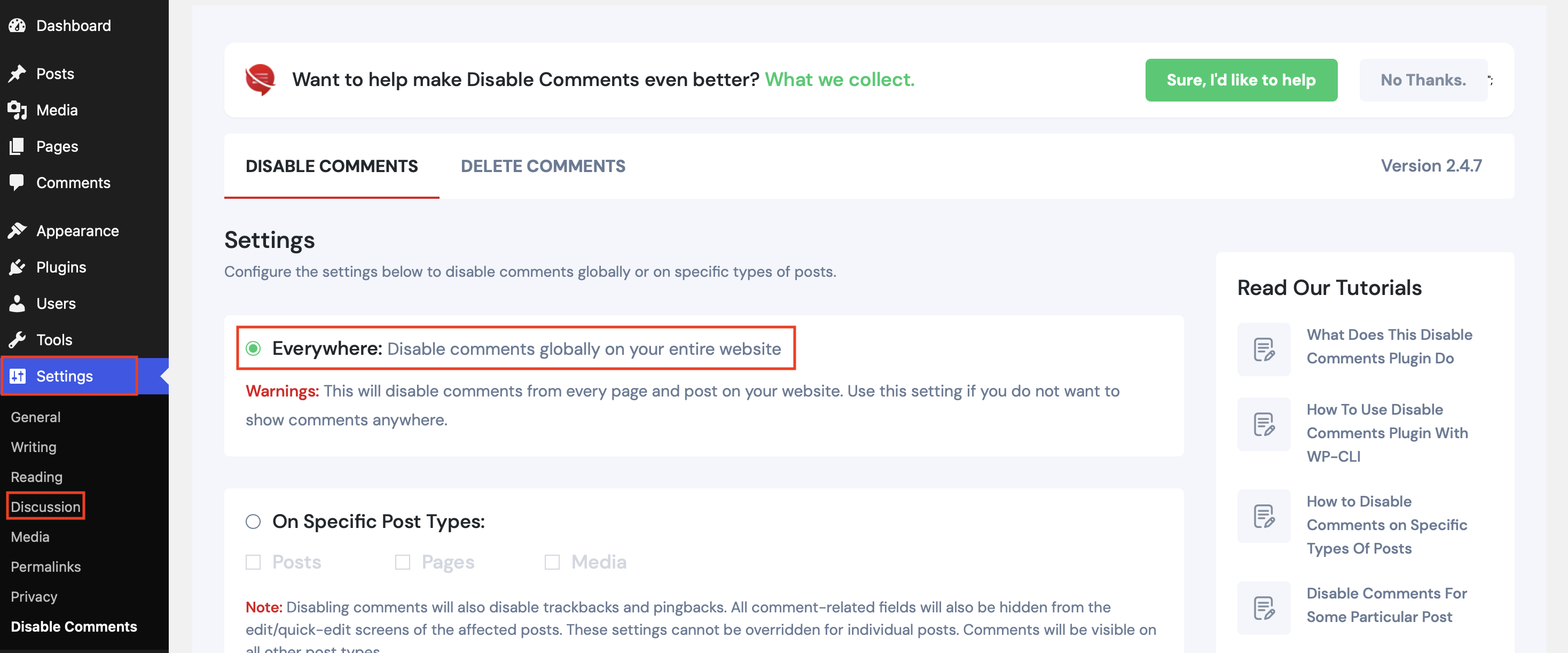
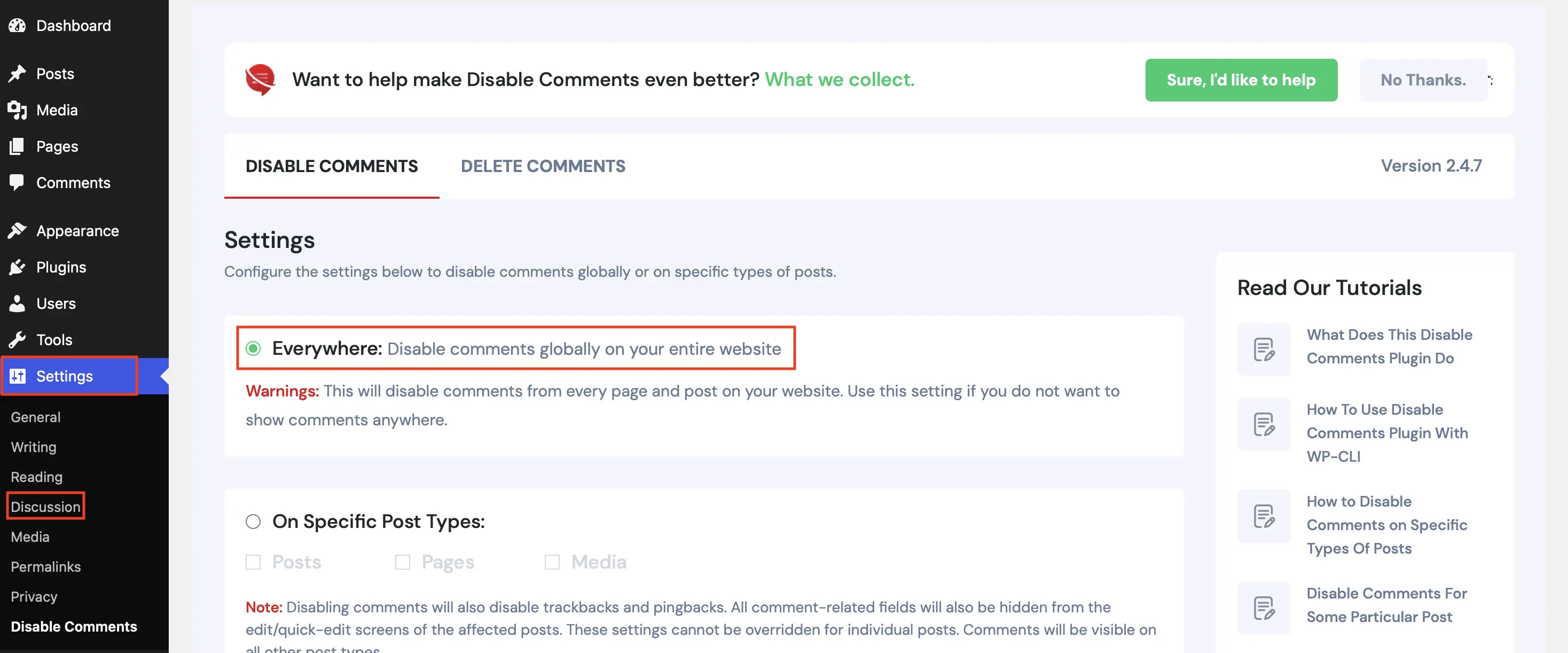
As well as the popular ‘Disable Comments’ plugin, there are a number of other plugins that let you adjust various comment settings in WordPress.
How to disable WordPress comments using code
If you’re able to edit the code of your WordPress site, there are lots of things you can do, and that includes managing comments. When it comes to comments, there are usually simpler ways of achieving your goal, but if you still want to modify your code, here’s what to do. First, create a backup of your WordPress site so that you can restore your pages if anything goes wrong.
How to disable commenting for all pages using code
To disable all comments on WordPress pages and delete existing comments, go to the code of the WordPress file page.php and look for the following line:
<?php comments_template( '', true ); ?>Replace this line with the following code snippet:
<?php comments_template( '', true ); ?>
End Comment -->Disable comments using code on all posts
For posts, proceed in a similar manner. Search in the WordPress file single.php for the following line of code:
<?php comments_template(); ?>and replace it with the following code snippet:
<!-- Begin Comment
<?php comments_template(); ?>
End Comment -->If you have inserted both code snippets correctly, WordPress comments are disabled—on all pages and posts. Note that there may be other post types in WordPress, such as ‘Media’. Therefore, it’s important to check if all WordPress comments are really disabled and, if necessary, deleted.
Further information on WordPress can be found in our guides on the best WordPress themes, WordPress quiz plugins, and plugins for WordPress security.

Reviewer

Julia Hertler
With over 18 years of experience in content marketing, Julia Hertler has deep expertise in digital communications. For the past 10 years, she has specialised in the areas of domains and hosting at the IONOS Digital Guide, making complex technical topics easy to understand.