How to manage WordPress user roles

For a website to run smoothly and without complications, each user must understand their respective tasks and admin rights. With WordPress, user roles are easy to set up and maintain. We’ll show you how to manage WordPress roles, which roles exist, and what you should consider when setting them up.
Ask, create and research with the European alternative to ChatGPT. Robust security and unlimited chats give you peace of mind.
What are WordPress user roles for?
WordPress roles define user rights and access permissions for a website. The number of tasks on a website can be huge, but beyond posting content not every single employee may be authorised to make changes to the page’s settings, for example. User roles can range from creating new posts to adding other users to installing a plugin. It’s usually a good idea to ensure everyone understands their respective tasks and thereby prevent inadmissible behaviour right from the start.
Say you’re developing a website for a client. You’ll want them to be able to access their content, but not necessarily have permission to modify a theme. WordPress roles work in a similar way. An editor does not need to and should not be able to access plugins; however, employees in charge of adding visual content or modifying posts will require the appropriate access. A well thought-out and stringent division of WordPress role permissions, rights and clearly communicated duties ensure smooth processing and more effective and safe working.
A domain to suit your ideas! Register your desired domain with IONOS and benefit from advantages like Wildcard SSL, Domain Lock, and a 2 GB email inbox.
What WordPress user roles are there?
Some five or six different roles can be defined in WordPress. It is important to distribute tasks sensibly from the get-go and issue permissions accordingly.
Administrator
Every website has an administrator by default. This person has all permissions, access to all capabilities, and gets to assign WordPress role permissions. The admin adds or deletes new users, installs updates or plugins, changes themes, and has control over the entire site. The administrator role should be assigned to a user well-suited to this kind of responsibility; someone who is trustworthy and reliable and able to maintain a good overview of all operations. It is also recommended that only one person act as an administrator and access is protected by means of a .htaccess password.
Editor
Editors are responsible for publications on the site. A WordPress editor can create, change, publish, and delete posts and pages. This also applies to posts and pages created by other users. So the main task of an editor is to oversee the content across the website and supervise other users. On the other hand, editors cannot install plugins, themes, or updates
Author
Unlike the two previous WordPress user roles, the author is solely responsible for their content. Therefore, they can neither correct, nor publish or delete posts of other users. But an author can post, edit, and remove their own contributions and upload media such as images and videos. Authors can assign their posts to existing categories, but they cannot create their own categories.
Contributor
The contributor is subordinate to the editor. Although they can write and create their own contributions, they must be published by an editor (or the administrator). Contributors have neither the option to change or delete their contributions afterwards, nor can they access the contributions of other users. This is ideal for external contributors or guest authors who contribute content, but cannot or should not take responsibility for the site.
Subscriber
Subscribers have no active capabilities or rights on WordPress Placeholder: WordPress E-Book for Beginners. They can only modify and customise their personal profile. However, they have access to all posts on the site and are allowed to read them. This model is suitable for users who should have access to exclusive content on the site. However, there is no collaboration on the content.
Special case: Super Administrator
This WordPress user role exists only in multisite systems. The Super Administrator has all rights and access to all websites of the network and is superior to admins of the individual sites. Only they can install themes, manage plugins, and even delete individual pages.
Additional WordPress user roles
While the above WordPress roles are standard, some plugins let you set up other roles with additional clearly defined tasks and capabilities. Examples include manager functions for stores or SEO editors.
Always the right hosting for your needs! With Hosting for WordPress from IONOS you can select one of three different packages. From the low-cost solution for a single website to an all-round package for unlimited websites and infinite storage. You’re guaranteed to find the perfect match for your website needs!
How to create a new user
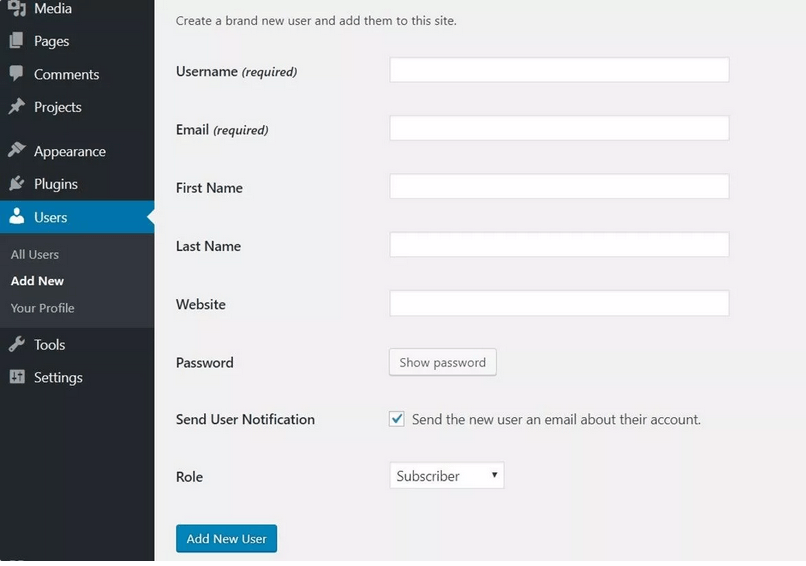
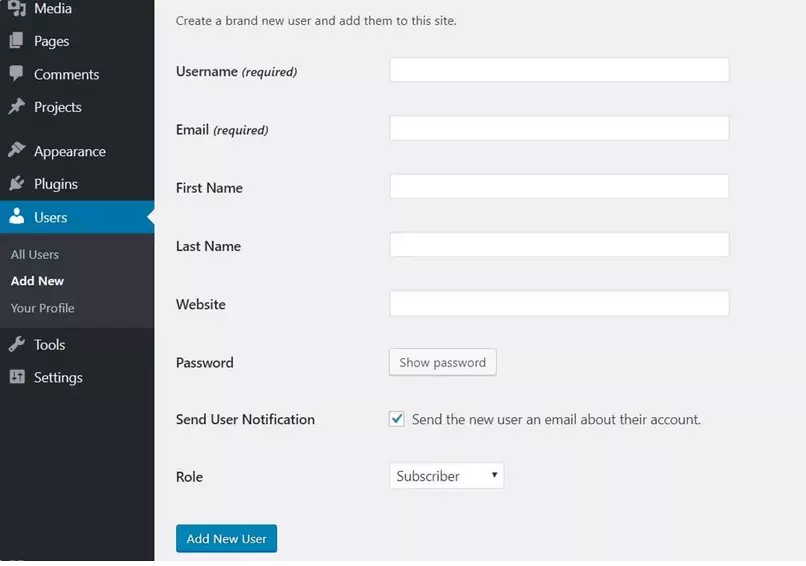
WordPress user roles are defined and assigned permissions in the backend.
- First, click on ‘Users’ in the menu on the left and select ‘Add New’.
- In the user administration you can see which entries are required and which are voluntary.
- The username is the first entry. This is not the user’s real name. For security reasons, the username should not hint at what the first or last name of the new user could be.
- Enter their email address to share login data with the new user. Each address can only be used once.
- Adding a first name and surname is optional. Leaving them blank means that posts will be published under the username. However, actual names tend to look more professional here.
- Adding a website is optional. The respective user may wish to link to their personal website.
- Passwords are auto-generated when you create new roles in WordPress. However, the first time a user logs in, they will be prompted to create a new password. To best protect your website and data, users should choose a secure password. To be absolutely sure, it is recommended to use a password tool for this purpose.
- Finally, you can choose from the different WordPress user roles and assign a position and thus appropriate permissions to the new user.
Changing WordPress roles
Admins can manage names, dates, passwords, or WordPress roles or change individual entries in the web administration panel. To do this, simply click on ‘Users’ on the left side and then ‘All Users’. Select the ‘Edit’ option under the user you wish to edit or change permissions for.
Manage WordPress user roles with plugins
Maintaining, keeping track of, and managing individual WordPress user roles can be confusing and time-consuming, especially among large teams with numerous editors and authors. For this purpose, various WordPress plugins are available to customise roles and access rights and maintain an overview of permissions.
- Stress-free, no matter your skill level with easy AI tools
- Full customisation with themes and plugins
- Hassle-free updates and less admin
Delete a user
If a user no longer works for you or your website, you can simply delete them from the backend. This way you can maintain the order and ensure that the former employee no longer has access to the content of your site. To do this, click on ‘Users’ in left sidebar and then on ‘All Users’. Place a checkmark beside the user you wish to delete and click ‘delete’ from the dropdown menu at the top left under ‘Select action’.
Since you may wish to preserve content that the user has created, WordPress now gives you the option to assign posts to another user. Alternatively, you can delete all content of the user and click on ‘Confirm deletion’.
WordPress is the ideal solution for your website. IONOS provides valuable tips from setting up your first WordPress website to the most important WordPress shortcodes to creating a WordPress backup. Check out our guides to help manage your WordPress website more effectively.
Reviewer

Julia Hertler
With over 18 years of experience in content marketing, Julia Hertler has deep expertise in digital communications. For the past 10 years, she has specialised in the areas of domains and hosting at the IONOS Digital Guide, making complex technical topics easy to understand.