

ERR_CONNECTION_RESET: how to fix the 101 error in Chrome, etc.

What exactly does ‘ERR_CONNECTION_RESET’ mean? And how can this 101 error be corrected?
Ask, create and research with the European alternative to ChatGPT. Robust security and unlimited chats give you peace of mind.
What does ‘ERR_CONNECTION_RESET’ mean?
If you want to access a website with your browser and you receive the message ‘ERR_CONNECTION_RESET’ instead, it means that the connection could not be established correctly. As a result, the connection has been ‘reset’. The error, which usually comes with the 101 code, is particularly common on Chrome (Google’s browser), but Firefox, Internet Explorer, etc. also display similar error messages such as ‘The connection was reset’ which indicate a connection problem. In contrast to HTTP error messages, for example, the ‘ERR_CONNECTION_RESET’ message does not directly indicate whether the problem is caused by the client, the server, or the network.
Technically speaking, when connecting to the desired web project, your browser only receives a FIN packet (finish) instead of the regular reply package. This is used by the Transmission Control Protocol (TCP), the web’s standard transport protocol, to announce the end of a connection to the client. Normally, however, the FIN packet is preceded by a previously established connection over a certain period, which is not the case with an ‘ERR_CONNECTION_RESET’ error.
How can you fix the ‘ERR_CONNECTION_RESET’ error?
The 101 error on Chrome, Firefox, etc. can occur when the browser reaches the contacted web server, but the subsequent connection setup fails. As with many other problems on the web, there are several possible sources of error, which is why there is no general solution for solving the ERR_CONNECTION_RESET error. If the error message pops up, there are a number of solutions to try if simply refreshing the page or pressing the [F5] key doesn’t work.
Solution 1: website and browser/system check
We recommend that you check the functionality of the website you want to access before you attempt anything with the browser and system setup to rectify the ‘ERR_CONNECTION_RESET’ problem. The first thing to do is to try and access any other website and if this doesn’t result in a 101 error, this is a clear sign that the problem lies just with the website in question. However, to ensure that the browser and system are not solely responsible for the connection problem, you should also try using a different browser. For example, if you open the web application with Firefox instead of Chrome, you can rule out a server-side problem.
If you have done these different tests and have come to the conclusion that the error is probably something to do with the website operator, you should contact them. By doing this, you can make them aware of the problem or obtain information on what has been done already to fix the problem.
Solution 2: check the proxy settings
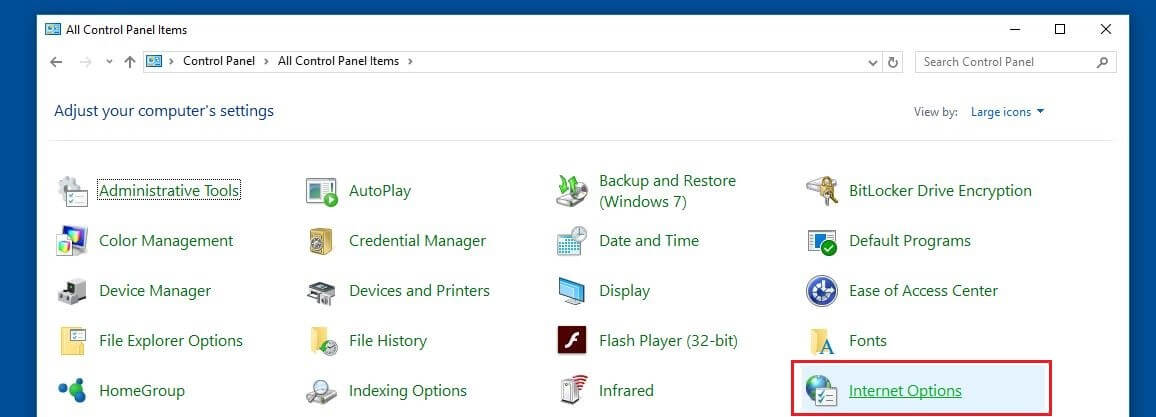
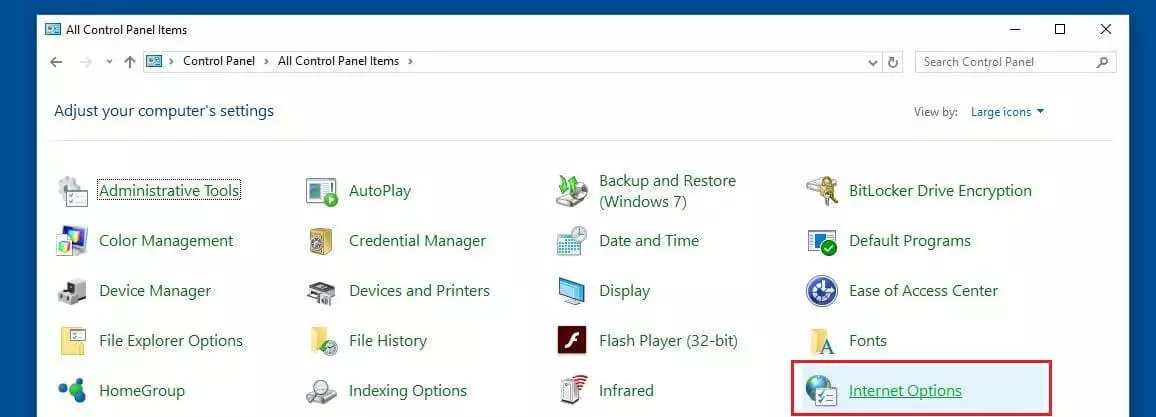
One of the most common reasons for the ‘ERR_CONNECTION_RESET’ error is that a proxy server has been defined in the internet settings and this is blocking the connection setup. This can be entered automatically by plugins or add-ons that you have added to your browser. The simple solution in this case is to inspect the proxy settings and deactivate proxy access if necessary. To do this, first open the control panel and select ‘Internet Options’.
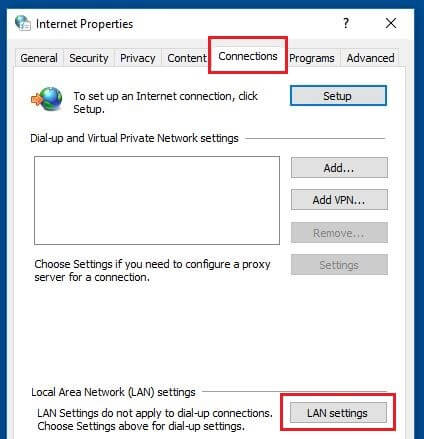
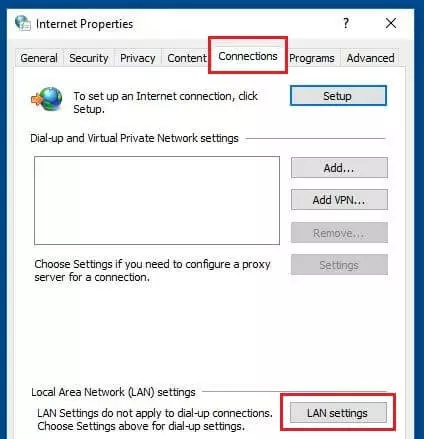
Switch to the ‘Connections’ tab and click on the ‘LAN settings’ button:
You have now reached the menu where you can find your system’s current proxy settings. If you see an entry under the category ‘Proxy server’ here, you should deactivate it by unticking the box ‘Use a proxy server for your LAN’.
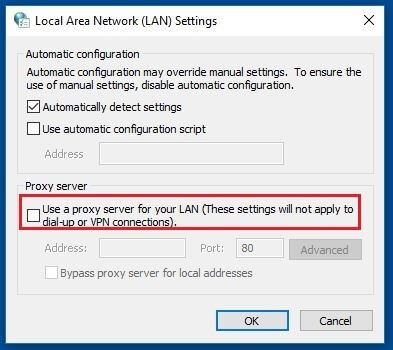
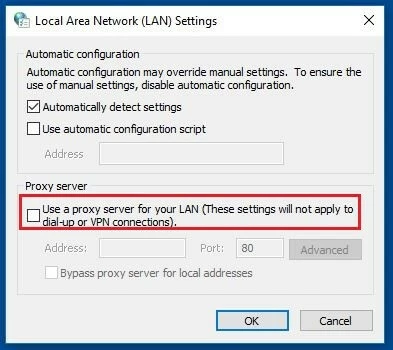
Save the changes by clicking on `OK´ and then try to access the desired website again.
Some browsers such as Firefox and certain extensions for Chrome, etc. use their own proxy settings, which become active independently of the proxy configurations in the system settings. In this case, you must switch off the proxy usage directly in the browser or delete the corresponding extensions to fix the ERR_CONNECTION_RESET.
Solution 3: clear the browser cache
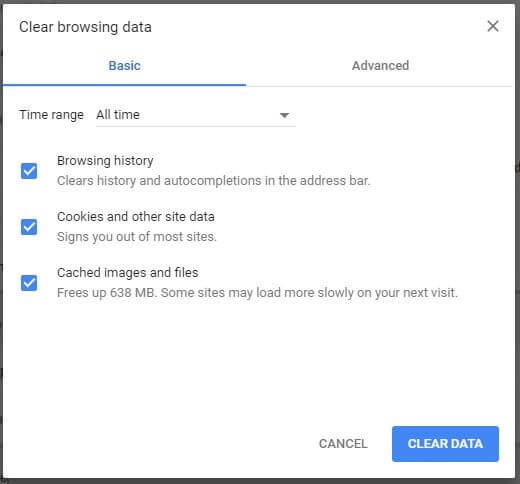
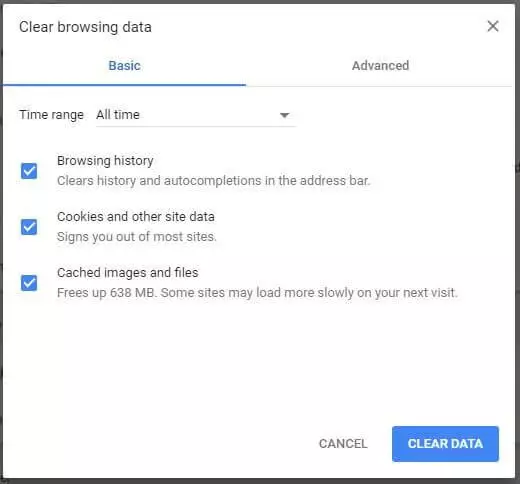
The browser cache not only stores passwords, cookies, and the download history, but also data from websites you’ve visited. If you have already visited the page, it is possible for the cache to contain information that doesn’t match the current version of the website and so blocks the connection setup, making the ERR_CONNECTION_RESET message appear. Since it’s possible to clear the browser cache in a few steps, you can easily check whether this is causing the problem. To do this, go into the settings menu in Chrome (the three-line symbol), then select ‘More tools’ and the ‘Clear browsing data’.
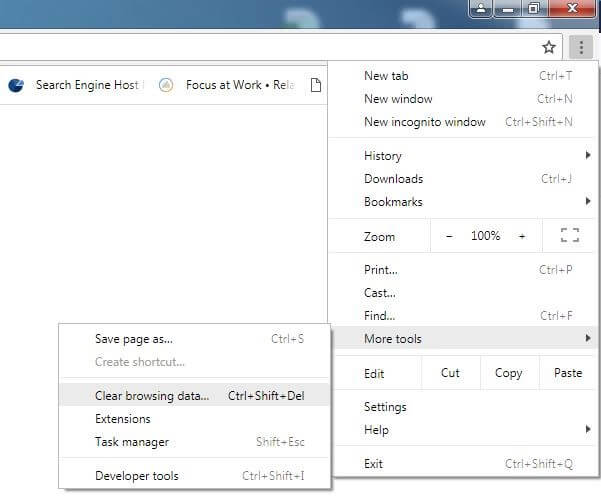
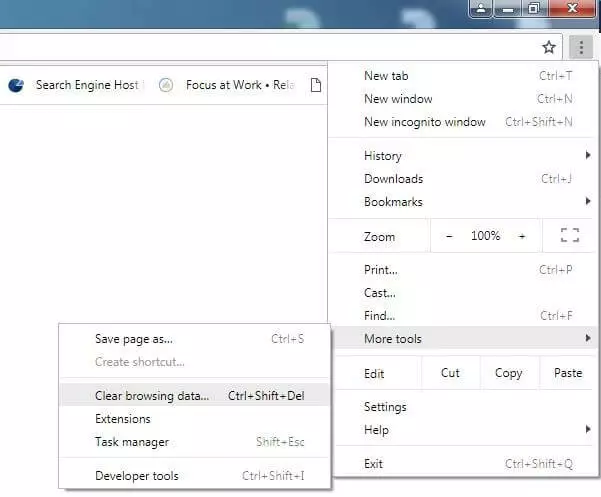
Chrome automatically displays the different categories of cached information. To fix the ‘ERR_CONNECTION_RESET’ error, you should tick all available categories. Also make sure that the ‘All time’ option is selected next to ‘Time range’. This is the only way to clear the entire cache when you click on ‘CLEAR DATA’ at the end.
Solution 4: delete Winsock catalogue entries
Windows users can fix the ‘ERR_CONNECTION_RESET’ problem by removing the catalogue entries in Winsock. The interface and system application ensures that programs can establish connections via TCP/IP in Windows operating systems. Winsock also creates entries for once established connections in the program’s own catalogue, which could be what’s standing in the way of accessing the desired website. However, this archive can easily be deleted from the command line if you have administrator rights. To do this, open the start menu via the Windows icon, select ‘All programs’ and then ‘Accessories’ Right-click on ‘Command Prompt’ and then use the ‘Run as administrator’ function.
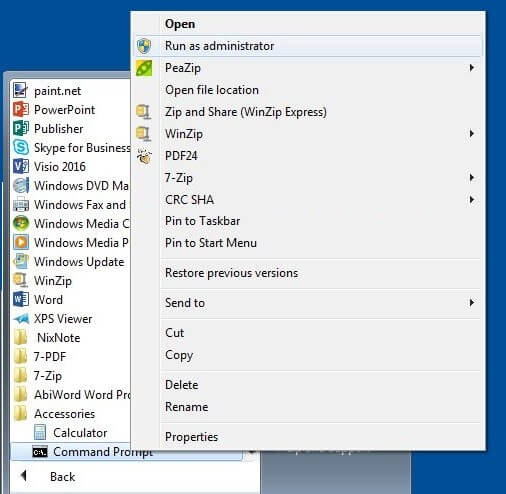
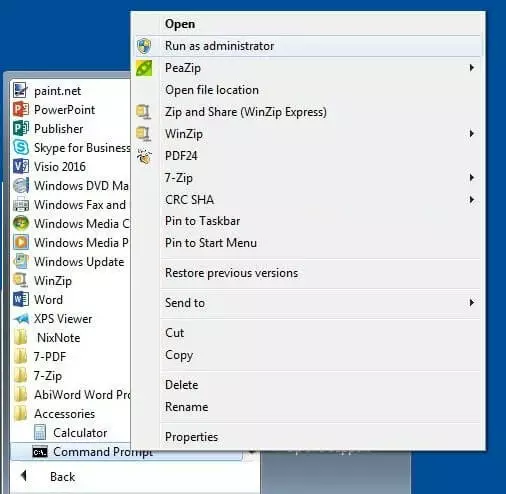
If you have started the command prompt as an administrator, you can enter the following command to reset the Winsock catalogue:
netsh winsock resetIf successful, you will receive a notification that Winsock has been reset. For it to take effect, you simply have to restart your system.
Solution 5: restart the router
Connection errors such as the 101 error can often be fixed by rebooting the network device that connects you to the internet. Most routers have a power button for this, which simply needs to be pressed. If there isn’t one, you still have the option of temporarily disconnecting the power supply to the unit by unplugging the power cord. Wait at least half a minute to release all the residual charges and empty the router’s memory. Then reconnect the power cable to your network device and try reloading the website you want.
Solution 6: temporarily disable the firewall and antivirus programs
Real-time checks and filtering rules ensure that your system is protected against unauthorised access and malicious software at all times. However, you can also block web applications or their IP addresses that don’t actually pose any danger to your computer, since they can be the cause of the ‘ERR_CONNECTION_RESET’ error. If you are certain that the site you are visiting is trustworthy, you should consider temporarily disabling your security software.
Working with Windows security applications? Read the following articles on deactivating Windows Firewall and turning off Windows Defender.
If the site can still be accessed, you know the cause of the connection reset. Possible solutions are to install the relevant software again or to use another firewall or antivirus app. Alternatively, with the necessary know-how, you can check whether the IP address can be found on the blacklist of the responsible program and delete the corresponding entry.
 To display this video, third-party cookies are required. You can access and change your cookie settings here.
Solution 7: contact your internet provider
It’s not just your own firewall that protects your computer against the imminent dangers of the internet, but your internet provider also uses their own firewall system to automatically block selected IP addresses for their customers. If you haven’t had much success with the previous solutions mentioned here, you should contact your provider. This way you can find out if they have blocked the website you’re trying to access. If this is the case, you can ask them to allow you access, however, they don’t have to comply with your request.
Reviewer

Julia Hertler
With over 18 years of experience in content marketing, Julia Hertler has deep expertise in digital communications. For the past 10 years, she has specialised in the areas of domains and hosting at the IONOS Digital Guide, making complex technical topics easy to understand.