

Convert PowerPoint to Word: step-by-step instructions

Sometimes it’s useful to convert your PowerPoint presentations into Word documents. The resulting handouts help your audience follow the presentation, make notes, and read over your material after your presentation. In this article, you’ll learn how to convert a file in .ppt format to Word and what steps are involved.
Converting PowerPoint to Word: how it works
To generate a Word document from your existing PowerPoint project, you can use the export function offered by the presentation software. Not only does this enable you to convert your PowerPoint to Word, you can also continue to work on a Word document afterward. The software provides a range of options for exporting a Word document.
- Up to 50 GB Exchange email account
- Outlook Web App and collaboration tools
- Expert support & setup service
Converting PowerPoint to Word – explained in three steps
A project in PowerPoint is quickly transformed into a Word file. Simply open the relevant presentation and then follow the steps below.
Step 1: Export the PowerPoint file
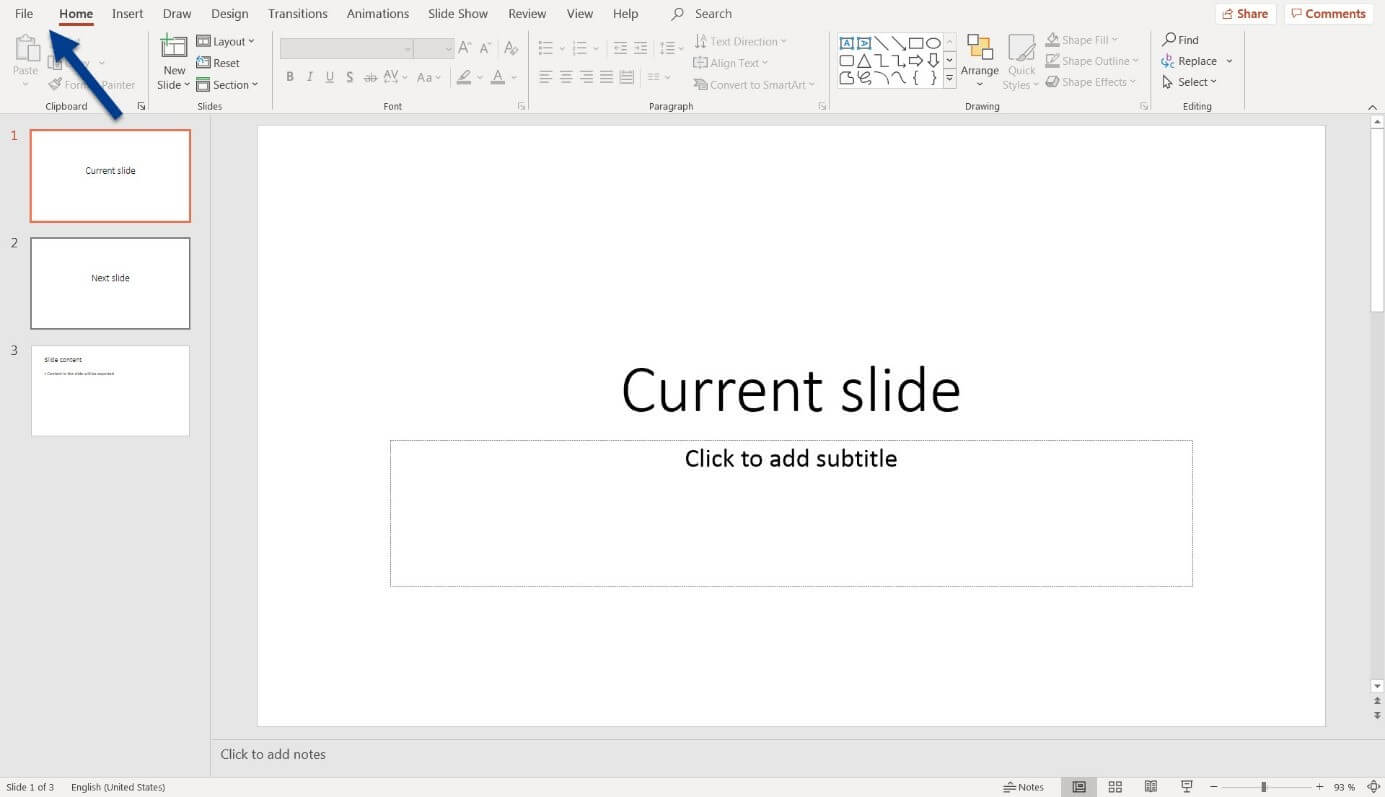
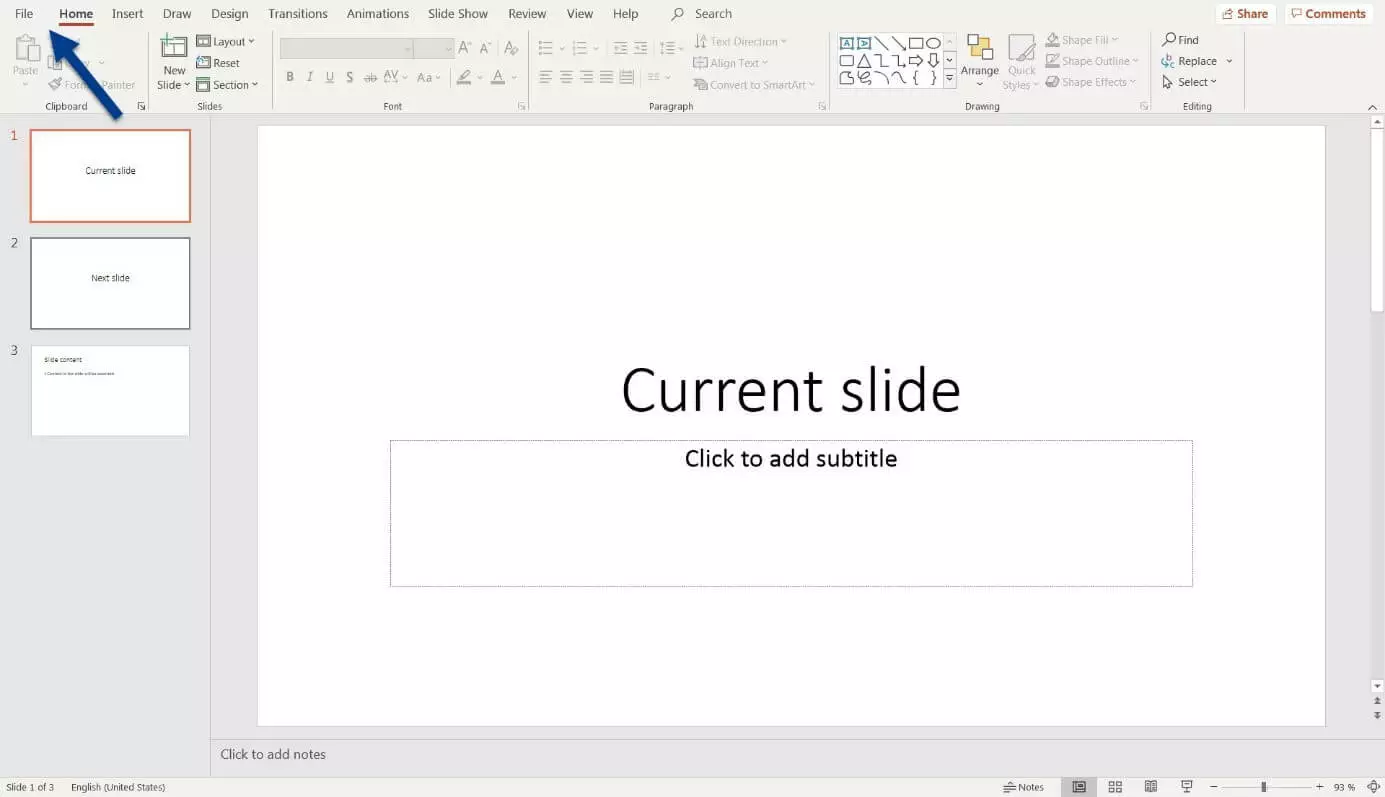
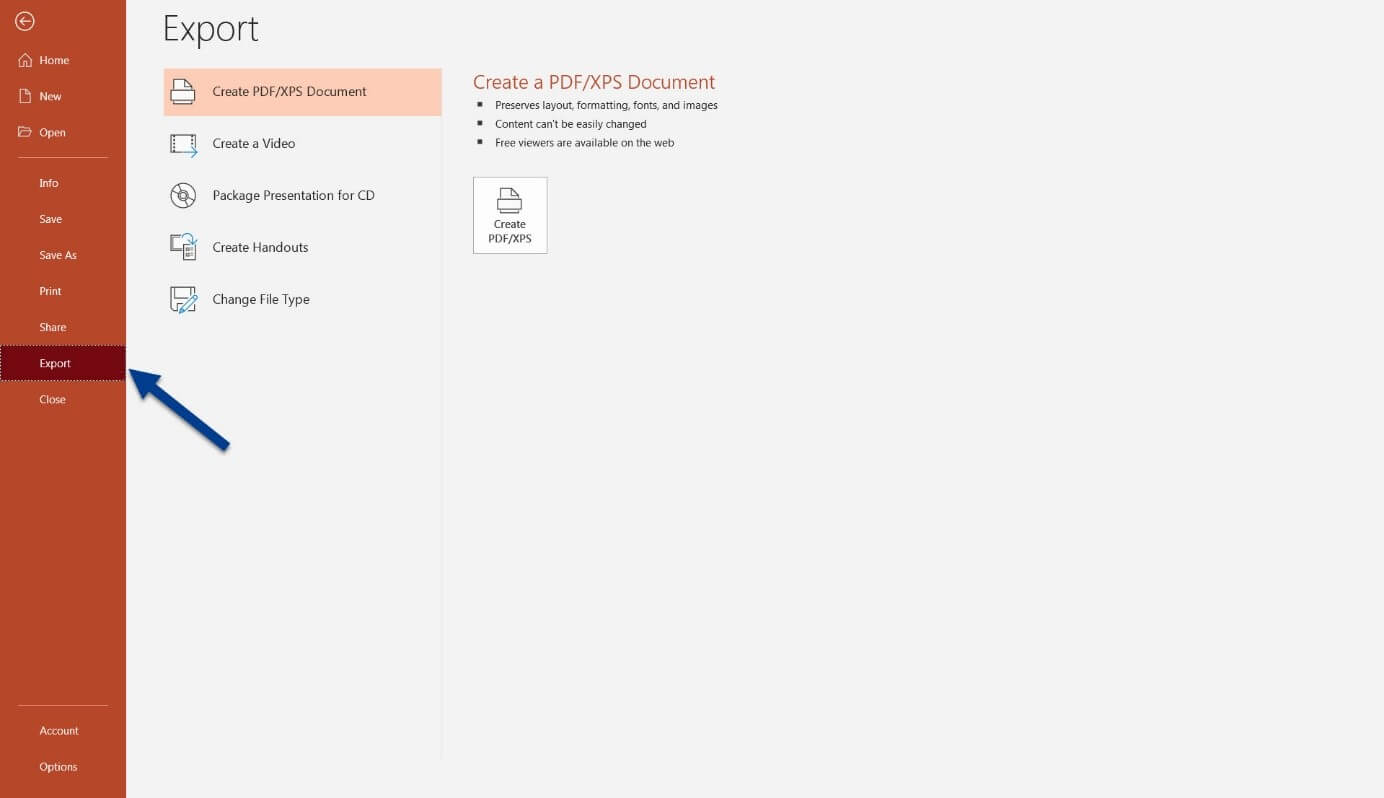
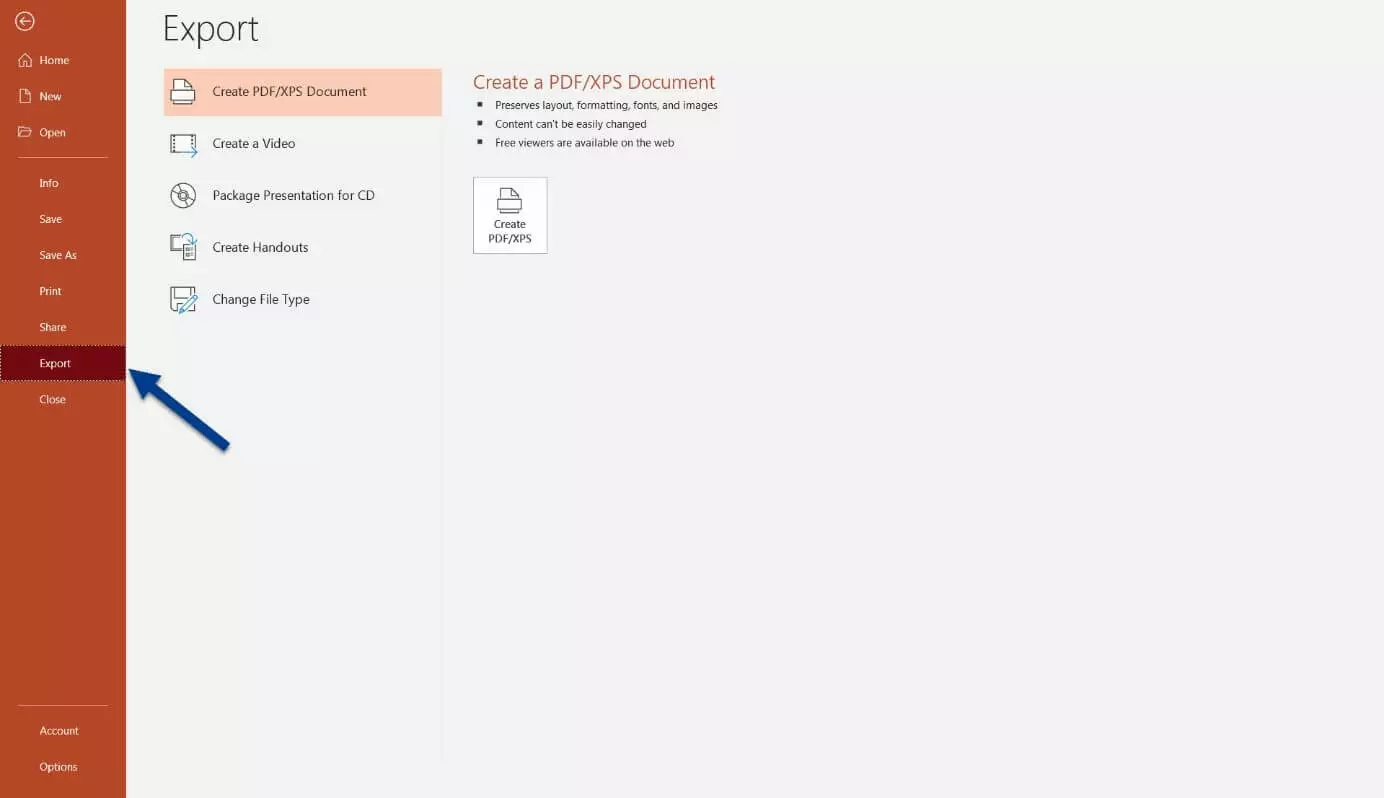
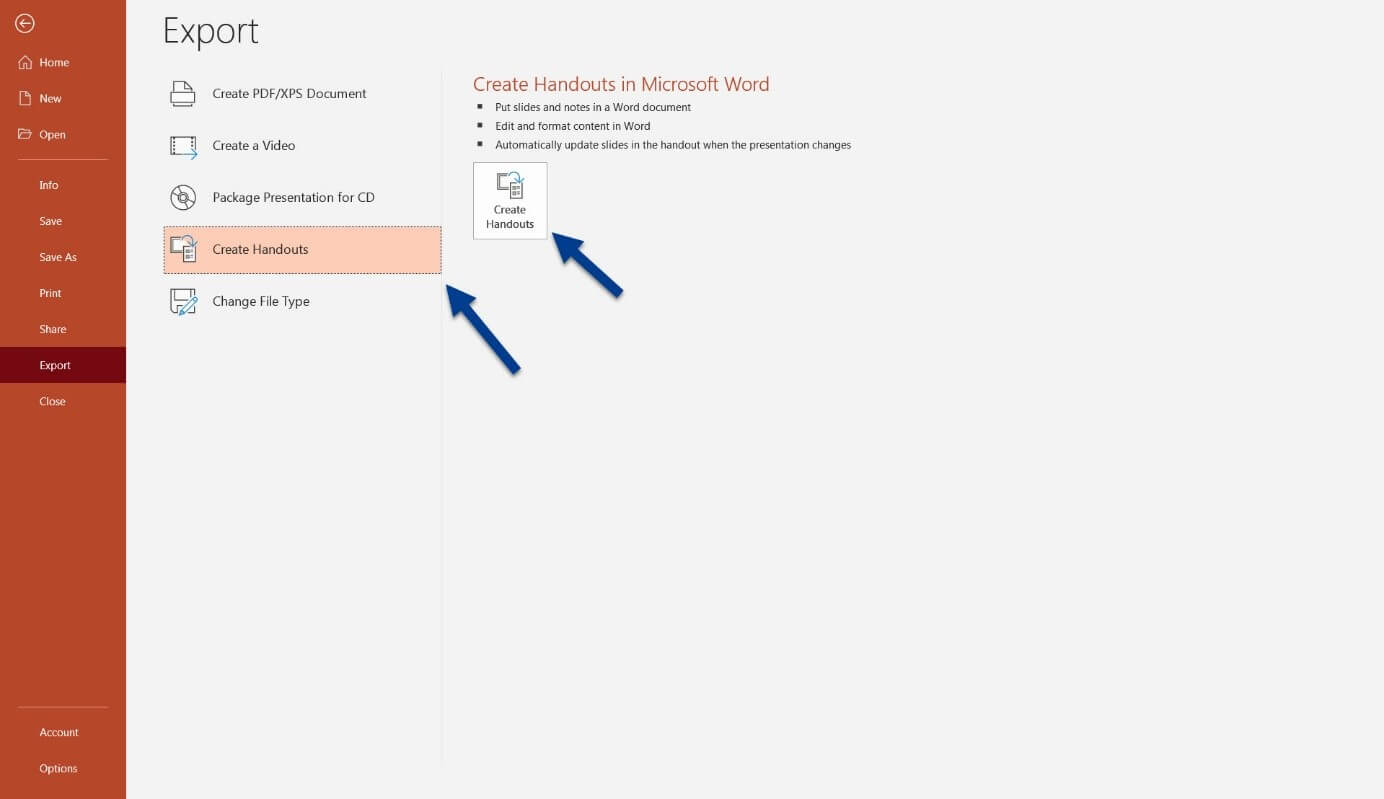
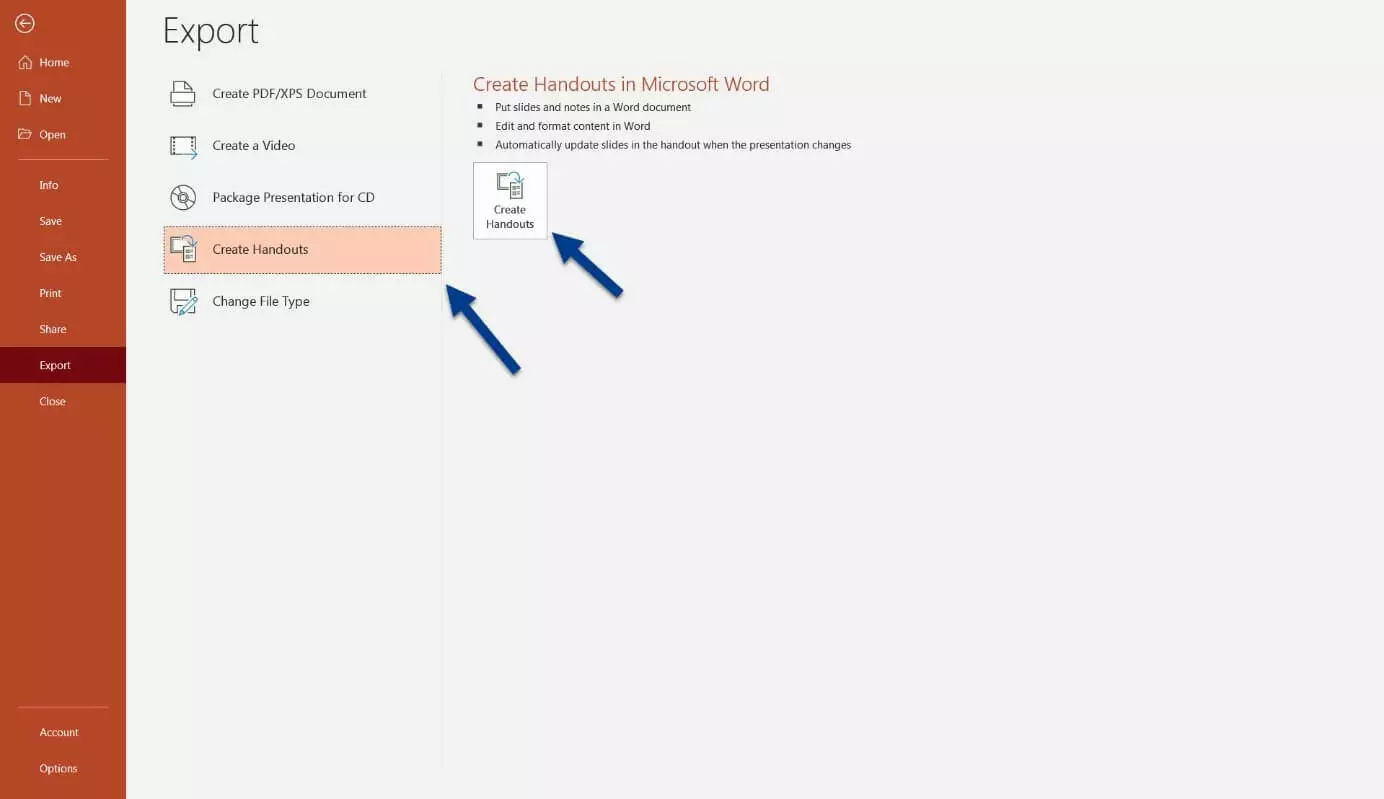
First, start the export process for the presentation into Word. Click on “File” and then “Export”.
Step 2: Create handouts
The option to convert PowerPoint to Word is called “Create Handouts”. Click on the associated button.
Step 3: Convert slides in Microsoft Word
A menu called “Send to Microsoft Word” will appear. Here, you’ll see a preview of the page layout and can decide which option you prefer. Choose the page layout that best suits your needs.
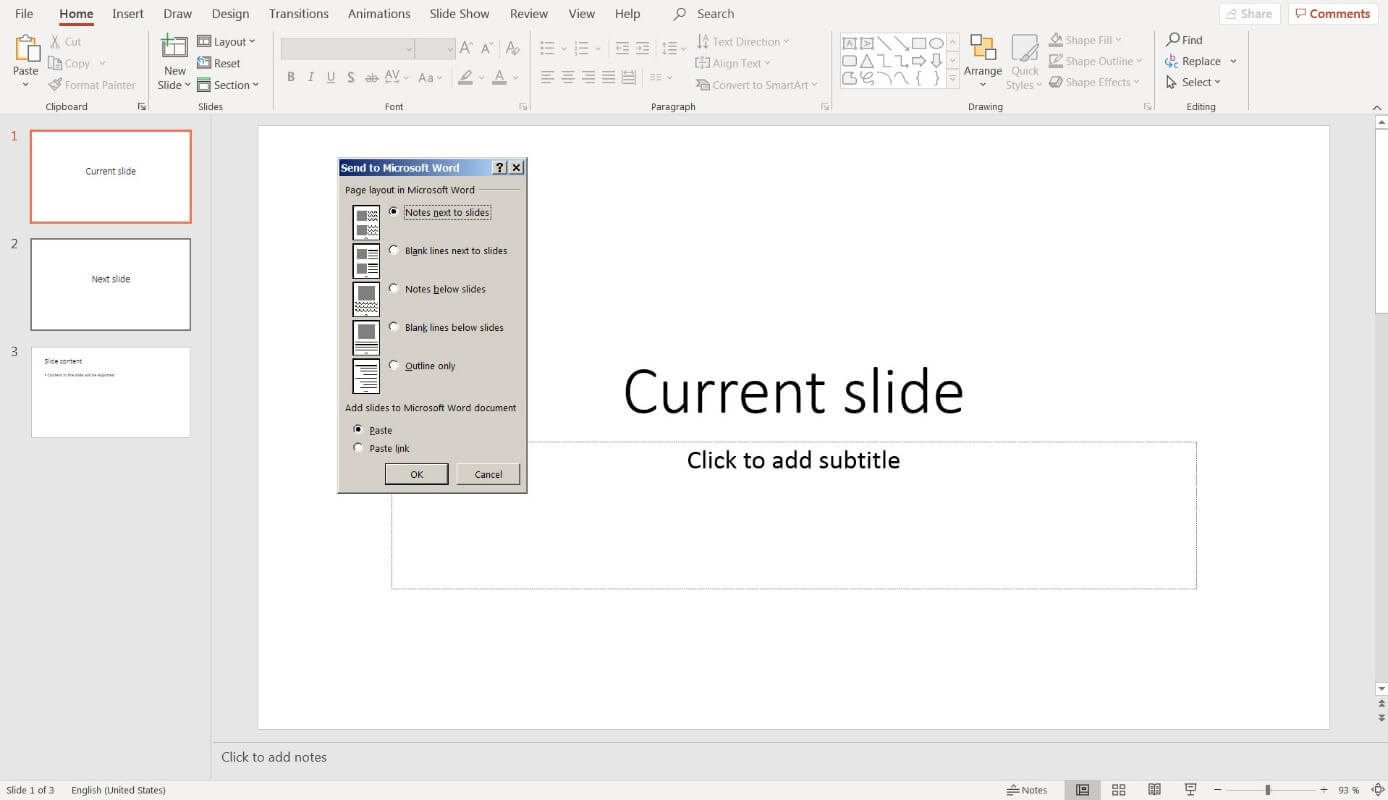
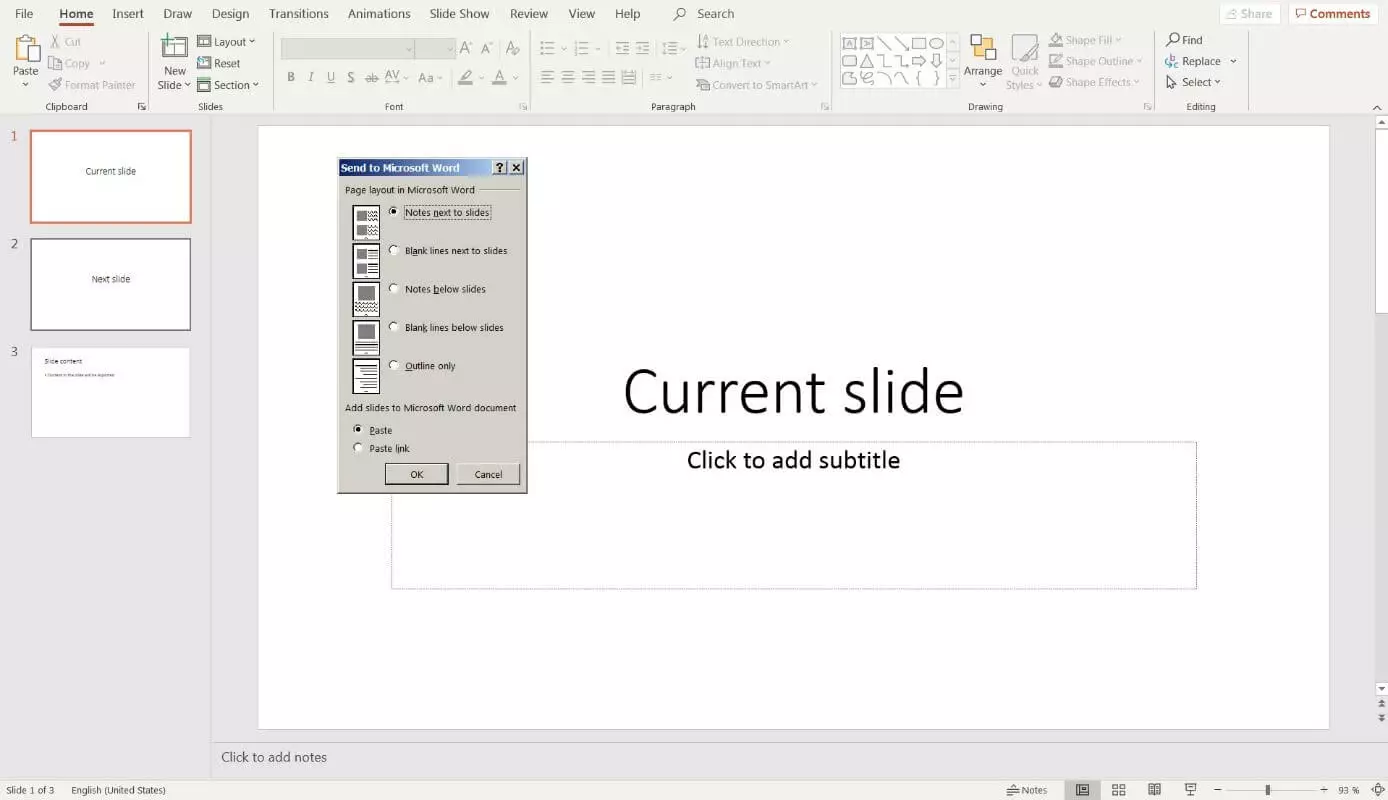
The following options are available:
- Notes next to the slides
- Empty lines next to the slides
- Notes beneath the slides
- Empty lines next to the slides
- Outline only
You can either add notes or empty lines for your audience. The “Outline only” option is useful if you want to provide the audience with a presentation plan.
In the section below, you can choose between “Insert” and “Insert link”. “Insert” adds all the PowerPoint content into Word as static elements. If you choose the link instead, the content in the Word file will automatically change when you alter the PowerPoint file.
Convert PowerPoint to Word: what to do if problems arise?
In the case of long presentations and embedded media, converting a file can take much longer and even result in an error message. If this happens, you can split the PowerPoint presentation into several parts before converting them to Word. Each component can then be exported and combined with others in Word.
- Up to 50 GB Exchange email account
- Outlook Web App and collaboration tools
- Expert support & setup service