

Opening and converting ACSM files

In the world of electronic media, DRM technology is very important, because unlike analogue information, digital content such as software, films, audio recordings, documents and books can, by nature, easily be reproduced and redistributed. This cripples the underlying business model, creating a situation, which is unsustainable for creators and copyright owners. For commercial digital publishers, the use of DRM systems to regulate access to protected intellectual property is therefore essential.
One such system, which is specifically designed to allow e-books and PDF content to be distributed and used securely across multiple devices, is Adobe Content Server (ACS). The company’s DRM server protects digitally published works using Adobe DRM copy protection. In this article, we explain the role that ACSMs – or ACSM files – play in this and how you can convert them.
What is an ACSM file?
An ACSM is a file that contains information about downloading a digital publication and is protected by the Adobe DRM copy protection. ACSM stands for Adobe Content Server Message, which tells us something about what these files – which are usually only a few kilobytes in size – really do; contrary to what many customers initially assume, an ACSM file is not the actual e-book, but a type of link or message between the user and the Adobe Content Server DRM software. This Adobe server application acts as an intermediary, which authorises access to copy-protected digital documents (PDF, ePUB, ePUB 3).
How exactly do ACSM files and Adobe copy protection work?
If creators or copyright holders choose to use Adobe Content Server to protect e-books and other digital documents, when this content is purchased, it is automatically linked to the buyer’s Adobe ID. This ID is personal and non-transferable, and the user must set it up before purchasing any document with Adobe copy protection. Without this ID, the Adobe server application running in the background has no way of knowing whether to grant access to the copy-protected file.
A single Adobe ID can be activated on up to six different devices.
The ACSM file is the first file the customer uses after making their purchase since it is the only file they can download at first. To open the ACSM file, as well as having an Adobe ID, the customer must also have installed the Adobe Digital Editions software on their system and linked it with their Adobe ID. Adobe Digital Editions then verifies the ID in order to check if the user is authorised to convert the ACSM file. If authorisation is granted, the user can download their e-book in ePUB or PDF format. Adobe Digital Editions also uses the ACSM file to identify the download directory.
Many e-readers have their own software for processing ACSM files. If this is not the case, you must first convert the ACSM file to PDF or ePUB format and then transfer the file to the e-reader via USB. However, you must have Adobe Digital Editions installed on your computer and use it to transfer the digital document, because this is the only way to authorise the e-reader to access the document and remove the copy protection.
Creating an Adobe ID to handle ACSM files
You can set up an Adobe ID to convert ACSMs (or use Adobe applications in general) via the official Adobe website at any time, free of charge. Simply go to the website using any browser and click “Sign In” in the top right-hand corner of the website:


You will now be taken to the Adobe account sign-in page. Since you first need to create an ID, click “Get an Adobe ID”. In the form shown below, you will be asked to enter your name, date of birth and country of residence, and to specify the email address you wish to use for your Adobe ID, along with a personal password. Once you have filled in all of the required information, click “Sign up”:
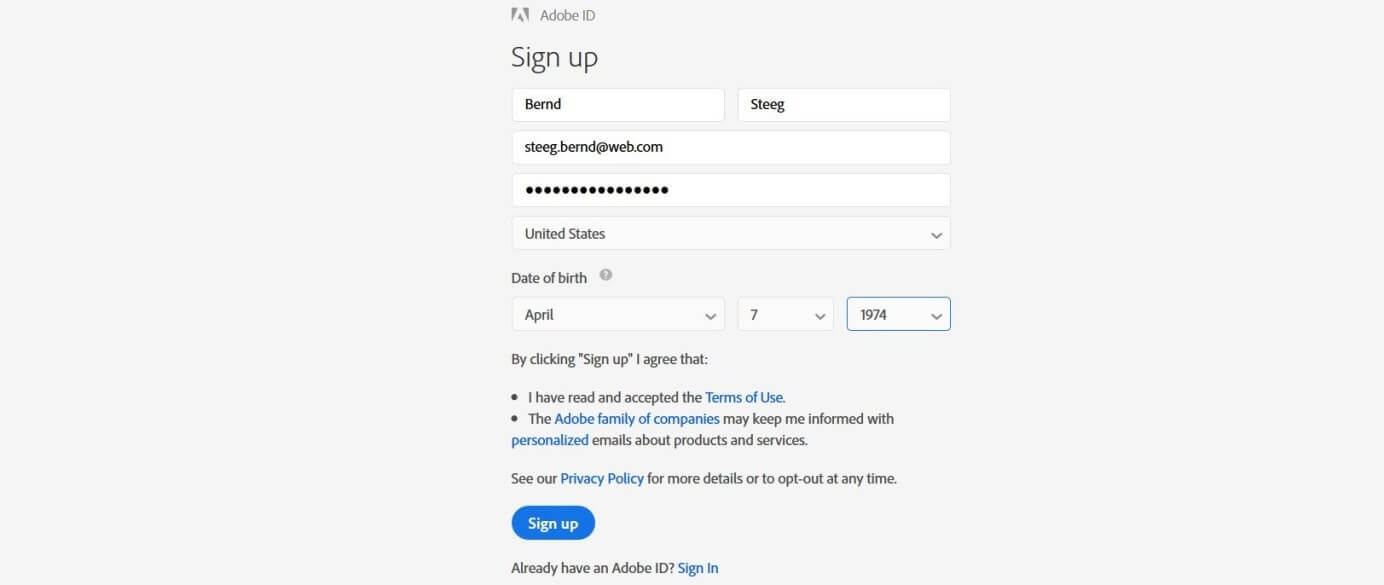
After a few moments, you will receive an email asking you to confirm the email address for your Adobe ID. To do this, you just have to click on the link in the email you received. A message will appear in the browser confirming that your email address has been successfully verified and your ID is ready to use:


Installing Adobe Digital Editions
Creating your Adobe ID is the first necessary step towards opening an ACSM file, but you also need the appropriate software to convert the file (unless you wish to open the document with Adobe DRM protection on an e-reader which already has the necessary software).
Adobe’s in-house solution – Adobe Digital Editions – has been available to Windows and macOS users for years. More recently, Adobe has made the program available as a mobile app, meaning that ACSM files can also be opened on Android or iOS devices. You can download the installers from the Adobe download centre (Windows and macOS) or from the App Store (iOS) or from Google Play (Android).
If your mobile device is not compatible with Adobe Digital Editions, there are other tried-and-tested alternatives which can read and convert ACSM files, such as Bluefire Reader.
Adobe DRM authorisation: authorising your device using your Adobe ID
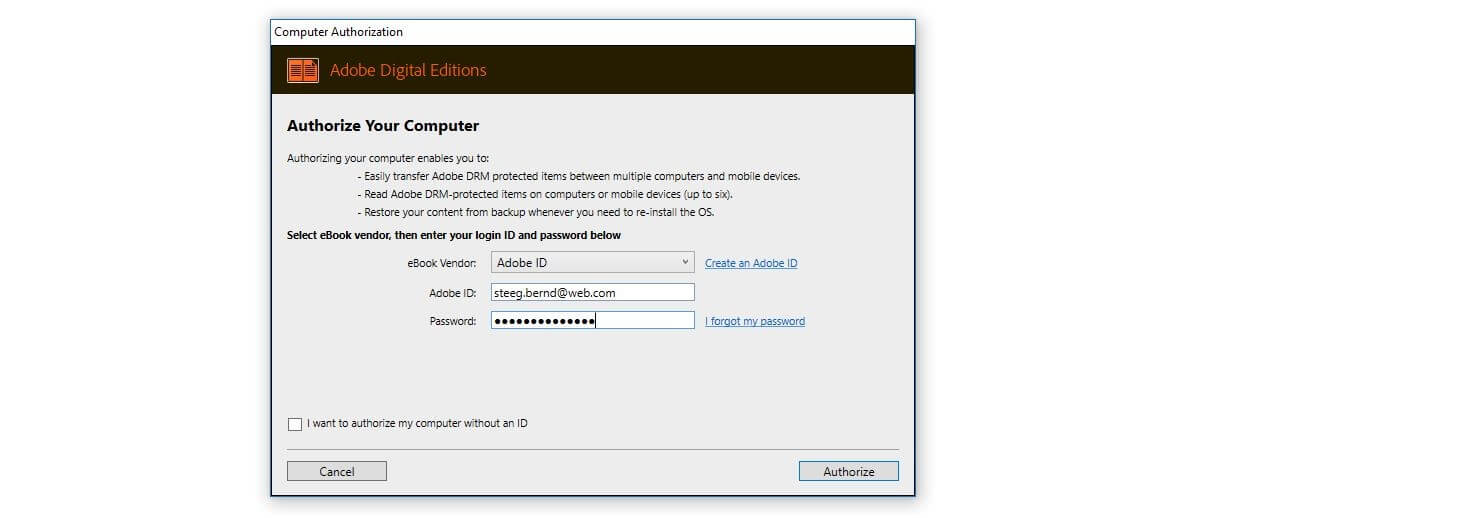
Once you have installed Adobe Digital Editions, you need to authorise your computer or mobile device using your Adobe ID. Doing this will enable you to open documents protected by Adobe DRM in ACSM format, convert them to ePUB or PDF format, and transfer them to other devices.
To authorise your computer, open Adobe Digital Editions, go into “Help” on the menu bar, and click “Authorize Computer”:
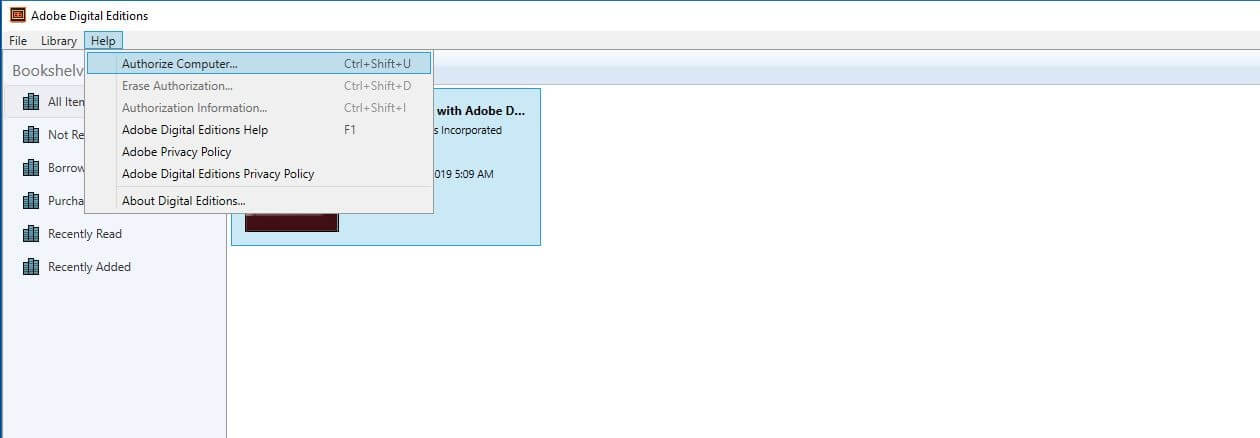
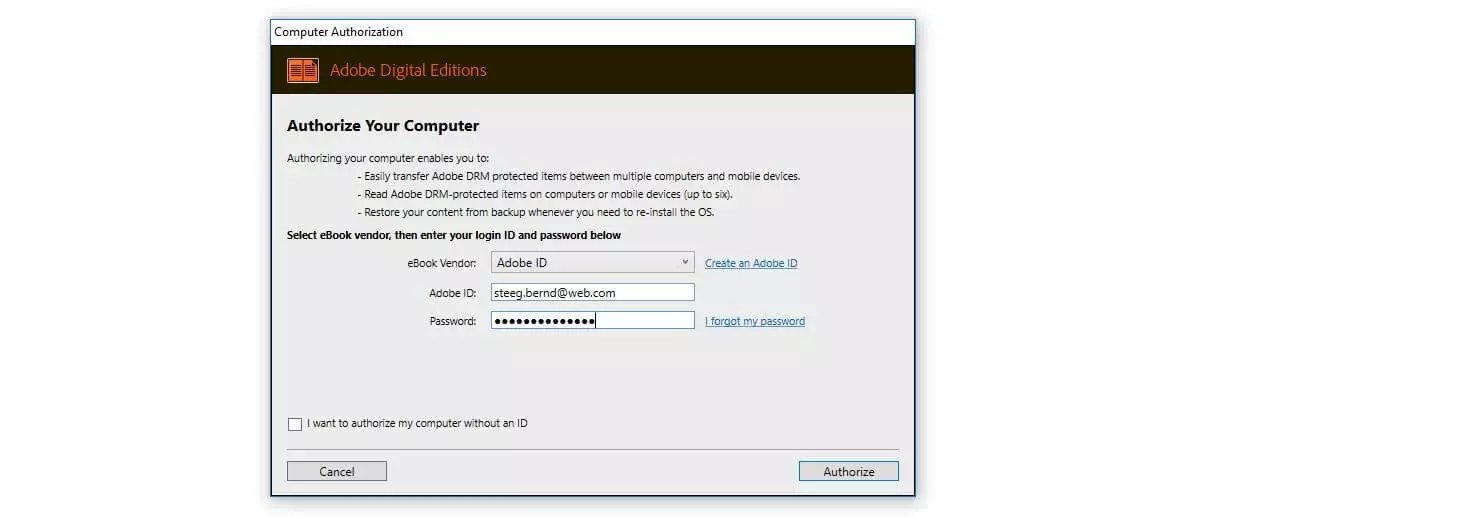
In the window that opens, enter your Adobe ID and password and click “Authorize” to complete the authorisation process.
Opening ACSM files and converting them to ePUB or PDF format
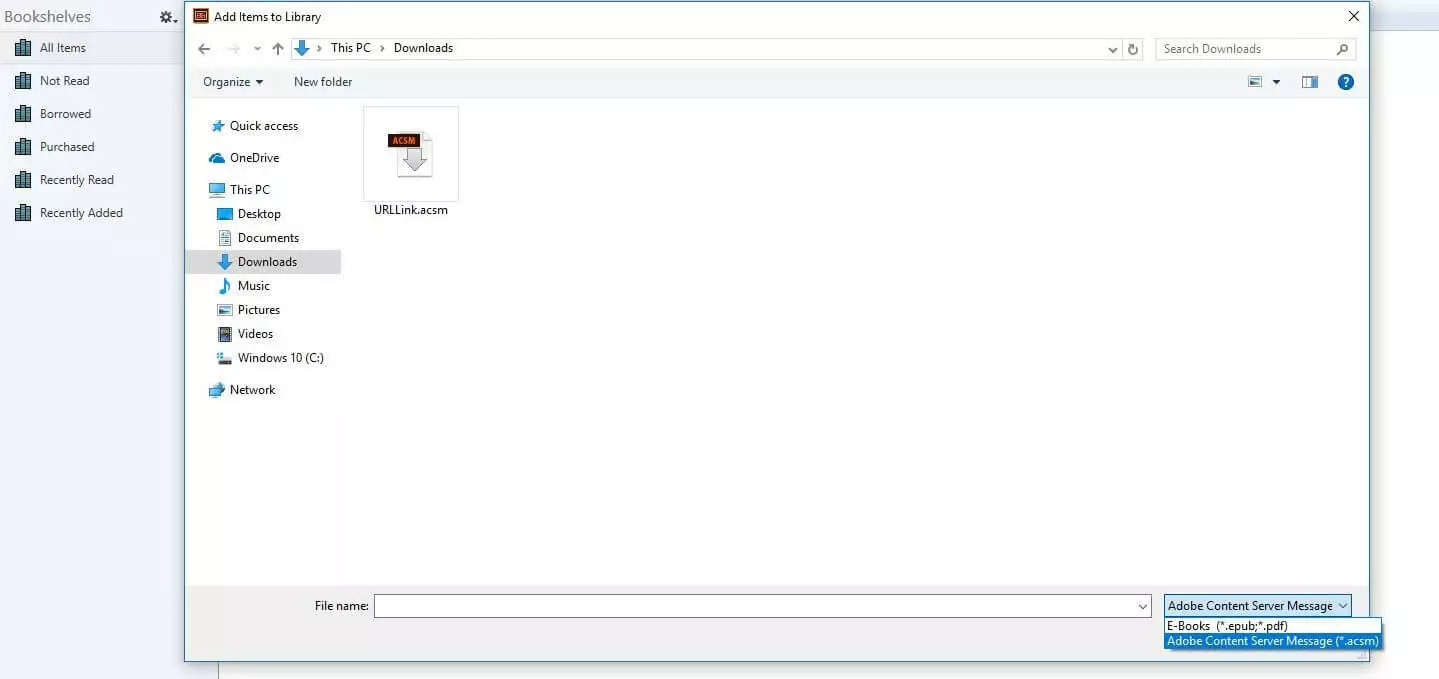
Once you have authorised your device using Adobe Digital Editions, you can open your downloaded ACSM files using the reader software. To do this, click “File” and then “Add to Library”. In the window that opens, browse to the local folder containing the ACSM file and change the extension type from “E-Books” to “Adobe Content Server Message”. Then select the ACSM file and click “Open”.
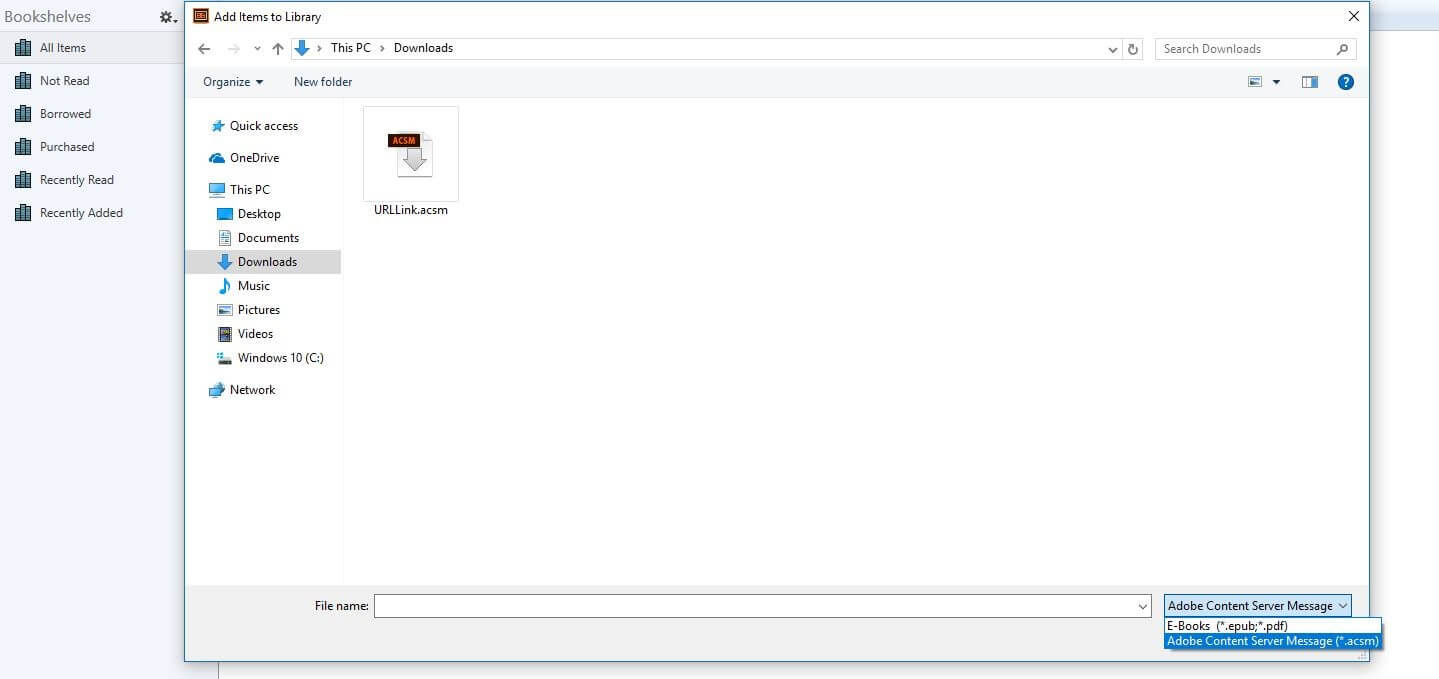
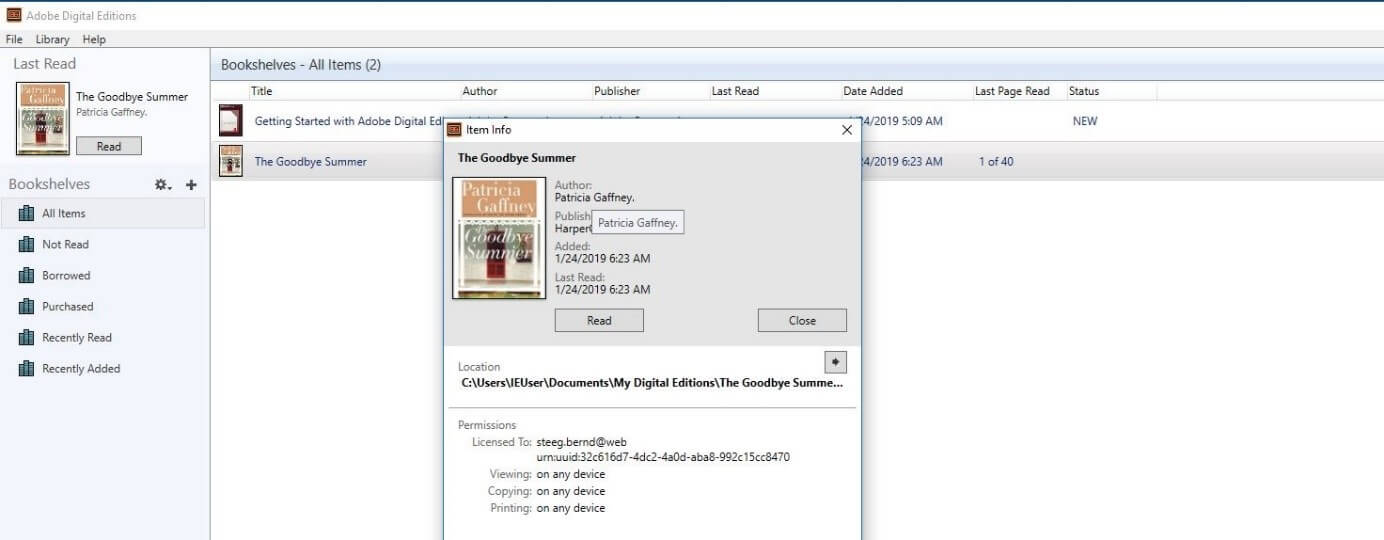
When you click “Open”, Adobe Digital Editions immediately starts downloading the digital document by converting the ACSM file to PDF or ePUB format (depending on the source). You will then be able to see the converted e-book on the “All Items” bookshelf. Right-clicking on the e-book and selecting “Item Info” opens up a window which shows you information such as the local folder in which the converted file is saved, and the authorisations granted.
Transferring the converted ACSM file to an e-reader
Having converted your ACSM file to PDF or ePUB format using Adobe Digital Editions, if you now want to transfer it to an e-reader, open the Adobe software again (or leave it open), and connect the e-reader to the computer via the USB port. The ADE software will automatically detect the device and prompt you to authorise it via the set-up wizard. Once it is authorised, the e-reader will appear in the list of bookshelves, and you can then drag and drop converted ePUB and PDF documents onto it.