

How to count characters in Excel using the LEN function: step-by-step instructions

Everyone probably knows how to count characters and words in Microsoft Word. The useful spreadsheet program Excel also offers this function. However, it is a little more difficult to use. Here, you will learn how to count and display the number of characters in Excel.
Looking for an alternative to the traditional .co.uk extension, or want to grow your online presence? Give .uk a try today.
£1 for 1 year!
How to count characters in Excel
Counting the current number of characters in Excel can be useful if you want to get an overview of your data entries. This function also comes in handy when combined with other functions to optimise messy customer data, such as removing excess blank spaces from data sets. You can count characters in Excel using the LEN function.
If you are looking to use other Microsoft programs such as Word, Outlook or PowerPoint in addition to Excel to properly organise your data sets, the Microsoft 365 package offered by IONOS is the perfect solution!
The LEN function: syntax
The LEN function allows you to calculate the number of characters in Excel and is easy to use. It has a very simple syntax:
=LEN(cell reference)The cell reference referred to in the function’s parentheses is the cell or cell range which contains the Excel characters to be counted.
How to count the number of characters in Excel
The LEN function is the perfect tool for performing this calculation on specific cells and their contents or for determining the total number of characters in your data set. Here are the major steps involved in this process.
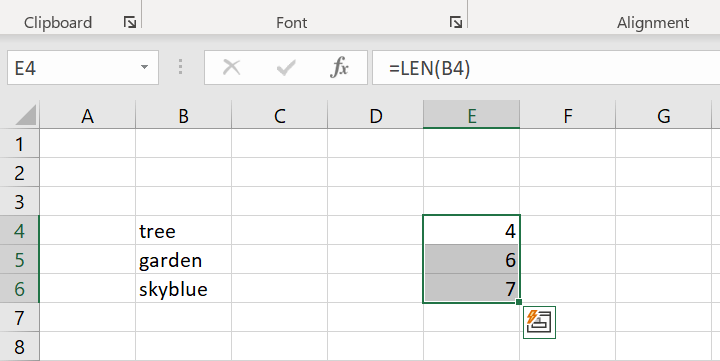
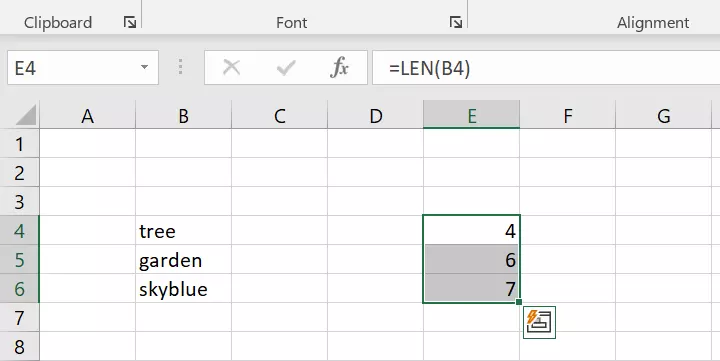
Step 1: If you want Excel to count the characters in a cell, enter the LEN function in an empty cell alongside the cell reference for the cell you want to analyse. For example, if cell B4 contains the word “TEXT”, insert the LEN function with the cell reference (i.e. B4) in another cell (here E4). Excel will then automatically calculate the total number of characters in the cell, which is “4” in our example.
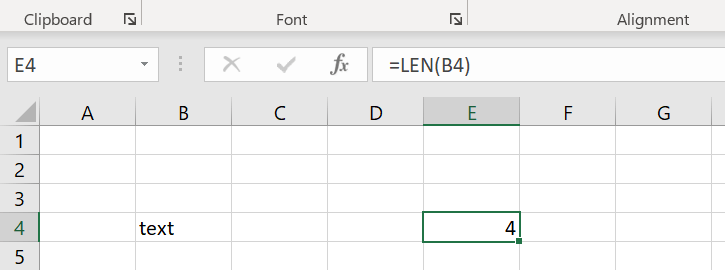
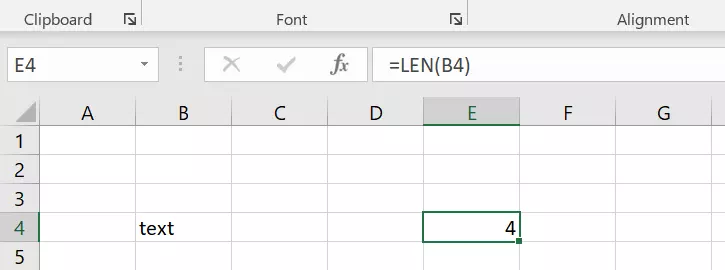
Step 2: If you want to apply this character counting function to multiple cells, you must first enter the function again in an empty cell and then enter the cell reference for the first cell in the cell range to be analysed.
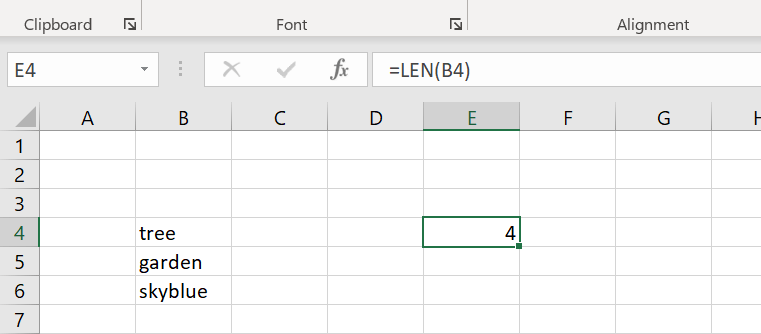
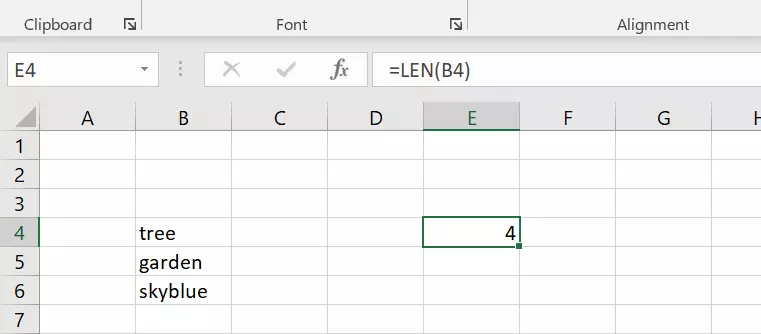
Then, using the cell fill box (the small rectangle surrounding the cell with the function), select the return value cells (here E4 to E6) for the entire cell range containing the characters to be counted. The LEN function will then be applied to all three example cells (B4 to B6) and count the number of characters for these Excel cells simultaneously.
LEN + SUM: how to count and add Excel characters
If you are looking for more than just an overall calculation and want to add up and display the number of characters in specific cells, use the LEN function in conjunction with the SUM function:
=SUM(LEN(cell reference);LEN(cell reference);LEN(cell reference))The syntax in this case appears a bit more complicated than the simple LEN function. In practice, however, combining the LEN and SUM functions is actually quite simple as the following step-by-step instructions will demonstrate.
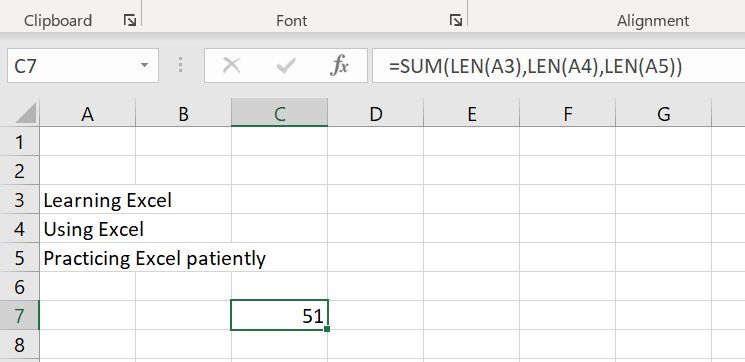
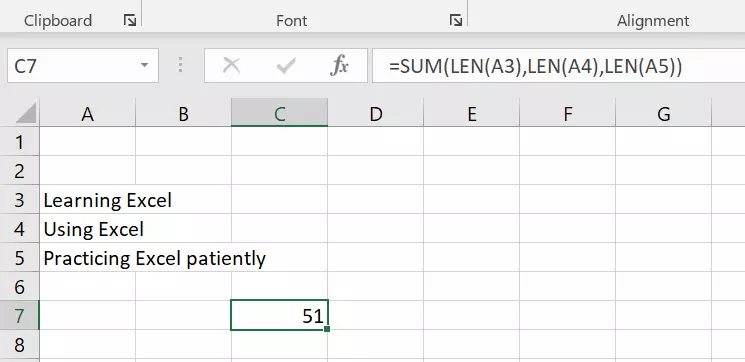
Step 1: Select a suitable range with corresponding values for the LEN function. For example, we will enter the following text into cells A3, A4, and A5: “Learning Excel”, “Using Excel”, and “Practicing Excel patiently”.
Step 2: Now, apply the combination of the LEN and SUM functions to the cells:
=SUM(LEN(A3);LEN(A4);LEN(A5))Excel will then display the number of characters - which have been counted and added up - in a separate cell (here C7).
LEN + TRIM: counting and fixing Excel characters
When counting characters, if you want to remove any extra spaces in a data set, use the LEN function in conjunction with the TRIM function. The TRIM function removes extra spaces from text in Excel. It has the following syntax:
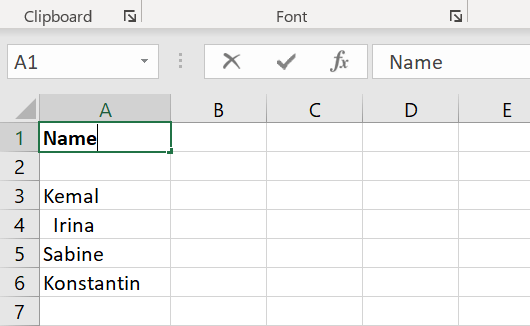
=TRIM(text)A typical scenario where you should use this combination of functions is when dealing with messy data that has been transferred. For example, if you were to transfer old customer data to a new database and discover that there were leading or trailing spaces in the customer data, you could use a combination of the Excel LEN and TRIM functions to count the number of characters and remove any extra spaces at the same time. In the following example, you will see two spaces before the customer “Irina” and two after the customer “Konstantin”.
Now, apply the LEN function to this data set.
=LEN(A3)You can apply this function to the entire data set as shown above using the fill box.
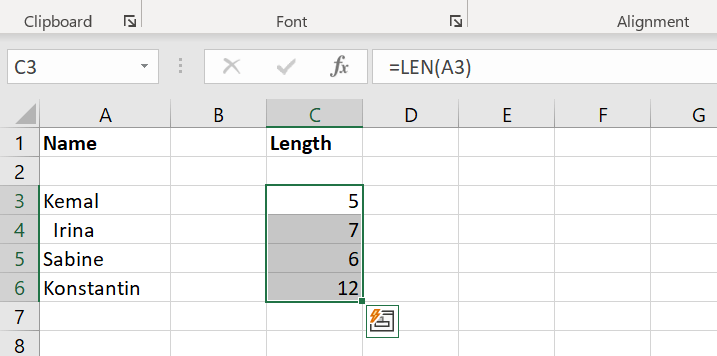
If you count the Excel characters in the example, you will see that the return values are incorrect for “Irina” (7 instead of 5) and “Konstantin” (12 instead of 10). These extra spaces need to be removed which can be done using the following steps.
Step 1: Create an additional column and copy the original incorrect data into it. Then, apply the TRIM function to the first row involved.
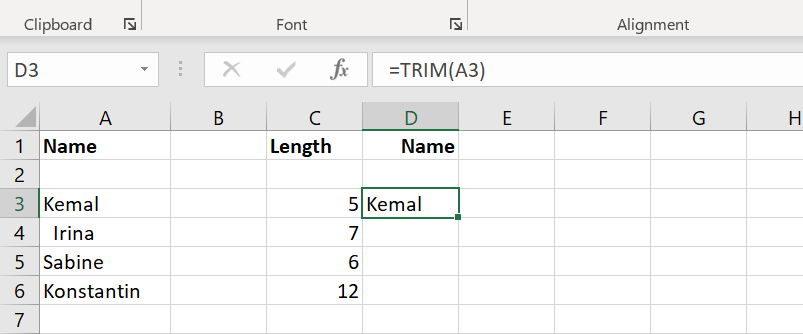
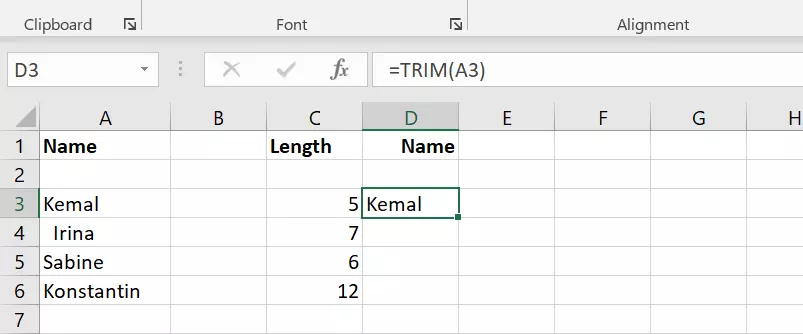
Step 2: Now, drag the fill box to the bottom cell in the data set and apply the function to all the data selected.]
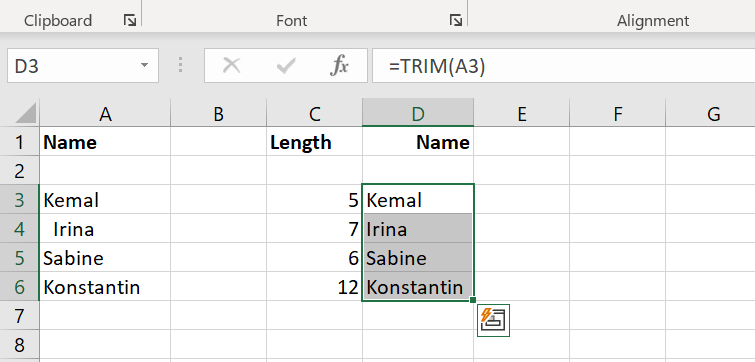
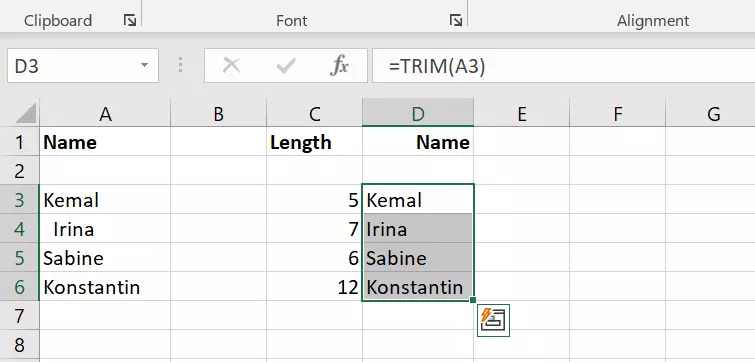
Step 3: To verify that the extra spaces have actually been removed, you can check the new corrected text data using the LEN function in an adjacent column.
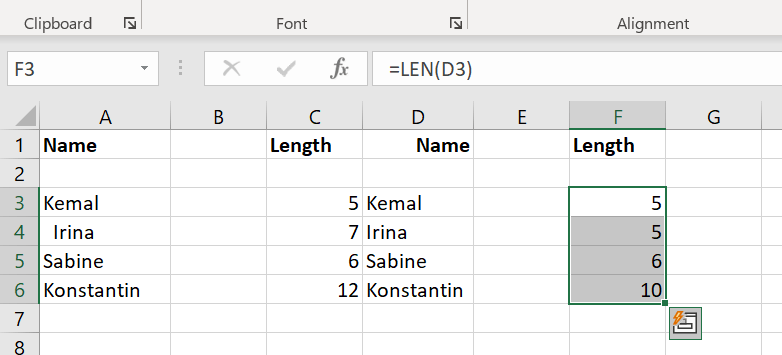
Rechecking shows that the combination of the LEN and TRIM functions has removed all the extra spaces.
In addition to counting characters, you can also count cells in Excel. For this purpose, you will need the COUNTIFS function.
- Store, share and edit data easily
- ISO-certified European data centres
- Highly secure and GDPR compliant