

Create fillable PDF forms – with Acrobat and free software

PDF (short for Portable Document Format) is probably one of the most popular file formats in most offices – thanks to its obvious advantages: It can contain pages of text and dozens of images, yet the file size remains relatively small, allowing PDF files to be sent quickly and easily via e-mail or the cloud. In addition, PDFs ensure that documents are reproduced true to the original on any device, without compromising the presentation or formatting.
Forms are also an integral part of everyday working life: Be it simple participant lists for conferences, application and registration forms, or complex invoices and financial overviews – forms regulate processes, record information, and help to create an overview.
Using PDF forms can significantly reduce the amount of paper used in the office, since they can be filled in directly on the PC. This is much faster and less error-prone than manually entering information. In addition, it is easier to share, analyse, and archive digital documents with customers or colleagues.
We explain how you can create interactive PDF forms.
- Free website protection with SSL Wildcard included
- Free private registration for greater privacy
- Free Domain Connect for easy DNS setup
Making a fillable PDF with MS Word: is it possible?
The simple answer: No, you can’t create a fillable PDF with MS Word – but that’s not down to the program.
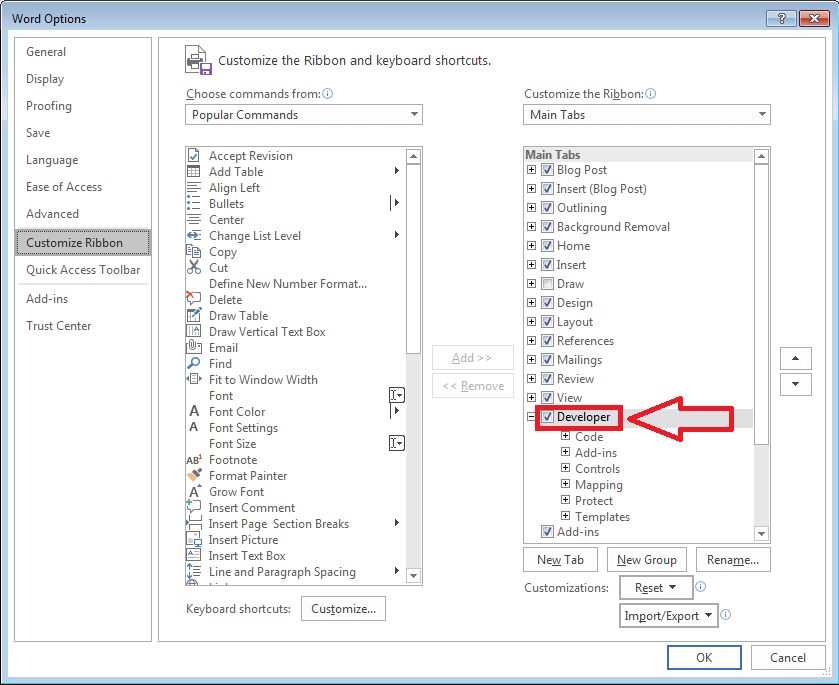
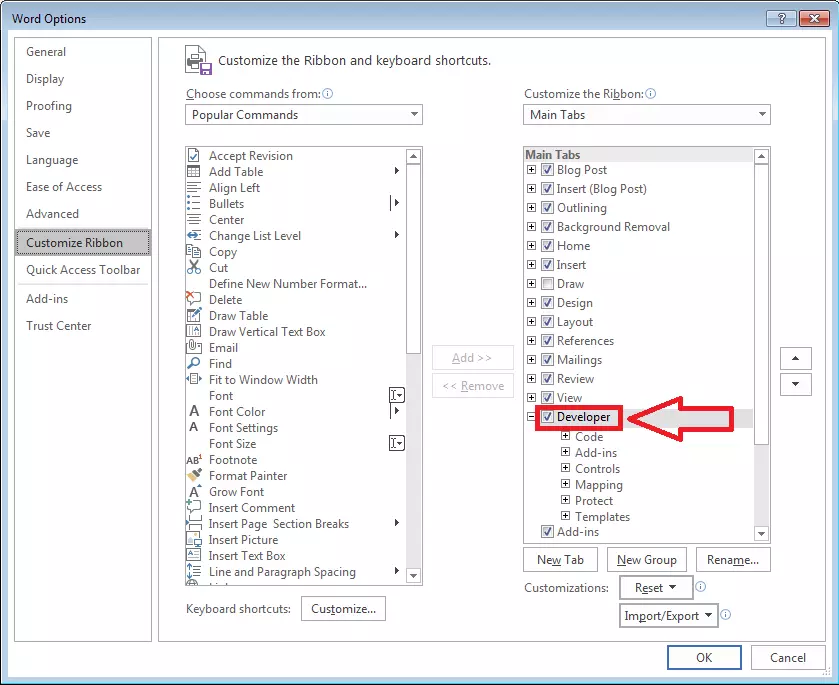
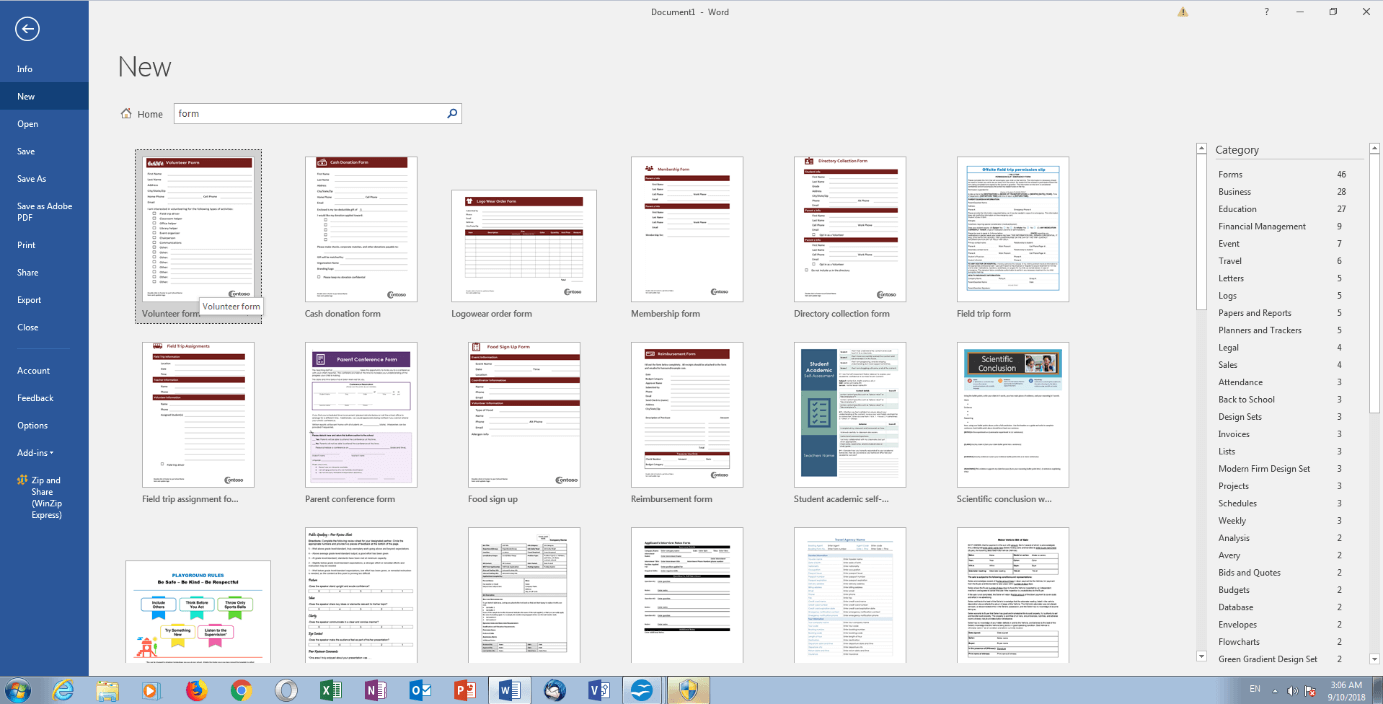
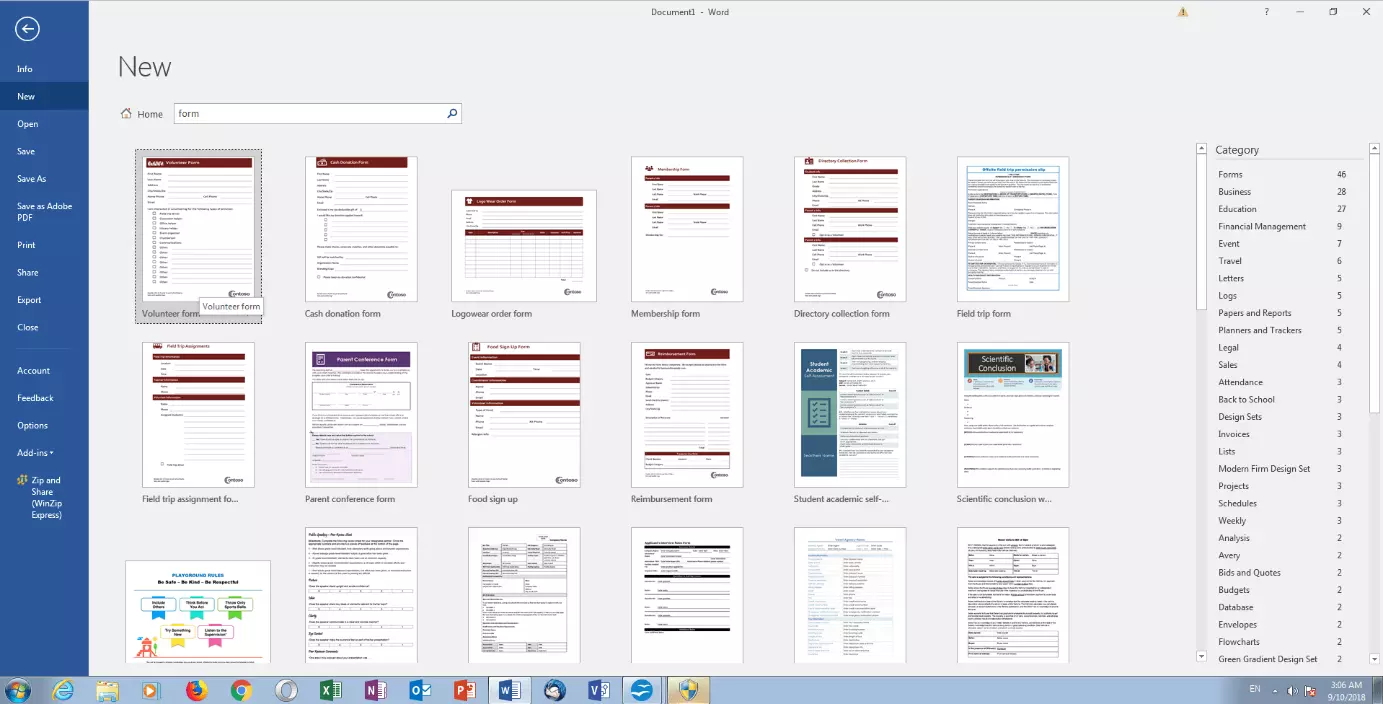
Even if some sources on the internet claim otherwise: With Microsoft’s well-known Office application it is possible to create both static forms for printing and interactive forms for filling in directly on the computer (this is also possible with other Office applications such as Excel, by the way). By activating developer hidden in the options, you can access a whole range of functions and design options. These allow you to add text input fields, calendar pop-ups, and drop-down lists to your document, protect it against processing by third parties, share it with relevant people, and evaluate your form statistically (assuming you have the appropriate knowledge). Word also offers various templates to download: for example, forms for management feedback or calendars that can be used to organise the weekly distribution of tasks within the company.
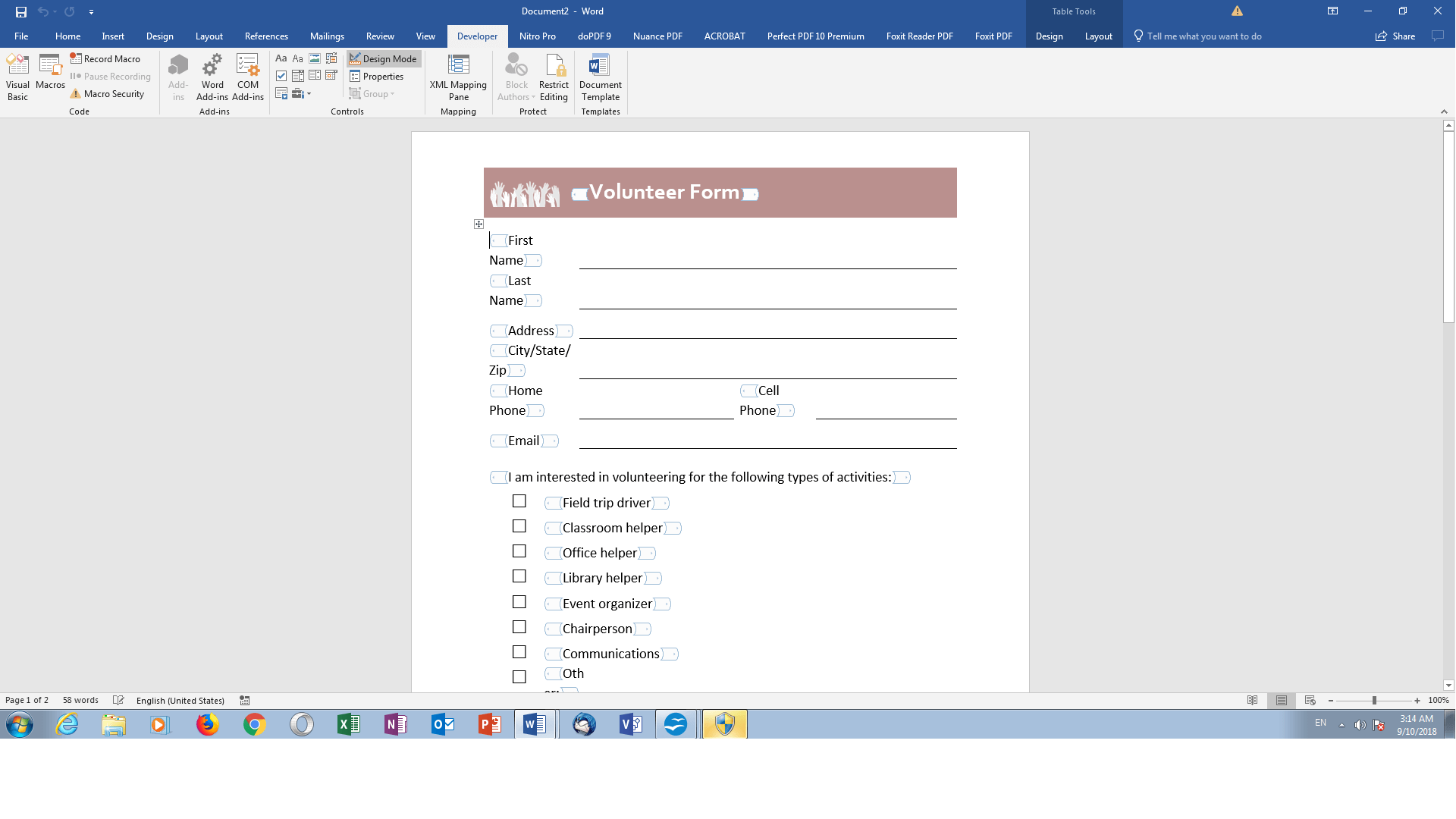
However, the result is always a .doc file that you can use for many tasks, but which does not offer the special advantages of a PDF (for example, being able to reproduce the form on other devices completely unchanged).
It is also possible to save documents directly as PDFs in Word. The only problem is that during the saving process, all of your form’s interactive elements will be lost so you can no longer make changes to the form. The same happens if you use a PDF creator such as PDF24 as a driver for a virtual printer.
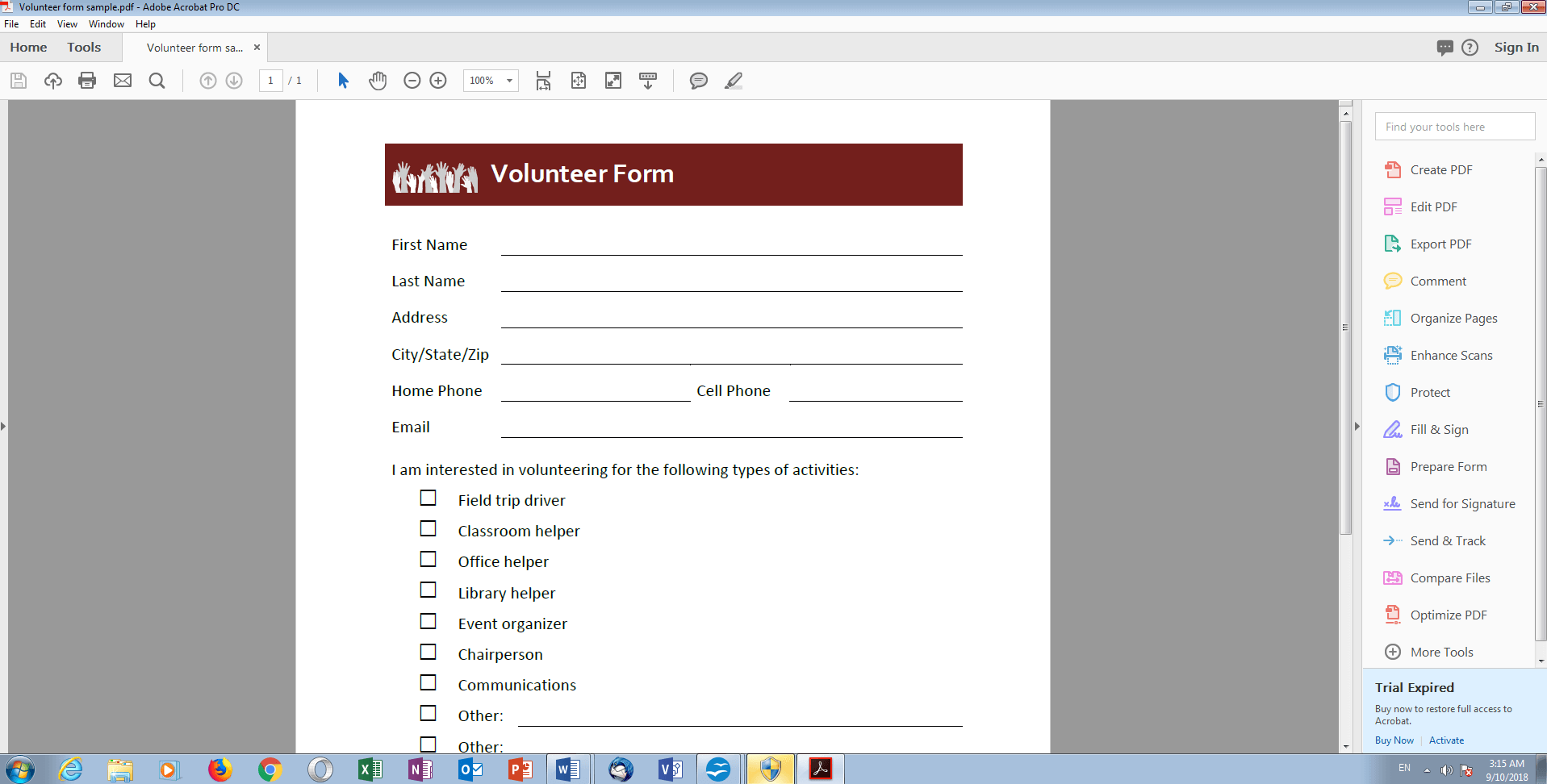
The reason why Word cannot be used to create fillable PDF forms is simply because the existing file formats of Microsoft and Adobe are not fully compatible, and the two companies are unlikely to be able to resolve the problem quickly. Therefore, application forms and surveys designed with the Microsoft application and saved in PDF format are only suitable for printing out on paper and filling in by hand. Under these circumstances, however, you can just as easily forego the interactive input fields and create a table with empty cells instead. For simple attendance lists, this is certainly sufficient, but for more complex projects, this solution leaves much to be desired.
Free solution: create a fillable PDF with OpenOffice
One possible solution is the free office application packages OpenOffice and LibreOffice. Forms created with these programs retain their interactive elements even after being saved in PDF format. If you have already worked with MS Office, you will quickly be able to familiarise yourself with these competing products: creating forms works almost the same in the various programs.
We explain exactly what you need to do to create PDFs using OpenOffice Writer, the free equivalent to MS Word (in principle, these forms can also be created in all other OpenOffice applications – including Calc):
- Open OpenOffice.
- Click on “File” “New” “XML Form Document” to create a new document that allows forms to be created.
- Now click on “Toolbars” “Form Controls” under the menu item “View” to display the toolbar for forms. This appears as a separate window, but can also be attached to the menu bar at the top of the window.
- To start designing your form, all you need to do now is activate the “Draft Mode” in the toolbar.
From now on you have free rein: Design your form with all means and tools that OpenOffice has available – text, images, objects, forms, tables, etc. You can use the mouse to insert interactive elements anywhere in your document.
The following elements are available in the toolbar:
- Tick box: An empty box, which the person filling in the form can tick (or another symbol) by clicking on it with the mouse, or it can be left empty. A usage example: to select the correct gender on an application form.
- Text field: An empty space in which the user can write a certain amount of text, for example for additional comments or as feedback on the form.
- Formatted field: Here the user can enter a numerical value, which is subject to predefined rules by the form’s creator. For example, the numbers available to be selected can be limited to the digits 1 to 10.
- Button: This function creates a button that can be linked to a macro. Macros are more or less complex command sequences, which can be accessed by these buttons, without the user having to fill in all the input fields again. For example, you can have your address automatically entered on a form. Macros are mainly used in OpenOffice Calc and work much like their counterparts in Microsoft Excel.
- Option box: A special type of tick box that is particularly useful for multiple-choice questionnaires. If you combine several fields like this together, only one of them can be selected at a time.
- List field: This function creates a drop-down menu with a selection of options previously set by the form’s creator. The list field can also be connected to an existing data source.
- Combination field: It works like a list box, but allows the user of the form to enter additional information if they don’t want to select any of the default options.
- Label field: This is used to add a label to all interactive elements. This way you can, for example, label tick boxes and arrange them with the corresponding text in the document.
- Additional controls: Depending on the OpenOffice version, they offer additional practical functions. This includes, for example, a slider with which the user can scroll through a fixed list of numbers (e.g. birth years). The date field in turn adds a preformatted date input field to your form.
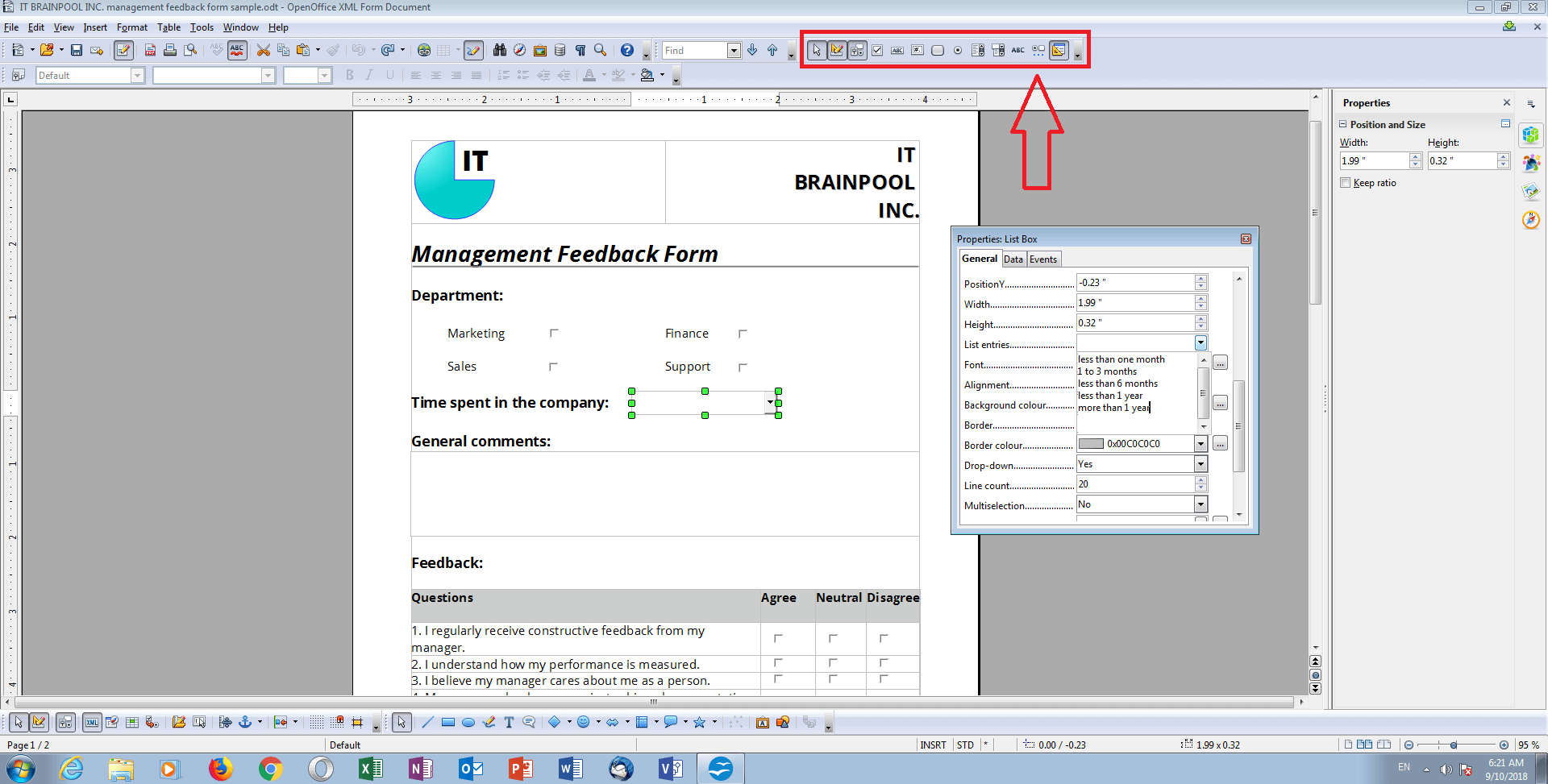
By double-clicking on any interactive element, you can adjust its properties down to the last detail. This includes the height and width of an input field as well as its frame, title, and display style (flat or with “3D effect”). To simplify the work on your form, you can also copy elements with all their settings and paste them elsewhere. Turn design mode off from time to time to test your interactive elements.
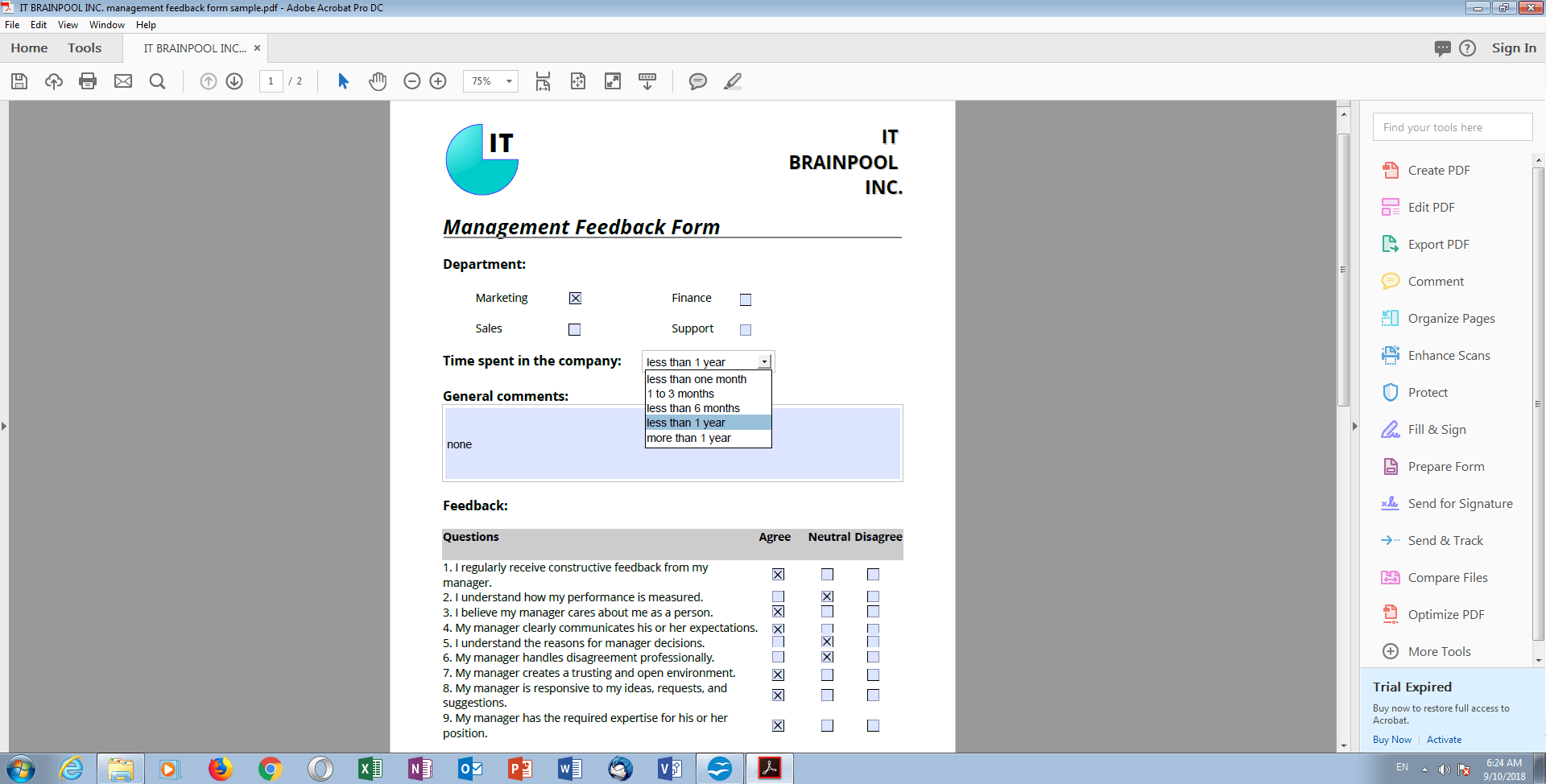
Once you are done, click “File” “Export as PDF” to turn your OpenOffice document into a fillable PDF. Users can easily do the same with almost any PDF reader, fill in the form and either print or save it and send it directly to themselves.
- Write perfect emails with optional AI features
- Includes domain, spam filter and email forwarding
- Best of all, it's ad-free
Costly professional method: creating a fillable PDF with Adobe Acrobat
Although it is possible to create a fillable PDF completely free of charge, some users still swear by the professional, albeit costly standard solution: Adobe Acrobat.
This may be due to the fact that not every customer or colleague has an MS Office license or wants to use OpenOffice or LibreOffice. In addition, Adobe offers some special features that the competition cannot keep up with. The most outstanding feature is the automatic and surprisingly reliable recognition feature: form fields in digital files and even scanned paper documents can be recognised. With Adobe software, you can even convert your MS Word form into a fillable PDF.
This is how it works:
- In the toolbar, click on “Forms” “Start Form Wizard” (the procedure and menu names can vary greatly from version to version; our instructions refer to Adobe Acrobat 9).
- In the newly-opened window, select the source of your form. Acrobat can open existing electronic forms (PDF, Word, Excel, and many other formats) as well as convert scanned paper documents into a form (alternatively, you can create a completely new form using templates).
- The form wizard automatically recognises all static form fields and names them according to the text surrounding them. This process happens in an instant and has a high success rate. It can also happen that Acrobat forgets a field or misinterprets a visual separator as a signature field. In this case, you can quickly correct the error by inserting, moving, or deleting form elements yourself.
Apart from this practical tool, the selection and functionality of the tools in Adobe Acrobat are very similar to those in MS Word, OpenOffice, and LibreOffice: Text fields, tick boxes, option, list fields, combination fields, and buttons can be conveniently arranged using the crosshair display and configured by double-clicking.
In addition, the program offers interesting additional functions, some of which are described in more detail below:
- Fill in interactive forms faster by using the tab key to go from input field to input field instead of clicking on each element individually. In Adobe Acrobat, you can set the tab order to make this process as efficient as possible.
- In combination with Adobe Sign, it is possible to add a field for a digital signature to the forms.
- Another tool in Acrobat is the barcode field. This automatically converts all form entries into a unique barcode that can be read and interpreted with the appropriate hardware. This facilitates the analysis and archiving of forms when they are returned to you in paper form by post or fax.
- Finished PDF forms can also be distributed to customers and colleagues via e-mail or an internal server using Adobe Acrobat. The program also makes it possible to track the feedback status and send automatic reminders in the event of missed appointments.
Adobe offers extensive tutorials for all additional functions on its website. There is also a free trial version of Adobe Acrobat, which is valid for 14 days and enables you to create and edit PDFs and resize documents of this file type.
There are numerous alternatives to Adobe Acrobat with similar functions. However, creating fillable PDF forms is usually only possible in the Pro versions of these programs (e.g. Qoppa PDF Studio, PDF-XChange Editor) or in fee-based trialware (e.g. Foxit Phantom PDF, Nitro Pro).
Summary: free software also yields good results
Interactive PDF forms reduce paper waste and are also easy and quick to create. With Microsoft Office, however, you can only do the preliminary design work. To properly make a fillable PDF, you need Adobe Acrobat or an alternative program. But if you don't want to spend money on it, you can also use the free OpenOffice suite instead of the expensive Adobe solution. The free software also delivers satisfactory results that can be read and filled in with almost any PDF reader.