

How to use the Excel COUNT function

Anyone who works with large tables often knows that if you try to count specific cells manually, it’s almost impossible to avoid errors. But it doesn’t have to be that way. If you want to know how many cells contain numbers, Excel has a simple function that can help you. In Excel, COUNT immediately tells you how many cells in the selected range contain numbers. We’ll explain how it works.
What do you need Excel’s COUNT function for?
When working with Excel on a daily basis, sometimes you need to know how many cells in a table contain numbers. For example, if you’re working with revenue results, you may need to check the number of entries. The function can also be used to calculate the sum of numbers from a wide variety of values. Excel’s COUNT function only counts numbers, dates, and numbers turned into text with quotation marks.
The Excel COUNT function only counts the number of cells, it does not total the values in the cells. There is another function in Excel that does that: SUMIF allows you to filter cell values by certain criteria (e.g. text criteria or special symbols like $) and then add them up.
COUNT: syntax
All you have to enter for the COUNT function is the range to analyse. Entries are made in the form of cell references. Select a from-to range separated by a colon as the function input.
=COUNT(Value1;[Value2];…)The advantage of this function is that you can specify multiple ranges. If the cells you want Excel to check are not contiguous, you can simply specify multiple ranges and don’t need to restructure your entire table. You can integrate up to 255 additional ranges of different sizes into the COUNT function.
Using Excel: Examples of the COUNT function
The COUNT function checks a range for entries that Excel treats as numbers:
=COUNT(B2:E2)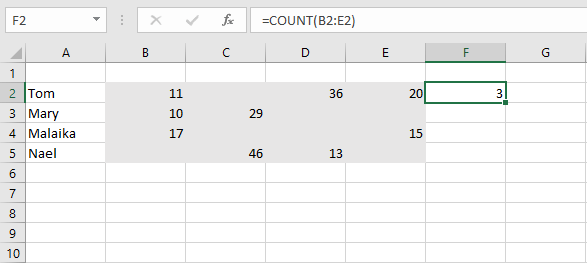
This formula gives you the number of cells containing numbers in a single row. You can also expand the search to an entire worksheet or include specific ranges if there are columns in the table you do not want to include.
=COUNT(B2:E5;G2:J5)You can combine COUNT with other functions. For example, you can calculate a mean from the number of cells counted in various ranges.
=AVERAGE(COUNT(B2:E5);COUNT(G2:J5);COUNT(L2:O5))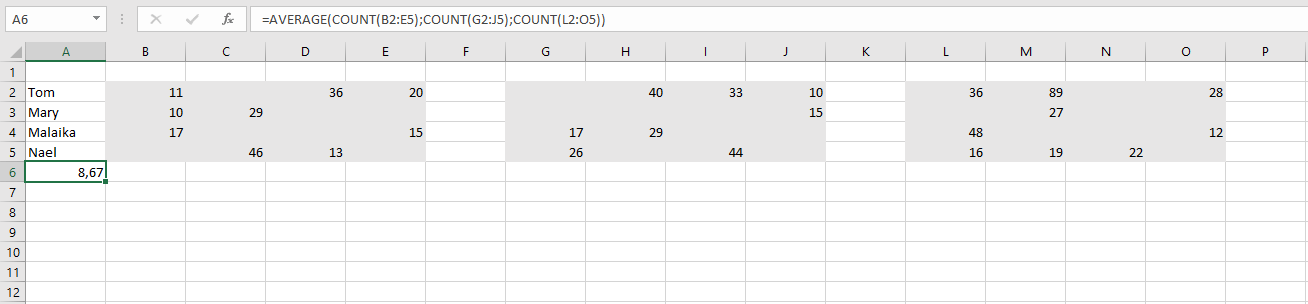
In this example, you are counting the cells with numbers in multiple ranges (independently) and then calculating the mean value.
COUNTA & COUNTBLANK: Two related functions
Count only lets you count the cells with numbers. It does not include text that is not treated as numbers or Boolean values. This allows you to analyse numbers separately from other content. However, if you want to include all values, COUNTA can help. The function’s structure is identical to the COUNT function.
For example, COUNTA can be used to display the attendance rate at meetings in a given month.
=COUNTA(B2:E5;G2:J5)/32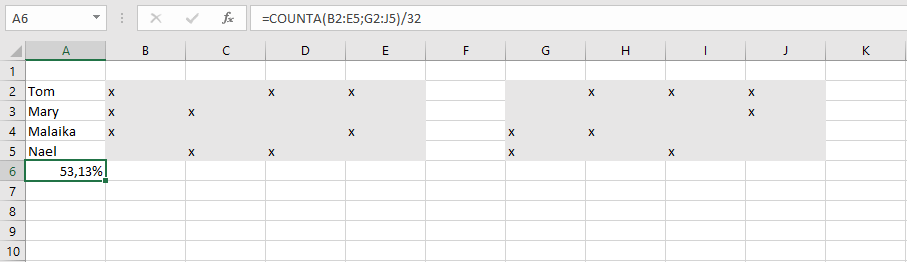
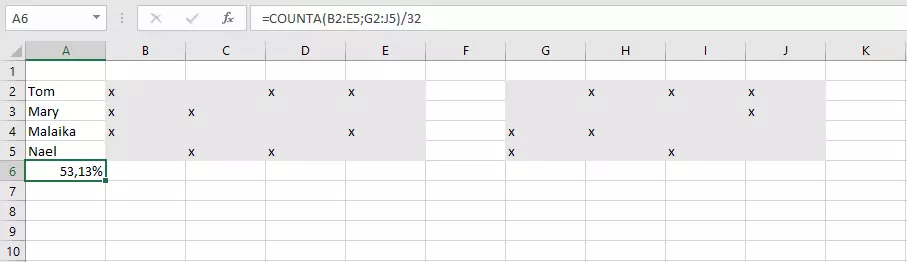
In this example, we want to count all non-blank cells and divide them by the number of all available cells. Attendance is indicated with an “x” in the respective cell. If we now format the resulting cell as a percentage, we can determine the percentage attendance rate.
However, sometimes you want to count all the cells that are empty. You can do that using Excel’s COUNTBLANK function. This function also shares the same structure as the other two functions, but can only include one argument. As a result, you can’t include multiple ranges in one function, you have to aggregate the totals.
=COUNTBLANK(B2:E5)+COUNTBLANK(G2:J5)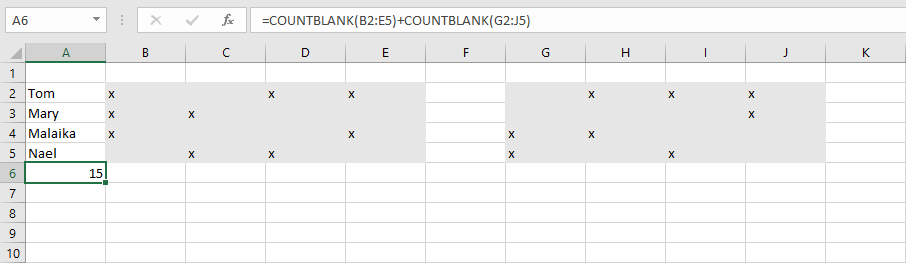
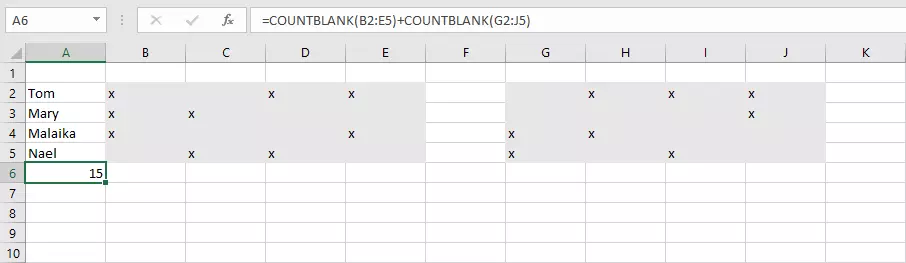
If you add COUNTA and COUNTBLANK, the result is always the number of cells in the range analysed. This can be useful, for example, if we go back to our formula for calculating the attendance rate.
=COUNTA(B2:E5;G2:J5)/(COUNTA(B2:E5;G2:J5)+COUNTBLANK(B2:E5)+COUNTBLANK(G2:J5))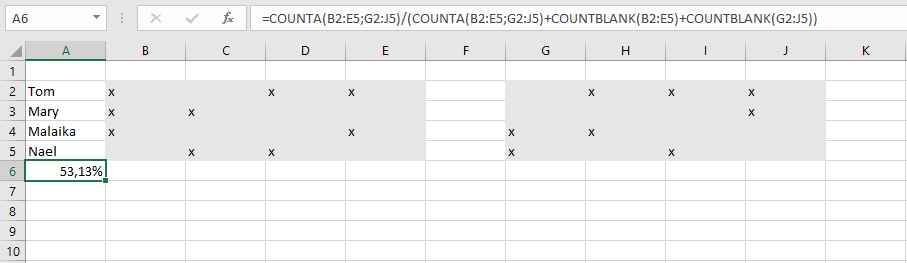
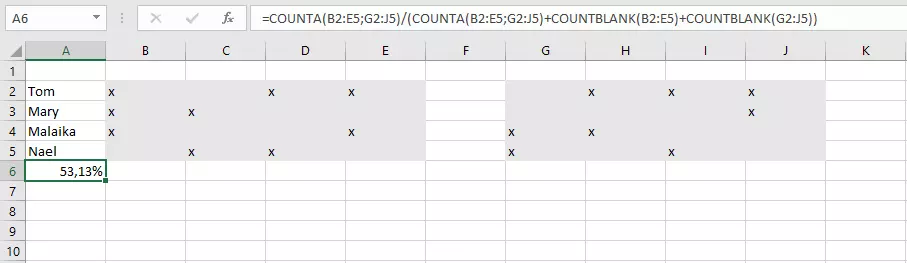
In this formula, you no longer need to enter the total number of cells manually. Instead, you calculate it from the total of all blank and non-blank cells.
The COUNTIF function gives you even more control when selecting criteria. For example, you can use it to have Excel search for specific terms.
Reviewer

Jeanna Raffa
With over 18 years of experience in online marketing, Jeanna Raffa possesses extensive expertise in digital marketing. Since 2020, her focus has been on providing practical information regarding email, office, and cloud storage solutions.