

How to calculate remaining amounts using Excel MOD

One function in Excel that is rarely used but still extremely helpful is the MOD function. You can use this function to determine the remainder of two numbers after a division operation.
This guide applies to the Excel version included in Microsoft 365 as well as Excel 2021, Excel 2019 and Excel 2016.
- Up to 50 GB Exchange email account
- Outlook Web App and collaboration tools
- Expert support & setup service
How do you use the MOD function in Excel?
If you want to determine the remainder after dividing one number by another, you can use the Excel MOD function to return this value. The formula looks like this:
=MOD(5,2)
In this case, the result of the division is the value ‘2’ because the integer 2 fits into 5 exactly twice. The Excel MOD function returns a remainder of 1. This calculation may seem simple at first glance. However, the Excel MOD function is very helpful when you’re dealing with large sequences of numbers, and it’s virtually indispensable for ensuring correct results.
The remainder is always returned with the same sign as the divisor. If the sign is negative, the final value will also be negative.
The formula is simple enough. It consists of two parts that can be expressed as a cell reference or a specific value, as shown in the examples below. The first formula specifies two cell references, and the second formula consists of a cell reference and a specific number:
=MOD(A1,A2)
=MOD(A1,3)
An example of the Excel MOD function
The example below illustrates how Excel’s MOD function works:
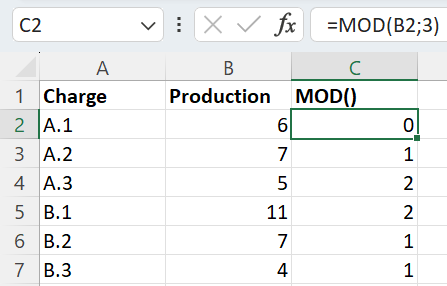
Once again, the standard division operation is used. The production output number is divided by the divisor 3 (the specific number given in the code above). If there is a remainder after the numbers are divided, this value is indicated in the row on the right.
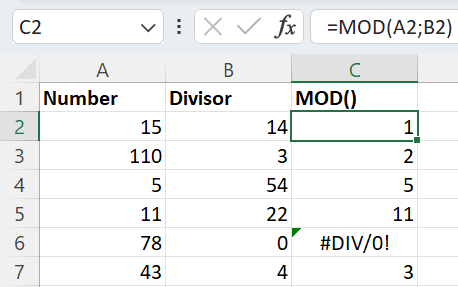
In the spreadsheet below, the first column contains the number to be divided. The second column contains the divisor, which you want to divide the number by. This results in the following formula: MOD(Number;Divisor).
The Excel MOD function works the same way in many spreadsheets, regardless of whether Excel, Google Sheets or another program is used.
The Excel MOD function returns the error message #DIV/0! if the number zero is specified as the divisor because a number cannot be divided by zero. In the following example, the number 78 cannot be divided by the divisor 0, so Excel returns the #DIV/0! error message.
The term ‘MOD’ refers to the modulo operation, which originates from Euclidean mathematics and is used when creating macros in Excel or calculating remainders in common programming languages such as Python.
Where is the Excel MOD function used?
It’s worth taking a closer look at the possible uses of the MOD function in Excel. It is a practical tool for solving everyday problems, especially when combined with other functions.
The Excel MOD function is used when you only want to count certain minimum quantities in formulas, meaning every Nth value. Typical applications include converting or calculating units of quantity and length or determining remaining dates. The function can also be used in a number of other scenarios, for example in manufacturing. Remnants left over due to standardised packaging units or machine production capacities can be determined with the MOD function in Excel. For example, you can differentiate between recyclable and non-recyclable remnants.
In addition, you can combine the Excel MOD function with other Excel functions. The SUMIF function, can be used, for example, to determine whether there is any waste and to what extent it can be reused. This method can also be used for bundling volumes. By combining SUMPRODUCT function and the Excel MOD function, you can ensure optimum utilisation of a shipping container, for example.
There are numerous other Excel functions and formulas that can be combined with Excel MOD, such as:
- Up to 50 GB Exchange email account
- Outlook Web App and collaboration tools
- Expert support & setup service