

Registering with Google Maps in just a few small steps

Google Maps is of central importance to local businesses. The online business card service is part of the most successful search engine provider in the world’s product portfolio and is directly integrated into their search engine. Google is the internet starting point for most user’s research, and not just for searches that target specific information.
Searching for products, services and providers is also primarily done through Google, and not just at home on the PC but also with smartphones while on the go.
Business owners who want to provide potential customers with information about their business on Google Maps, Google Web Search or other Google products just need to create a Google My Business listing or claim an existing Google business listing entry for their company.
Entering a company profile in the Google business directory
To sign into Google Maps using Google My Business listings, follow these steps:
Google My Business is a free tool that enables entrepreneurs to create and manage their company’s online presence on the entire Google product range.
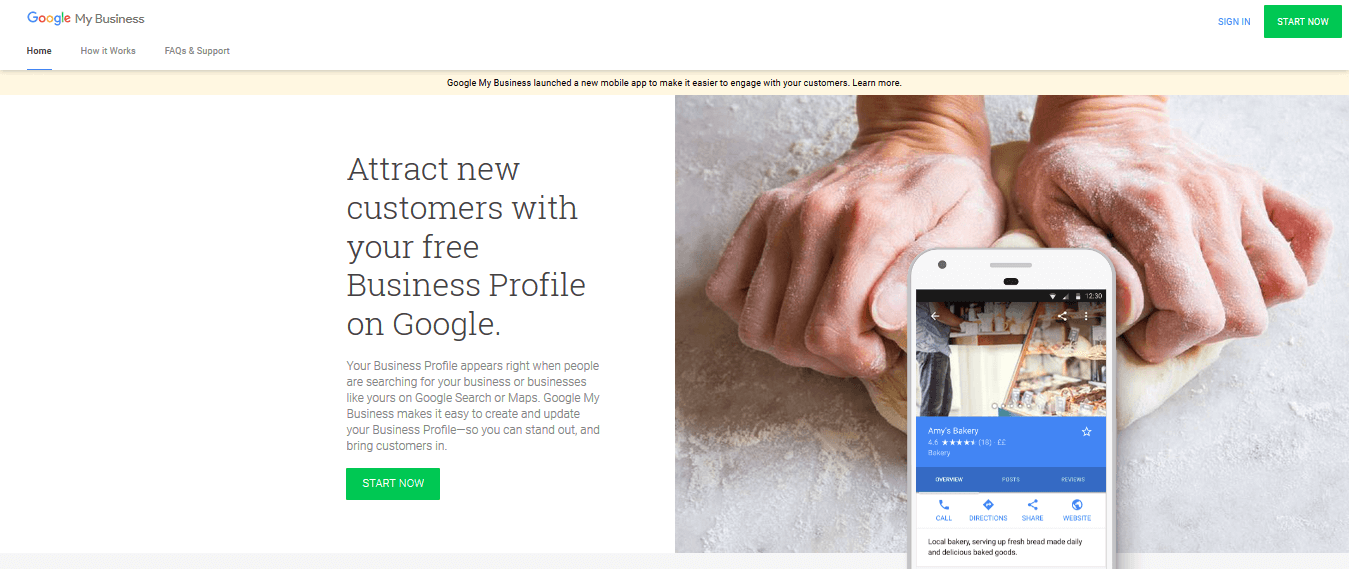
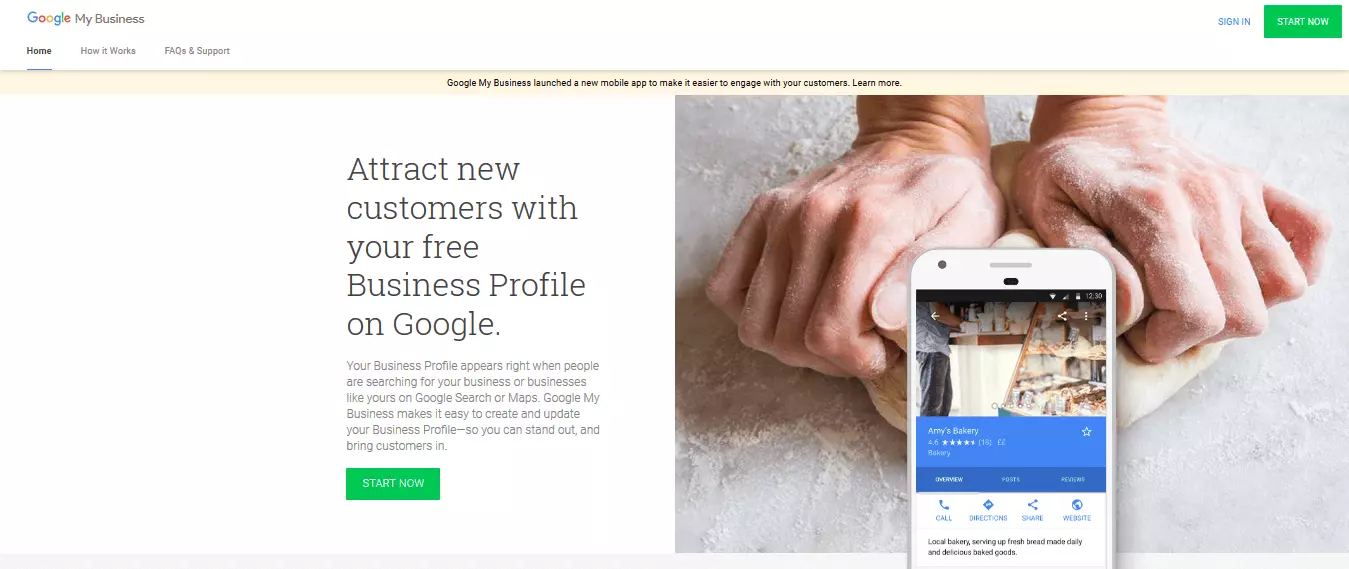
Step 1: Call up Google My Business on your web browser.
Step 2: Click the “Start Now” button, either to the top right of the login button or at the bottom of the screen.
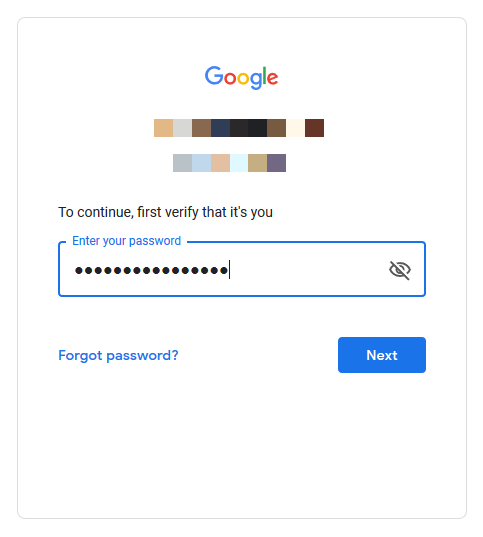
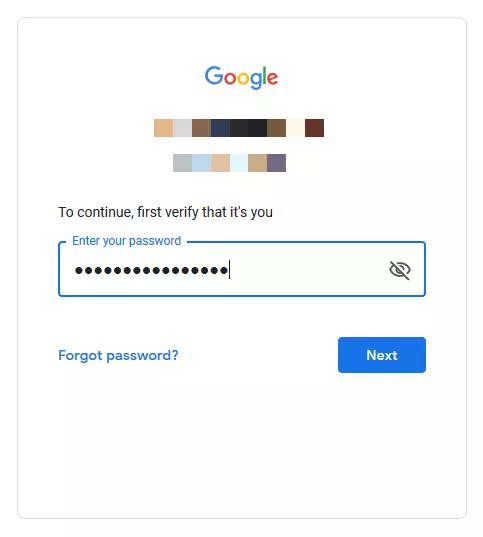
Step 3: Sign in with your Google Account or create a new account.
Step 4: Enter the name of your company in the designated field and confirm the entry by clicking on “Next”.
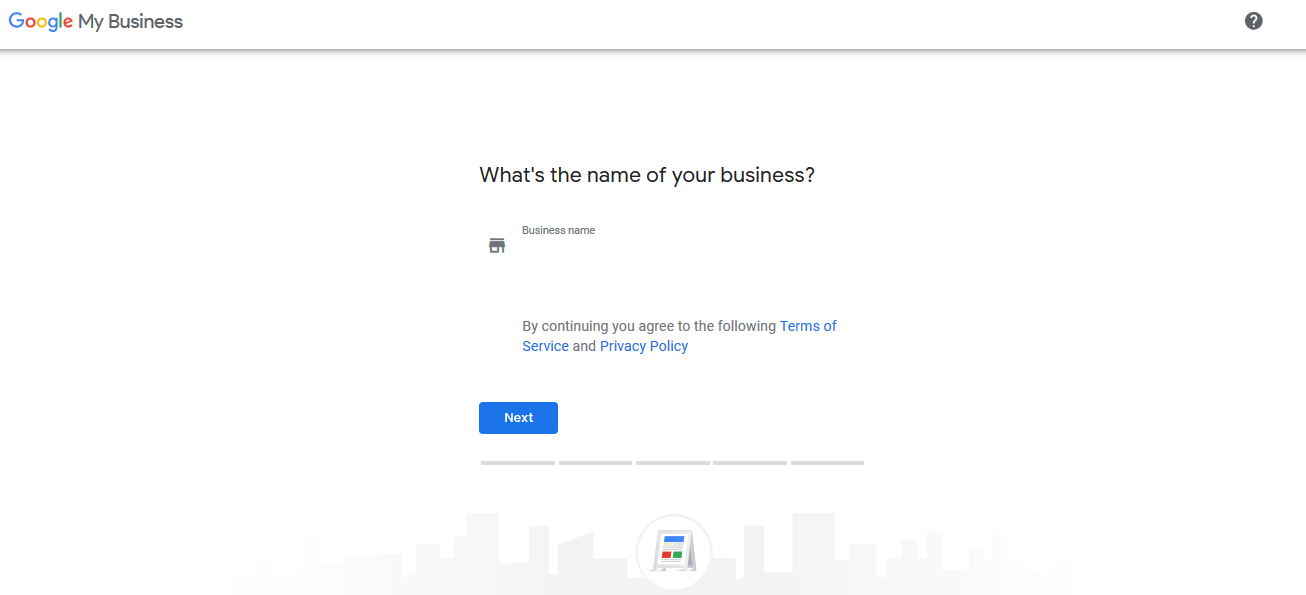
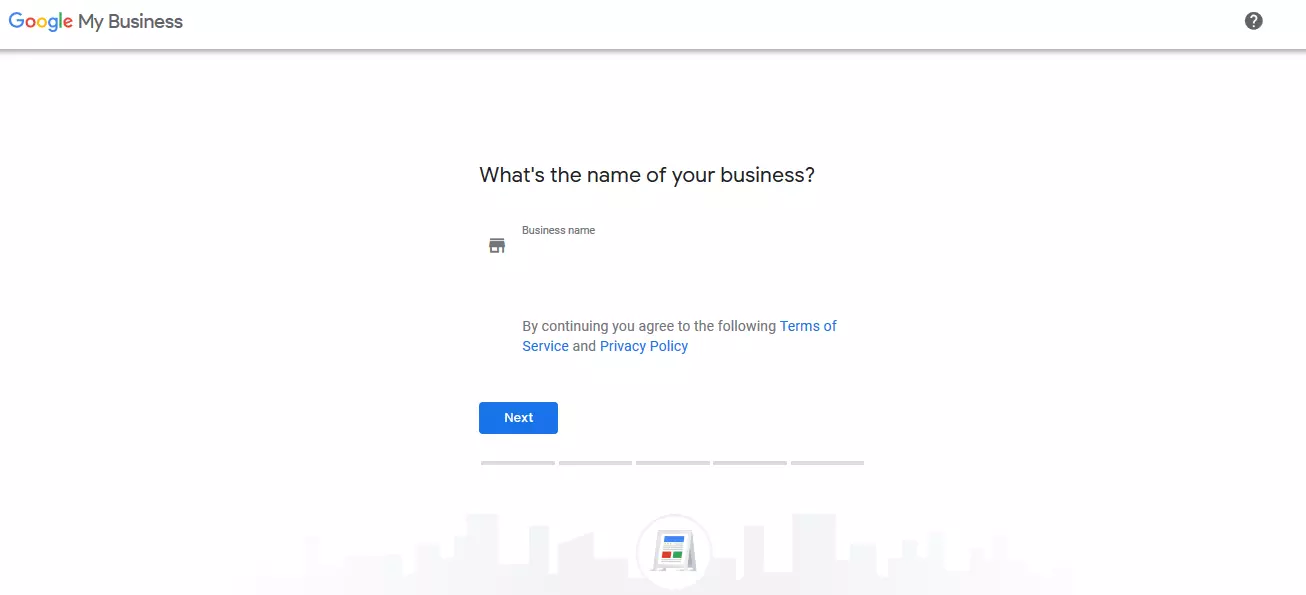
If your company is already registered with Google My Business, you will see the name as a suggestion when you’re typing.
Step 5: Choose where to enter your company on Google Maps. Type the address in the designated fields.
Select the “I Provide Goods and Services at the Customer Location” tickbox if you visit or deliver to customers at home.
If you are only working offsite or at customer’s homes, select the tickbox “Hide My Address” (no store).
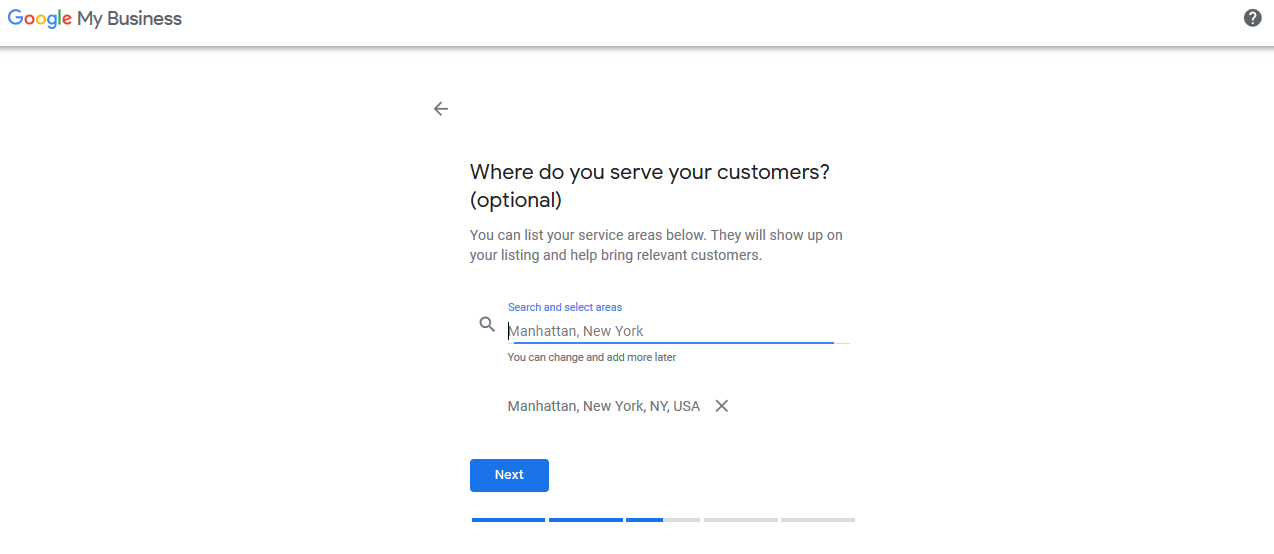
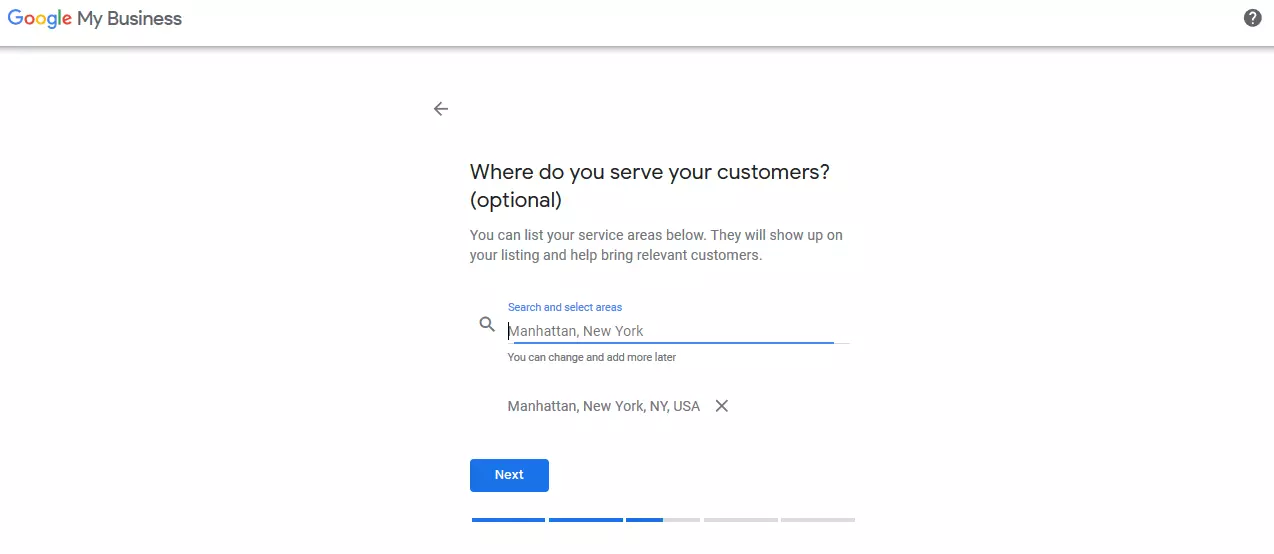
If you provide goods or services at the customer location, Google My Business offers you three different ways to define your services.
Serve customers either by post or courier, within a radius as defined by you around the company’s physical location, or limit their offer to a specific region (city, post code).
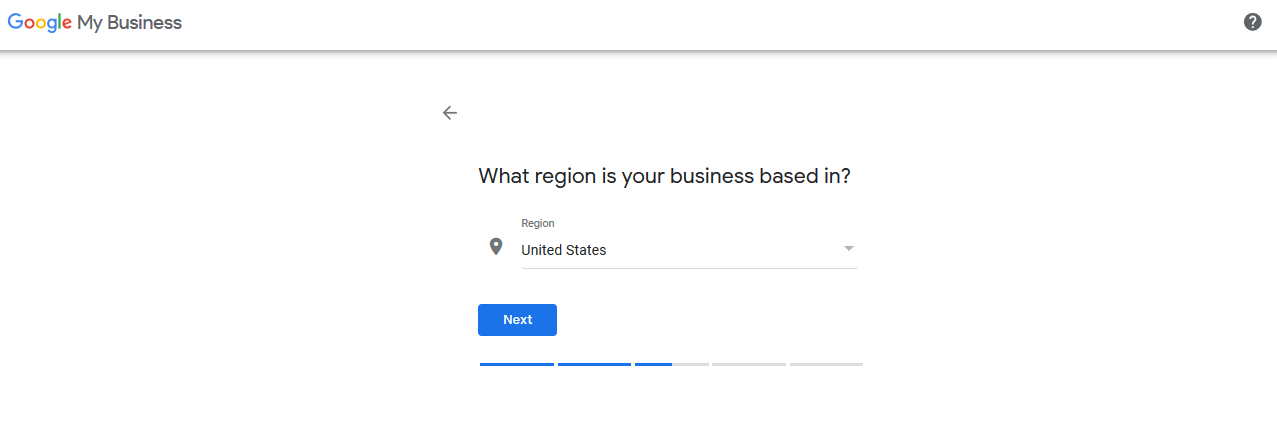
Step 6: Enter the category of business that most applies to you.
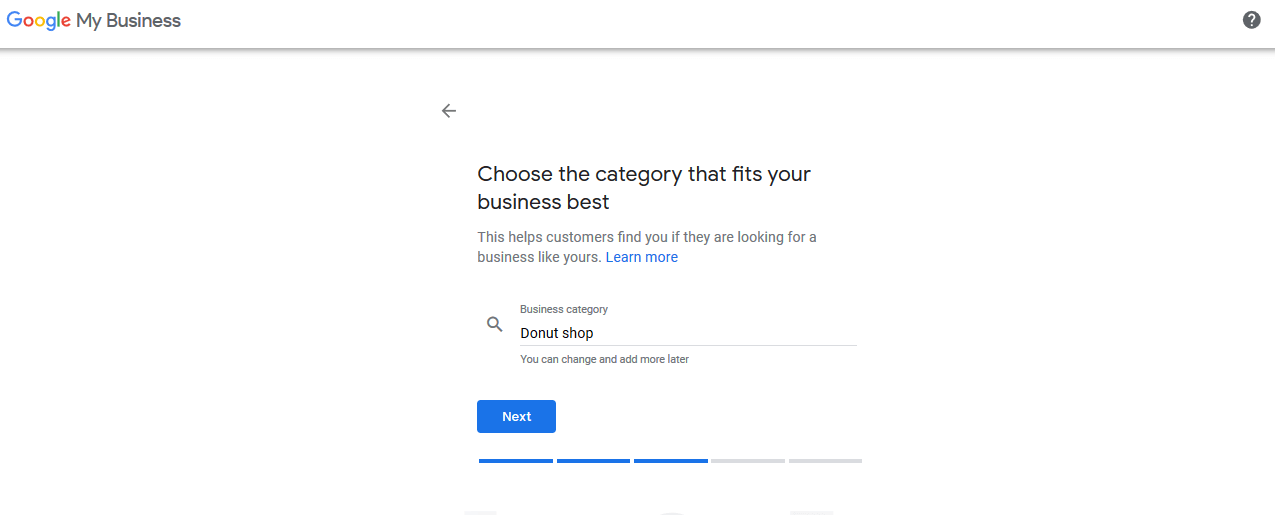
You can change the company’s category at any time, as well as add additional categories.
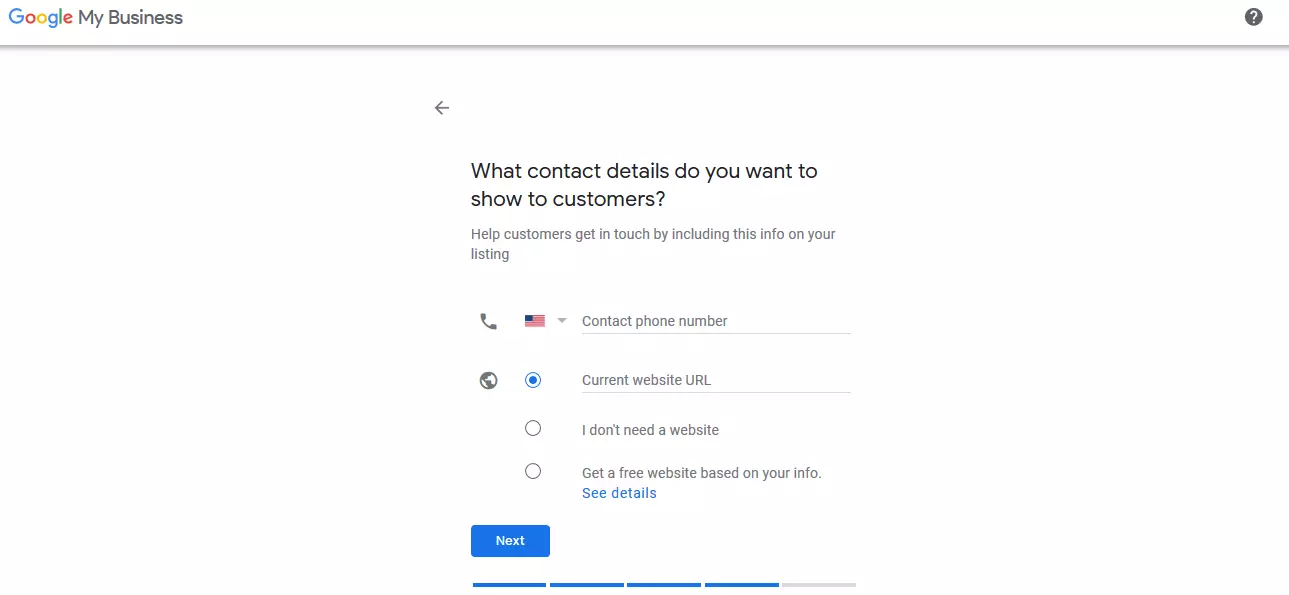
Step 7: Decide what contact details you want to make available to your customers in your Google Maps listing.
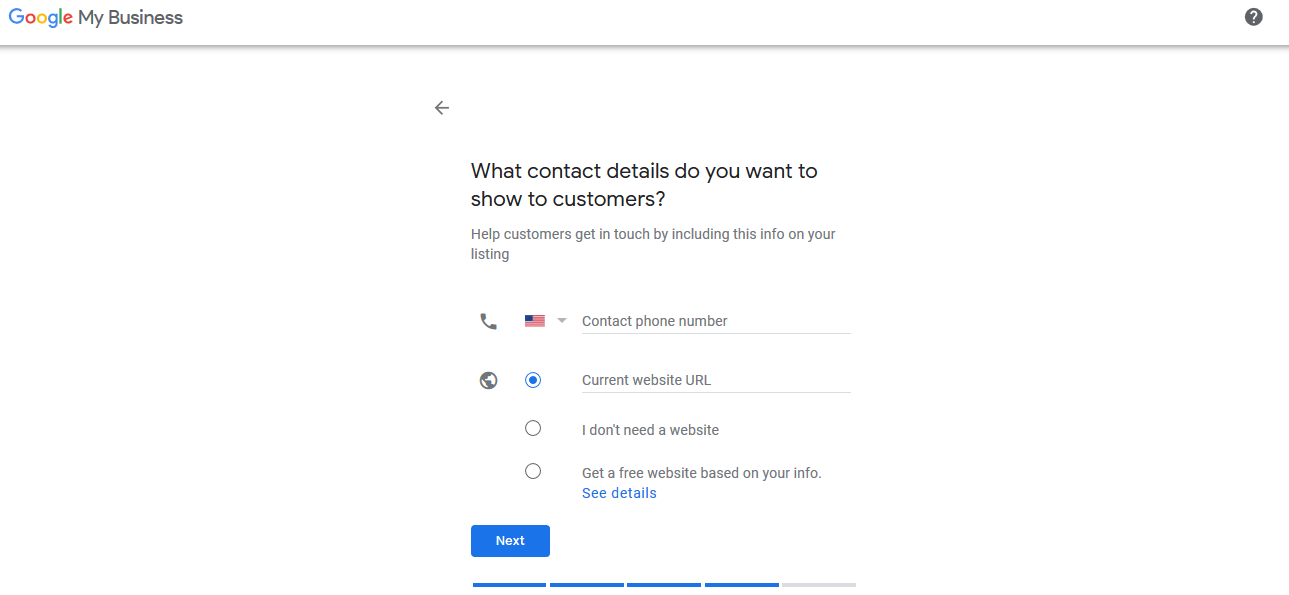
Step 8: Get Google marketing tips sent to you if needed.
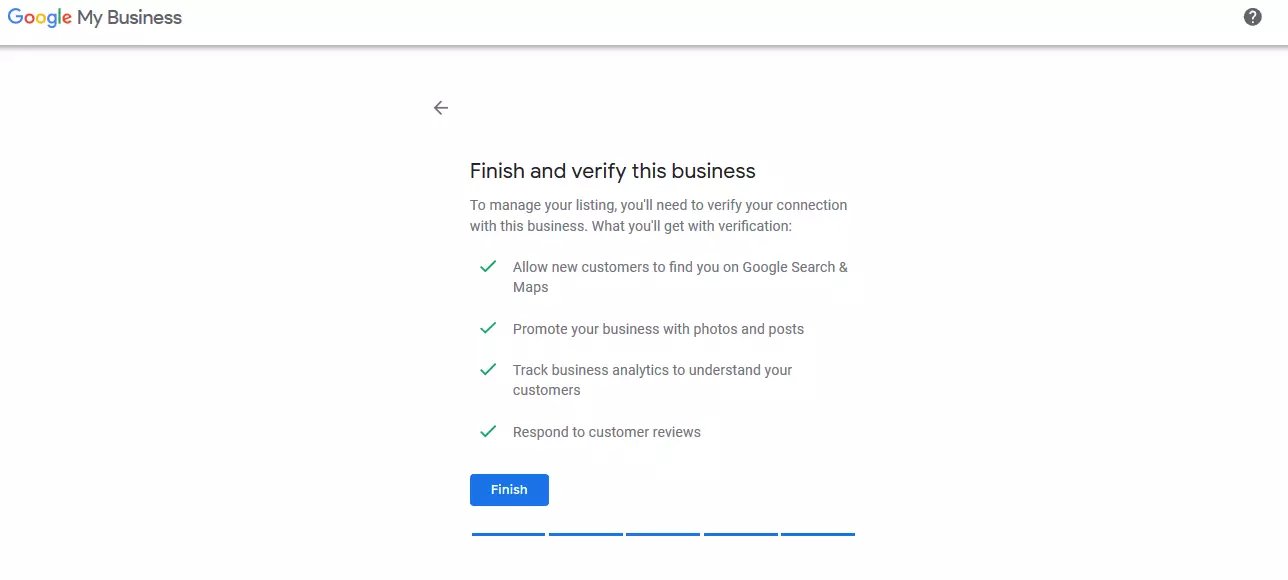
Step 9: Confirm your entry for the Google Maps listing and complete the sign-up process by clicking “Finish”.
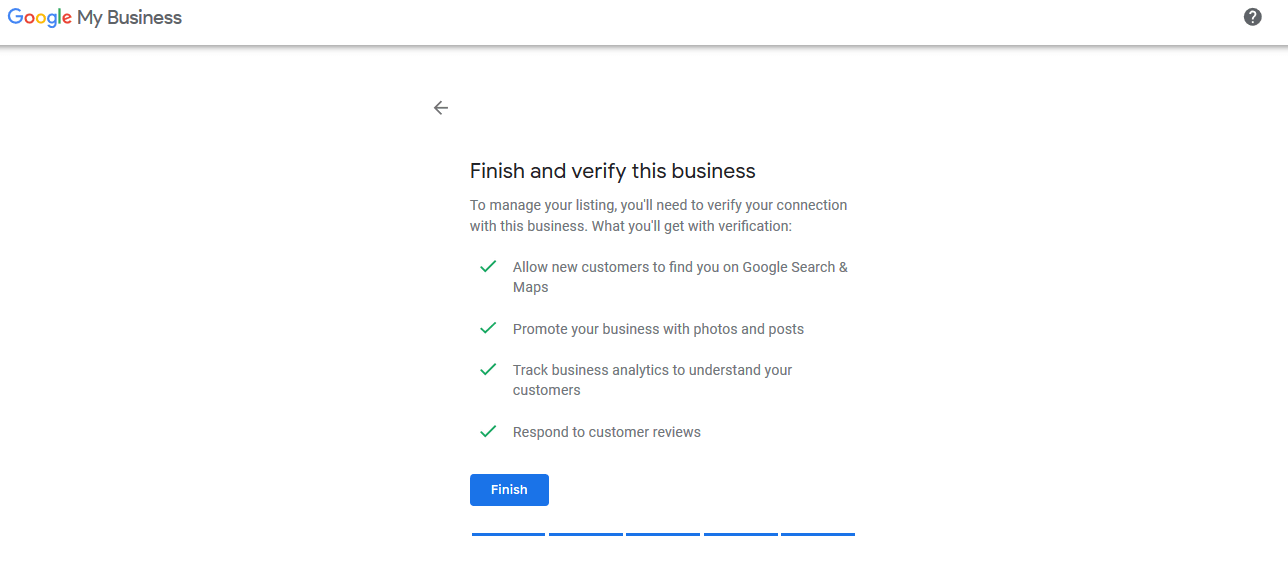
Step 10: Finally, select a confirmation option and confirm your affiliation with the company, proving your claim to the Google business directory entry.
The verification method depends on the type of business you want to do. The most common method is postal confirmation. This is done as follows:
- You request a confirmation postcard.
- Google sends a postcard to the company address you have provided.
- On the postcard, you will find a verification code that you can use to authenticate your Google My Business account.
Google will send you the confirmation postcard within two weeks. Make sure that you don’t change the address on Google My Business or the company category during this time, and do not request a new verification code either. If you still haven’t received a postcard from Google after two weeks, it’s best to get in touch with Google My Business’s support team directly.
Google offers confirmation by phone, text, email or the Google Search Console to selected companies. If you see any of these verification methods available on your Google My Business account, just follow the on-screen instructions to complete the confirmation quickly and conveniently.
Claiming a registered company
If you already have a Google Maps listing for your business, Google will notify you of a conflict of ownership. Only one holder can be confirmed for each entry. In this instance, your entry will be considered a duplicate until you have the ownership transferred to you by the current owner.
Owner conflicts occur, for example, if another person in your organisation or a contracted agency has already created an entry for your business.
To request access to the Google Maps listing, follow these steps:
- In the event of an owner conflict, you will see the message “This entry has already been claimed” during the setup process.
- In this case, click “Access Request” and fill out the form.
- Send the access request by clicking on “Send”.
The current owner now has seven days to respond to your request. Afterwards, Google will inform you by email whether your application has been granted or whether the current owner has refused to relinquish ownership.
If the current owner does not respond within the seven-day period, you may have the option to register as the owner yourself. In this case, you will see a corresponding option in your Google My Business account after logging in.