

How to set up a Zoom meeting: creating your own Zoom meeting

In many occupational sectors, video conferences are part of the workday. The option to get together as a team using audio or video technology is often not only an elemental factor when it comes to working from home, but also a fuss-free solution for catching up with colleagues and clients that are based in different locations.
One of the most popular solutions for scheduling “virtual” meetings is the Californian program Zoom, which is available for free with the Basic plan as well as with various Premium plans that come with additional features. We’ll show you how to sign up for the service, how to set up your own Zoom meeting, and how to join a meeting that has already started.
Step-by-step instructions: How to set up a Zoom meeting
Tools for video and audio conferencing are aimed at a wide range of users: not only in everyday office life, but also in private life, this kind of software is increasingly used as a means of communication. Zoom and other conferencing tools are characterised above all by their user-friendliness, which enables even beginners to set up a Zoom meeting quickly and easily. For example, you can start and manage a Zoom meeting via the web browser of your choice or via native apps for Windows, macOS, Android, and iOS. The following sections will guide you through the process step by step.
Step 1: Create a Zoom account
If you want to take part in a Zoom call then all you need is a meeting ID or link that you receive from the meeting organiser. If you want to set up a Zoom meeting, however, you’ll need an active Zoom account – whether the virtual meeting takes place in the browser or app.
If you don’t want to create a new Zoom account then you can also use an active Facebook or Google account to sign up to the video conferencing service.
You can start the registration by opening up the Zoom website and clicking on the ‘Sign up, it’s free’ button. Enter your birthday and your email address before selecting ‘Sign Up’. Zoom will now send a message to your provided email address with which you can activate your account.
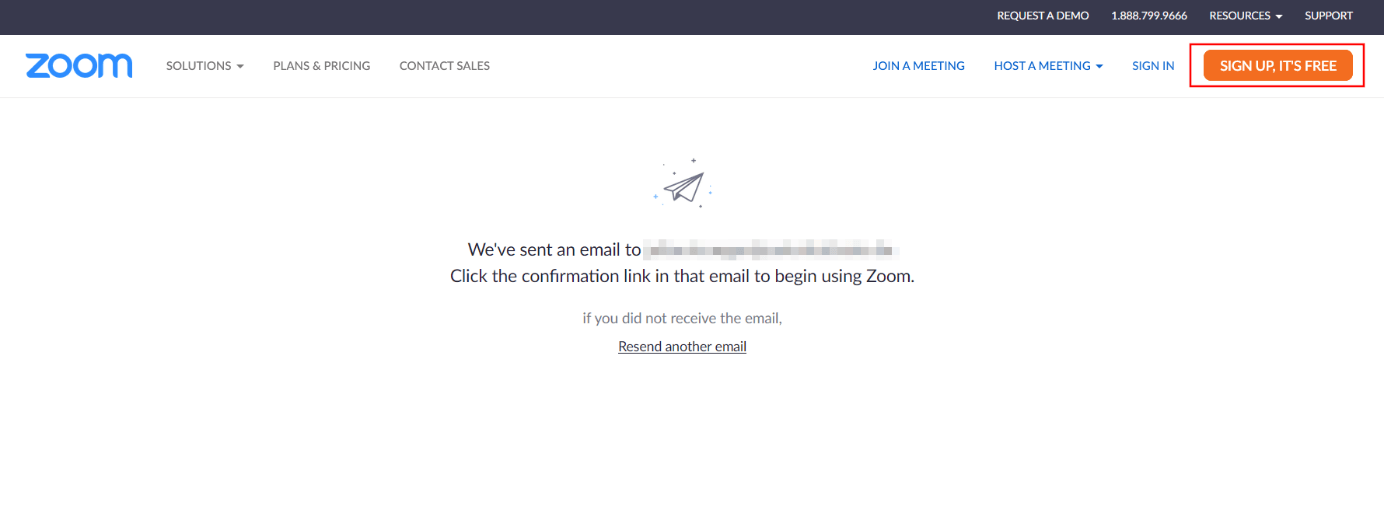

As soon as you click on the ‘Activate account’ link you will be redirected back to the Zoom website where you can enter your registration details like your name and a password. The options to ‘Invite Friends’ and ‘Test Meeting’ can be skipped.
Step 2: Registering with Zoom
After registering, you’re automatically signed in to your Zoom account, where you can plan or launch meetings as well as join ongoing meetings. For later use, navigate to the ‘Sign In’ button and log in with your email address and password. If you download one of the many available Zoom apps for your device, then sign in in the same way using your information – at least for the first sign in attempt.
Step 3: Set up a Zoom meeting
If you’re signed in to your account then the fastest way to set up a meeting is via the ‘Instant Meetings’ function.
In the browser
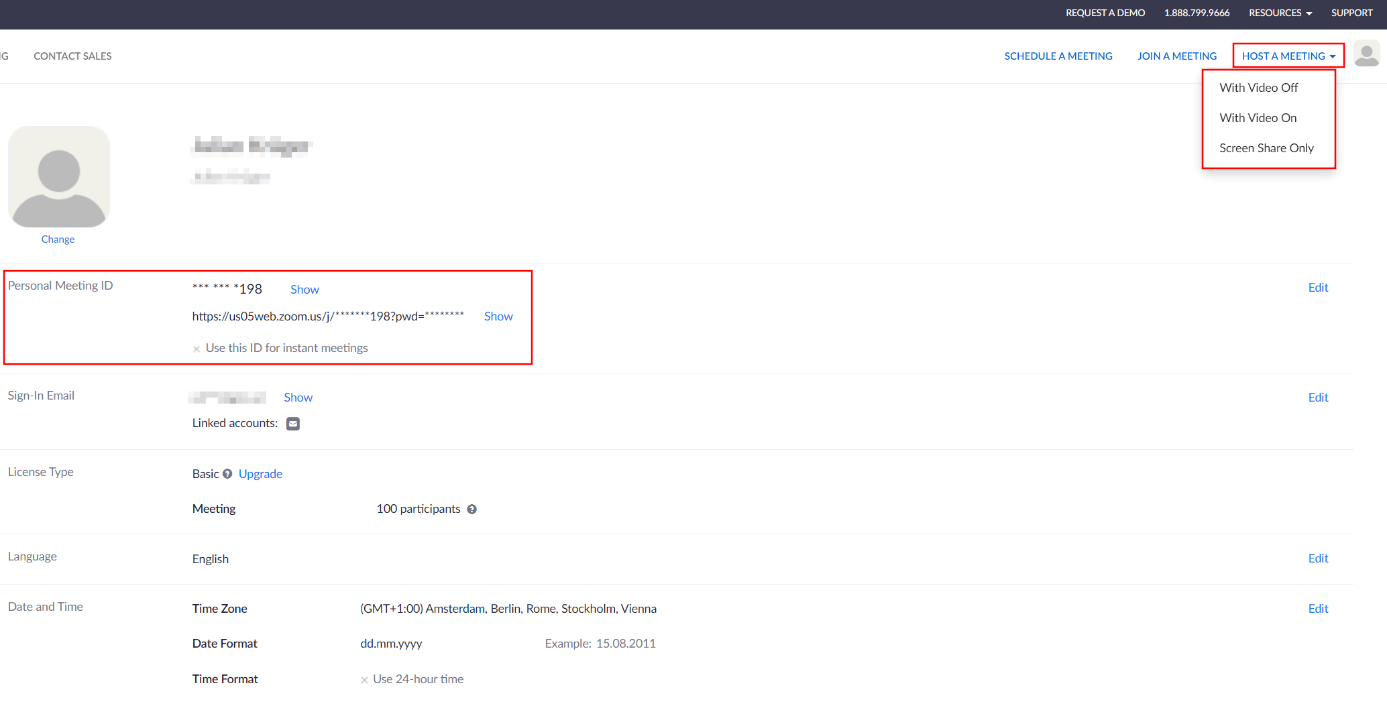
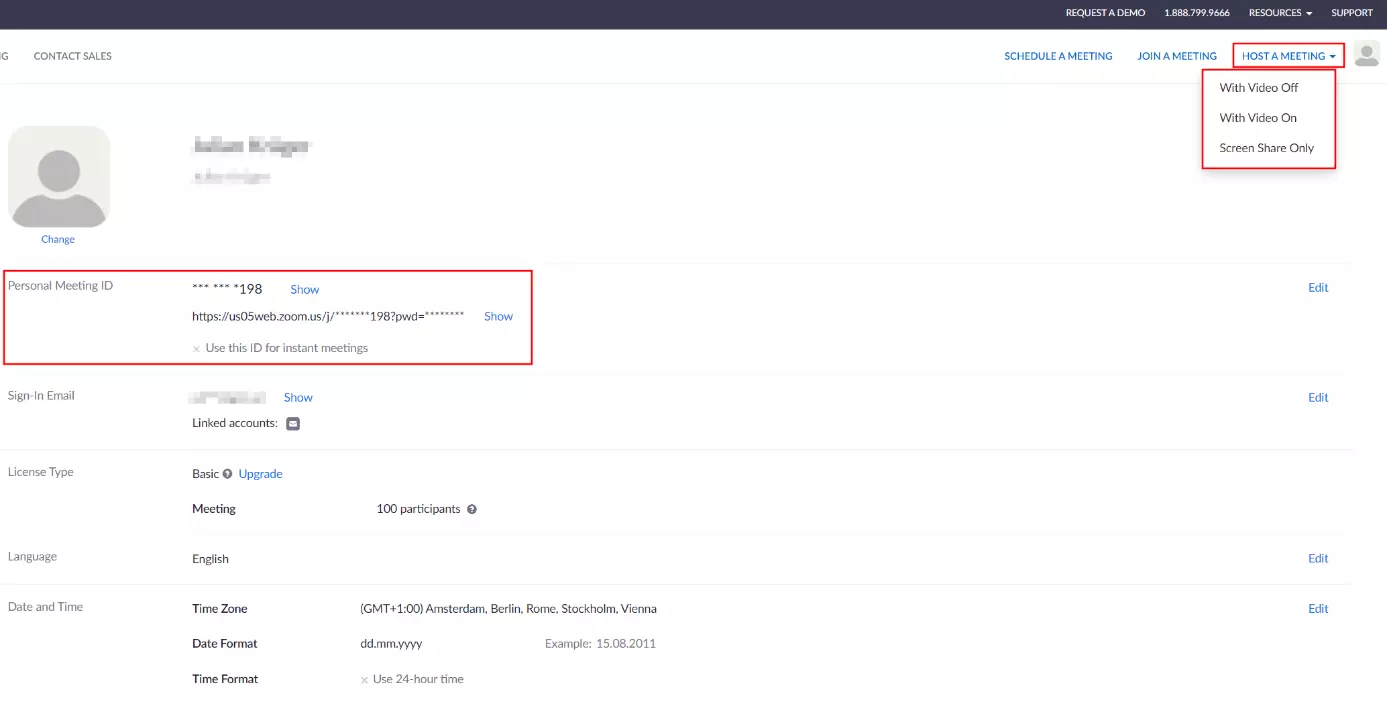
In the browser, you can create an ‘Instant Meeting’ in Zoom via the ‘Host a Meeting’ button. In the drop-down menu, select whether your camera should be activated or switched off, or alternatively whether you only want to share your screen.
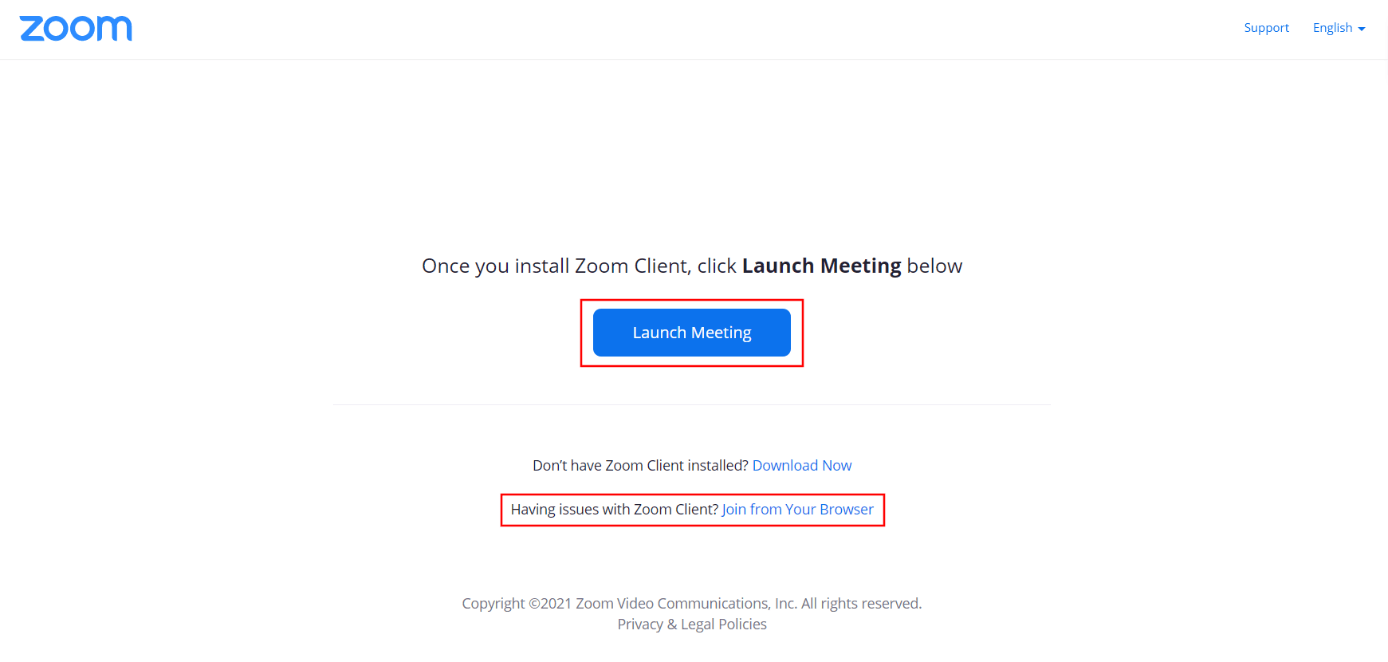
Once you’ve made your selection, a new window will open. Here, click on the ‘Launch Meeting’ button and then ‘Join from Your Browser’ to start the Zoom meeting.
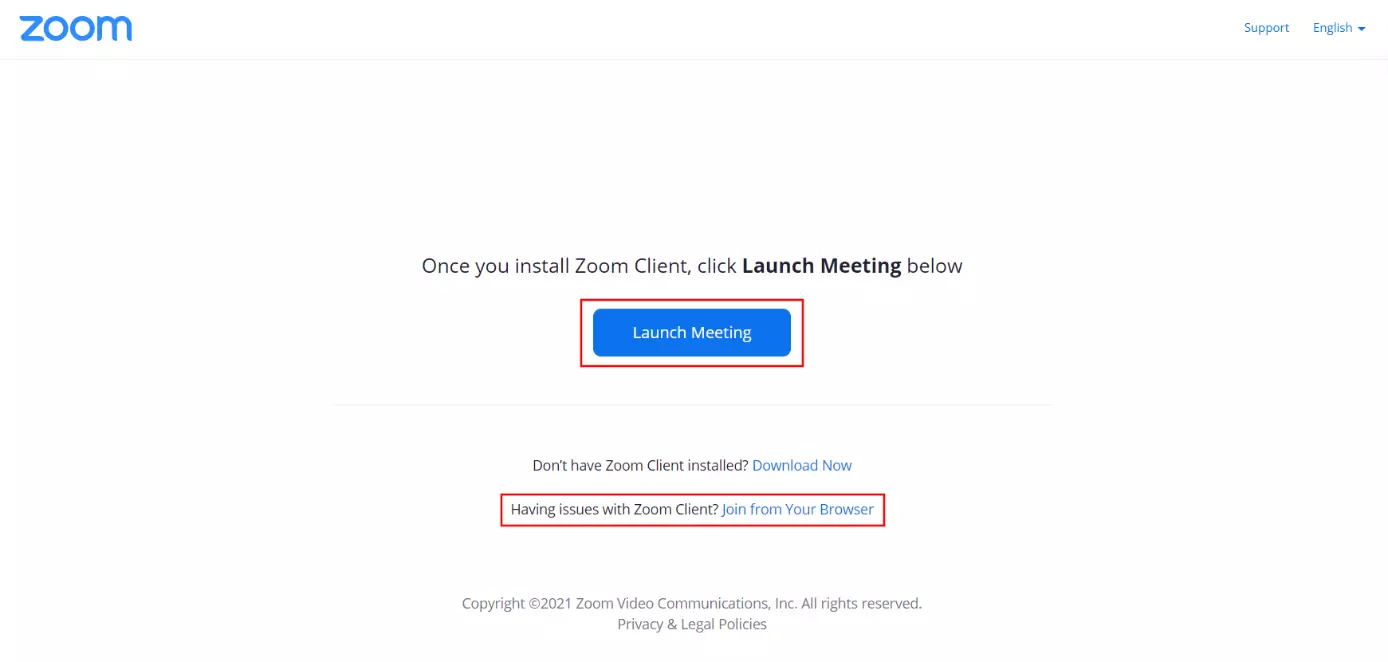
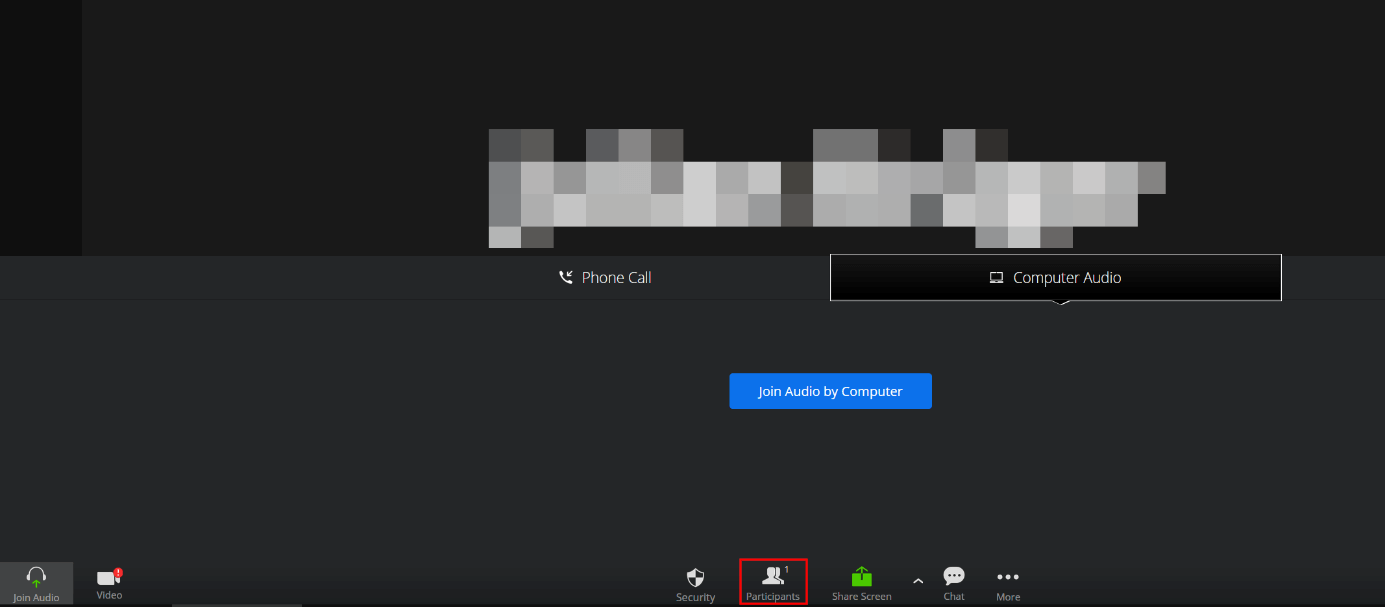
Use the ‘Participants’ button to invite additional users to the Zoom video conference you’ve created.
In the app
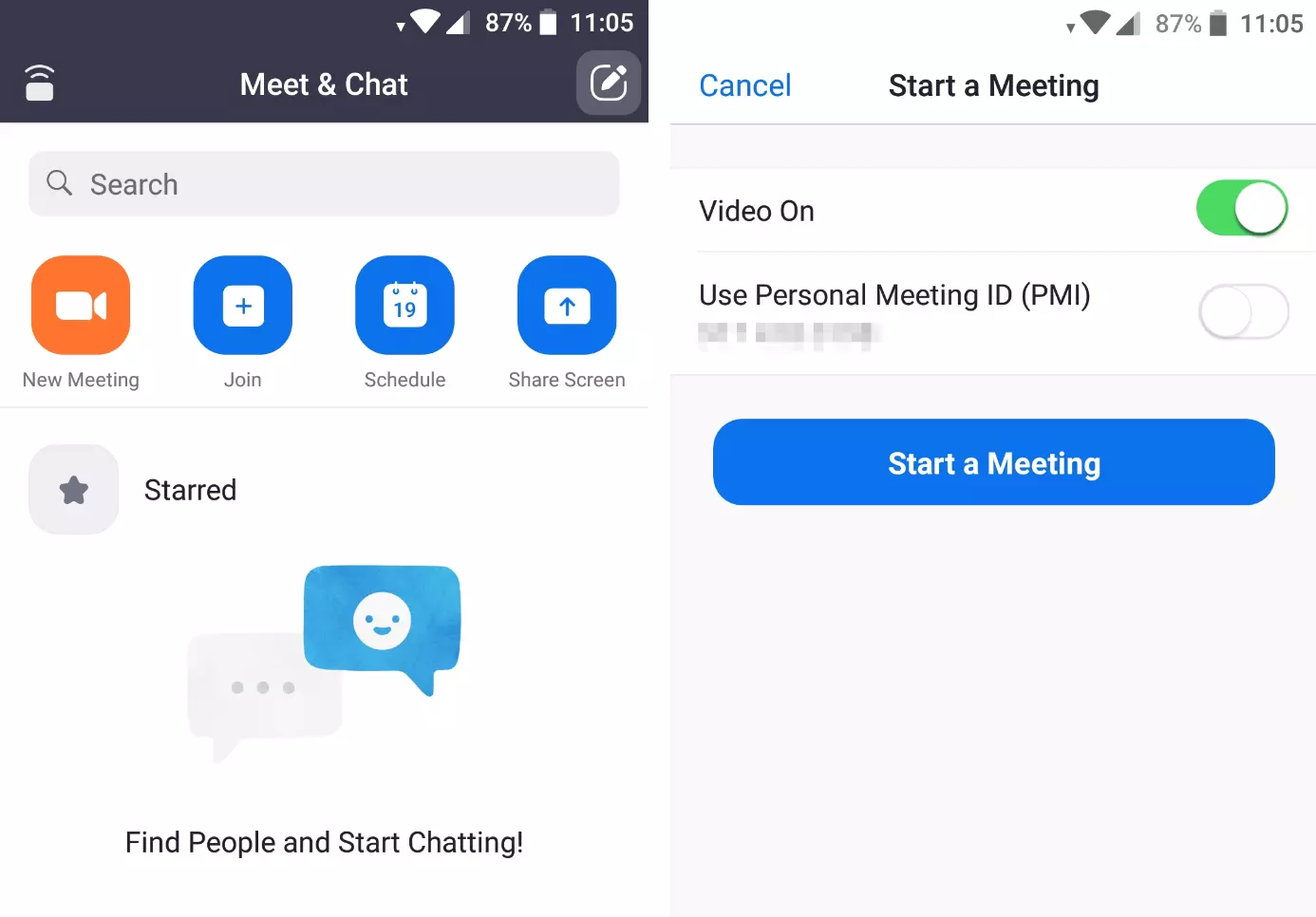
A quick meeting can just as easily be started by using the downloadable apps:
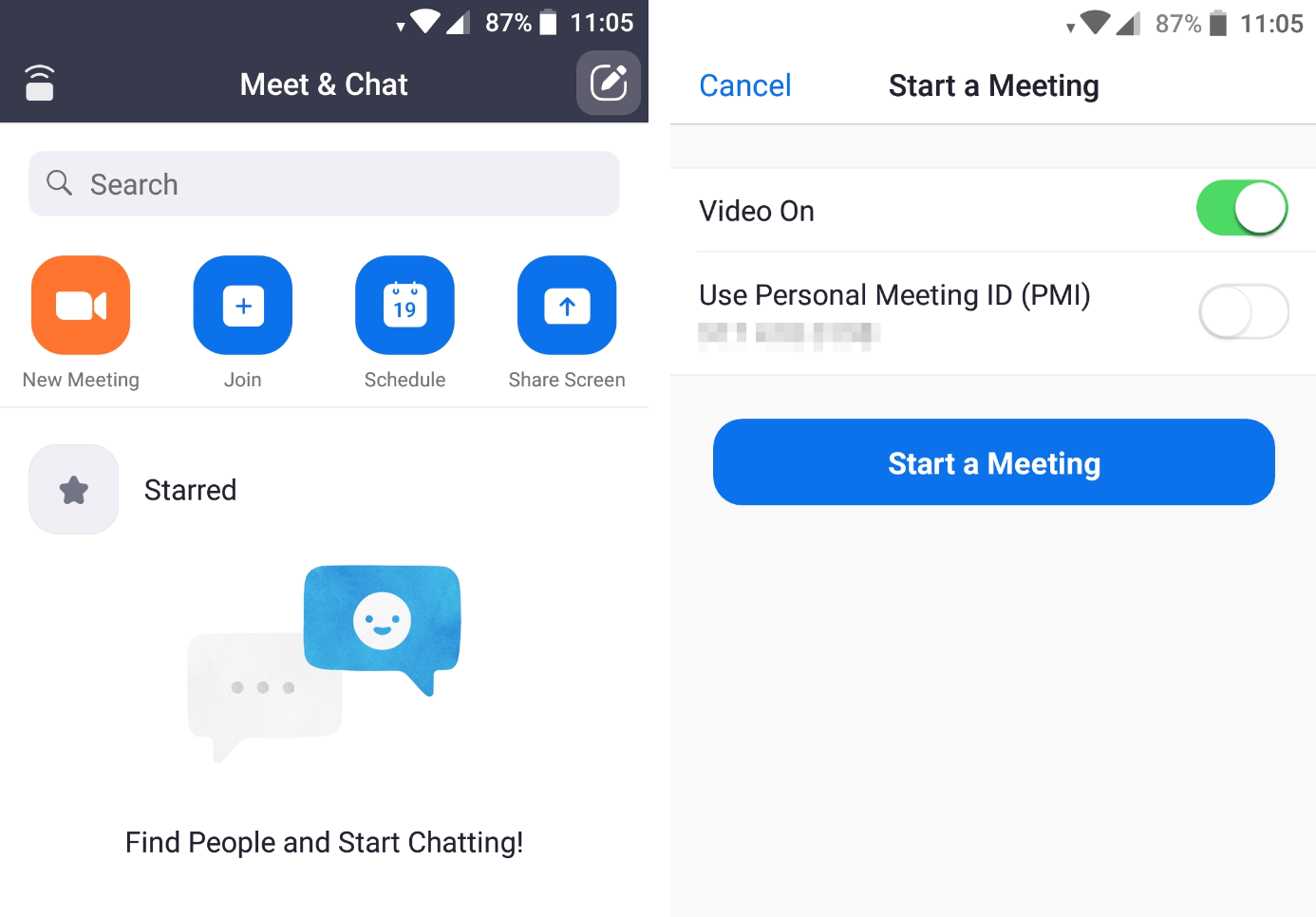
- Press on the button ‘New Meeting’ and choose whether your camera will be turned on or off – the option to share your screen is only available in iOS and Android for Zoom on mobile.
- If you want to use your personal meeting ID you can activate this option now.
- Launch the Zoom meeting by selecting ‘Start a Meeting’.
- Invite additional users via ‘Participants’ > ‘Invite’.
Step 4: Scheduling a Zoom meeting
While video and audio conferences can sometimes occur spontaneously, they are often scheduled ahead of time. Thanks to the ‘Schedule a Meeting’ option, you don’t have to wait until the desired meeting time to plan your virtual get-together, but can pencil it in ahead of time. In addition, you have the option to pre-send an invite to all participants that you’d like to invite to your Zoom meeting.
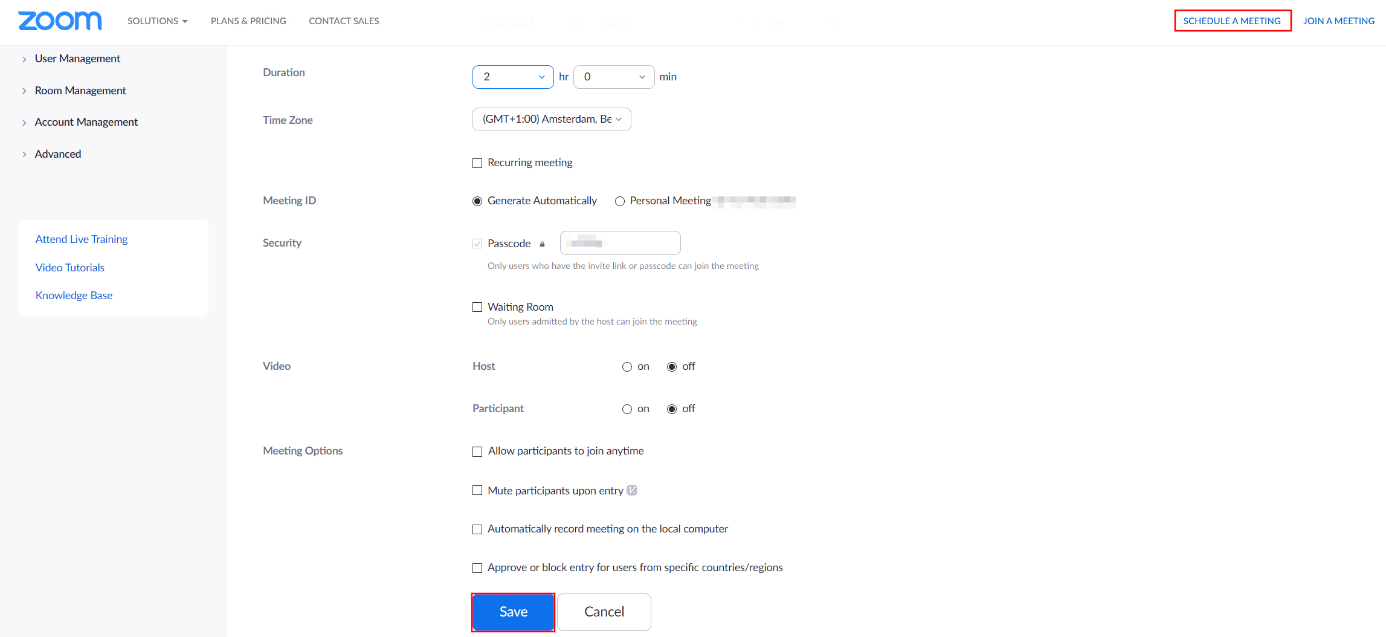
A series of settings are available for your scheduled online meeting:
- Topic: The name of your Zoom meeting
- Description: Optional description of your meeting
- When: Date and start time of your video conference
- Duration: Duration of your video conference
- Time zone: Time zone of your selected meeting time
- Recurring meeting: Optional and can be activated for regular meetings (daily, weekly, or monthly)
- Meeting ID: ID of your planned Zoom meeting; usually randomly generated or using a personal ID
- Security: Passcode to enter the meeting with an optional waiting room function where participants need to be let in by the host
- Video: Camera for moderators and participants turned on or off as standard
- Meeting options: Extended setting to, for example, automatically mute participants when they join the meeting or to automatically record the meeting
Once you’ve customised your settings, click on “Save” to create the planned Zoom meeting.
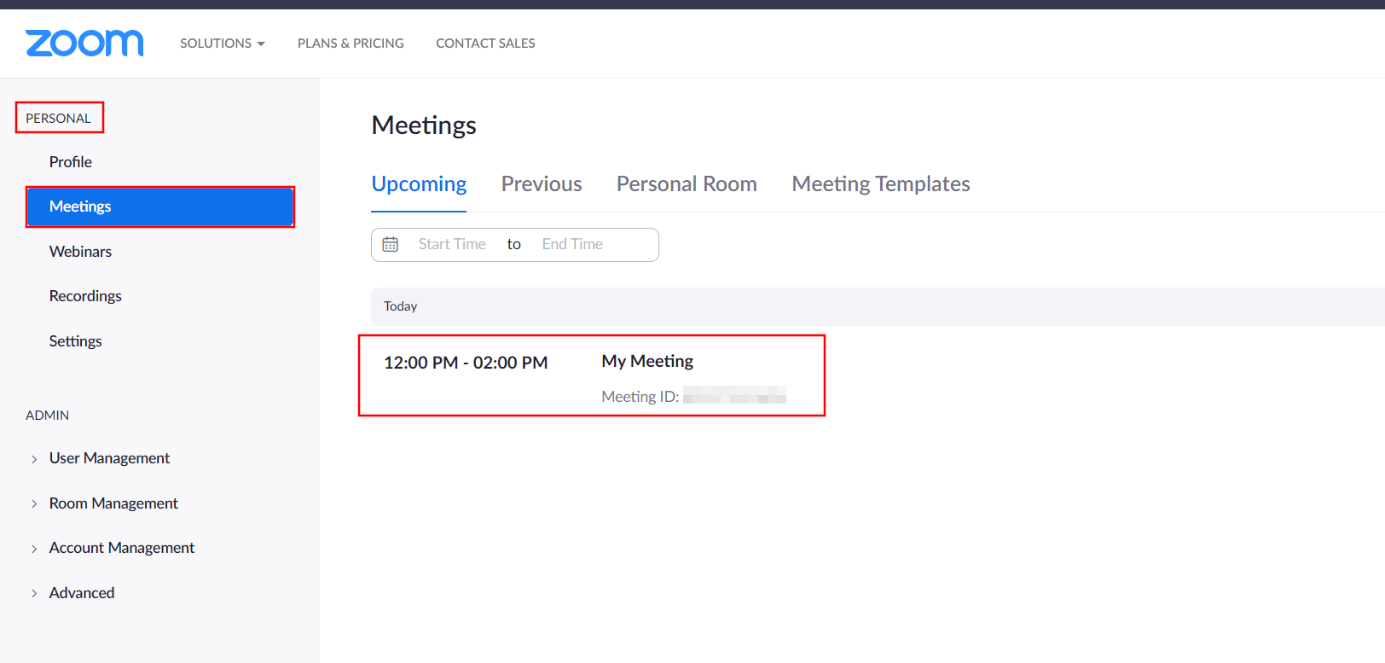
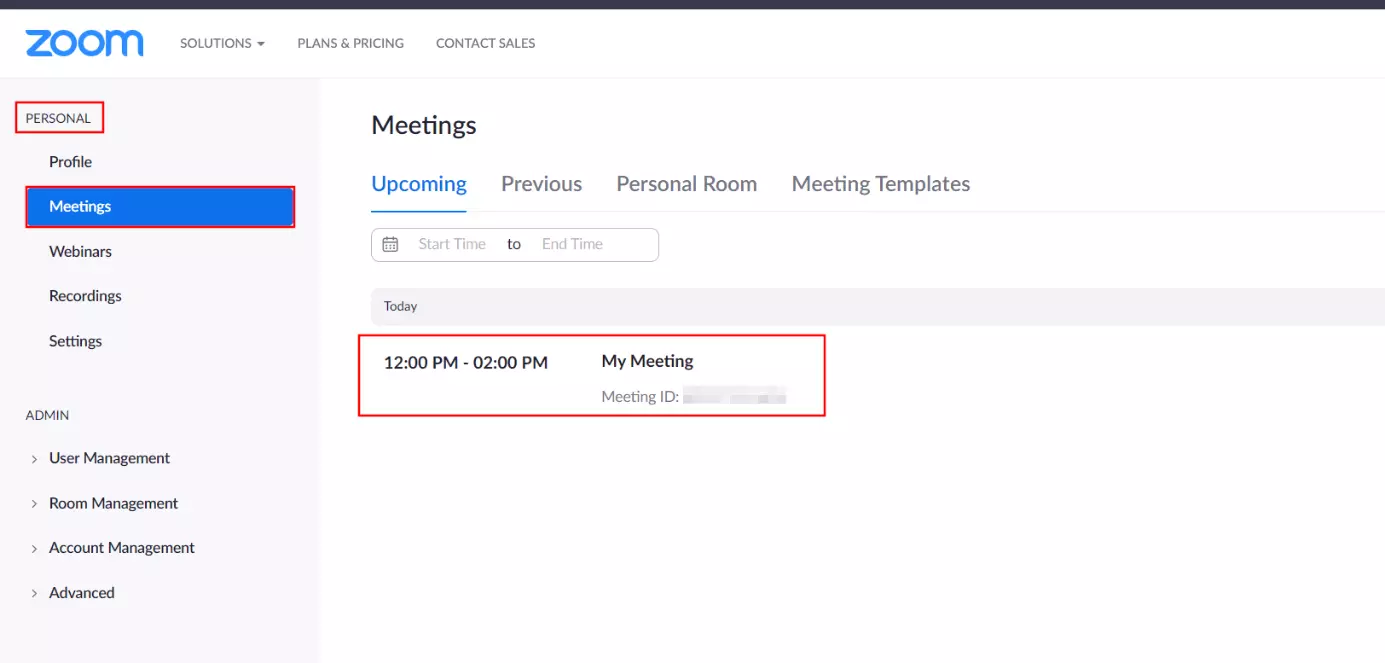
All planned meeting can be viewed in the “Meetings” menu point within the “Personal” section.
Video conferences significantly facilitate the modern workday. But regular virtual meetings can also lead to a certain degree of exhaustion for all participants. Zoom fatigue, as the phenomenon has been called, also occurs with Zoom alternatives, and poses a challenge when it comes to mastering our everyday, digital working lives.
Step 5: Joining a Zoom meeting
Using your registered Zoom account, you can of course also join Zoom meetings that have been created by other users. To do this, press the button ‘Join a Meeting’ or ‘Participate’ in the app, enter the meeting ID or the invitation link that you previously received from the organiser, and press ‘Join’ or ‘Participate’ (in the app) in the last step.
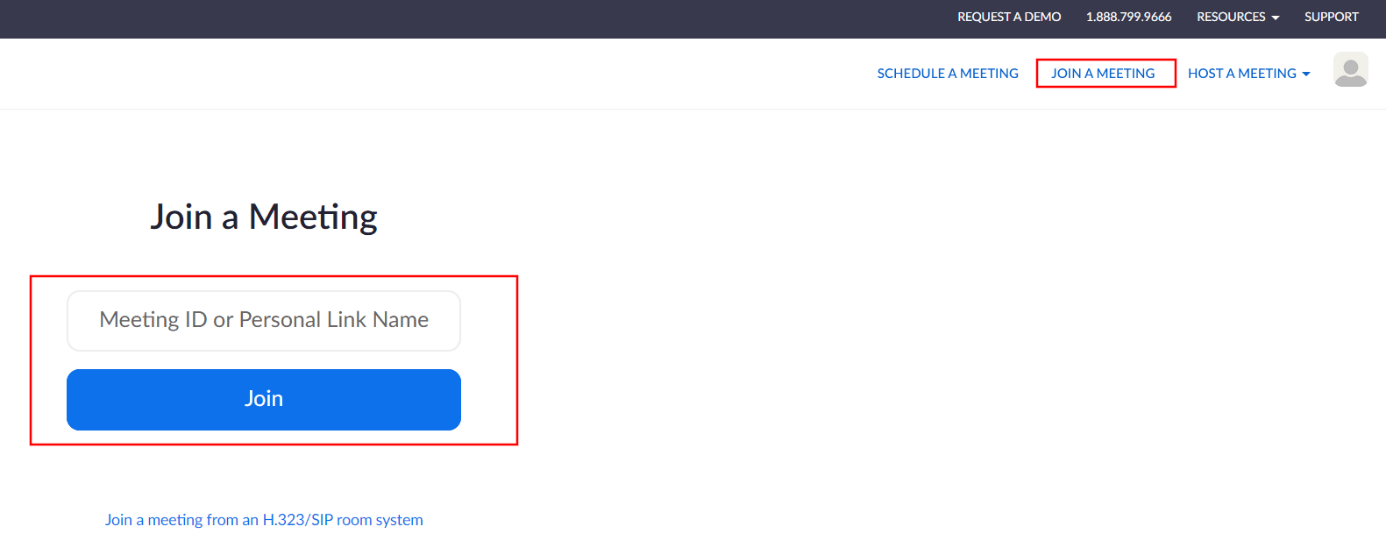
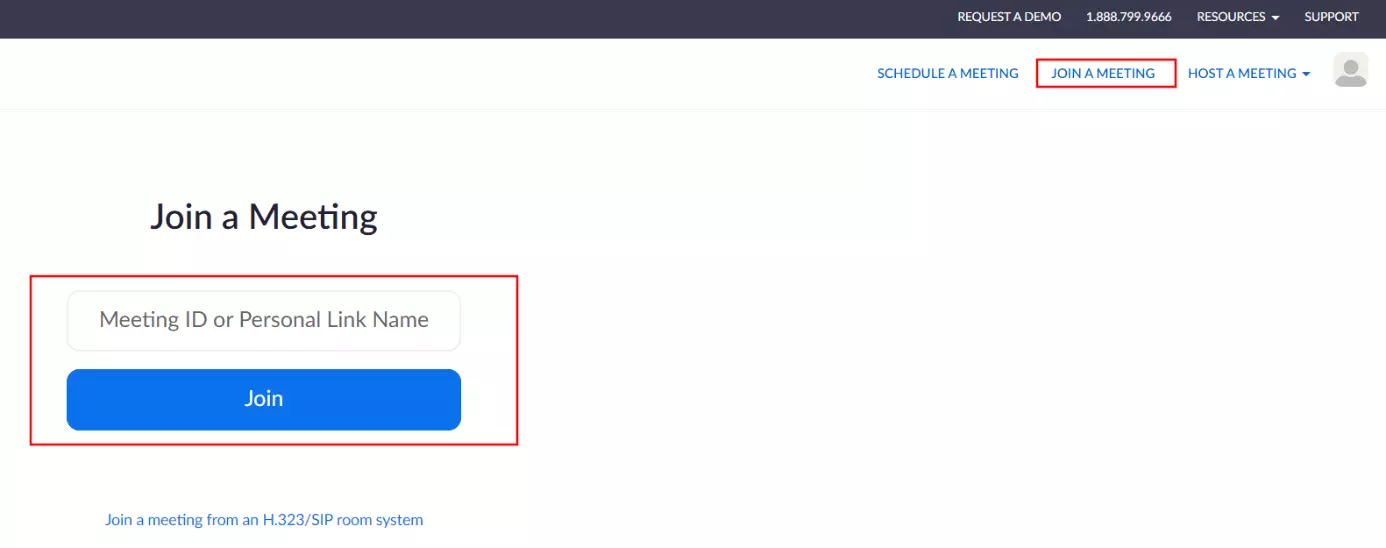
As previously mentioned, you can also join a meeting without your own Zoom account. The process for this isn’t different to the one described here – in the mobile app, the button simply uses slightly different wording.