

Free alternatives to Microsoft PowerPoint

The Microsoft Office package is considered an essential in the business world. Whether it’s Outlook, Word, or Excel – Microsoft programmes are more often than not the first choice for important applications in daily office life. And the presentation software of the software and hardware giant Microsoft, is no exception. It’s not just for presentations to customers and business partners either – when it comes to school work, university presentations, or conferences, Microsoft PowerPoint is undoubtedly one of the most popular programmes worldwide for creating professional presentations and slideshows. But the Microsoft Office package is no longer an unrivalled essential that no computer is complete without. Depending on their need for the products offered, many users today are opting to go for free alternatives after weighing up the cost-benefit ratio of a Microsoft Office subscription. When it comes to the slideshow app, Microsoft PowerPoint, there are plenty of good alternatives that are both cheaper to use and in some cases offer more room for creativity, allowing you to create truly memorable presentations. Here are free alternatives to Microsoft PowerPoint for you to enjoy.
Prezi
One of the best-known alternatives to Microsoft PowerPoint is the online tool Prezi. Since its entry into the market back in 2009, this web-based presentation tool has earned a large fan base in relatively little time. Prezi is a great alternative for anyone who wants to make their presentations more active and experiment with less conventional designs. The latter is because the tool doesn’t offer the classic design approach that you’ll recognise from PowerPoint, with slides presented individually – instead, it offers a dynamic approach to content creation. Using a sort of digital screen, you arrange your content in the way you want it presented and then later zoom in and out throughout the presentation to enlarge the relevant fields. Despite the homepage’s promise of an effortless transition and ease-of-use, it’s important to note that the first time you work on Prezi, you’ll notice a difference. It functions in an entirely different way to PowerPoint, meaning you’ll have to pay more attention to your design and focus on the way you navigate your presentation. The challenge here is to make sensible connections between the individual content segments on the screen. It’s only by doing this that you can make sure your audience keeps the overview of the slideshow in mind and can follow the presentation’s own logic or train of thought properly. This means Prezi is often less effective for complicated and long presentations, as it can be easy for listeners to get lost in these. There’s also the danger that you could overuse the exciting range of effects on offer. For this reason, it’s important to keep perspective when using Prezi and remember that a presentation is designed to highlight key content and emphasise important aspects, not constantly attract the viewer’s attention with thousands of snazzy effects. The golden rule with Prezi is that less is often more. But if you follow this advice and use Prezi as it is intended, the program offers you all the tools you need to create a truly vivid, engaging, and unique presentation. This is where you need to think about your environment: Depending on the audience and the occasion, a traditional PowerPoint presentation may be more appropriate. PowerPoint has the benefit of being the flagship application for presentations, meaning that its simple structure and traditional layout is familiar to essentially everybody. But if you’ve had enough of this static and dynamically limited presentation software, then Prezi represents an excellent PowerPoint alternative.
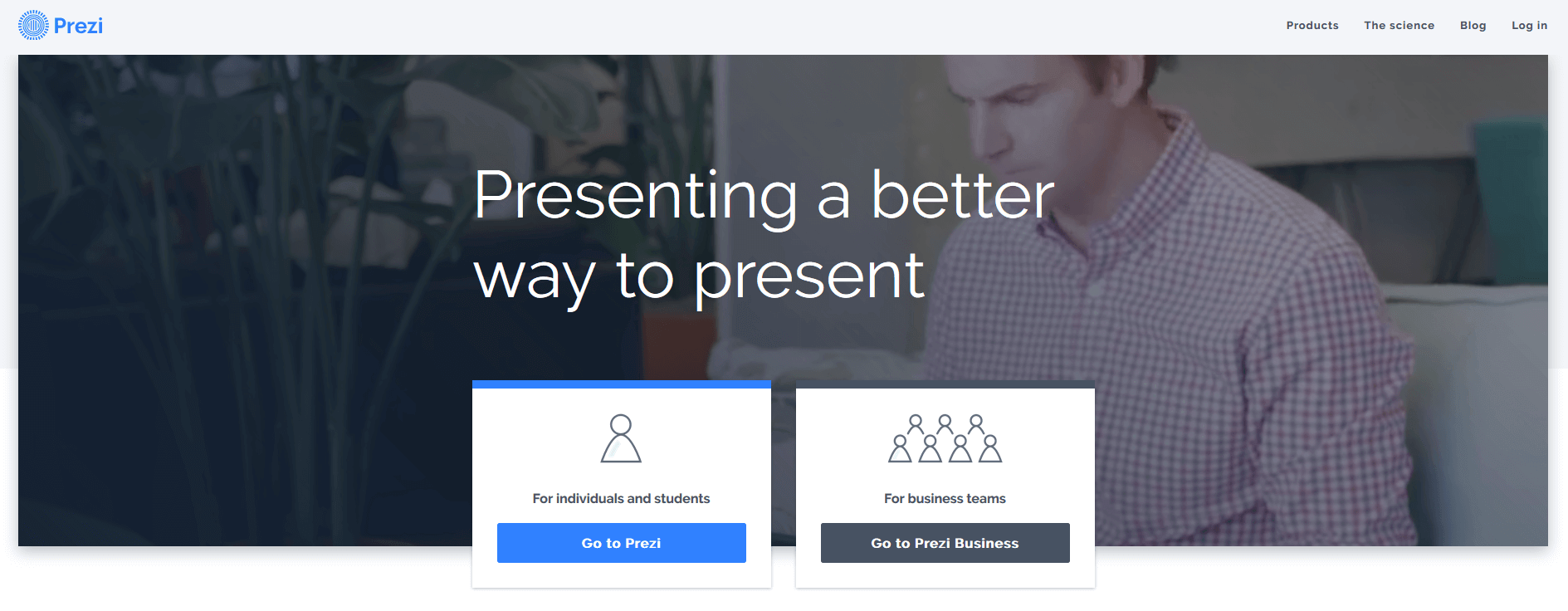
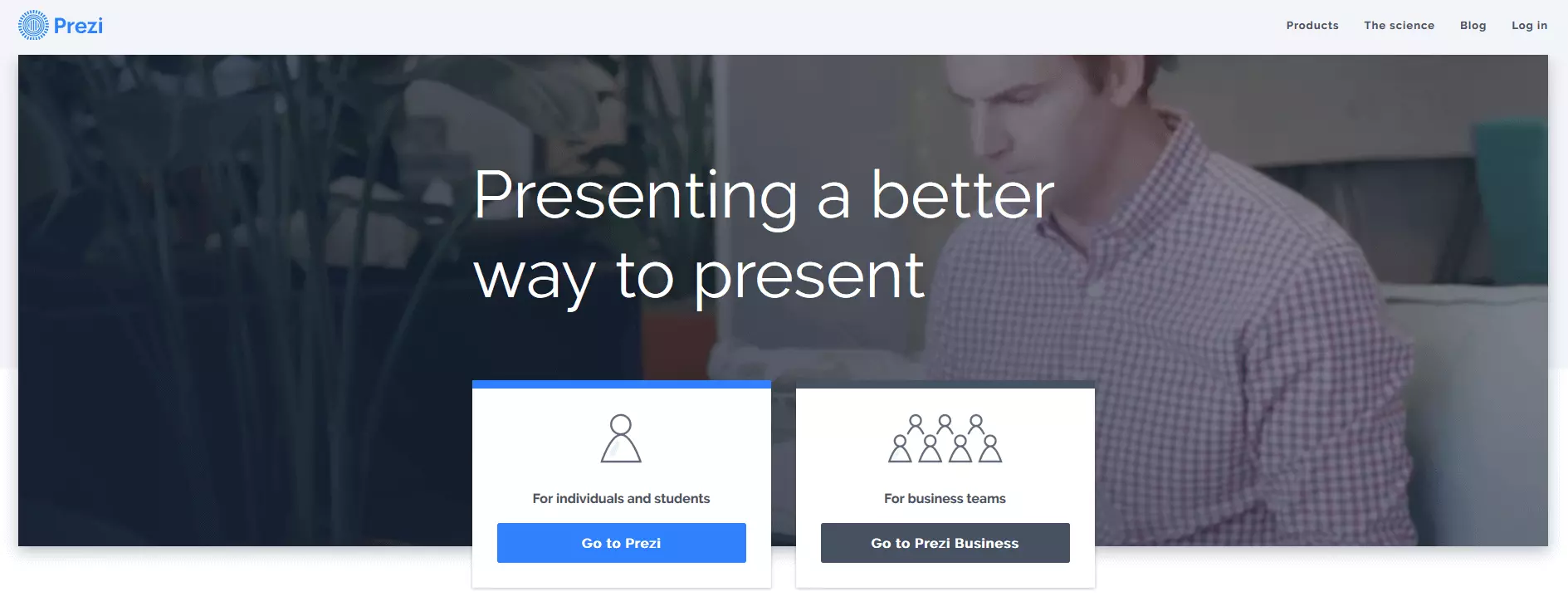
Price Prezi is free of charge for pupils, students, and teachers. Regular users have to pay a small monthly fee for a private account. It’s possible to use Prezi free of charge, but this is under a public license, meaning the presentations you create are ‘publically viewable, searchable, and reusable’. There are also other premium and business packages available from their website.
| Advantages | Disadvantages |
|---|---|
| Creativity and flexibility with almost no limits | Less suitable for large, complicated presentations |
| Good for unconventional and creative presentations | Limited storage space and logo watermarks in the free version |
| After a short initiation phase, creating presentations is quick and easy for all | Only a few templates available |
Haiku Deck
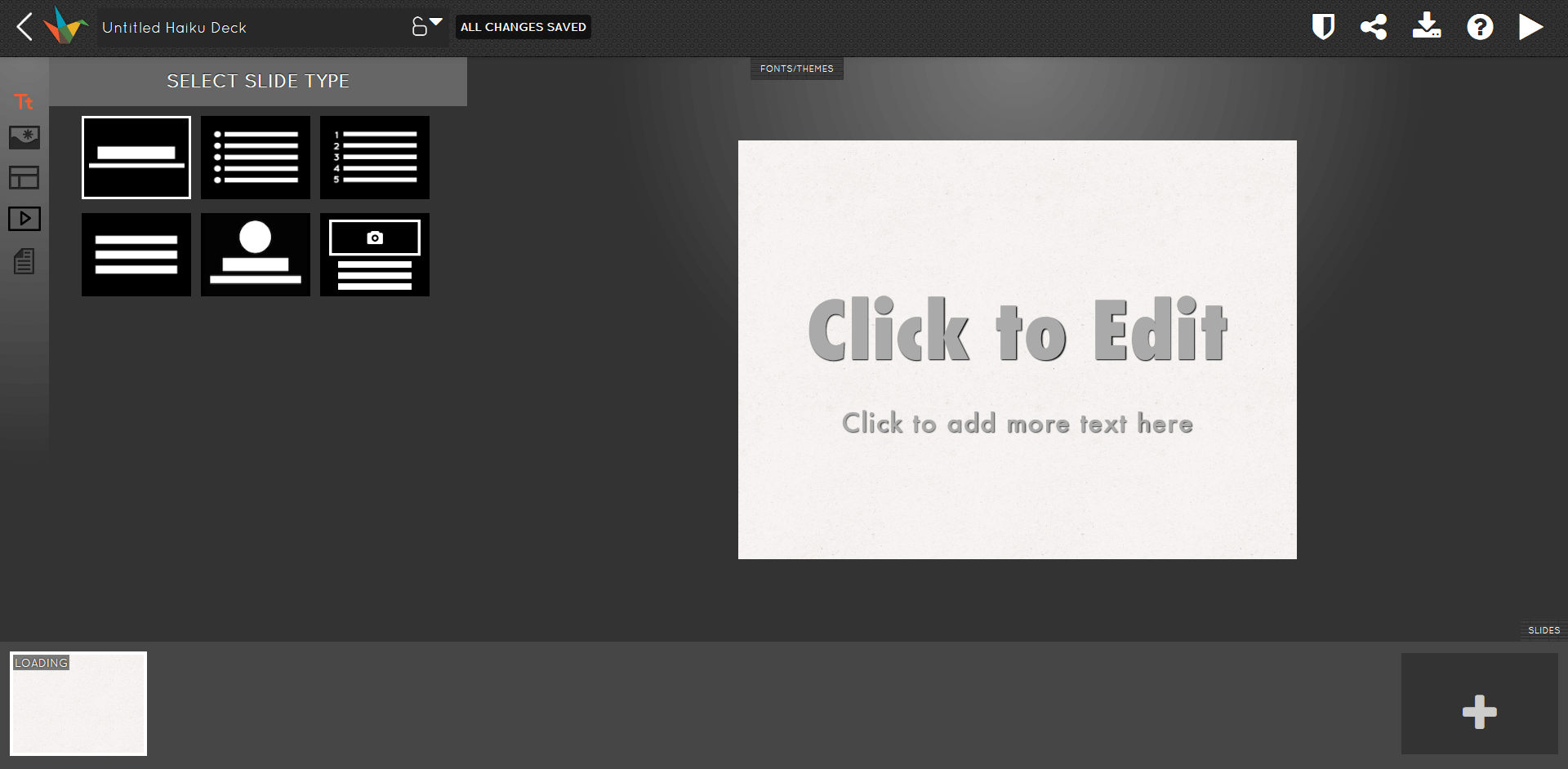
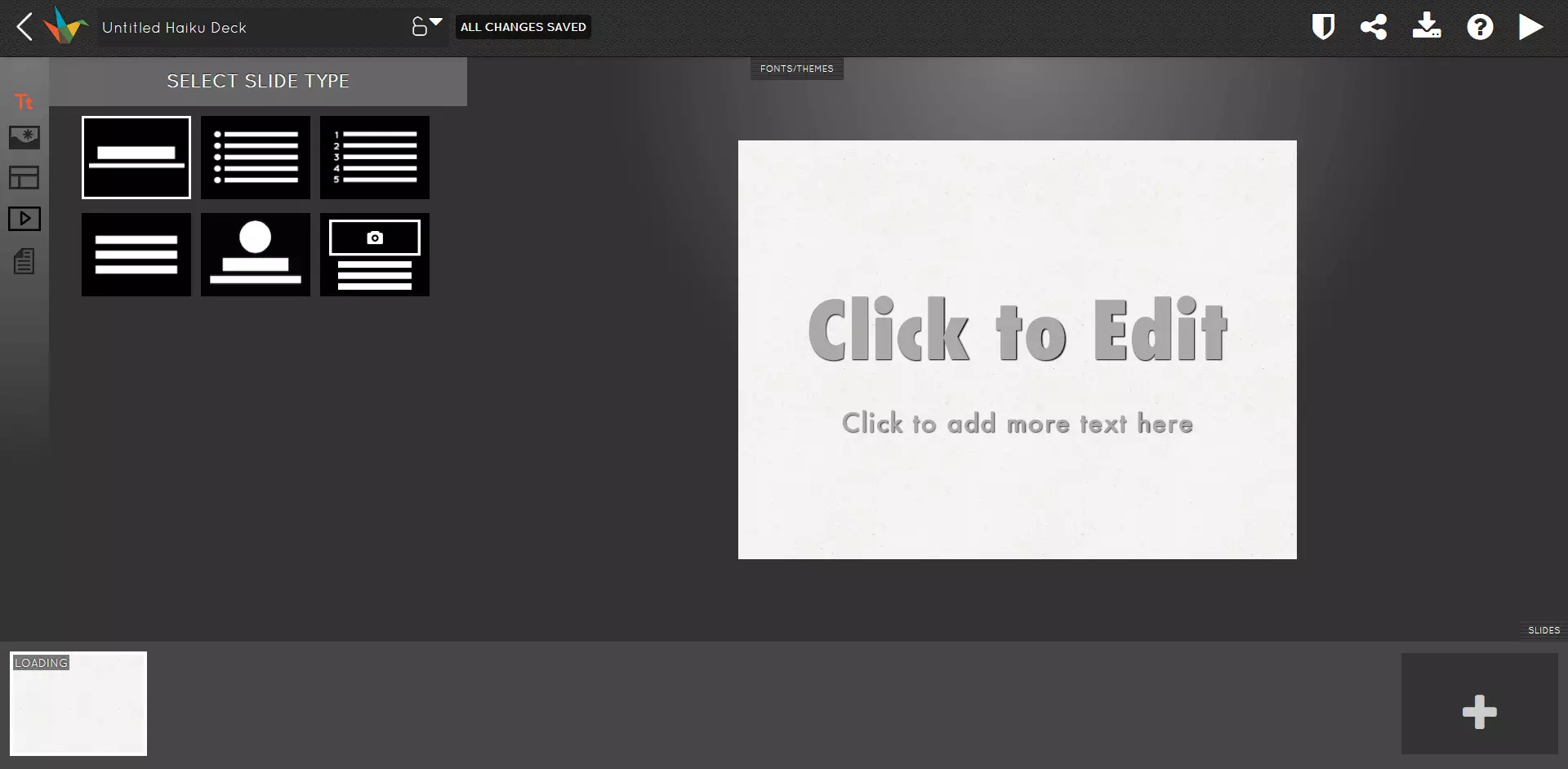
Most people have their content roughly in mind when they set about making a presentation. But visualising that content with the addition of suitable images and graphics is much more of a challenge and can often take considerably more time and effort. This is where Haiku comes into its own as a very good alternative to Microsoft PowerPoint – the Haiku Deck program supports its users in the visual design phase. Haiku Deck offers users an integrated database of photos that can be used freely by anybody. In fact, to make things even easier for users who are lacking the creative spark to find the perfect graphics and images, this free presentation software offers a clever scanning tool that scans a presentation for keywords and suggests suitable images that would fit. Haiku Deck is available as a web solution in the browser and also as an app on the iOS app store. Finished presentations can be shared on other channels upon completion, or imported into Apple Keynote or Microsoft PowerPoint. But there are some downsides to the programme: There’s no option for animated transitions between slides, for example, and many other types of animation are also unavailable. Lastly, there’s no option for sound to be added to presentations and text can’t just be placed freely in any part of the screen.
Price
Haiku Deck can be used for free in its limited text version, but it lacks a range of functions. So if you like the software and want to use it properly, you’ll need to invest in a premium version of the program. The standard choice is Haiku Deck Pro.
| Advantages | Disadvantages |
|---|---|
| Integrated photo database | Lower range of functions than rivals |
| Automatic photo suggestions generated by keywords used in a presentation | No animation and no sound |
Google Slides
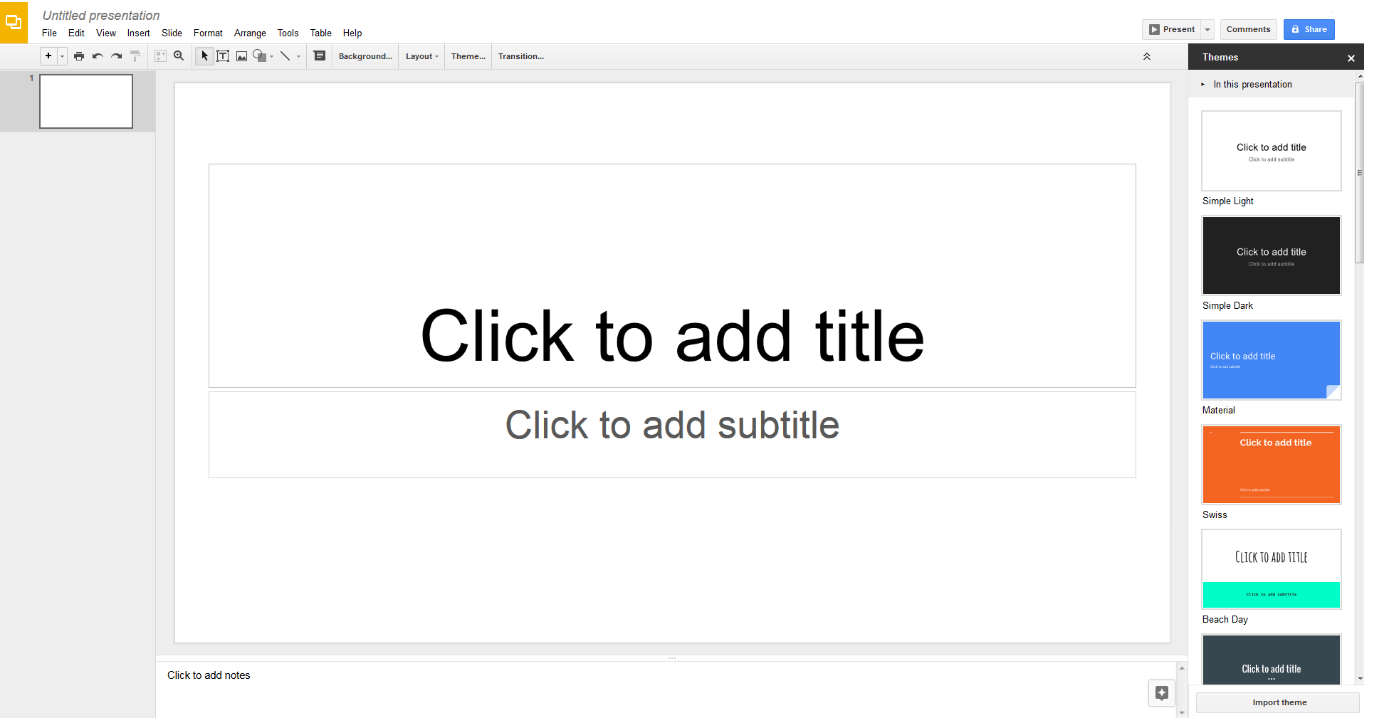
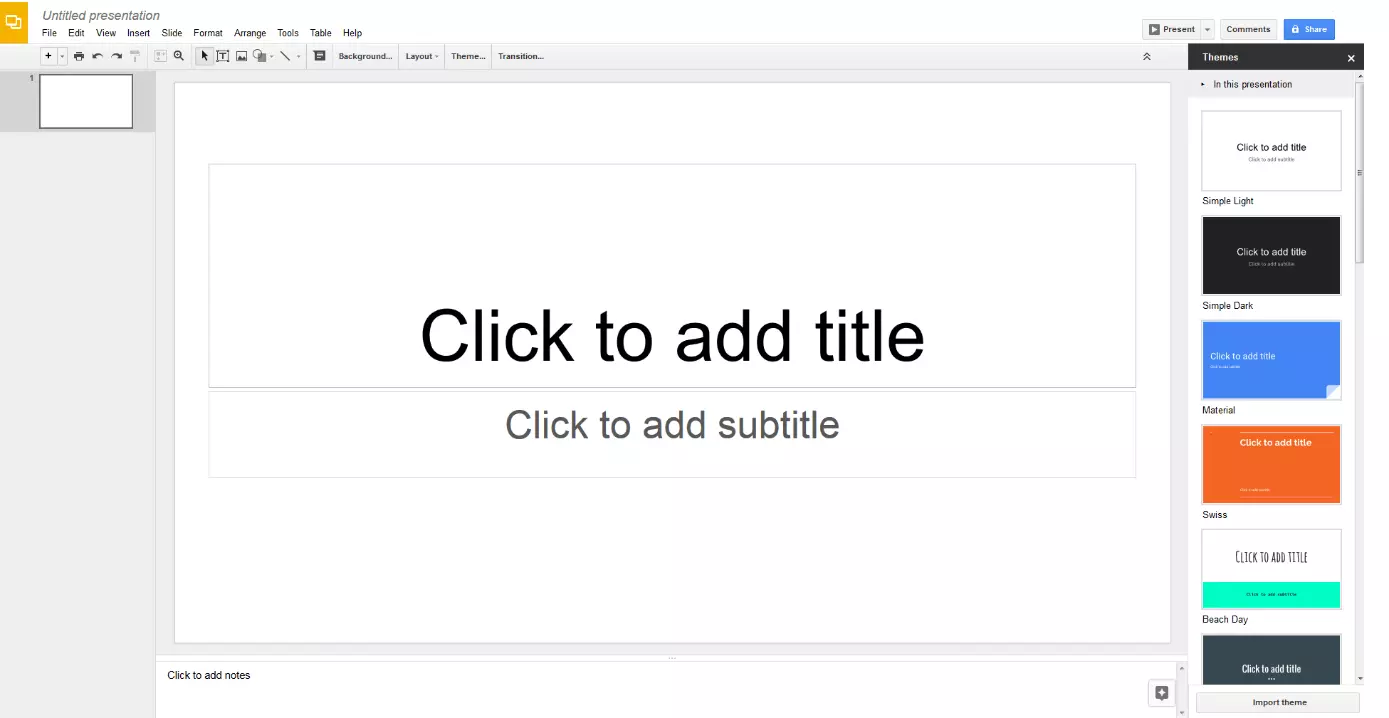
Naturally, Google also offers its own range of quick and uncomplicated online office tools. Google Slides is available to Google account holders completely free of charge. It comes with around 20 different templates that can be used to create presentations quickly and easily. And you can even upload PowerPoint documents to edit and use in Google Slides. The special thing about Google Slides is that, like all of the Google web apps range, it’s designed for collaborative team work from remote locations. Various project management functions make this possible, meaning that you can have different team members working on the same slideshow at once. There are also individual roles and access rights available that can be set beforehand, meaning that team members can only read and/or edit certain pages. This makes Google Slides an incredibly practical tool for collaborative efforts – and it updates in real time too, meaning all users can view the most current version of the presentation.
| Advantages | Disadvantages |
|---|---|
| Simple tool that’s easy to use | Relatively low range of functions |
| Great functions for collaborative work and project management | |
| Latest versioning in real time |
Slides
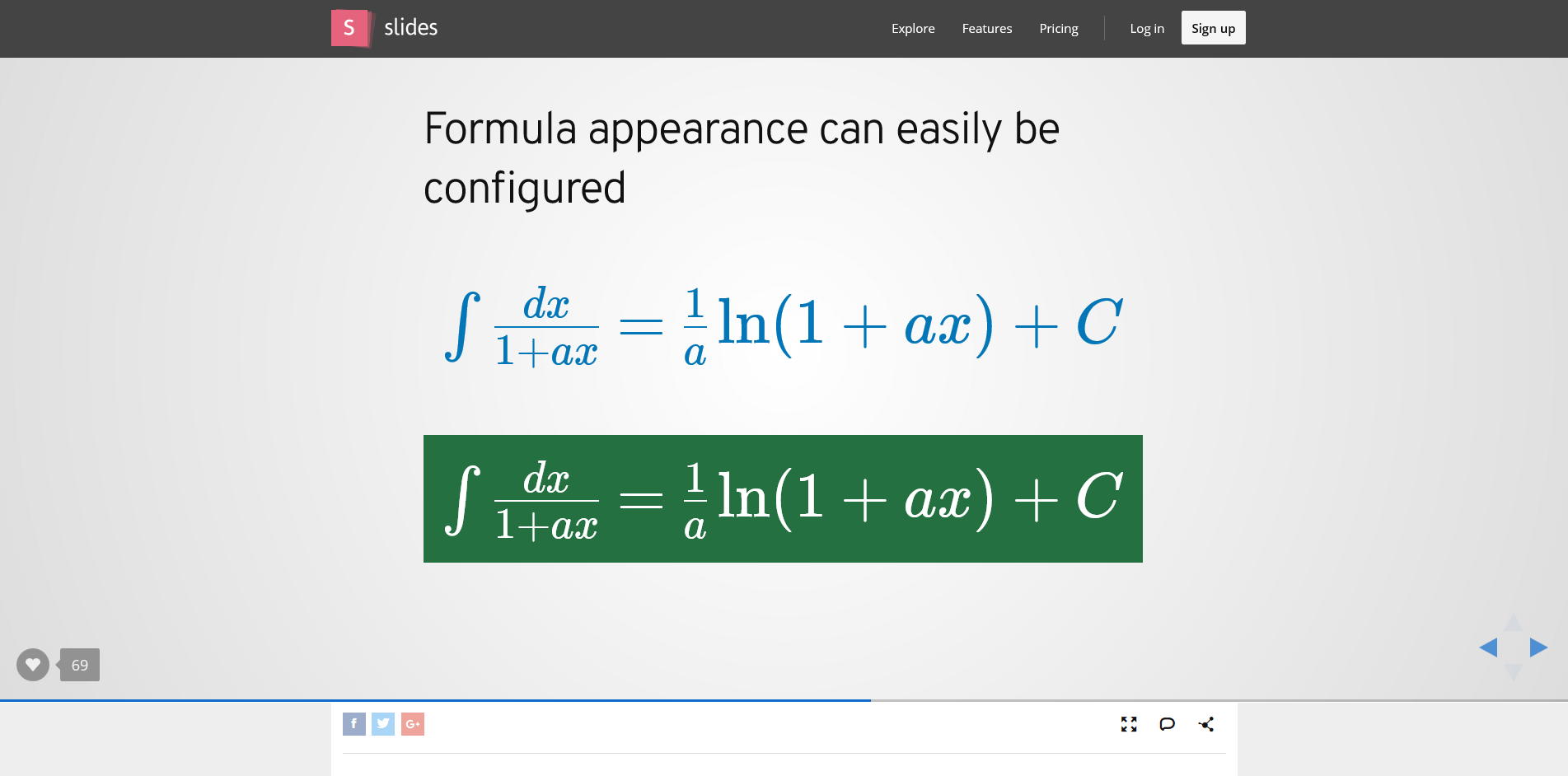
Warning: Do not get confused! Slides may share the name with the aforementioned Google Slides, but besides that it has nothing to do with Google’s alternative to Microsoft PowerPoint. Slides is actually an independently operated online tool for slideshow creation. It works directly in your internet browser and allows you to create quick and straightforward presentations – for both private and professional use. Thanks to its intuitive usability, you’ll find that you can receive professional looking results on Slides with just a few clicks, largely due to the great selection or pre-made layouts and elements. One of the main focuses for Slides is on scientific presentations, which is why the program offers an extra editor for formulas, among other specialised features. Slides is also optimised for presentations on mobile devices and can be viewed and edited on these too. You can also export your file in all popular formats.
 GaudiLabShutterstock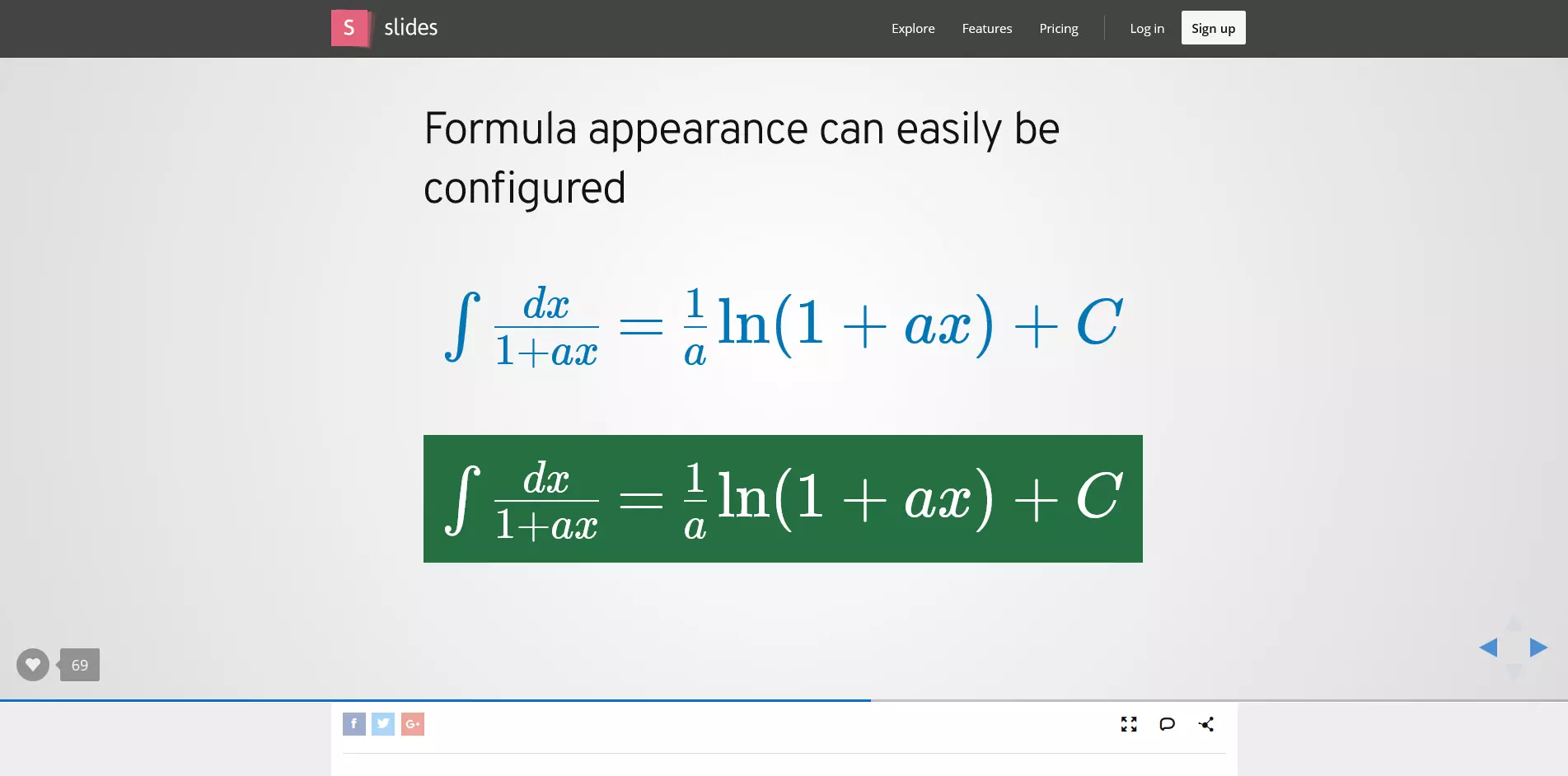
Price
Slides is free to use for all under a public license, but all the content created becomes the property of Slides and can be found via their search tool. Users can also decide to pay for one of three premium packages.
| Advantages | Disadvantages |
|---|---|
| Intuitive software | Limited online storage |
| Formula editor for scientific presentations | Limited range of functions |
| Optimised for mobile devices |
Sway
The web presentation software Sway offers you an alternative to Microsoft PowerPoint from the house of Microsoft itself. Sway is basically a simplified version of PowerPoint, designed to speed up the creation of presentations. This ‘digital storytelling app’ is available via your browser or as an app for iOS and Windows 10. Sway is less focused on PowerPoint’s classic, linear presentation style; the software is designed to help you create much more interactive slideshows, personal profiles, and other presentations that feature many graphics and images. Sway comes in a web layout style, meaning that presentations aren’t slide-orientated. Instead, they appear more like an internet page or a digital magazine. Integrating content from sources like Facebook, YouTube, or Twitter is also easy to do. The tool makes sure that all content automatically adapts to different display formats, like mobile devices for example. But users have to possess a Microsoft account, and Sway is also only available for Windows 10 – if you try to download Sway on an older version of Windows, the operating system will be unable to run it. Another downside to Sway is that all presentations created with it are stored automatically on the Microsoft servers, which means you can’t guarantee data protection.
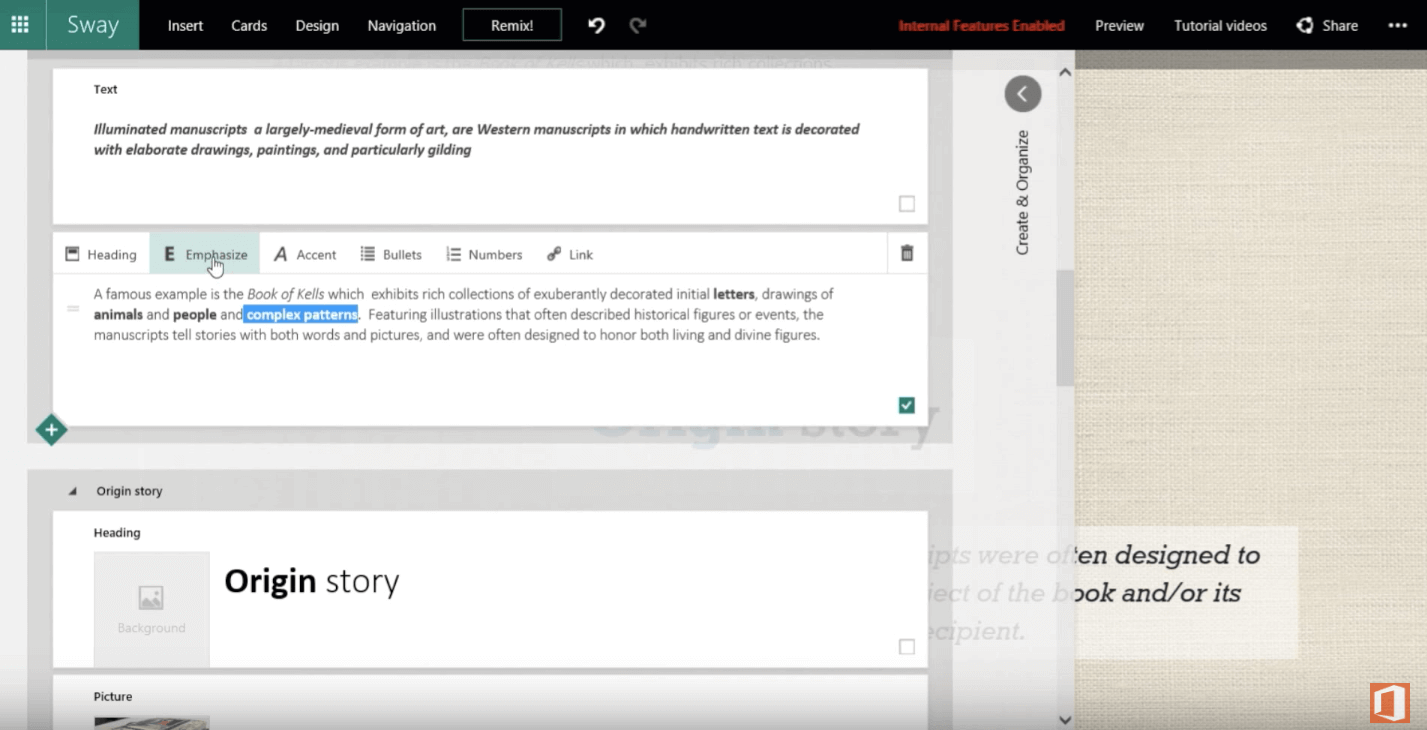
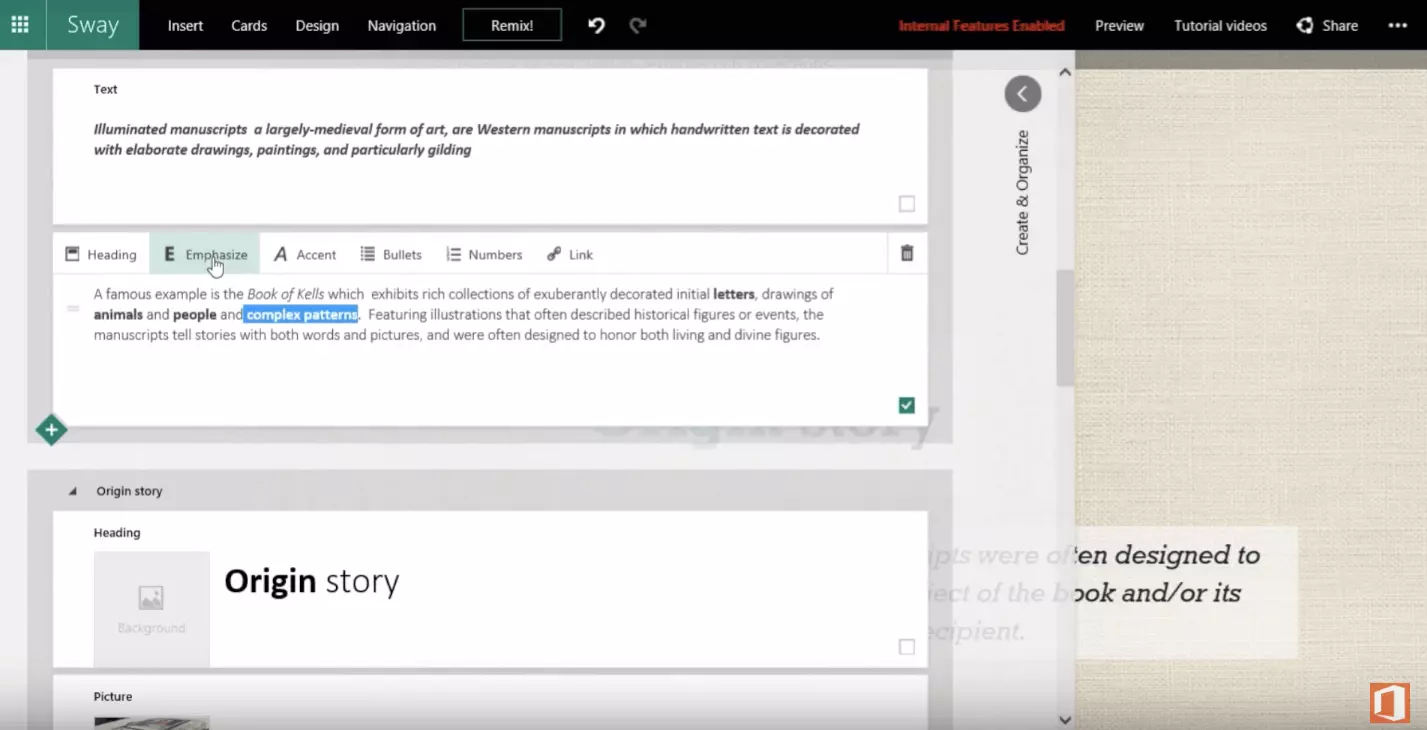
Price Sway’s software is free to use, but some additional functions and features are exclusively available to users with an Microsoft 365 subscription.
| Advantages | Disadvantages |
|---|---|
| Interactive presentations with a focus on graphics | Desktop app that’s only compatible with Windows 10 |
| Easy to use | Less precise fit of colours and layout |
| Automatically fits to different display formats |
PowToon
Several of the alternatives to PowerPoint that we’ve already featured on this list offer unconventional and creative design options for creating a presentation. But PowToon is in a class of its own in this regard. For users who want to wow their audience with an unusual presentation, this tool offers animated characters and storytelling tricks to create truly memorable displays. Instead of text boxes and dry facts, you can bring your ideas to life with comic characters in animated videos, which can then be easily embedded onto your personal website.
Price
PowToon is free in its basic format, but all creations will feature watermarks of the development company. The full version comes without this self-advertising for a reasonable monthly fee.
| Advantages | Disadvantages |
|---|---|
| Very creative, unconventional presentation solution | Limited options in the basic version |
| Quick induction through the many help tools and tutorials | Watermarks of the developer in the basic version |
 To display this video, third-party cookies are required. You can access and change your cookie settings here.
 The best free alternatives to Microsoft PowerPoint in overview
If you’re looking for an alternative to the expensive Microsoft Office solution, hopefully you’ve now discovered that there are many professional options out there to help you create the perfect presentation. While many of these aren’t entirely free, most offer private users trial runs and basic packages that mean you can create presentations for personal use without spending a dime. Depending on the type of presentation you’re looking to create, these tools range from the fairly straightforward and academic to the creative and unconventional. Prezi, Sway, and in particular PowToon are all aimed at stunning your audiences with innovative and memorable designs and animation, while Haiku and Google Slides function more as classic linear presentations that PowerPoint users are already familiar with.
Here’s a short overview of all the Microsoft PowerPoint alternatives we’ve looked at:
| Type | Price model | Suitable for... | |
|---|---|---|---|
| Microsoft PowerPoint | Part of the Office package, installable application which features online storage | Microsoft 365 Personal for a fixed fee per year, specialist business and group sharer packs are slightly more expensive | Classic, serious topic displays, linear processes, traditional presentations |
| Prezi | Web-based tool, limited online storage | 14 day test phase, then packages starting at very low prices. Free for pupils, students, teachers, university staff, and under public licensing | Creative and innovative presentations, dynamic and flexible features |
| Haiku | Web solution and iOS app | Free trial version with very limited capacity, full version for a small monthly fee | Simple, classic presentations with highly attractive visual designs |
| Google Slides | Online tool | Free | Simple and straightforward but professional presentations, above all suited for remote collaborations as part of a team |
| Slides | Online tool | Free under public licensing, various premium packages starting from very affordable for a simplified version | Uncomplicated solution for presentations, also suitable for professional slideshows, particularly academic ones |
| Sway | Browser version and available as an app for iOS and Windows 10 | Free, several additional functions only available to Microsoft 365 subscribers | A ‘digital storytelling app’ designed for innovative and eye-catching presentations |
| PowToon | Online tool | Free basic version but features developer watermark, full version available for a reasonable monthly subscription | Creative and unconventional animated presentations, often in the form of videos |