What is Google Lighthouse?

Google Lighthouse is a tool that tests progressive web apps for user-friendliness and performance. Besides web apps, users can also assess conventional websites for performance and optimisation potential with the tool. Unlike many other analytics tools, Google’s new tool lets you adapt and filter test conditions for the most realistic evaluation of actual website performance parameters.
Introduction to Google Lighthouse
Progressive web apps (PWAs) are websites that look, work and are operated like mobile apps. Web apps offer dynamic content and are now very popular. Examples of PWAs include websites like booking.com and Twitter, which share a surprising number of features with native apps in their browser versions.
To enable PWAs to make users feel like they are operating native apps, they have to fulfil specific performance parameters and properties. You can use the Google Lighthouse test to measure and optimise these performance aspects. Lighthouse is an open-source software and is generally used as a Chrome extension. It is very simple to use: After installing the Lighthouse Chrome extension, you can open any website and test its performance by clicking the extension icon. Evaluation is provided in detailed tables of measurements and graphics.
Google Lighthouse analyses and compares the following areas: PWA, performance, accessibility, best practices, and SEO. You can access detailed information on each of the areas analysed. After analysis, the tool provides additional tips to improve the site.
Lighthouse is extremely flexible and offers you many valuable analytics and comparative insights, which you can use to optimise your website. Thanks to the variable configuration, you can map any conceivable scenario for analysis. The tool is suitable for beginners, advanced users, and professionals. Pros and developers generally don’t use the Lighthouse Chrome extension. Instead, they use the command line, which can be configured in far greater detail. However, you have to install node.js on the webserver in advance in order to use the command line.
What exactly does Google Lighthouse do?
Lighthouse evaluates a given website in five different categories.
Progressive web apps
Google Lighthouse’s core function, which has been available since release, is analysing progressive web apps. The software analyses whether the website works as intended. In detail, Lighthouse checks for correct displaying of all elements and dynamic content, instances of service worker registration on the website, and availability of offline functionality. A service worker is a script that is run to make website information available offline, too. Generally, this is done by setting up a proxy interface between the website and users.
Performance
When it comes to performance, Lighthouse analyses the speed of the website or web app and checks whether the elements loaded are correctly displayed to the user. Analytics consists of the following six sub-categories:
- First Contentful Paint – indicates how long it takes until the first image or first text is displayed in full on the website.
- First Meaningful Paint – indicates when the main contents of the website are fully visible.
- Speed Index – shows how quickly the website contents are shown.
- Time To Interactive – indicates when the page is fully loaded and ready for interaction.
- First CPU Idle – indicates the time when the main thread activity on the website is low enough to process user entries for the first time.
- Estimated Input Latency – estimates how many milliseconds the page or web app takes to react to user entries during the five-second window with the highest CPU utilisation when loading the page. If latency is more than 50 milliseconds, users often perceive the page or app as slow.
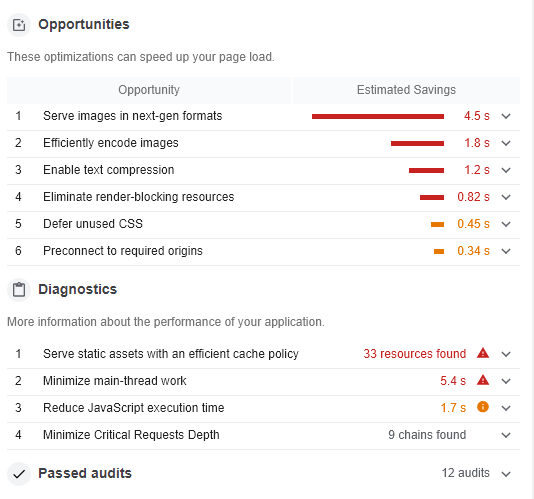
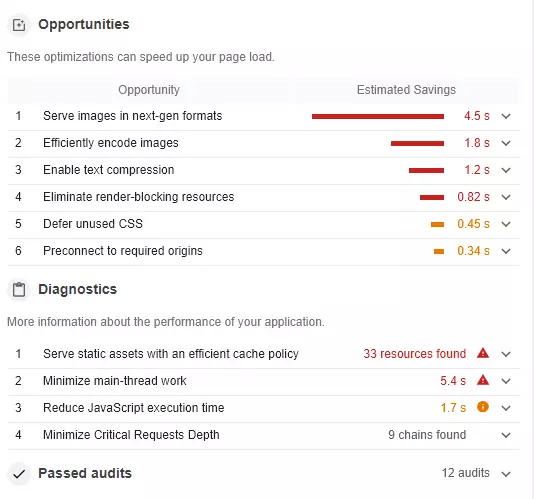
Besides analysing the above factors, Lighthouse also suggests improvements. The suggestions provide a wide range of optimisation options to reduce loading times. For example, this includes compressing images, JavaScript or breaking up resources that could block website rendering. Other performance analytics functions also include recommendations across the following points:
- Deliver image files in formats with small file sizes and correct dimensions.
- Provide compressed texts and JavaScript.
- Enable cache optimisation for improved display of static content.
- Avoid redirects and load the most important requests in advance to speed up server response times.
- Deliver animated content in compact, modern video formats where possible.
- Minimise the website’s data volume.
- Add mark-ups and tags appropriately to improve the results of measurements and tracking.
Accessibility
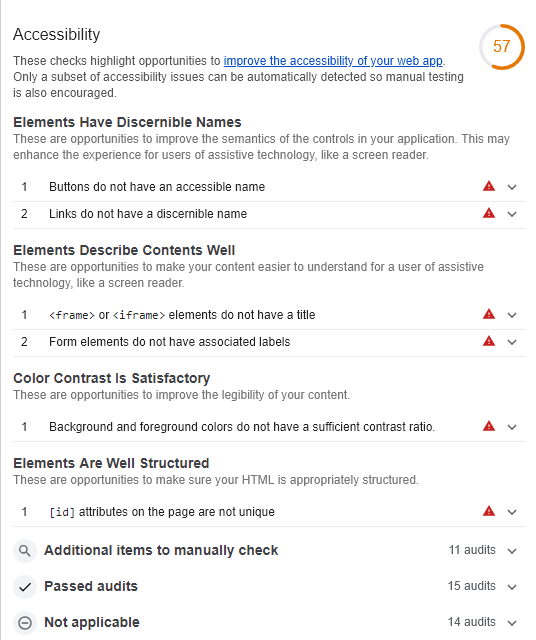
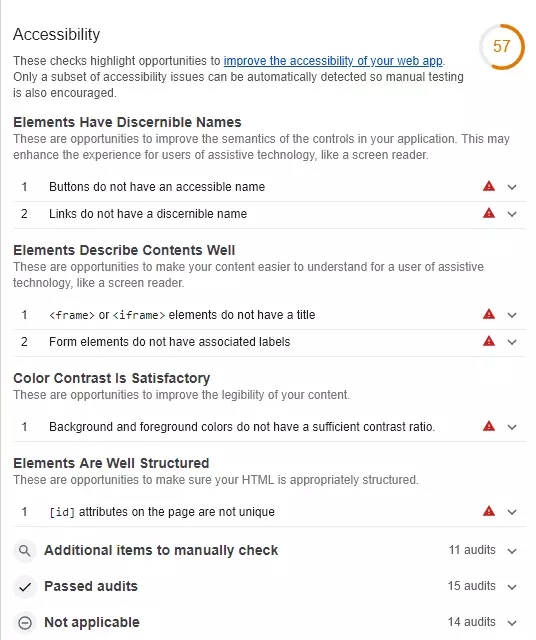
Google Lighthouse also assesses how suitable the website or progressive web app is for physically disabled people. Specifically, Accessibility tests whether important elements like buttons or links are described sufficiently or images and graphics have a voice-over function that outputs the contents audibly for the blind.
Best Practices
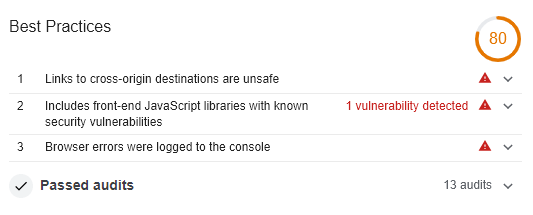
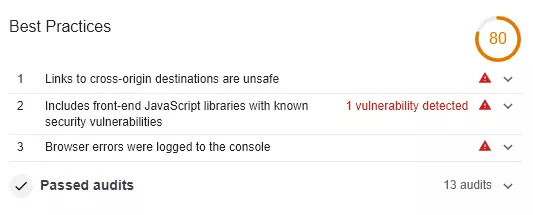
In Best Practices, Lighthouse primarily analyses the security aspects of the website or PWA. In this test, the tool assesses whether encryption technologies like TLS are used, website resources are from secure sources, and that JavaScript libraries are considered safe. Lighthouse also analyses whether connected databases are secure and points out insecure commands and any older APIs being used.
SEO
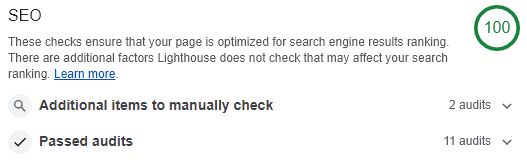
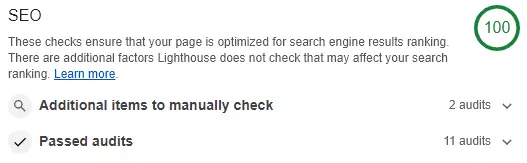
Google Lighthouse performs various tests to analyse how well search engines can process the app or website. However, these tests in Lighthouse are very limited. Lighthouse outputs the analysis results on a scale from 0 to 100 points. If the site or app does not get full marks, optimisation is essential and the website operator will need to act.
Lighthouse focuses on search engine optimisation for mobile devices. The feature analyses and tests the website or progressive web app to determine whether it is mobile-friendly and whether tags and metadata are optimised.
How do you use Google Lighthouse?
Users have been able to directly install the Google Lighthouse Chrome extension for several years now. In general, Lighthouse can be used in many different ways. However, they all have one thing in common: Google’s Chrome browser must be installed on the computer where Lighthouse is to be used.
The easiest way to use Lighthouse is via Google DevTools. Lighthouse is available in the audit tab. You can also use the aforementioned Chrome plug-in. The advantage of the Lighthouse Chrome option is that the latest version of the tool is always available. Users can also operate Lighthouse via the command line. This has the advantage that you can also use the Build tools. You can use a Node module for this purpose.
What information does Lighthouse provide?
Google Lighthouse provides key performance indicators for the user experience like “First Contentful Paint” or “First Input Delay”, and it does so in a very simple way. In order to analyse scenarios as precisely as possible, the tool simulates real conditions, especially on mobile devices, by adapting CPU performance and other factors that apply to users in their everyday lives.
After the analysis, Lighthouse assigns scores between 0 and 100, with 100 being the best result. You can use these scores as a guide to help you eliminate potential errors and optimise performance. When analysing the website’s load speed, it breaks the scores down into three categories. Scores from 0 to 49 (red) are rated slow, 50 to 89 (orange) are rated average and from 90 to 100 (green) are rated fast.
Based on these results, you can make the necessary adjustments and optimisations to speed up the website’s load times. The analysis results are output for all measurable events including performance for PWAs, accessibility, best practices, and SEO.
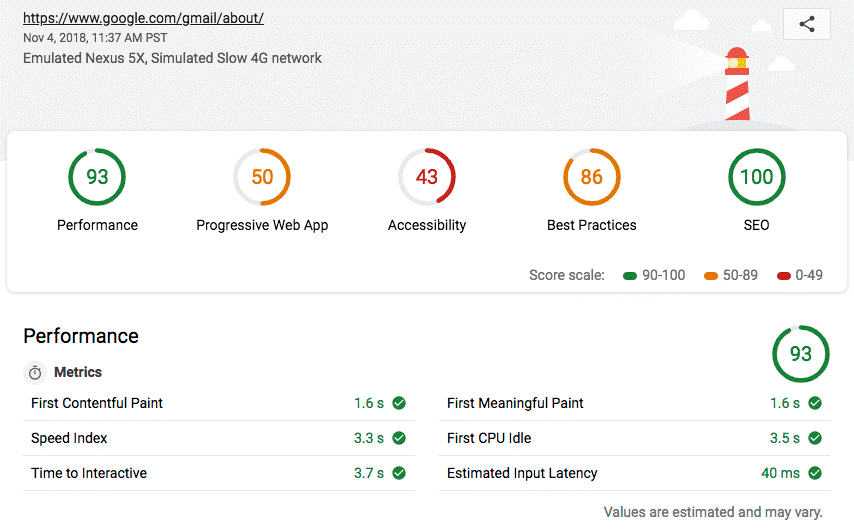
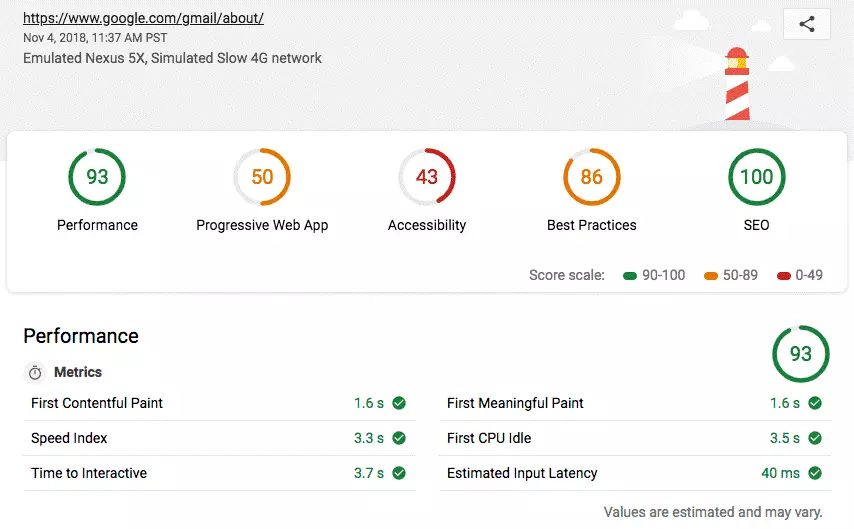
The Lighthouse tests give operators of websites or progressive web apps a lot of information and analytics that enable them to optimise their offerings. The colour scale and recommended tips enable even beginners to take the first steps towards optimising their sites themselves.
Reviewer

Melissa Senn
Melissa Senn has been with IONOS since 2016 and focuses on website, e-commerce, social media, and AI in the Digital Guide. As a digital strategist, she uses her extensive SEO and GEO experience to transform complex technological trends into practical content.