

How to delete a Skype account step by step

Since May 2025, Skype is no longer offered as a standalone service but has been integrated into Microsoft Teams Free. To delete your Skype account, you must delete your entire Microsoft account. This is done via the Microsoft account website, as Skype is now part of this account.
How to delete an old Skype account in a web browser
In case you still have an old Skype account that is not linked to a Microsoft account, you need to connect this to a Microsoft account before deleting your Skype account. Here’s how it works:
Step 1: Go to your Microsoft account. If you are already signed in, sign out.
Step 2: Now log in to your Skype account.
Step 3: If you have not yet updated your Skype account, you will receive an account update message (link to a Microsoft account). Click ‘Next’.
Step 4: Now add an email address to the account. When doing so, you need to use an address that is not linked to any other Microsoft services, for example, OneDrive or Outlook.
Step 5: Now your Skype account is connected to a Microsoft account. You can delete it using the step-by-step instructions below.
What to do before deleting your Skype account
Before permanently deleting your Skype account, you should keep the following in mind:
Since Skype is now integrated into Microsoft Teams, your Skype contacts and data (chats, call logs) have been automatically migrated to Microsoft Teams. If your Microsoft account remains inactive, they will be permanently deleted.
When you delete your Microsoft account, this will affect all associated data, including the Skype data now stored in Microsoft Teams. Likewise, OneDrive, Outlook, and all other Microsoft services linked to your account will be deleted as well.
Before you delete your Skype account, we recommend the following:
- Save important data from other Microsoft services or products (Outlook, OneDrive, etc.). This data will no longer be available after you delete your Skype account.
- Use up your remaining Skype credit, otherwise it will be lost.
- Cancel active subscriptions; until your Skype account is permanently deleted, these will continue to be charged automatically.
If you still want to use Skype features such as video calls and chats, you can use Microsoft Teams Free to continue enjoying these basic functions (chat, video calls, etc.). Your Skype contacts are automatically transferred to Microsoft Teams, so you can continue chatting and calling without having to re-enter your contacts. Skype data such as chats, contacts, and call logs will be permanently deleted after a certain period of time.
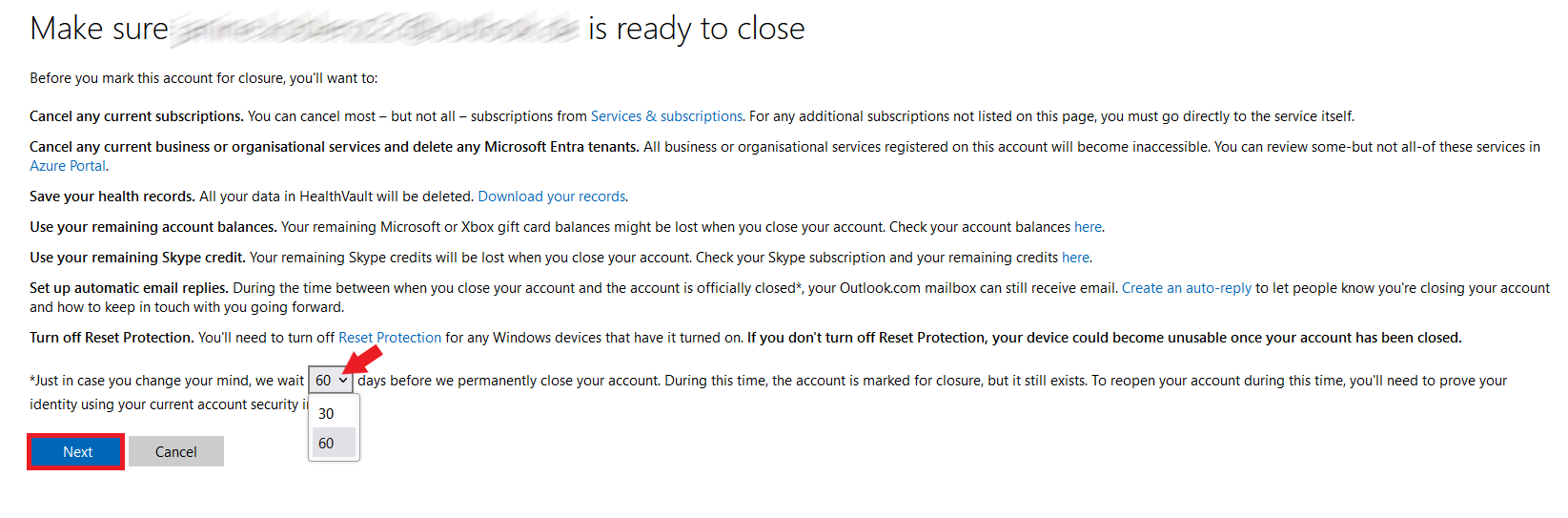
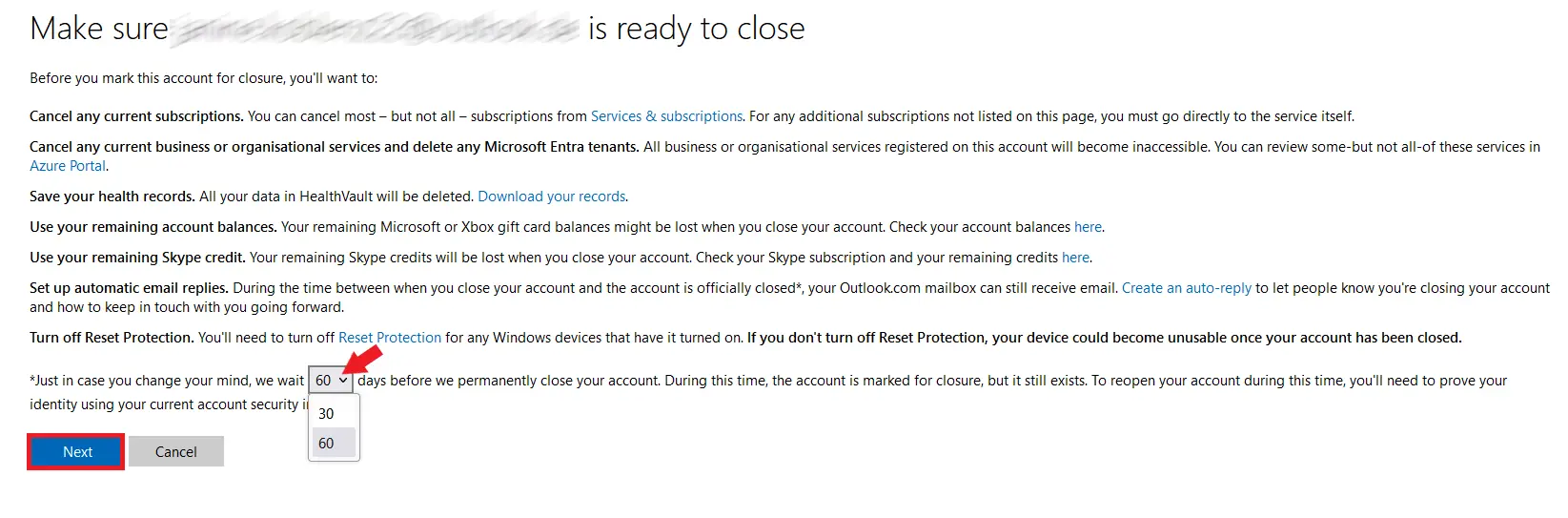
Your Microsoft account will first be deactivated. When requesting deletion, you can choose whether the account should be permanently deleted after 30 or 60 days. This means that if you delete your account, you can still access your data and reactivate the account for 30 or 60 days. To do this, simply log in with your Microsoft login credentials. You will then be asked whether you want to reactivate your account.
How to delete a Microsoft account via the web browser
To delete your Microsoft account and the data from your old Skype account via the web browser, follow these steps:
Step 1: Go to the Microsoft website, sign in, and verify your identity. You can do this by email or phone.
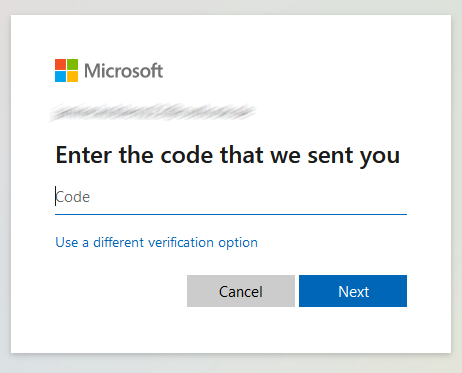
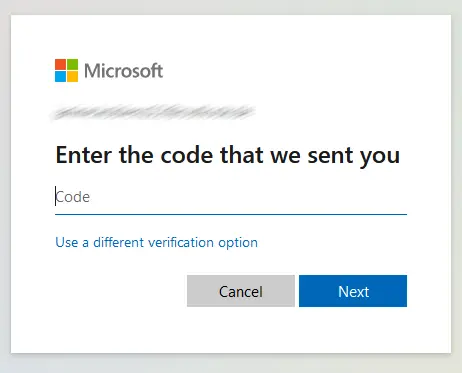
Step 2: You will then receive a code. Enter this code in the designated field and click ‘Next’.
Step 3: Carefully read the information provided and click ‘Next’.
Step 4: Confirm that all content should be deleted by ticking all the boxes and providing a reason for the deletion. Then, click the button labelled ‘Mark account for closure’.
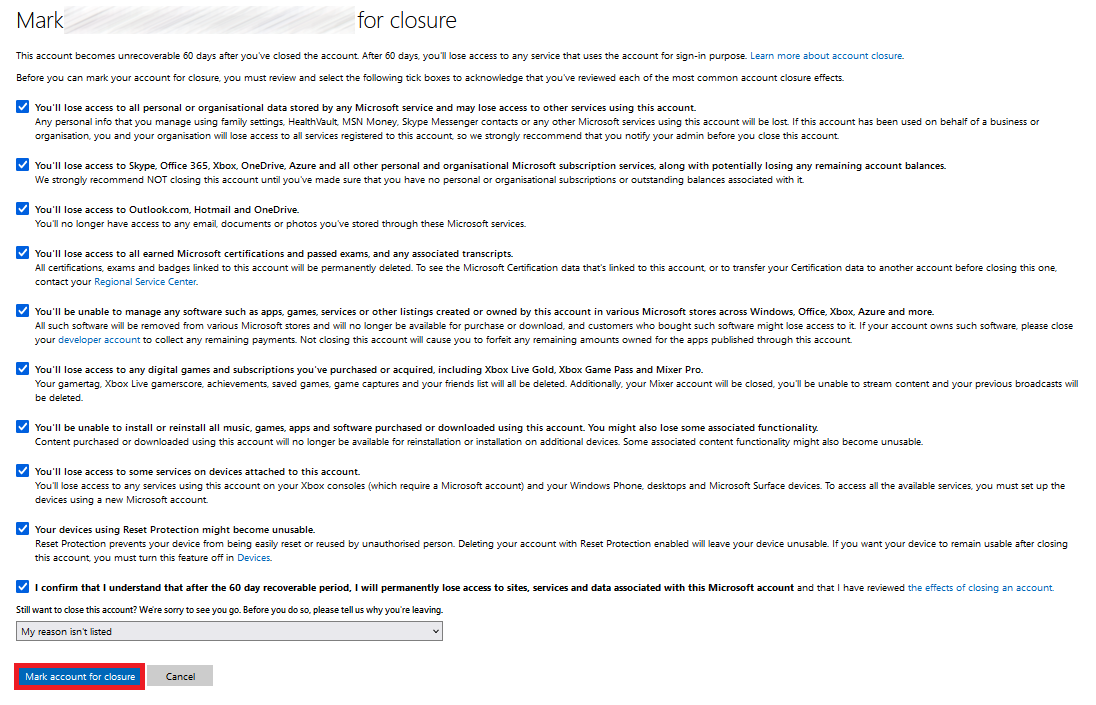
Step 5: You will now see the date when your Skype account will be permanently deleted. Confirm by clicking on the button.


Reviewer

Jeanna Raffa
With over 18 years of experience in online marketing, Jeanna Raffa possesses extensive expertise in digital marketing. Since 2020, her focus has been on providing practical information regarding email, office, and cloud storage solutions.