

How to free up space on your iPhone
Is your iPhone running slower than normal? Do apps and photos no longer fit on your device? These are common signs that your iPhone memory is full. Here’s how to clear storage on your iPhone.
Quick tips for maxed out storage
- Tip 1: save larger files like photos and videos externally, for example on iCloud or an iCloud alternative.
- Tip 2: use iCloud or iTunes to swap out unused apps and media. Try the ‘Transfer apps’ function to store unused apps in iCloud. You can restore them at any time.
- Tip 3: compress photos and videos to free up memory. Reduce the resolution for future photos and remove duplicate media.
- Tip 4: clear browser and app caches. Regularly remove temporary files and media from messengers like WhatsApp. Clean up email and chat histories.
- Tip 5: back up your device and reset your iPhone’s factory settings.
How to clear storage on your iPhone
First, check how much memory you have left on your iPhone. Go to Settings > General > iPhone Storage. Here you’ll see a bar divided into different colours. Directly below this, there is a linear key that explains which colour stands for which applications and files.
Method 1: Save large files externally
Files such as photos, videos, movies, and tv series consume a significant amount of storage space. If you regularly use photos and videos on your iPhone or store entertainment for on the go, check what you don’t need and offload old files to cloud storage or an external storage device. This way, you’ll not only have a backup, but also be able to free up storage space.
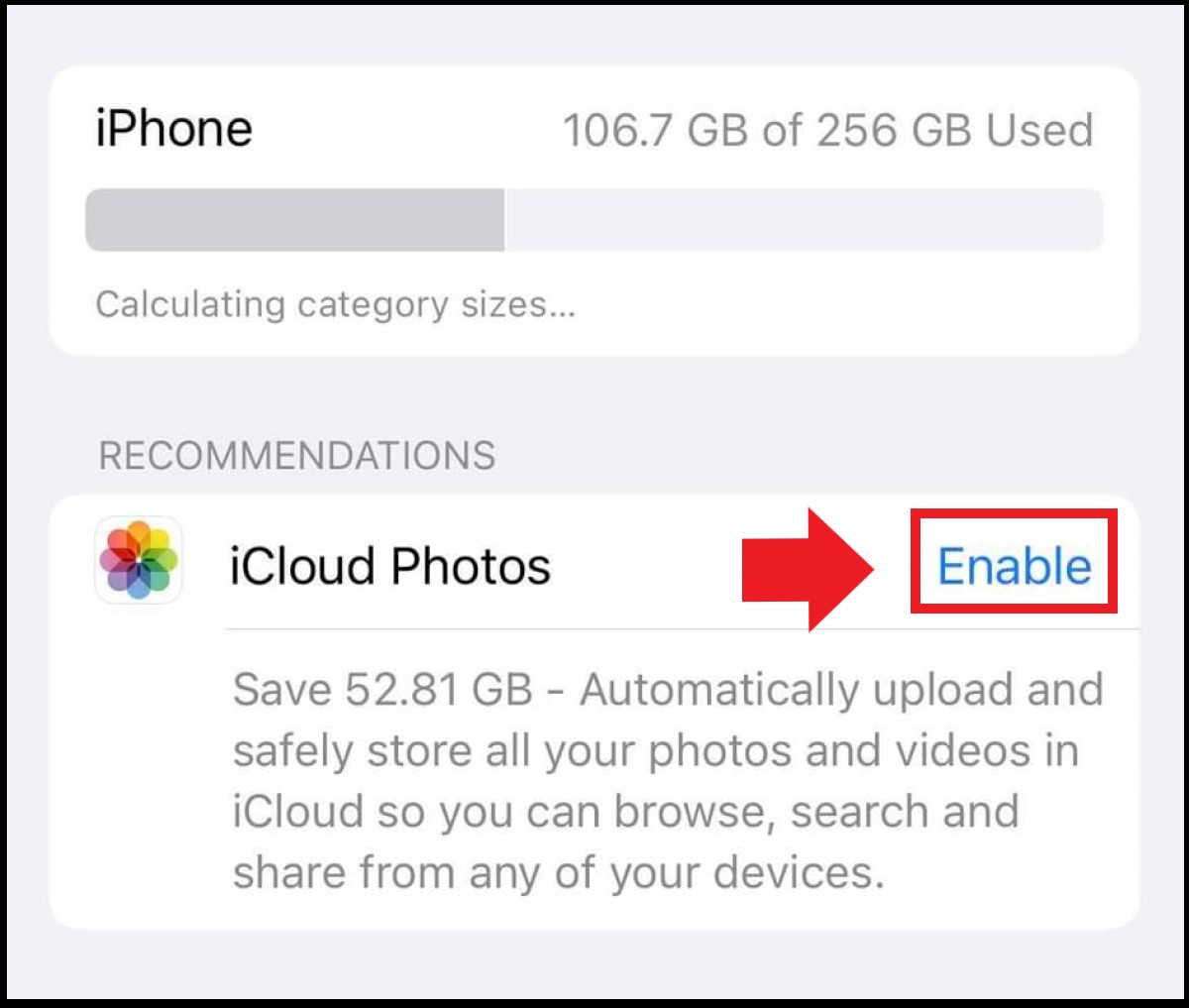
Offloading your photos and videos to iCloud is also a good idea. You can activate this function via Settings > General > iPhone Storage. Just make sure you have enough free storage space. If your iCloud storage is full, you can try deleting iCloud photos.
Back up large files, chat histories, and other data from your devices to the cloud regularly and automatically for more storage. Try IONOS’ HiDrive cloud storage today.
Method 2: Outsource unused apps
The longer you use your smartphone, the more data you will accumulate from games, chats, and photo apps. If you don’t currently use an app, but think you might need it again later, try offloading the app. On iOS 11 or above, go to ‘General’, ‘iPhone Storage’, and then ‘Offload App’. If there’s an app you haven’t been using for a while, your iPhone will automatically offload it to iCloud.
Any linked data and documents you have will be kept. Additionally, the app can be restored to its last storage state at any time. If you don’t want apps to automatically be stored, follow these steps:
- Select an app from the list under iPhone Storage.
- Choose whether to delete the app or offload it.
- Offloaded apps will be displayed on your home screen with a cloud symbol.
Method 3: Optimise quality of photos and videos
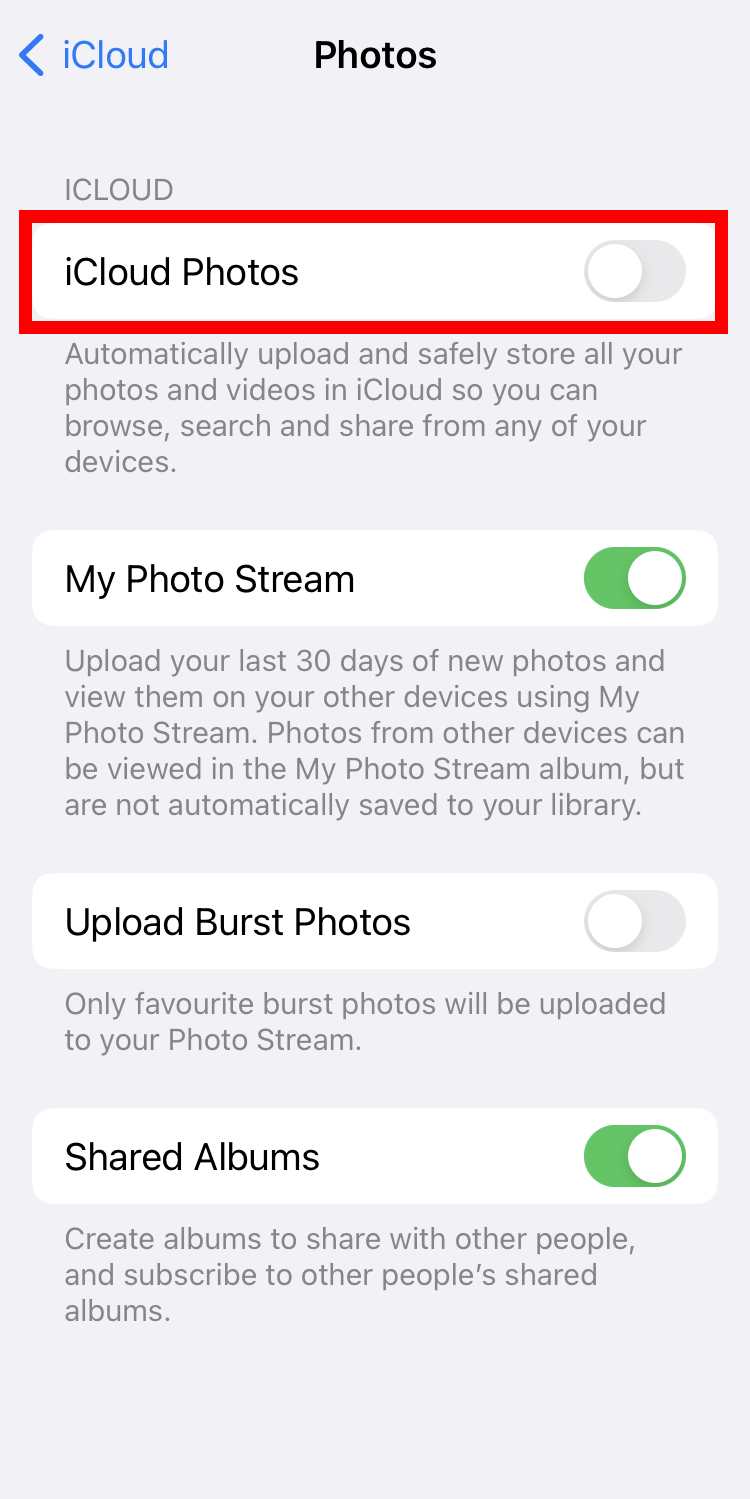
Outsourcing large files isn’t the only way to free up storage space. You can also optimise photo storage under Settings > Apple ID profile picture > iCloud > Photos. Activate the iCloud Photos feature and check the box that reads ‘Optimise iPhone Storage’. Your phone will now save high-resolution photos and videos directly to iCloud, while identical, lower-resolution versions will stay on your iPhone. Your iPhone will also inform you of how much memory you’re saving as a result of photo and video optimisation.
Method 4: Remove unnecessary data
Even if you are not saving new photos or actively downloading something, your iPhone still accumulates unnecessary data. This includes cache data from apps, automatic media downloads from chats like WhatsApp, duplicate files and archived or deleted emails and attachments.
If you want to check your storage for unnecessary data or memory optimisation, go to ‘Storage’ and select ‘Show all’. Here you’ll find your system’s storage recommendations. Use these recommendations to free up storage or delete files by tapping ‘Enable’.
Helpful tips for removing unnecessary files include
- Clearing your browser cache: go to ‘Settings’ > ‘Safari’ and select ‘Clear History and Website Data’ to remove temporary files from the cache.
- Automatically deleting old messages: check your messenger’s settings to see how long old messages are kept. The storage time can also be reduced under ‘Keep messages’.
- Deleting duplicate photos: as of iOS 16, it’s possible to automatically find and delete duplicate or similar photos. This can save you a lot of time.
- Disabling automatic downloads: messengers like WhatsApp are particularly handy for sending GIFs, videos, and photos. But due to automatic downloads, not only will your WhatsApp storage quickly fill up, but your iPhone storage will too. To manually control which images you download, disable the ‘Media auto-download’ feature in the settings.
- Deleting old emails and attachments: sometimes old emails and their attachments haven’t been completely deleted, but instead only archived. Go to ‘Mail’ in the settings and select your email account under ‘Accounts’. Under ‘Advanced’, choose whether deleted emails should be archived or completely deleted.
Method 5: Free up space by backing up and restoring settings
In rare cases, it can happen that your iPhone storage will be displayed as full even though you’ve done everything to free up storage on your iPhone. In this case, we recommend backing up everything and restoring factory settings. Upload your device data to iCloud beforehand or back it up with another cloud provider. You can also create a backup on an external storage device. To reset, go to ‘Settings’ > ‘General’ > ‘Transfer or Reset iPhone’ and select ‘Erase all Content and Settings’. You’ll now receive a code or be asked to enter your Apple ID password.