

What to do when WhatsApp is not working? Common problems and solutions

If WhatsApp suddenly stops working, it may be due to various reasons. Some of them you can fix yourself. Find out exactly how it works and how to check whether the issue is on the provider’s side — right here.
What can you do if WhatsApp suddenly stops working?
When something isn’t running smoothly with WhatsApp, you usually notice not only because the recipient hasn’t sent you a message back, but also because the clock icon is displayed instead of the two (blue) ticks next to the text. If the clock stays there for a longer time, it could signal a problem. You can then try the following:
Check internet connection
As simple as it sounds, the solution can sometimes be just as straightforward when you’re asking yourself, ‘Why isn’t WhatsApp working?’. Check your phone to make sure that either your Wi-Fi connection or mobile data is active. One or both icons should be enabled in your phone’s status bar.
If that’s the case and WhatsApp still isn’t working, try opening another app to see if you’re online there — this helps rule out a general issue with your phone’s internet connection.
Restart your smartphone
Sometimes it helps to turn off your smartphone once and turn it on again – this way the operating system can reload and problems with apps can be fixed. By the way, if you have a problem with your smartphone, you can also use the app on your desktop. There is WhatsApp for PC and you can use WhatsApp on Mac.
- Store, share and edit data easily
- ISO-certified European data centres
- Highly secure and GDPR compliant
Update WhatsApp or operating system
Depending on how you’ve configured your smartphone to handle (automatic) app updates, you may miss an update for WhatsApp – and that can cause the app to stop working properly. So, if you’re still experiencing problems, visit the Play Store or App Store and search for WhatsApp. If you don’t have the latest version on your phone, you will be offered the option to update.
If WhatsApp is up to date, an outdated operating system can be causing the error. To check this, select ‘Software Update’ in your phone’s settings to carry out any updates.
Clear the cache
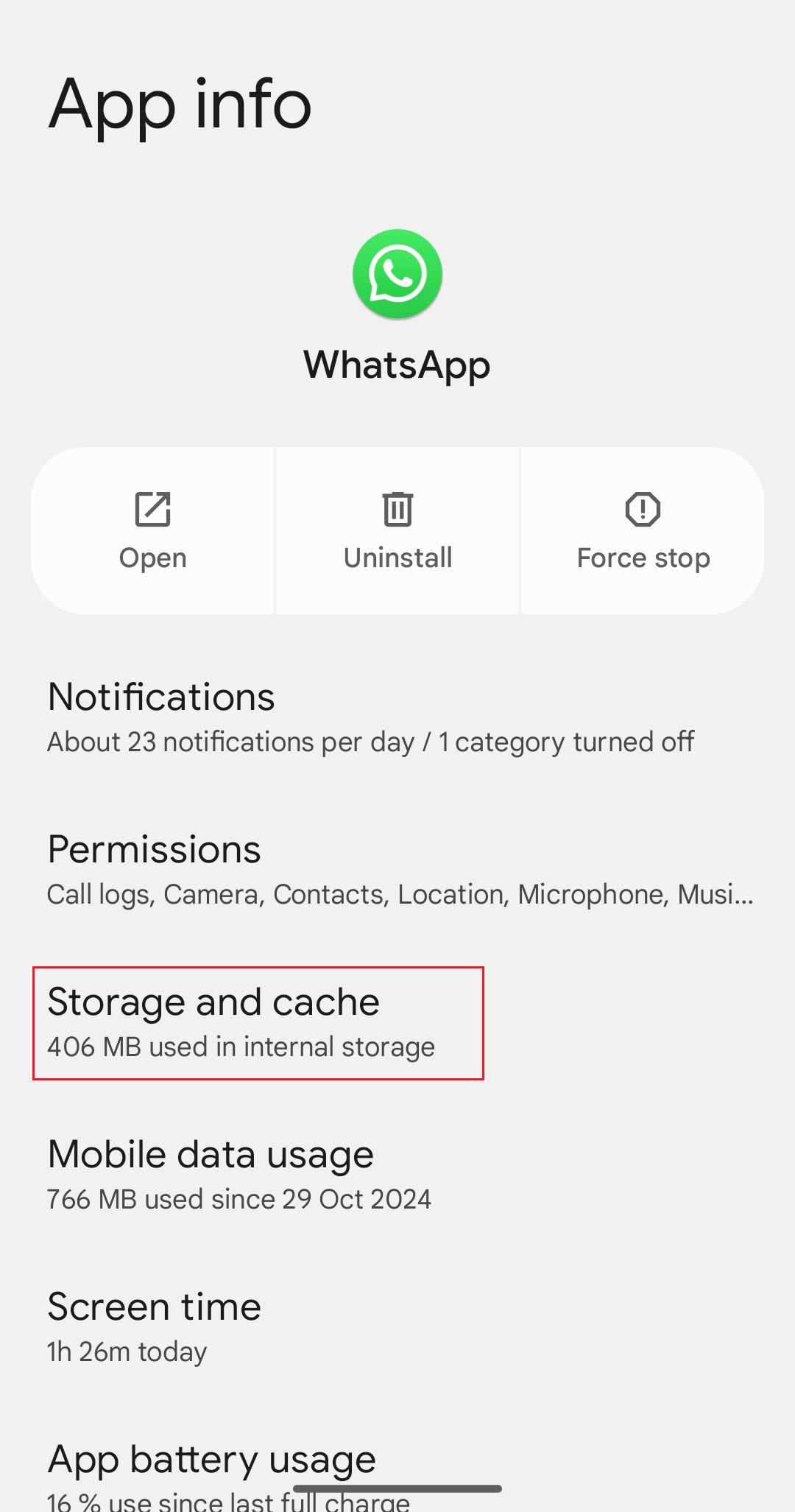
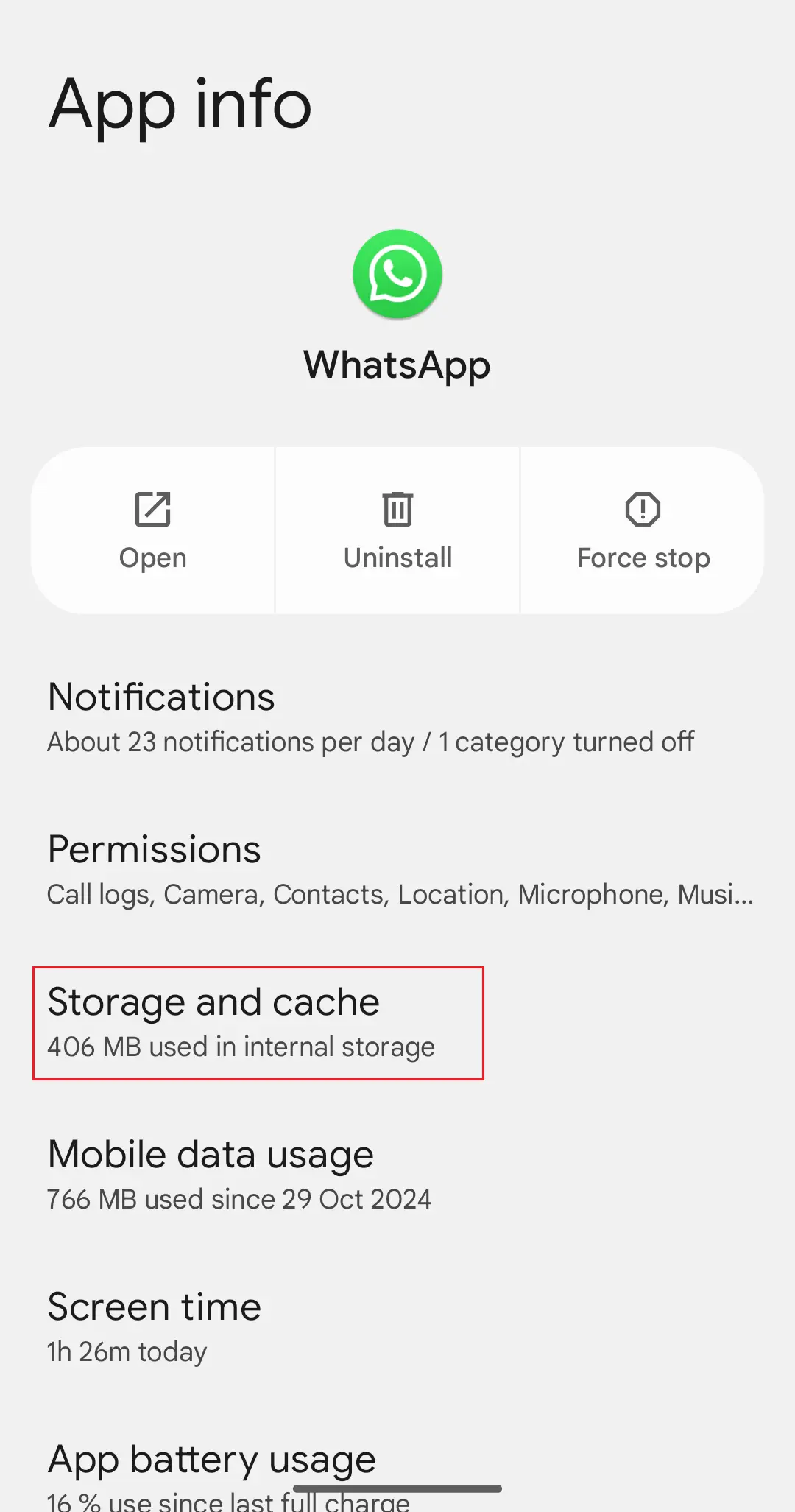
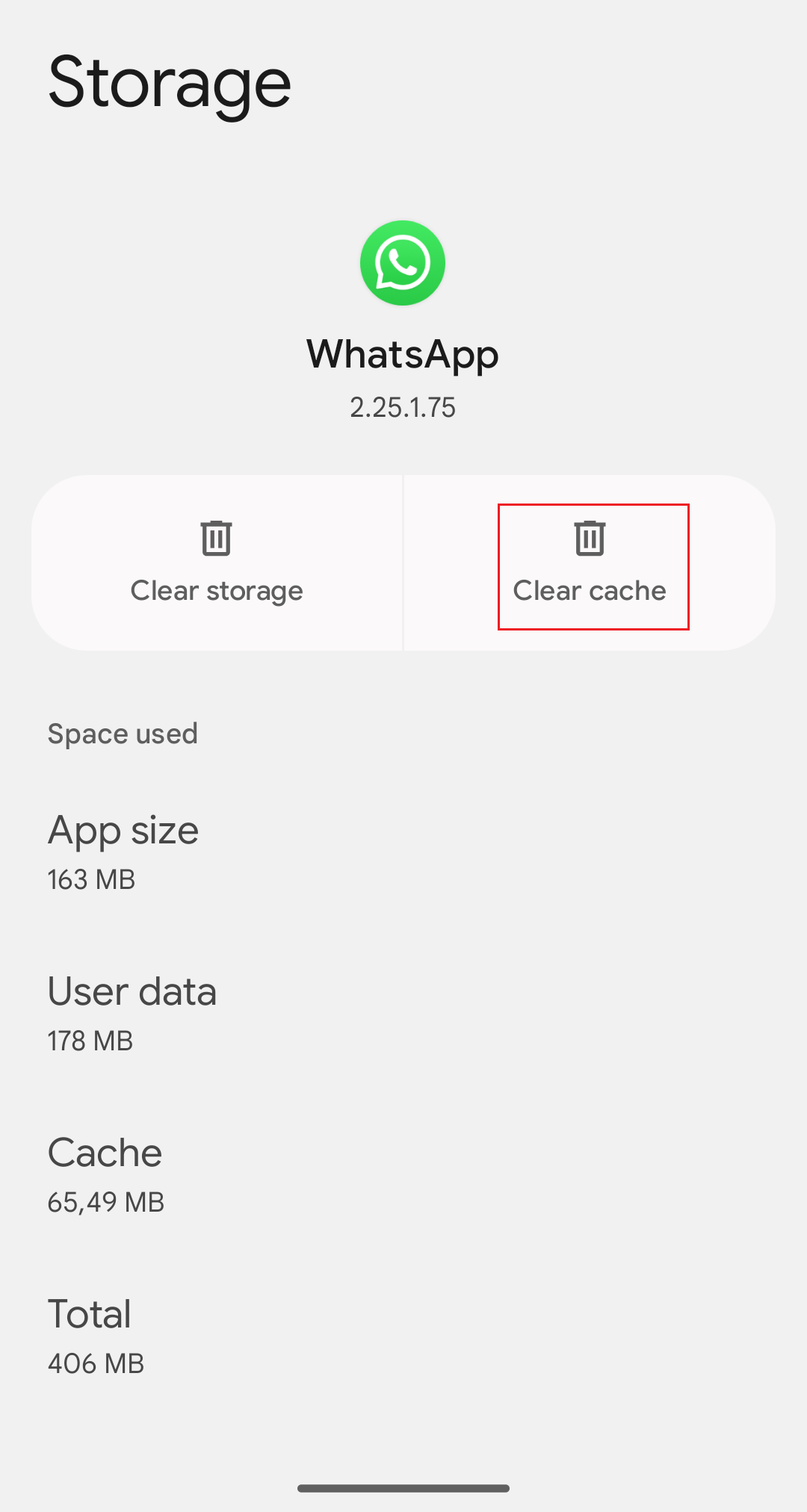
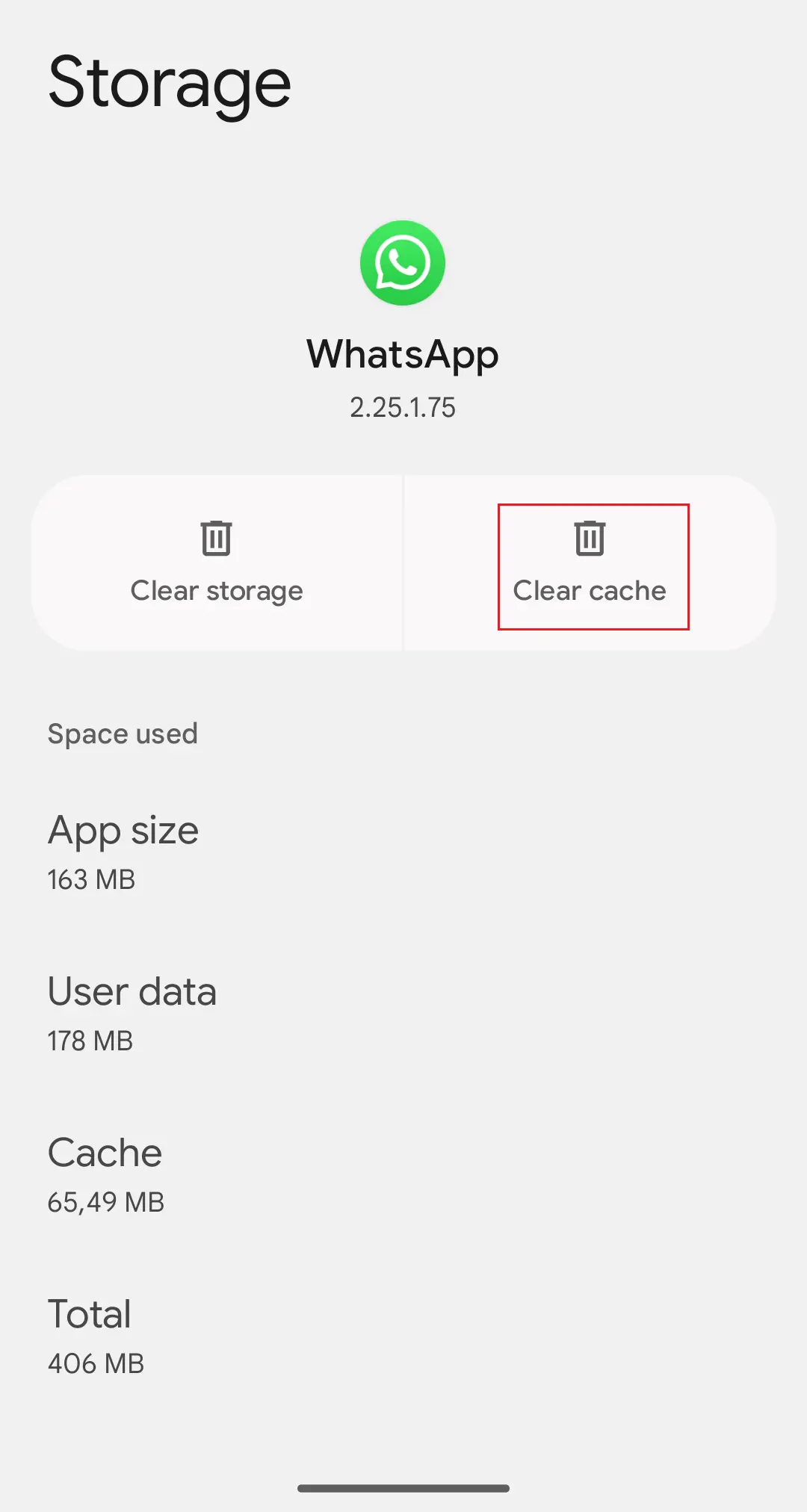
Your WhatsApp is unresponsive (or slow), especially at startup? This may be due to the background Storage of your smartphone – more precisely, the cache. To clear it, open the settings of your Android phone, scroll to ‘Apps’, and select WhatsApp from the list. On the following page, click on ‘Storage and cache’ and at the bottom right on ‘Clear cache’.
On an iPhone, it’s not possible to specifically clear the WhatsApp cache — the only option is to either delete your WhatsApp account or uninstall the app from your phone and then reinstall or offload it.
Reinstall WhatsApp
Reinstalling WhatsApp can also help resolve other issues with the app — both on iPhone and Android. It’s especially worth trying if you keep seeing the message ‘WhatsApp has stopped’. To uninstall the app, press and hold the app icon until a small menu appears offering the option to uninstall. It’s recommended to create a WhatsApp backup (e.g., using Google Drive) beforehand to avoid losing any data. To reinstall, simply download the app again from the respective store — or consider switching to a WhatsApp alternative.
Fast and secure: Use HiDrive Cloud Storage from IONOS for your WhatsApp backup.
WhatsApp isn’t working due to problems with the provider
If none of the above tips help, it’s likely a major issue on the provider’s end. You can check websites like downdetector.com to see if others are reporting problems with the app. Users can submit reports there if they’re experiencing issues. You can also check Twitter/X for the hashtag #WhatsAppDown to see if the problem is affecting others as well.
Since WhatsApp belongs to Facebook and Meta Platforms, the messaging service and the social media platform, as well as Instagram, are often affected by the disruptions at the same time.
Contact WhatsApp support
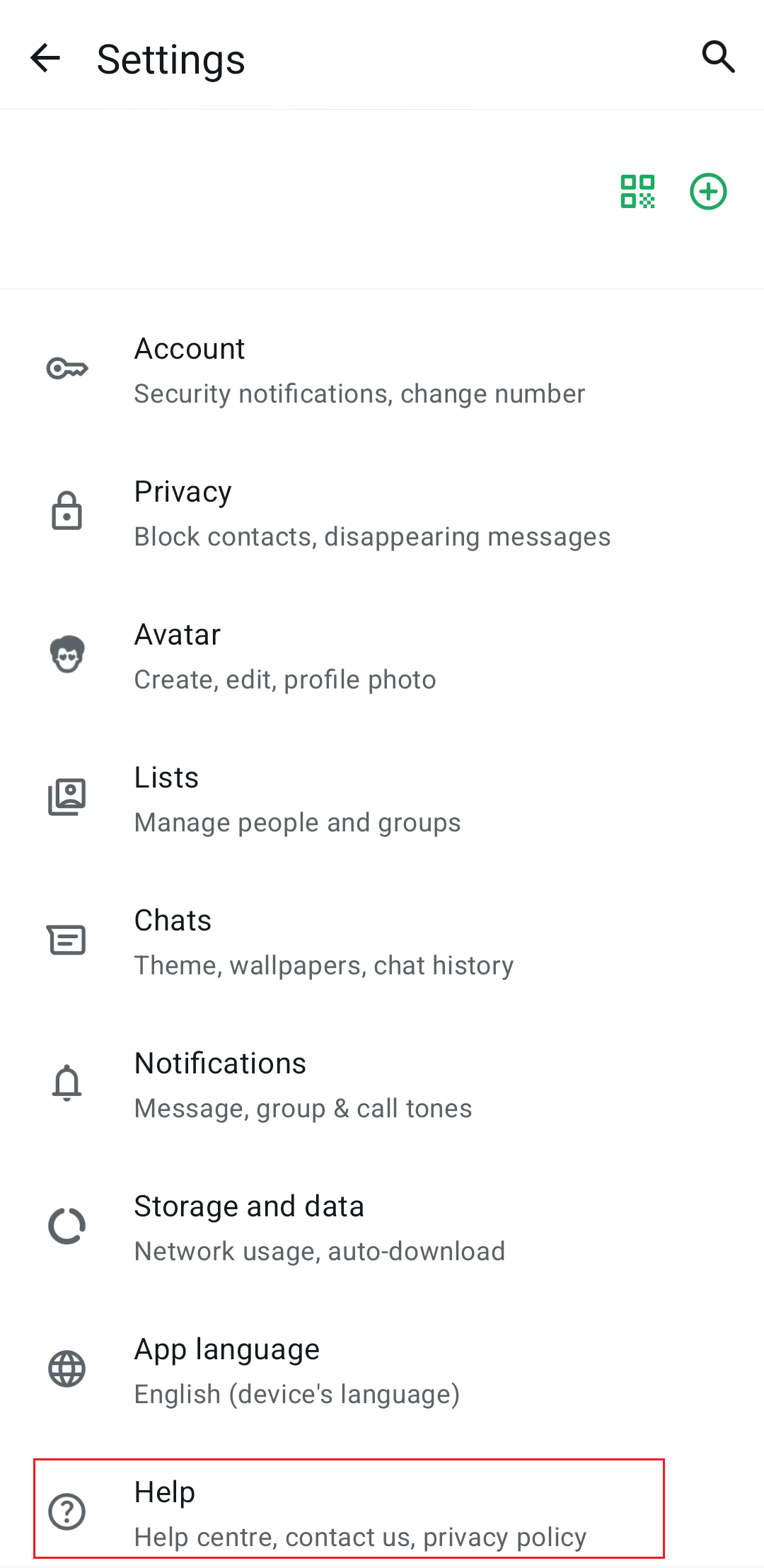
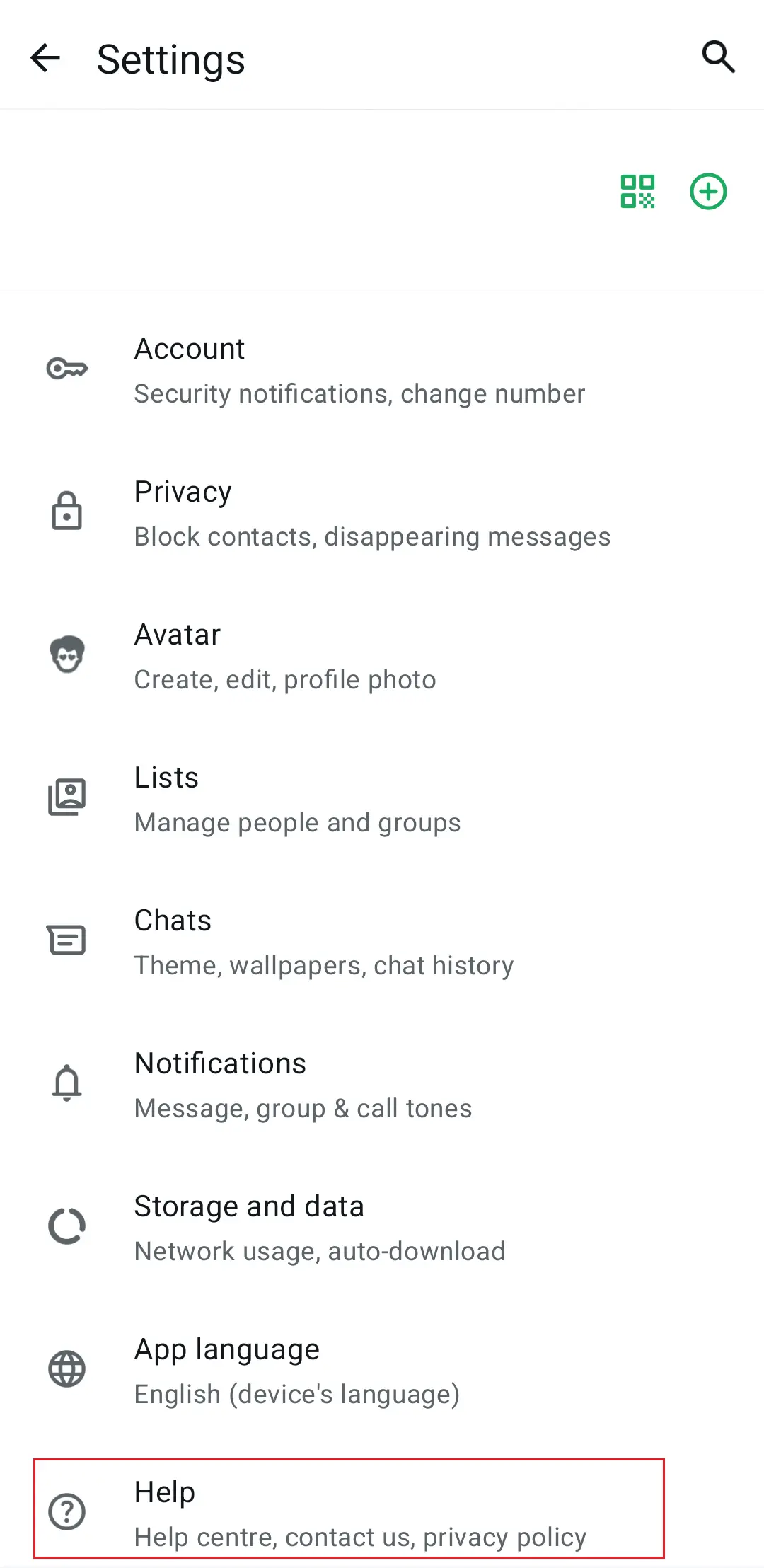
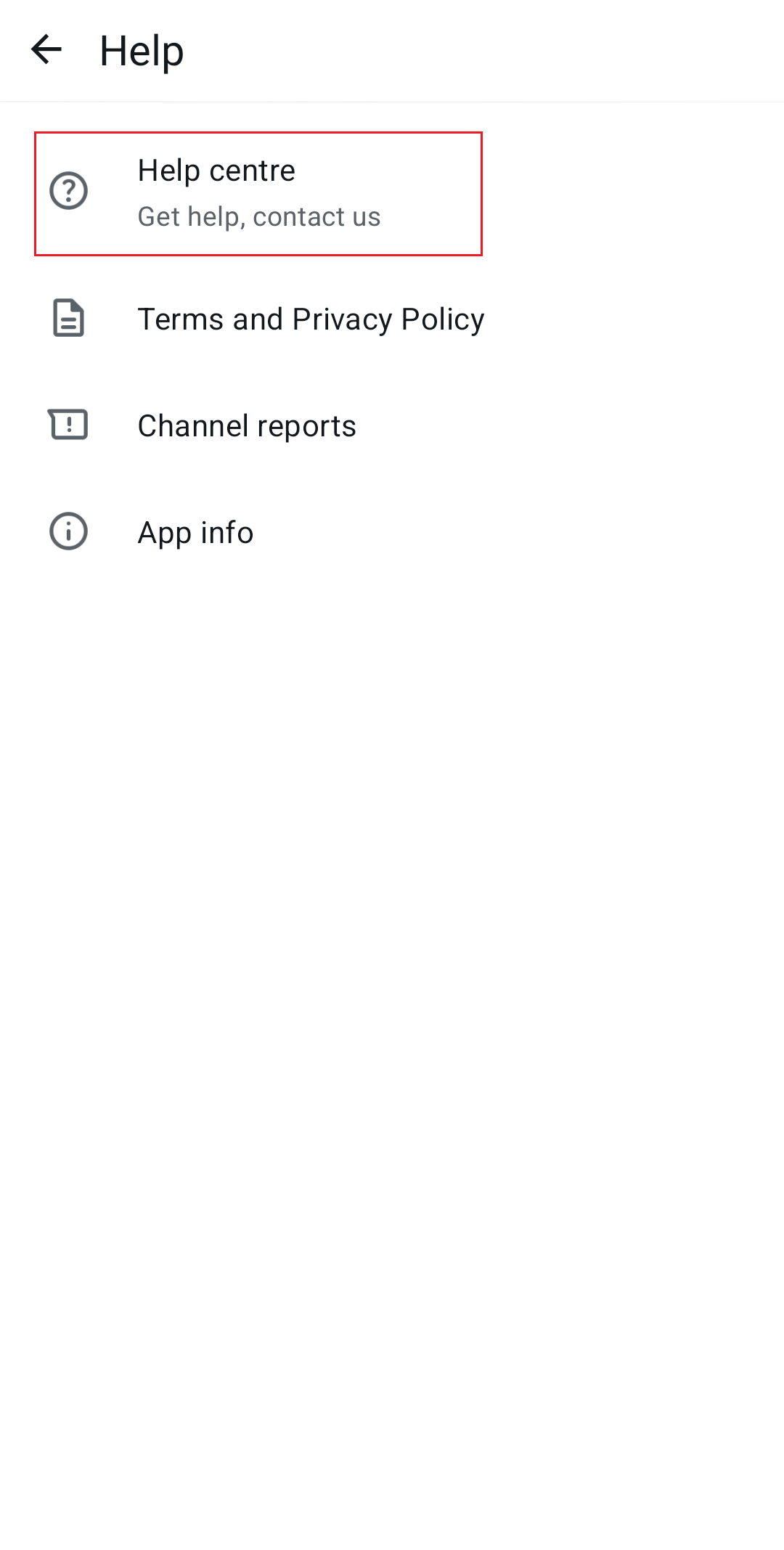
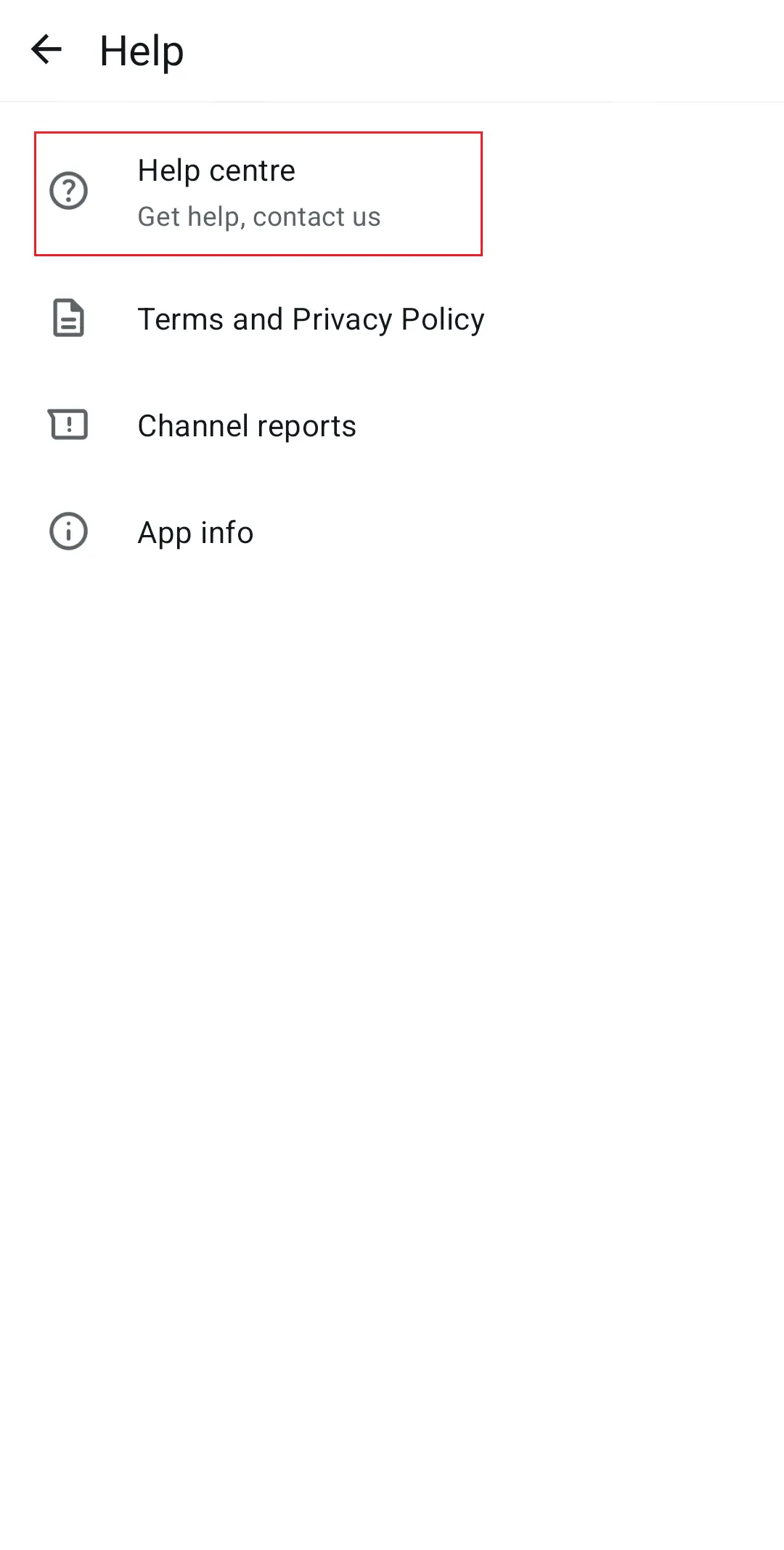
If you have long-term problems using WhatsApp, you can contact support directly via the app. To do so, go to ‘Settings’ in the app, select the ‘Help’ item and go to the help section. In the following window, enter your message.
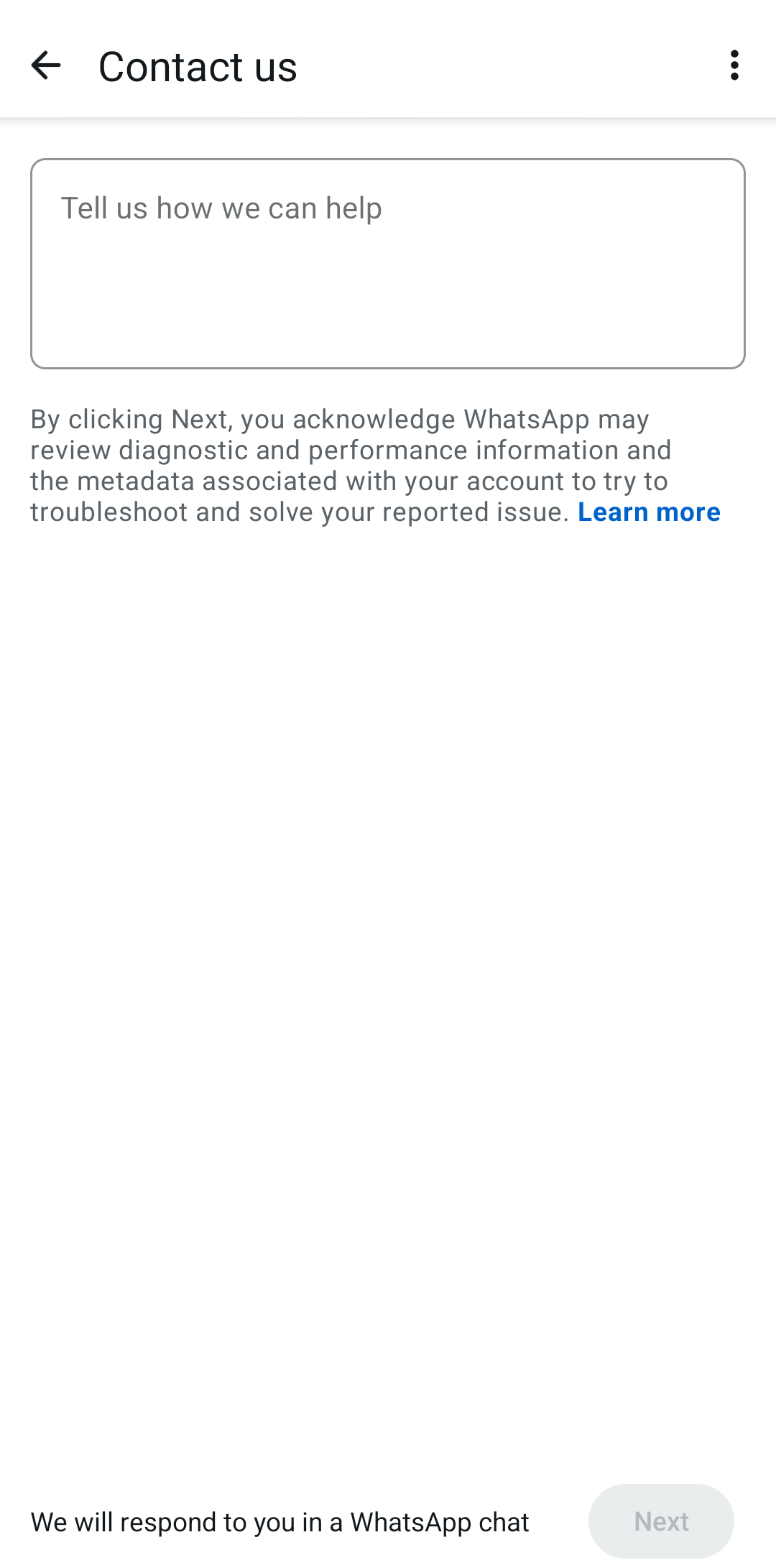
If the app no longer opens, you can also contact support through the official WhatsApp website. A contact form is available there — simply enter your phone number, the operating system you’re using, and a detailed description of the issue. Please note that phone support is not available.
- Write perfect emails with optional AI features
- Includes domain, spam filter and email forwarding
- Best of all, it's ad-free