

Connect Xbox controller to PC: Gaming ready in just a few steps

The Xinput interface makes connecting Xbox controllers to the Windows PC easy as pie. The configuration of the buttons and the general interaction between a PC game and the Microsoft controllers is already optimally coordinated through their shared ecosystem. We’ll show you which different connection types you can use to quickly use controllers like the Xbox One controller on the PC.
Make a statement with your own .gg domain and let the games begin. Register your own .gg domain now with IONOS.
The latest Xbox generation from Microsoft is called Xbox Series X and is the fastest and most powerful Xbox of all times. The corresponding Xbox Wireless Controller is also ideally suited for gaming with a controller on the PC. The controller can be connected to a PC in three different ways, which we will introduce below. The older models from Xbox One and Xbox 360 can also be connected to a PC in a simple way. The only drawback with the older controllers is that the Xbox 360 controller cannot be connected to the PC via Bluetooth, since it does not use this transmission method.
Connect Microsoft controllers like the Xbox One controller to the PC via USB port
The easiest way to connect an Xbox controller to the PC is with the included USB cable.
- The connection between Xbox controller and PC works exactly like the connection of the controller with the Xbox.
- Simply plug the USB cable into the socket on the controller and connect it to a suitable USB port on the computer.
- Depending on the Windows operating system, the computer will then automatically perform the pairing with the newly connected hardware.
- For Windows 8.1 and older, the drivers required for the connection are automatically downloaded and installed. After that, the connection process is carried out as with the newer Windows versions.
If the operating system (Windows 8.1 or older) does not start a search for the drivers as soon as the Xbox controller is connected to the PC, you can start this manually. To do this, go to the computer’s device manager, select the controller there with a right click and go to `Update driver software´.
Other controllers can also be connected quickly and easily in this simple way. For example, you can also use a PS5 controller on PC.
Connect Xbox controller wirelessly to PC — applies to all Xbox controllers
Besides the connection via USB cable, Windows offers the possibility to connect an Xbox controller via Xbox Wireless. You need a separate Xbox wireless adapter for this. In some computers, the adapter is already installed.
Connection via Xbox wireless adapter
- To start the connection process, the wireless adapter must be turned on.
- Next, turn on the Xbox controller by pressing the Xbox button.
- To connect, you need to start searching for compatible controllers on the Xbox wireless adapter. This is triggered by pressing the pairing button on the wireless adapter.
- At the same time, you put the Xbox controller into pairing mode. Just like with the adapter, this is done by pressing the pairing button on the controller.
- When the connection between the controller and PC has been successfully established, the Xbox button on the controller lights up continuously.
Connection via integrated wireless adapter
- You can start the connection by pressing and holding the Xbox button on the controller for about three seconds. The button flashes from this point on.
- Then press the pairing button on the controller. This now flashes faster and signals that the connection has been established.
- On the PC, start the connection setup via `Settings´ and `Devices´.
- Now add the controller under `Bluetooth and other devices´ via the plus symbol. The third selection option `All others´ is used for this. The connection method `Xbox controller with wireless adapter´ is listed there.
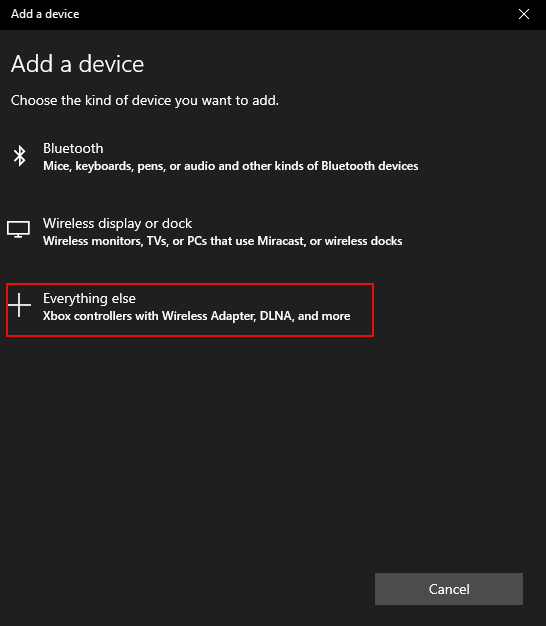
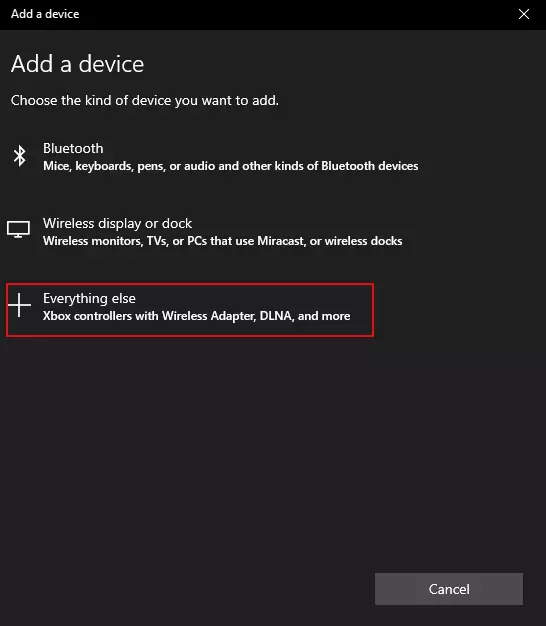
- In the next step, select the controller you want to connect, for example, an Xbox 360 controller.
- Once the connection is successfully established, the Xbox button will light up continuously.
Connect Xbox controller to PC via Bluetooth
Besides these two options, an Xbox controller can also be connected to a computer via Bluetooth. The controller must support Bluetooth for this. You can find out to what extent a controller is Bluetooth-enabled in its description. Xbox 360 controllers are not Bluetooth-enabled, but the newer controllers of the Xbox One and Xbox Series X can be paired with the PC via Bluetooth.
Another feature that indicates Bluetooth capability is the texture of the controller’s surface. On controllers that are Bluetooth compatible, the plastic around the Xbox button is part of the controller’s surface.
Here’s how to pair an Xbox controller with PC via Bluetooth:
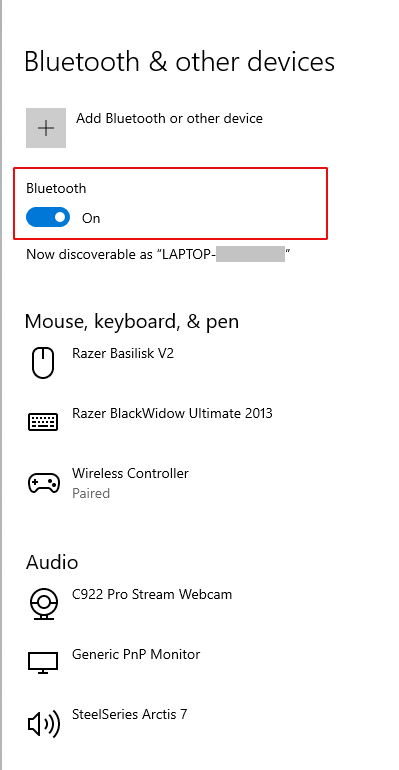
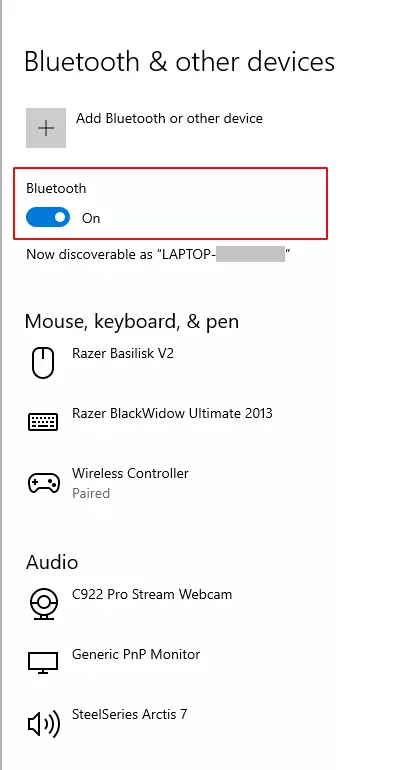
- First, enable Bluetooth on the computer under `Settings´ and `Devices´.
- Next, turn on the Xbox controller using the Xbox button.
- Then press and hold the pairing button on the controller for three seconds so that the Xbox button starts flashing quickly.
- Via Bluetooth settings and a click on the plus, you now select Bluetooth as the pairing option.
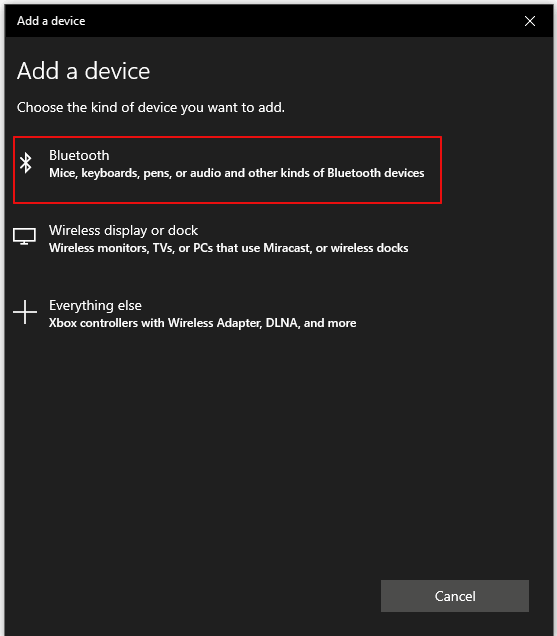
- Your PC will then search for a compatible controller, and once found, you confirm the pairing yourself. The controller is ready for use from this point on.
With the presented connection options, you can also play games with a controller that you have purchased via software platforms like Steam or the Epic Games Store, for example. Microsoft offers the possibility to access an extensive game library on the computer and to play the games with a controller with the xCloud or Xbox Cloud Gaming.
You want to use your PS4 controller on PC, too? In a separate article, we’ll show you the possibilities.