

How to install Git on Ubuntu 22.04 in 3 simple steps

The version control system Git is essential for programmers and was developed by Linus Torvalds, the inventor of Linux. That’s why the VCS software can easily be installed with a package management tool on Linux systems like Ubuntu 22.04.
What are the system requirements?
Git is a lightweight version control tool and requires only a few resources that almost every operating system has. This means you can install the popular software on all Linux, Windows or macOS versions that fulfil these minimum requirements:
- RAM: at least 64 MB of RAM
- Storage: around 20 MB of storage
- Processor: x86-based or similar processor architecture
What Linux servers are there for installing Git on Ubuntu 22.04?
Git provides essential functions for software development and should be included on any server that’s used for programming applications. If you want to set up your own Linux server, there are various server types to choose from. While virtual private servers (VPS) and cloud servers are both cloud based, the latter works with virtualized resources that are highly scalable. At IONOS, cloud servers are billed by the minute. A VPS also offers scalable resources but has a monthly package.
A different approach is taken with dedicated servers. In this model, dedicated, high-performance enterprise hardware is provided and reserved exclusively for you. Billing is done by the minute, and you have various dedicated server packages to choose from.
Which server suits your needs best?
With so many servers and packages to choose from, it’s easy to lose track. This table below can help you find the right Linux server for your project. With all IONOS servers, you have the choice between several operating systems, including various Linux distributions. Additionally, every package offers maximum availability and bandwidth of up to 400 Mbps.
| Scenario | Recommended IONOS server |
|---|---|
| Create simple and resource-efficient applications like small websites or databases | VPS Linux M |
| Use of continuous integration and continuous deployment tools | Cloud Server M |
| Enterprise applications or websites with high traffic (for example, e-commerce websites) | AR6-32 HDD |
How to install Git on Ubuntu 22.04: step-by-step instructions
If you already have experience with installing Git on Ubuntu 20.04, then installing on this version of Ubuntu shouldn’t be difficult for you. But even if you’ve never set up Git before, you’ll be able to install it in three easy steps.
Step 1: update system
Before installing new software like Git, make sure your system is up to date. To update your system, use the following command-line command:
sudo apt updateStep 2: install Git on Ubuntu 22.04
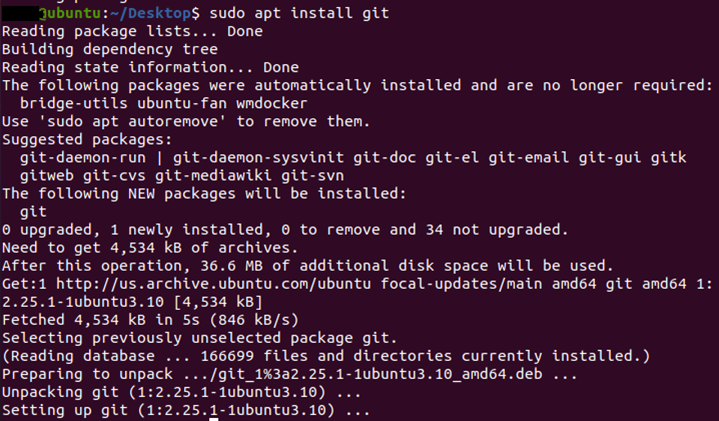
The next step is to install Git on Ubuntu 22.04. For this, you can use the Linux distribution’s package manager:
sudo apt install gitThe installation only takes a few moments. You can follow the installation process in your terminal:
Step 3: review installation
To check if you have access to Git in the terminal and if it was successfully installed on Ubuntu 22.04, use the following command:
git --versionTips for working with Git
To work with Git in the terminal, you need to use specific command-line commands. These all start with the keyword ‘git’. For example, you can use ‘git clone’ to download and clone repositories or ‘git push’ to add content to repositories. Check out our Git tutorial to learn about its basic functionality and the most important Git commands. If you want to look up a specific command or are just looking for a reference to the most important commands for working with Git, our handy Git cheat sheet can help you.
There are various Git-based version control platforms like GitHub and GitLab. Not only do these offer a graphical user interface, they also offer additional features, like the ability to edit code directly in the editor.