

How to install Nginx on Ubuntu 20.04 step by step

The web server software Nginx can be installed on Ubuntu in just a few steps. Learn how installation works and what the server requirements are.
What are the requirements of a Nginx web server?
For Nginx you need a server running Linux as the operating system. Ubuntu has proven to be a simple and stable distribution. What capacity your Ubuntu server needs depends on your project. Even a small hardware configuration can be enough for a simple website. Nginx is known to save resources without sacrificing performance.
To start with we recommend:
- 100 GB storage
- 6 GB RAM
- 1 CPU core
When you buy a Cloud Server FLEX package from IONOS, you can configure the hardware as you please. Once your requirements increase, simply adjust your configuration.
Sometimes a cloud server isn’t the right choice for your project. With IONOS, you can also get affordable dedicated server hosting, where only you have access to the hardware, and a vServer (VPS) with full virtualization.
For others to find your web server online, you’ll need a domain too.
A step-by-step guide for installing Nginx on Ubuntu 20.04
You can install and configure Nginx on Ubuntu in just a few steps.
Step 1: Download and install software
Before installing Nginx, first update the package management of your system:
sudo apt update
sudo apt upgradeInstall Nginx on your system:
sudo apt install nginxNow confirm the installation process.
Step 2: Release port
In order to access your web server externally, you’ll need to configure your firewall. Within Ubuntu, the uncomplicated firewall (ufw) program is responsible for this. For the most restrictive setting possible, choose the following command:
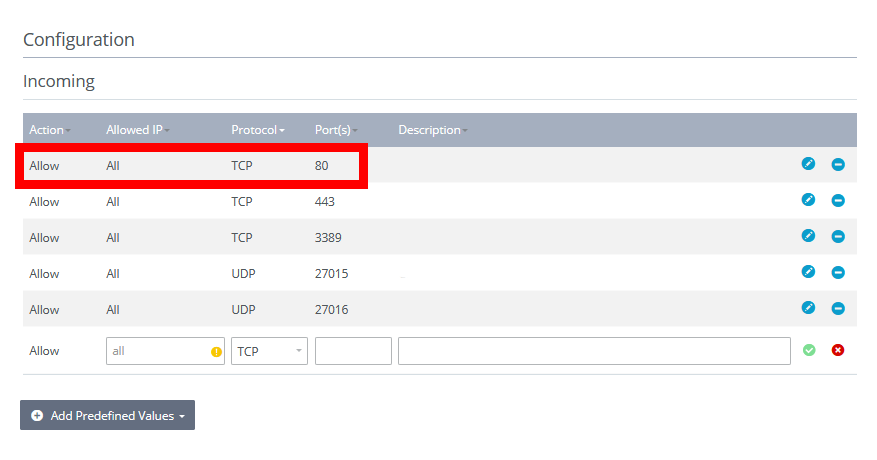
sudo ufw allow 'Nginx HTTP'This will open port 80. You may have to repeat this in the host settings. In the IONOS Cloud Panel, you can do this via the firewall.

Step 3: Test, start and stop server
Check if installation of the web server was successful. To do this, enter the following command into terminal:
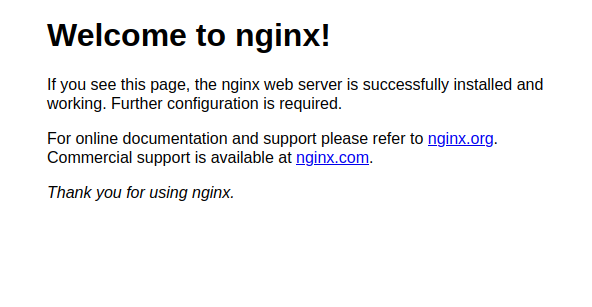
systemctl status nginxIn the output, you should see that the status of the server is active. Additionally, you can call the server in the browser. To do this, enter the IP address of the server in the address bar of the browser.
You can also start the server manually:
sudo nginxBesides this command, there are others you can use to control your Nginx web server:
- stop: Stops the running web server immediately
- quit: Stops the running web server after processes have been executed
- reload: Reloads the configuration file
The commands can be formulated using the following pattern:
sudo nginx stopStep 4: Create test page
Nginx has automatically generated a welcome message website under Ubuntu 20.04. You can find the HTML document for this via /var/www/html/. You can now create more HTML documents in this folder and build your own website. However, it’s better to leave the folder untouched and build a new folder for your own domain. To do this, execute the following command:
sudo mkdir -p /var/www/example.com/htmlIn this example, we use the domain name example.com. Replace all instances with your own domain name and assign the rights:
sudo chown -R $USER:$USER /var/www/example.com/html
sudo chmod -R 755 /var/www/example.comIn the new folder, create your first HTML document – the start page of your project:
sudo nano /var/www/example.com/html/index.htmlYou can design the page as you see fit. Here’s a simple example that you can fill with your own content:
<html>
    <head>
        <title>Example</title>
    </head>
    <body>
        <h1>Test</h1>
        <p>Welcome to your first website<p>
    </body>
</html>Save and close the document.
The web server will display the default greeting, so, you need to tell Nginx that the new content should be invoked. To do this, create a new configuration file in the Nginx folder:
sudo nano /etc/nginx/sites-available/example.comInsert a server block into this file:
server {
    listen 80;
    listen [::]:80;
    root /var/www/example.com/html;
    index index.html index.htm index.nginx-debian.html;
    server_name example.com www.example.com;
    location / {
        try_files $uri $uri/ =404;
    }
}Be sure to specify the correct port here. If you’ve followed our instructions, then you’ll have enabled port 80. Save and close the file.
You’ve just created a configuration file in the sites-available folder. Now, you need to create a shortcut in the sites-enabled folder. This folder is used by Nginx at startup to determine which site to serve.
sudo ln -s /etc/nginx/sites-available/example.com /etc/nginx/sites-enabled/Relaunch the server:
sudo systemctl restart nginxIf you open your domain in the browser, your new website should be displayed.