

Ipconfig – network administration via the command line
Ipconfig is one of the better-known command-line utilities available through Windows, since it is highly useful for configuring and analysing networks. Administrators mainly use this command because it allows them to perform their tasks quickly and directly without having to sift through convoluted nested menus in the Windows user interface. Even everyday average users can use this tool to solve Internet connection and network problems. In the following article, we will take a look at the ipconfig command which is useful for network setup, configuration, and administration.
What is ipconfig and how do you run the command?
Ipconfig is a command-line utility that was introduced in Windows NT. It is specialised in network configuration, administration, and analysis. This command is used to obtain useful network-specific information, and it can also perform concrete actions and make changes to the network configuration. Ipconfig is accessed and run through the Windows operating system command shell (cmd.exe). There are a variety of options that can be added to this command to extend its functionality and perform specific tasks on the network.
Windows also offers a variety of other CMD commands. These can be used to greatly speed up your work with the Microsoft operating system.
What is ipconfig used for?
Ipconfig is particularly useful for obtaining a quick, concise overview of important configuration settings in the TCP/IP network and covers all existing network adapters and interfaces (e.g. LAN, WLAN, Bluetooth, ISDN and VPN adapters).
Network administration and troubleshooting
Being able to find assigned IP addresses can be very useful for local network administration and troubleshooting. The ipconfig command can display both IPv4 and IPv6 addresses. IPv6 is not yet as relevant as its predecessor IPv4, but it will become increasingly important in the future when assigning addresses in networks. IPv6 addresses are already being used more in the Internet of Things (IoT, smart-home infrastructures).
Obtaining and configuring IP addresses
The IP address for the default gateway used to surf the Internet can also be obtained using the ipconfig command (for home users, this is usually the address of their DSL router). In addition, this command can display the address information for the subnet mask and default gateway for all network adapters. You can even use it to find out whether a WINS proxy (name resolution proxy with WINS) or IP routing (a PC can be configured to forward IP data packets to other networks) has been enabled.
DHCP configuration
Nowadays, anyone setting up a network will generally use the Dynamic Host Configuration Protocol (DHCP) to assign IP addresses. Connecting devices are therefore integrated into the home network without any user input through the automated assignment of IP addresses. If you encounter any problems when using this type of dynamic network configuration or if you want to manually modify the address assignment for other reasons, ipconfig can help.
You can manage and modify DHCP routines with ipconfig. For example, you can release and renew an IP address if it was assigned incorrectly by the DHCP server during the automated assignment process or if it is not what the user intended. You can also find information about DHCP leases and therefore about when a DHCP address was assigned and how long it will be valid. IP addresses are not permanently assigned by DHCP; they are only valid for a specific period of time. Servers and clients can terminate, modify, or renew this assignment at any time.
Clearing the DNS cache
The DNS cache speeds up the retrieval of web pages by storing frequently needed data in a local temporary memory for faster access. If the files stored there for speeding up name resolution are corrupt, this can lead to error messages and problems accessing websites (e.g. HTTP 400 error). Caches also pose a security risk since hackers can extract important information from them and use it, for example, to wreak havoc with online banking through DNS spoofing. Using ipconfig, you can clear the DNS cache and therefore eliminate problems and security risks.
Ipconfig can also provide information about the DNS server that is responsible for your computer. There are even more potential applications for the ipconfig command which you can find in the overview table below.
Overview of ipconfig options
The basic ipconfig command will list important information about the network. However, this is by no means the full extent of the tool’s capabilities. By adding options to the ipconfig command, it becomes a versatile tool for network administration and configuration. In the following table, you will find a list of the basic options for the ipconfig command as well as explanations about how they work and the function of important parameters:
| /? | Displays ipconfig help |
|---|---|
| /all | Displays all configuration informationFor example, it displays the relevant DNS server, IP addresses for all controllers if there are multiple network cards, the default gateway, and the subnet mask |
| /allcompartments | Displays information about all compartments |
| /release | Releases the IP addressIt is possible to indicate a specific adapter (if there are multiple network adapters); the subsequent command /renew then assigns a new IP after release |
| /release6 | Releases the IPv6 address(es) Specifically addresses the DHCPv6 server and releases IPv6 addresses |
| /renew | Renews the IP addressIt is possible to indicate a specific adapter (if there are multiple network adapters) |
| /renew6 | Renews the IPv6 address(es)Specifically addresses the DHCPv6 server and modifies the DHCPv6 configuration |
| /flushdns | Clears the DNS resolution cacheRecommended for when the content of a cache has been corrupted and can resolve problems, increase security, and speed up web browsing |
| /registerdns | Renews all DHCP leases and DNS name registrationRenews the DNS server registration; resolves dynamic update problems between a client and the DNS server; this parameter bypasses the need to reboot the client’s computer; renewing the settings can also resolve connection problems between the computer and the ISP |
| /displaydns | Displays the content from the DNS resolution cache |
| /showclassid | Displays all the DHCP class IDs for an adapter DHCP class IDs enable more precise management of communication between a client and a DHCP server. These are particularly important for professional network configuration, such as for implementing specific user classes or for assigning special DHCP options to a group of clients. Often, the aim here is to increase network security |
| /setclassid | Modifies the DHCP class IDDHCP class IDs enable more precise management of internal network communication. These are particularly important for professional network configuration, such as for implementing specific user classes or for integrating security mechanisms into communication between a client and the DHCP server |
Practical examples illustrating how to use the ipconfig command
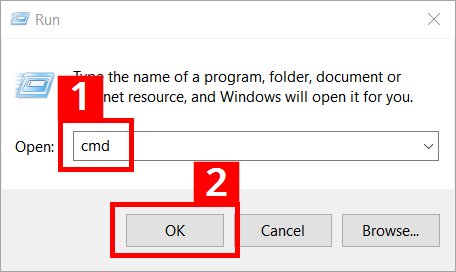
Using ipconfig is not particularly complicated. Before entering the command, you have to access the Windows command prompt terminal (cmd.exe) via the Windows 10 Run dialogue box.
- Use the keyboard shortcut ‘Windows key + R’.
- Enter ‘cmd’ into the input field (1).
- Click OK (2).
Then, enter the command ‘ipconfig’ into the command line and press Enter. For a broader range of uses, you can add parameters or options to the command. For example, you can add the option ‘/?’ to the command to display Help.
For each CMD command and its use with additional options, there is a template that must be followed on how to write it. This is called the syntax. The following is the basic structure of the template for ipconfig:
ipconfig [/allcompartments] [/all] [/renew [<adapter>]] [/release [<adapter>]] [/renew6[<adapter>]] [/release6 [<adapter>]] [/flushdns] [/displaydns] [/registerdns] [/showclassid <adapter>] [/setclassid <adapter> [<classid>]]</classid></adapter></adapter></adapter></adapter></adapter></adapter>If you want to access an overview of the network configuration, the syntax for the command is quite short. After accessing the command line terminal via the Run dialogue box, you will enter the following at the end of the command line which will initially display the current active user account (the account is named ‘Peter’ in the following examples):
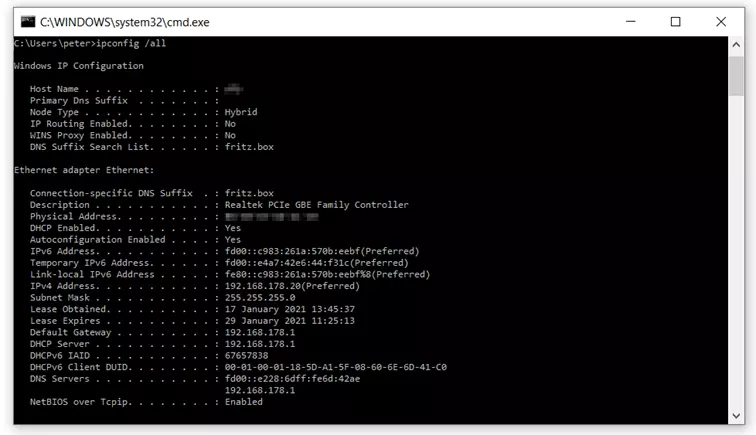
ipconfig /allWhen you press Enter, it will display a list with the requested network configuration information.
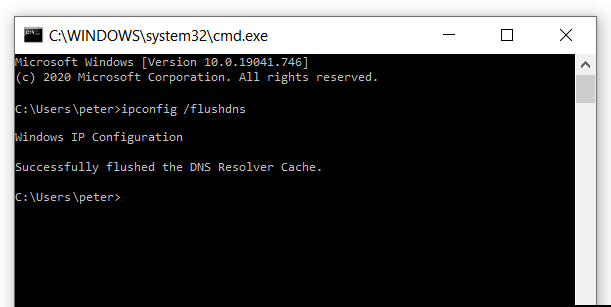
If you want to clear the DNS cache, this will also only require a short command which you can run directly by pressing Enter:
ipconfig /flushdns
Enter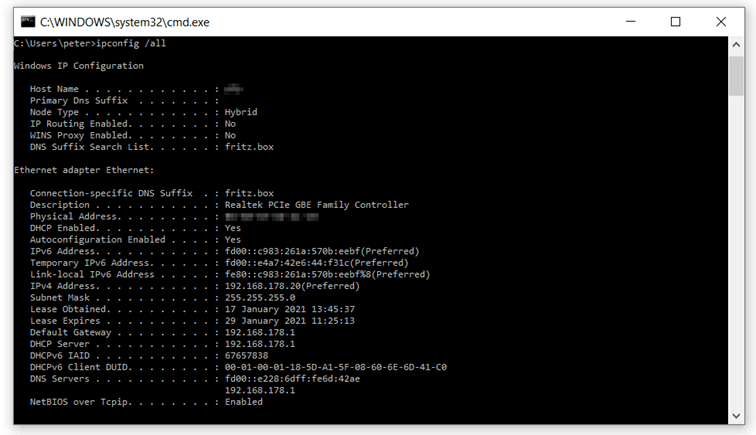
You can find step-by-step instructions on how to clear your DNS cache in our article titled “Flush DNS: how and why you should clear the DNS cache”.
You can also use the command with placeholders (asterisks: *) for installed network adapters. For example, if you enter ‘local*’, all adapters whose names contain the string ‘local’ anywhere in them will be included when an ipconfig command is run. Windows often uses ‘local’ for installed wireless LAN adapters, which are assigned consecutive numbers at the end of their name (e.g., Local Area Connection 1, Local Area Connection 2, etc.). Now, let’s say you want to renew the IP address for a specific Wi-Fi adapter (e.g. the WLAN adapter named ‘Local Area Connection 2’). To do so, you would enter the following command:
ipconfig /renew "Local Area Connection 2"Always use quotation marks when using longer phrases in the syntax (i.e. multiple words with spaces between them). Otherwise, the ipconfig command will not work.