

How to uninstall applications on Mac

If you haven't used apps or programs on your Mac for a while, it’s time to remove them and make room on your hard drive. There are two ways to safely delete a Mac application. We’ll explain how both of them work step by step.
Quick guide: uninstall a Mac application
Via the Launchpad:
- Open Launchpad via the icon in the dock (9 colourful squares).
- Select the app you want to uninstall and click and hold the icon. It will start to wiggle and a ‘x’ will appear at the top-left of the icon. Alternatively, press Alt/Option key ⌥ until the ‘x’ appears.
- Click on the ‘x’ and a confirmation window appears.
- Confirm deletion (uninstall) with the ‘Delete’ button on the right.
This option does not work for system-relevant applications or applications that aren’t from the Apple App Store. In this case, proceed as follows.
Via the Finder:
- Open Finder via the icon in the Dock (the face).
- Select the item ‘Applications’ in the right menu bar.
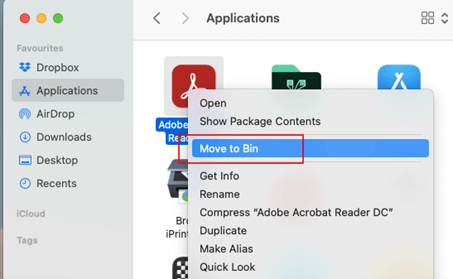
- Click on the app that you want to uninstall, hold it down, and drag it to the trash icon (bottom right in the dock); alternatively, right-click on the app icon and select ‘Move to Bin’ from the menu.
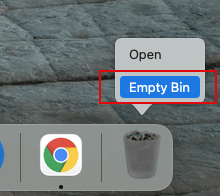
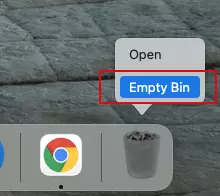
- Finish uninstalling the application by clicking on ‘Empty Bin’ (in the menu when you right click on the recycle bin icon)
Delete a Mac application via the Launchpad
- Open the launchpad on your Mac by selecting the corresponding symbol in the Dock.
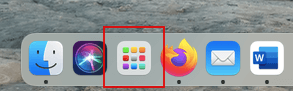
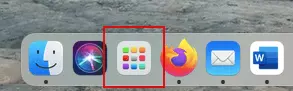
The Launchpad lists all the applications that are installed on your Mac. If you cannot find an app you’re looking for, you can use the search function at the top of the Launchpad display.
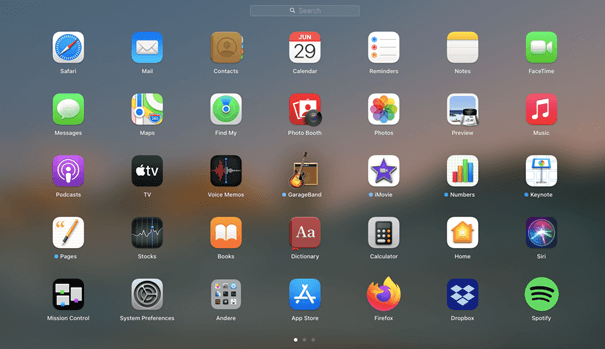
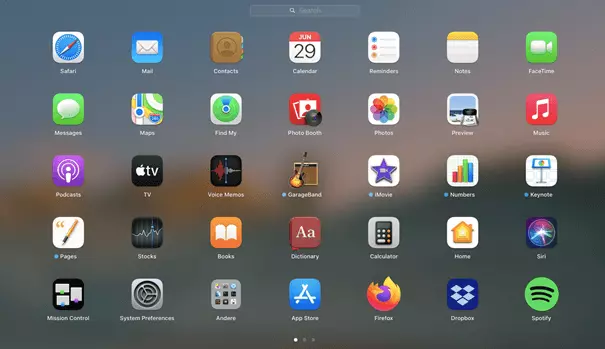
- Press the Alt/Option key ⌥. The apps will start to wiggle and small ‘x’ signs will appear in the upper left corner of each application. You can also click on any app icon and hold down the mouse button until the icons also start to wiggle and the ‘x’ appears.
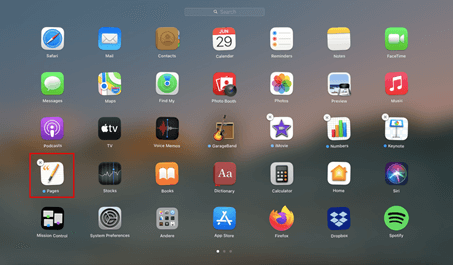
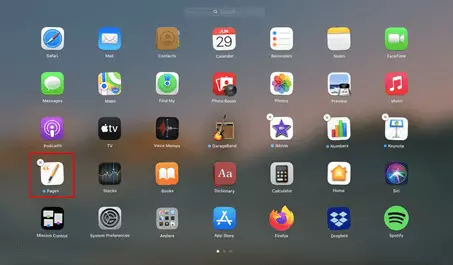
A small ‘x’ does not appear for all apps. This indicates that these applications are either system-relevant and cannot be deleted or that they do not come from the official App Store. To uninstall these Mac applications anyway, try the solution described below via the Finder.
- Click on the ‘x’ sign of the Mac application you are looking to delete. A dialogue field will now open.
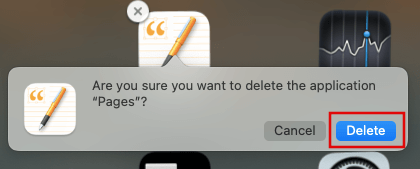
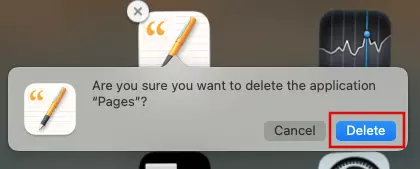
- Confirm the deletion by clicking on the ‘Delete’ button to the right of the box.
Uninstall Mac application via the Finder
- Open the Finder by clicking on the Face symbol in the Dock.
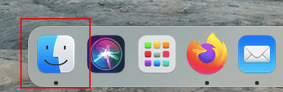
- In the window that opens, navigate to the ‘Applications’ item in the left column and search for the app you want to delete.
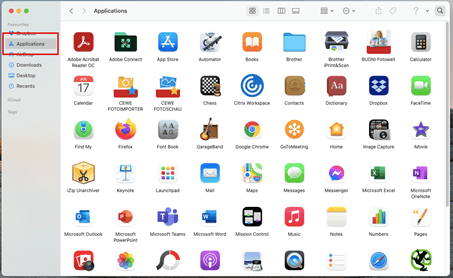

If you can’t find an application right away, you can search for the app using the Spotlight search. The search can be found at the top of the screen on the right (magnifying glass icon). Enter the name of the application, press the Command key, and double-click on the application while holding down the key. You will be automatically taken to the folder in the Finder.
- Click and hold the Mac application that you want to uninstall. Drag the app to the Bin.
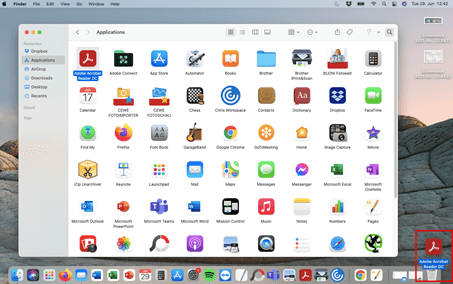
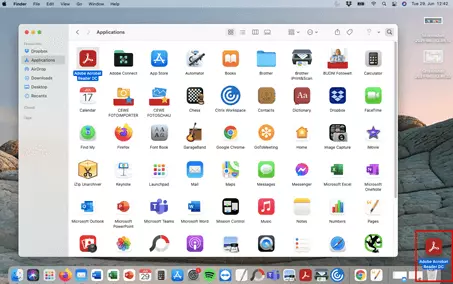
Alternatively, you can click on the app with the right side of your and then click on ‘Move to Bin’ in the menu that opens.
- To uninstall apps completely, empty your Mac’s Bin. To do this, click on the Bin icon and hold down the mouse button until the menu opens. Then click on ‘Empty Bin’ and confirm this step in the following dialogue field.
Are you looking for even more Mac tips and info? You can find plenty more in our Digital Guide – for example, on how to restore deleted files on a Mac or how to display hidden files and folders on a Mac.