

Opening ZIP Files

The ZIP format offers the possibility to group several files or entire directory trees in a container file to save space. All common operating systems make compression functions available for archiving files that you no longer need using native tools. However, special compression programs offer a more extensive range of functions.
A detailed guide on how to create ZIP files can be found in our general article about ZIP files. Read our step-by step tutorial below and learn how to extract zipped files – both with your operating system’s standard programs and with the most popular applications by other software manufacturers.
Unpacking ZIP Files with Windows Standard Programs
Follow these steps to unpack ZIP files using the tools that Windows 10 provides:
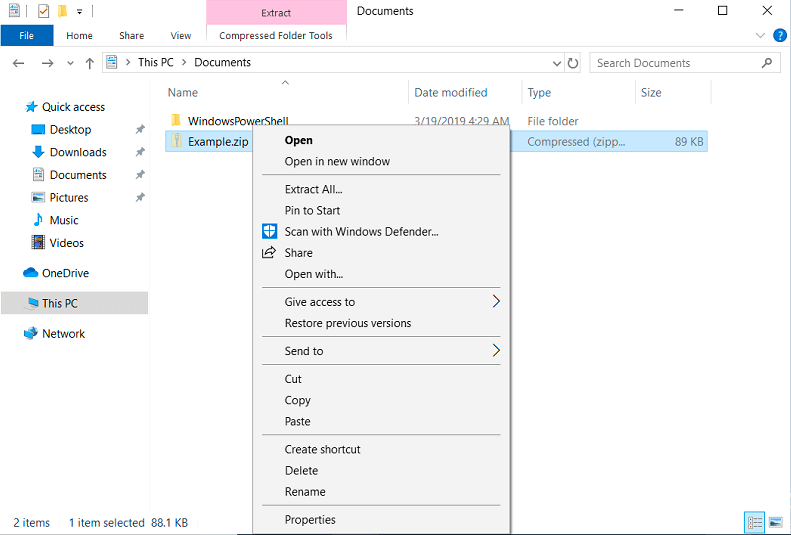
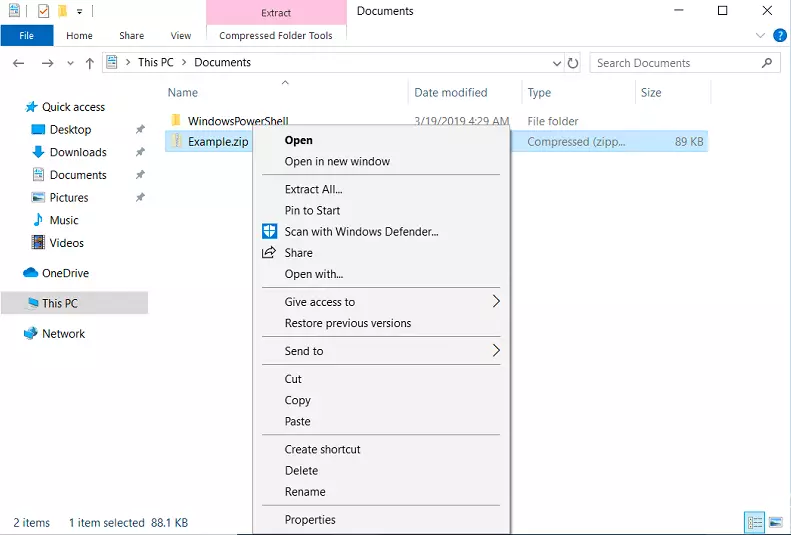
Step 1: Select the ZIP file you want to extract and right-click on the selected file.
Step 2: Click on “Extract all...” in the shortcut menu that opens.
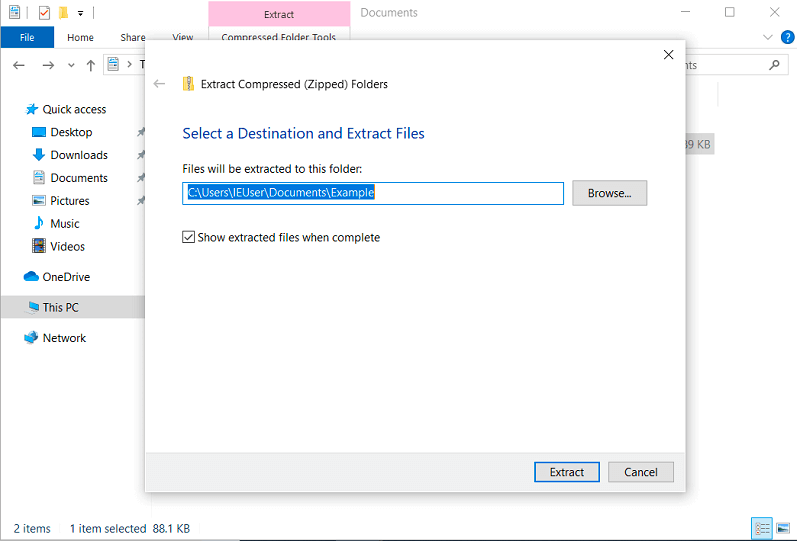
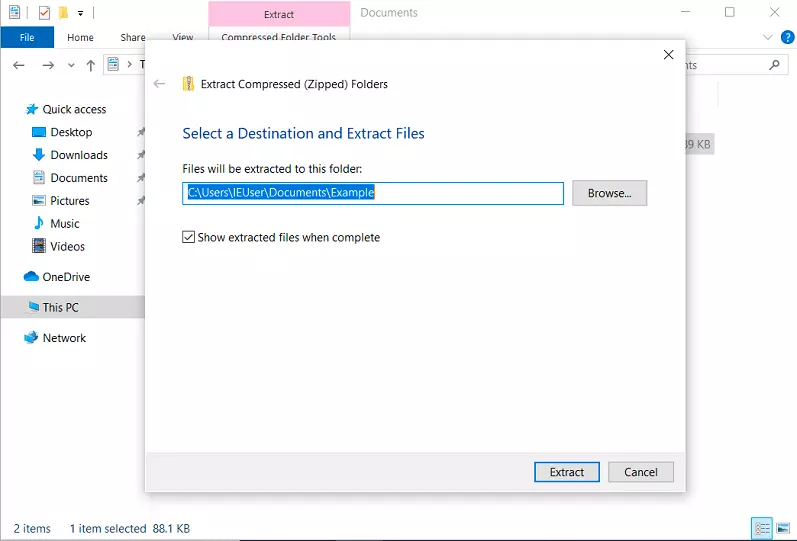
Step 3: Select the destination folder where you want to save the contents of the ZIP file and click “Extract”.
How to Open ZIP Files with macOS Standard Programs
Follow these steps to unpack a ZIP file using the standard macOS archive program.
Step 1: Select the ZIP file you want to open and right-click on the selected file.
Step 2: Click on “Open With” in the shortcut menu and select “Archive Utility (default)”. Alternatively, with macOS a double-click on a ZIP file is sufficient to unzip it with the default program.
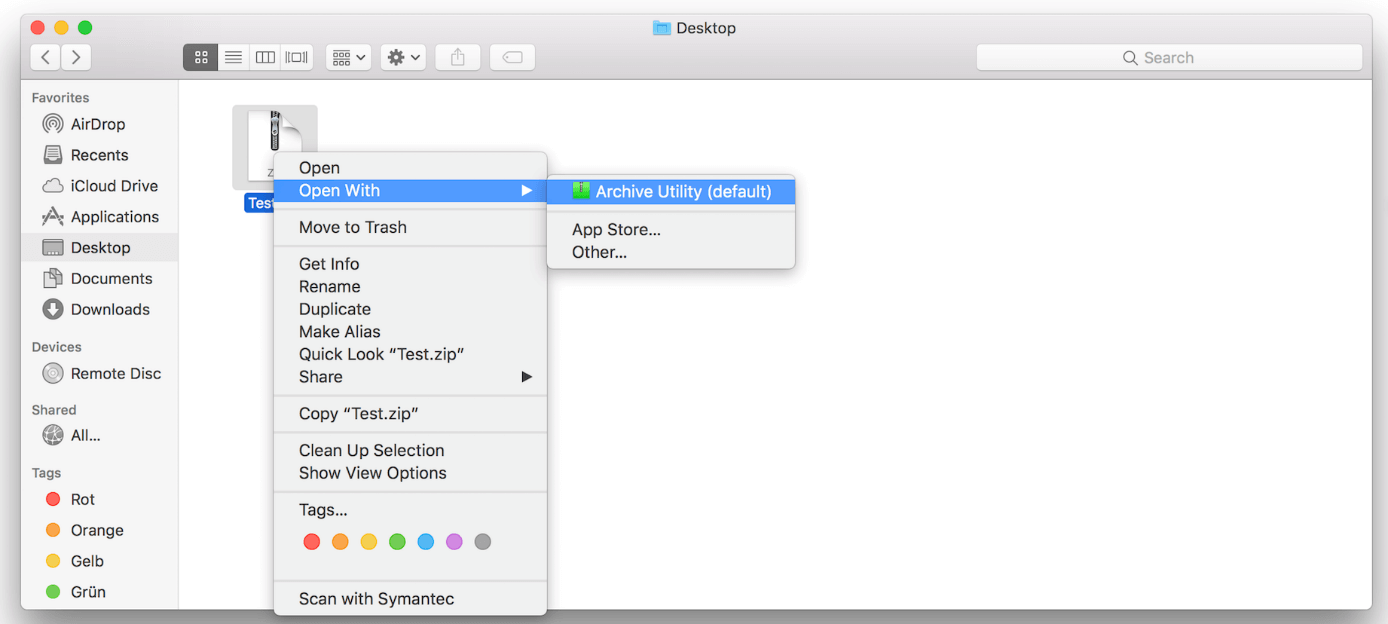
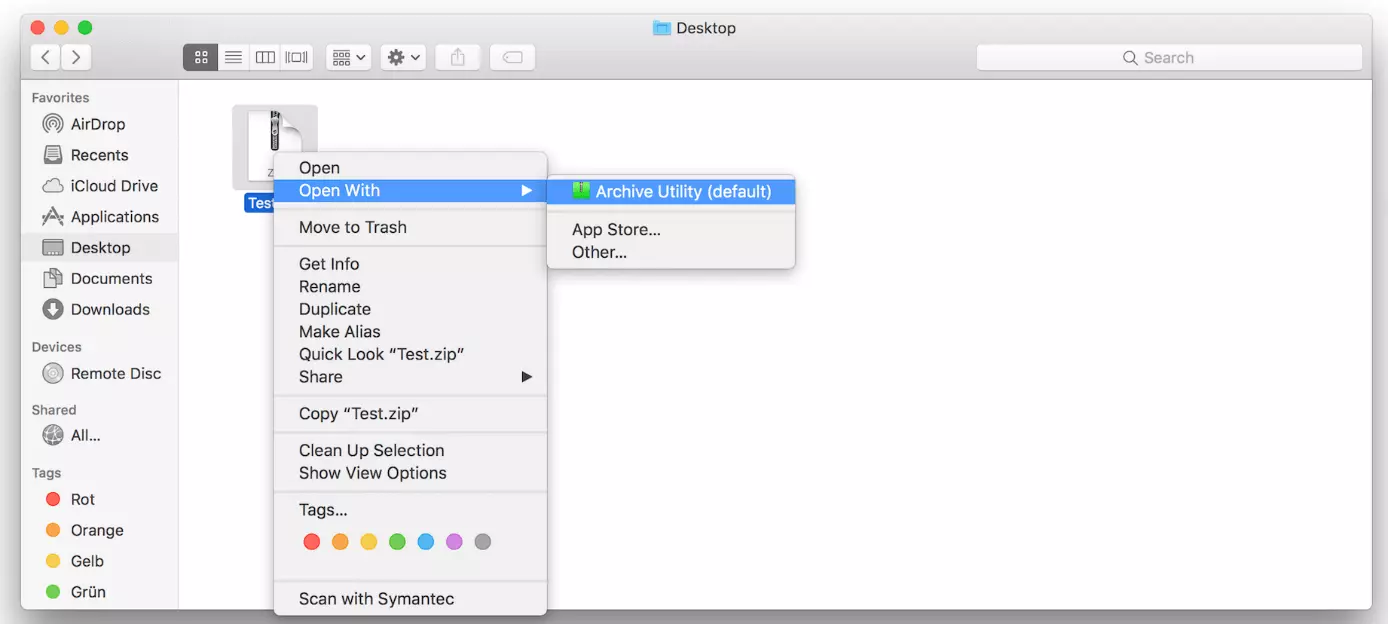
The unpacked content is automatically stored in the same folder as the ZIP file.
Unpacking Compressed Files with ZIP Programs
Special compression programs provide more options for zipping and unzipping files. Some of the most popular applications for Microsoft Windows include WinZip, WinRAR, and 7-Zip.
WinZip
Follow these steps to open a ZIP file using WinZip:
Step 1: Download the program WinZip from the website of the Canadian software manufacturer Coral as a trial version or paid full version: https://www.winzip.com/win/en/.
Step 2: Install WinZip on your system and agree to integrate the program into the Windows File Explorer shortcut menu.
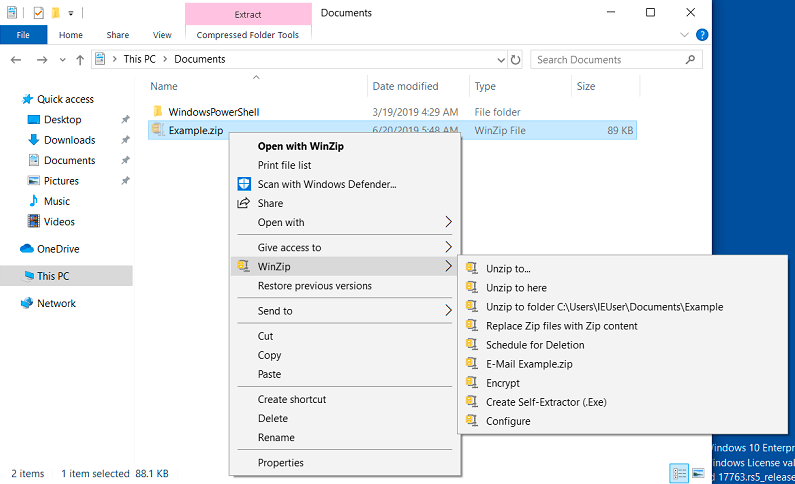
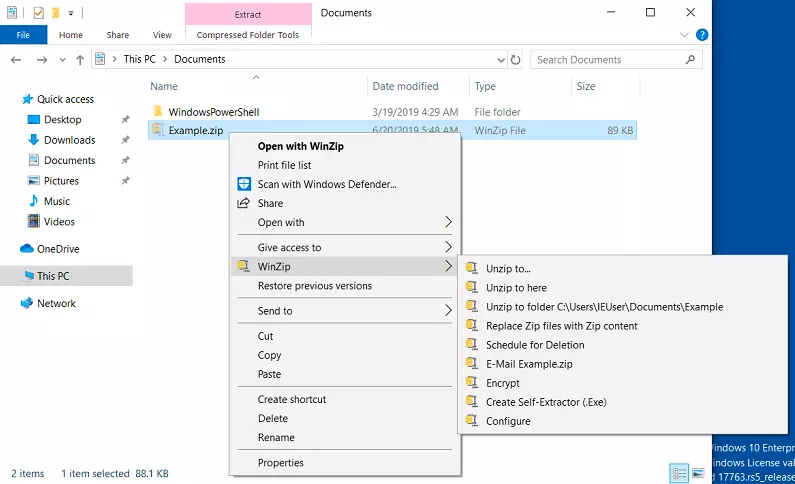
Step 3: Right-click on the ZIP file you want to extract and select “WinZip”.
Step 4: Choose one of three options for unpacking ZIP folders:
| WinZip options | Description |
|---|---|
| Unzip to... | Save the contents of the ZIP file to a destination folder of your choice |
| Unzip to here | Save the contents of the ZIP file to the current folder |
| Unzip to folder C:\User\EUser\Desktop\test | Save the contents of the ZIP file to the current directory in a folder named the same as the ZIP file |
WinRAR
Follow these steps to unpack a ZIP file using WinRAR:
Step 1: Download the proprietary archive program WinRAR from the provider’s website: https://www.rarlab.com/.
Step 2: Install WinRAR on your system and agree to integrate the program into the Windows File Explorer’s shortcut menu.
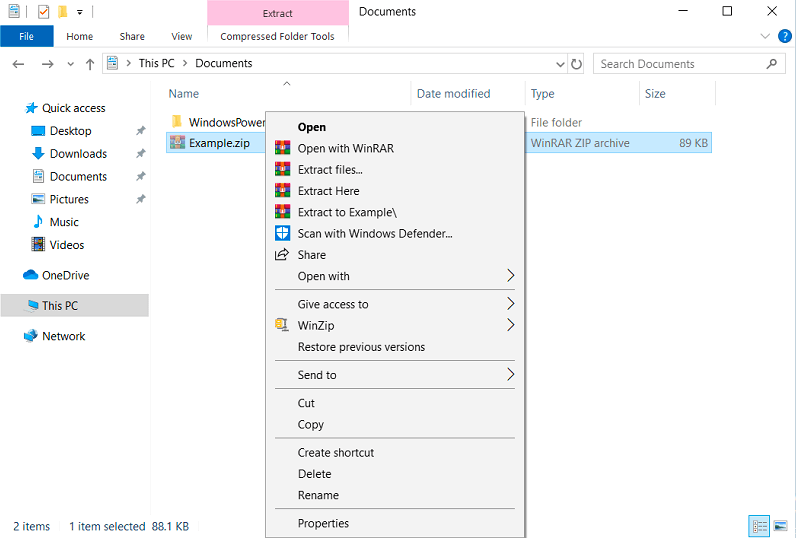
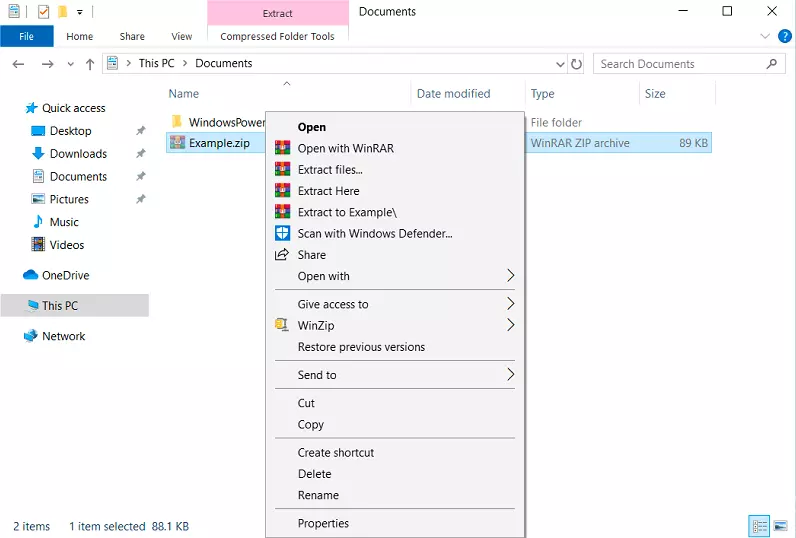
Step 3: Right-click on the ZIP file you want to open and select one of four options:
| WinRAR options | Description |
|---|---|
| Open with WinRAR | Open the ZIP file with WinRAR |
| Extract files… | Save the ZIP file according to settings made in the next step |
| Extract Here | Save the contents of the ZIP file to the current folder |
| Extract to test | Save the contents of the ZIP file to the current directory in a folder named the same as the ZIP file |
7-Zip
The free software 7-Zip scores well not only with its extensive range of functions, but also since it’s free to use. To extract a ZIP file with 7-Zip:
Step 1: Download 7-Zip from https://www.7-zip.org/.
Step 2: Install the software on your system. The ZIP program is automatically integrated into the Windows shortcut menu.
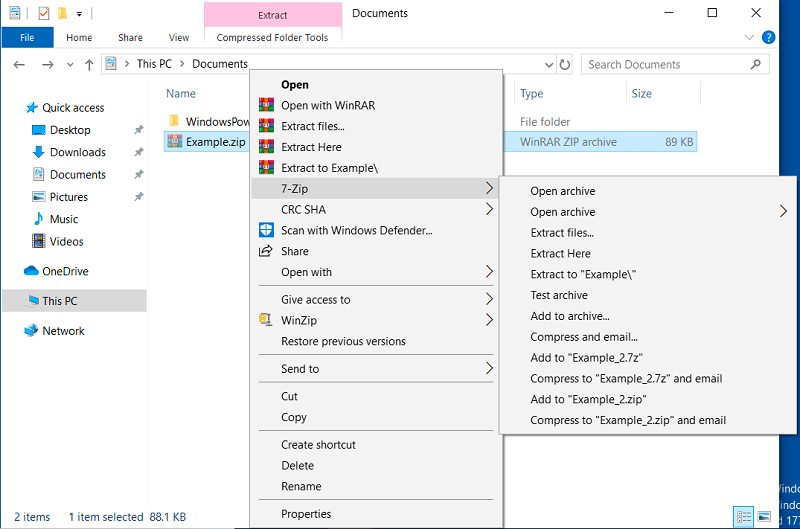
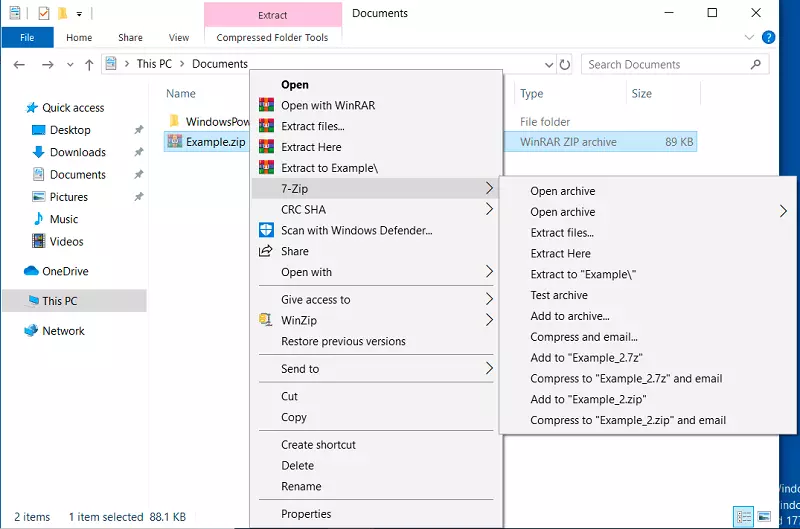
Step 3: Right-click on the ZIP file you want to open and select 7-Zip from the Windows File Explorer shortcut menu.
Step 4: Select one of the following options to open the ZIP file with 7-Zip:
| 7-Zip options | Description |
|---|---|
| Open archive | Open the ZIP file with 7-Zip |
| Open > * / # / #:e / 7z / zip / cab / rar | Open the file with the specified format |
| Extract files… | Save the ZIP file according to settings made in the next step |
| Extract Here | Save the contents of the ZIP file to the current folder |
| Extract to “Example\” | Save the contents of the ZIP file to the current directory in a folder named the same as the ZIP file |
We offer you a detailed comparison of the most popular ZIP programs in our article on WinZip alternatives.