

How to use SSH in Powershell

With PowerShell SSH, you can access and manage remote systems from virtually anywhere. In addition, SSH offers detailed logging functions that allow activities on the server to be comprehensively monitored and tracked.
What are the requirements for PowerShell SSH?
Integrating SSH in Windows PowerShell gives you the ability to establish SSH connections to remote systems and execute SSH commands in a PowerShell script. This makes it a lot easier to manage and automate tasks in distributed IT infrastructures, especially in a heterogeneous environment where there are both Windows and non-Windows systems.
Here are the requirements to use SSH in PowerShell:
- PowerShell installation: Make sure that PowerShell v6 or higher is installed on your local computer. PowerShell is usually pre-installed in Windows, but you need to check that you are using a version that supports SSH.
- SSH client: You need an SSH client in your PowerShell environment to establish SSH connections. OpenSSH is available by default in Windows 10/11 and Windows Server 2019. If you are using an older version of Windows, you may need to install OpenSSH manually.
- SSH server: The SSH server is the target server that you want to connect to. This can be a Linux server, a network device or another SSH-capable host.
- Network access: Your local computer should have access to the network and be able to reach the remote SSH server. Port 22 must be open for SSH in the firewall rules.
- PowerShell modules: There are PowerShell modules that have been specially developed for the use of SSH, such as the ‘PSSession’ or ‘Posh-SSH’ module. You should check that the corresponding module is installed on your system in order to be able to use SSH functionality in PowerShell.
- Authorisations: You need administrator or elevated privileges and a password or SSH key to establish SSH connections from your local computer and access the remote server.
- Enterprise hardware
- Configurable hardware equipment
- ISO-certified data centres
Step-by-step instructions on how to use PowerShell SSH
Before you can use Secure Shell (SSH) in PowerShell, you must set up the OpenSSH server. You can then start the PowerShell SSH session and execute commands on the remote system.
Step 1: Install OpenSSH
Click on the start menu or enter ‘PowerShell’ in the search bar. Select Run as administrator. This opens the Windows PowerShell. You can use the following PowerShell command to install the OpenSSH feature on your Windows computer:
Add-WindowsCapability -Online -Name OpenSSH.Server~~~~0.0.1.0Step 2: Start OpenSSH service
Once the installation is complete, you can start the OpenSSH service:
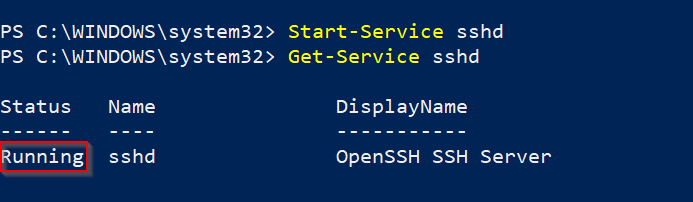
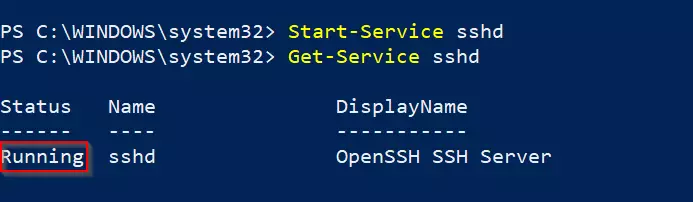
Start-Service sshdYou can check whether the OpenSSH service is running:
Get-Service sshdThe Running status indicates that sshd is running properly.
Step 3: Start SSH server service automatically
To activate the OpenSSH server service every time Windows is restarted, you can enter the following command:
Set-Service -Name sshd -StartupType 'Automatic'Step 4: Customise firewall
If Windows firewall is active, you should add a rule to allow SSH traffic on Port 22 (the default SSH port).
New-NetFirewallRule -Name 'OpenSSH-Server' -DisplayName 'OpenSSH Server' -Enabled True -Direction Inbound -Protocol TCP -Action Allow -LocalPort 22Step 5: Establish an SSH connection
You can now log in with your SSH server from another device. To do this, open PowerShell on your client PC and enter the SSH command with the username and server address.
ssh username@servernameReplace ‘username’ with your SSH username and ‘servername’ with the IP address or hostname of the remote server. When you start the command, you will be prompted to enter your SSH password unless you are using the SSH key for authentication.


Step 6: Work in the SSH session
Once you have established an SSH connection, you can execute commands on the remote server as if you were physically logged on to the server. To end the SSH session and return to the local PowerShell, you can use the exit command.
There are a number of SSH commands in PowerShell. The command pwd stands for ‘print working directory’ and shows you the current working directory, for example:


Here is a list of commands that you can use in PowerShell SSH:
ls/dir: Displays the contents of a directorycd: Changes the directory on the remote servertouch/New-Item: Creates a new filerm/Remove-Item: Deletes files or directoriesmv/Move-Item: Moves or renames files and directoriesuseradd: Adds a new userscp: Transfers files between client and server
You can find more commands in our overview of PowerShell commands.
Reviewer

Christian Heldmaier
Christian Heldmaier is an experienced online marketing and SEO specialist from Karlsruhe. He has been working as an SEO Manager at IONOS since July 2020.