

How to do a Server Migration

If you are looking for a new hosting solution for an existing project, for example because you want more performance, more flexible scaling, or you simply wish to switch providers – you might ask yourself this question: what happens to the existing data, structures, and configurations? The answer isn’t far away: with the necessary know-how, the appropriate planning and specific software, you simply transfer the desired data to the new server. Transferring from one system to another is also referred to as data migration. The complexity of the migration process increases with the complexity and size of the project. It is also important to know whether you’re migrating your data to a server of the same type, or whether the new server has a completely new architecture. We will show you what you should pay attention to when moving your server data and how server migration works with IONOS.
Try out your VPS for 30 days. If you're not satisfied, we'll fully reimburse you.
Migrating data to a new server – a question of proper planning
When transferring your complete server data, you should clarify some important basic conditions in advance. Choosing a suitable target server is the first step. If, for example, you are planning on changing providers, you’ll have additional tasks to contend with that you don’t have to deal with during a simple relocation. It also makes a difference whether you transfer your data from one dedicated server to another, or whether the new server structure is based on clusters and involves several different systems. To ensure that the effort isn’t disproportionately high, you should ask yourself whether the planned migration progress is worth it and will have a positive effect on your website’s development in the long run. When you change the server architecture, you will have to make changes to the configurations – whether it is because of a different operating system, different software versions, or a different system control. And even if you are just switching to a more powerful server of the same type, you still need to configure your applications and services accordingly so you can take advantage of the extra memory, improved CPU performance, or increased memory capacity.
Whether you choose a simple performance upgrade or a complete change of server architecture: you should create the optimal conditions for the move in advance. These include factors such as sufficient storage space and computing power plus 30 to 40% buffer or a detailed scaling plan as well as a fast network connection.
When does it make sense to migrate data to another server?
There are very different reasons for transferring data to a new server. In most cases, migrations take place because more capacity is needed. If the hardware can no longer meet the requirements and an upgrade is not possible, there is no alternative but to relocate to a new server. Vice versa, it makes sense to migrate your data to a smaller server if the available computing power exceeds the amount you require. This is mainly due to the cost factor, which is often why people change their supplier. If you rent your server resources, you might not look exclusively at the costs for the respective hosting service. The contract conditions can also be a reason for migrating servers. The various packages from providers differ in what they offer i.e. availability, data security, and support. Therefore, it makes sense to compare the different packages before making your selection. Another reason for migrating data could be that you want to take some pressure off your IT department. In this case, a managed server solution would be a good choice. It isn’t only hosted, but also maintained and updated by the provider.
Preparing the current server for upcoming migration
To make the configuration and introduction of the new server as simple as possible, it makes sense to tidy up the server you’re currently using. Therefore, data migration is the optimal time to delete any redundant or outdated pages, back-ups, e-mail accounts, and user accounts. This means you reduce the amount of data you’re transferring to a minimum and, on the other hand, you obtain greater value out of the required resources on the target system. In addition, you should develop an accurate schedule for shutting down the active server processes so that no complications occur later with the result of data being lost. Specify a time at which any changes to files, scripts, and configurations should be stopped, and temporarily block access to your databases, if possible. It’s also possible to update your database later. In most cases, the data transfer takes place by means of a complete server backup (which you should also carry out if you are aiming for a different migration strategy).
How does data migration work for servers?
The easiest way to migrate your data is to use a one-to-one copy of the actual state. You transfer this to the new server hardware before you make necessary configurations and adjustments and then you can test if it works. Finally, you can adjust the DNS or IP settings, which will allow you to start your web project live on the new system. Although this approach usually requires the support of system administrators, it is easy to plan and execute. However, it means the current server will be completely suspended and you won’t be able to access or use your website for the duration of the data migration. If you offer a service that requires constant database access, you need a hybrid migration solution that keeps the current server active. In this case, you should declare the current database on the server as ‘master’, which then subordinates the new database to ‘slave’ once the configuration is complete. This enables the two applications to synchronise in real time. If both databases are in the same state, reverse the roles so that the new database becomes master. This means that your project can continue being available during data migration. In addition, this strategy offers the possibility of you always being able to access the old database (which still has the current data), if the new server is experiencing complications. In order to test the functionality of a web or application server without having to switch off the old version, you can use a load balancer: by first redirecting the traffic of your web project to the new server, you will see if it is properly configured and works as desired. Once again, you benefit from no downtime and can therefore rest assured.
Which resources are available for data migration to a new server?
There are several tools and services available that simplify server migration. For example, if you want to simply move your data without having to adjust the operating system or other software, you shouldn’t forgo a control panel. Server management programmes like these help you create backups of your data and then migrate them to the new server. The required configuration effort is minimal. Content management systems such as WordPress can also be transferred using simple FTP and backup applications, and often offer their own plugins for migrating the linked database. These automate the process for the most part. For more complex projects, root permissions always pay dividends: via SSH, you can transfer complete databases, including all permissions and user data, to a new server via the respective command line. For example, you can use MySQLdump to send MySQL databases to the target system as a copy. As a Microsoft SQL server user, you can even use the built-in functions for this purpose. However, you can also outsource the migration of your server data: many hosting providers offer their customers not only specific software for manually performing a server data transfer, but also offer to actively support the data migration. Furthermore, there are also services that specialise in the migration of web projects and provide a round-the-clock service – whether it’s a simple switch from one shared server to another, you’re changing your provider, or you plan to switch to a server cluster.
Which problems can occur during server migration?
A permanent connection is necessary for the server data to be transmitted as desired. It is therefore not surprising that connection problems are among the most frequent sources of error during server migration. If the connection is broken, it could completely terminate the transmission, meaning it’s restarted from the beginning. Short-term connection problems, however, often remain unnoticed and don’t result in the process being terminated. However, in some cases, not all data can reach the target server, which in turn can compromise the functionality of the migrated applications. However, if certain files can’t be successfully transferred to the new server, there may be several reasons behind this. Compatibility problems occur, in particular, when the operating system is changed and certain file formats, programming languages, etc. aren’t supported natively anymore. Moreover, different access rights or password protection on the source computer and target computer can lead to complications. In addition, data migration might incur errors if the target system does not have the required disk space or if the DNS entries have not been changed correctly.
Server data migration: check list
Moving your project to a new server can be a complex and tedious process, depending on the size of the project and the new target’s architecture. This is why it should be well planned and carefully executed. The following checklist summarises the most important questions about server migration.
-
Which architecture should the new server have?
-
Does the project’s architecture suit your needs?
-
Are the necessary financial resources and specialists available for the migration and the subsequent server configuration?
-
Is the selected hardware flexible enough for the future development of your project?
-
Should the migration process take place during operation or should all activities be interrupted for the duration of the process?
-
Is maintaining the operation proportionate to the associated resources and the increased complexity?
-
Which steps can otherwise be taken to keep the downtime as low as possible?
-
How can you ensure the integrity of the database entries and that they are up-to-date?
-
How is the functionality of the new server tested?
-
What happens when certain applications do not work after data migration is complete?
Do you wish to migrate your server data onto a IONOS cloud server? Find out here how you can benefit from a server migration.
Server migration with IONOS: how to import server images from your Cloud panel
All users of the IONOS cloud server solution have the option to migrate data to the new server via the IONOS Cloud panel. To do this, an image/ISO image of the original server can be created and used to set up the new server. Image files like these are created automatically for your project (even in regular intervals), if you have created a corresponding backup plan in the panel. In both automatic and manual creation, the underlying server can’t be edited during the process. In addition, a size limit of 500 GB applies to each server image. The possible formats of the images are:
- .vdi
- .qcow
- .qcow2
- .vhd
- .vhdx
- .vmdk
- .iso
Creating images/ISO images
If you aren’t using an automatically created backup image, you first need to create the server image for the planned data migration. There are two options for this step: you can either use a separate software or use the integrated copy function in the Cloud panel.
First, you need a programme that enables you to make a copy of the current server. The Disk2vhd tool and QEMU are recommended for this task. The former was developed specifically for Windows operating systems and enables image files to be created in Microsoft’s format for virtual machines VHD (Virtual Hard Disk). The latter is part of most Linux repositories and is also available for macOS and Windows. QEMU is compatible with these image formats: .vmdk, .vhdx, .qcow, .qcow2, and .vdi.
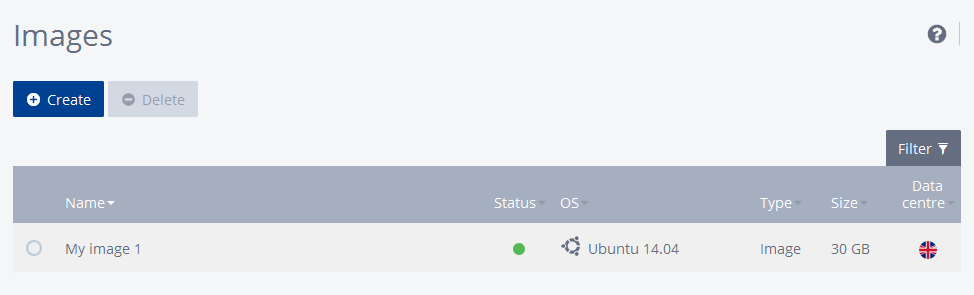
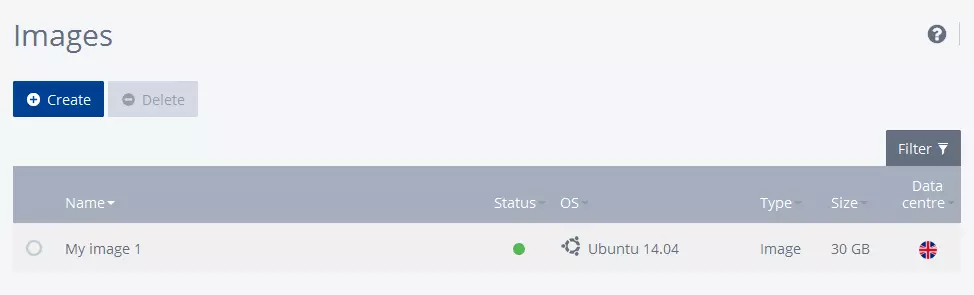
Alternatively, you can also access the built-in function in the Cloud panel for image creation. Simply go to ‘Images’ under the ‘Infrastructure’ tab, then click on the ‘Create image’ button and select the server that is to be copied. A final click on ‘Create’ will start the process.
Importing images
After you have created an image of the output server, you can use it to create a new server with the same database. To import your server image in the Cloud panel, go to ‘Infrastructure’ à ‘Images’ section of the Cloud panel.
- To migrate data to the new server using an image, first click the ‘Create’ button and give an appropriate name to the copy that’s in the panel.
- Select the ‘Import image’ option and specify the operating system of the server image in the ‘Operating system’ field.
- In the ‘URL’ field, copy the address of the location where the image file is stored.
- In the advanced settings, you can finally enter the data centre of your choice in the ‘Display’ section.
- Click on ‘Create’ to start the import process.
After you install an imported CentOS 7 image, you must create a new kernel image. A copy of a Microsoft Windows server requires the LSI_SAS controller to be activated.
Importing ISO
For ISO copies of the output server, a separate import button is displayed in the ‘Images’ area of the Cloud panel. In addition, you have the option of either specifying the server’s operating system or indicating that the ISO is a single application.
- For the first step, create a new server entry via ‘Create’ and specify a meaningful name for the server image.
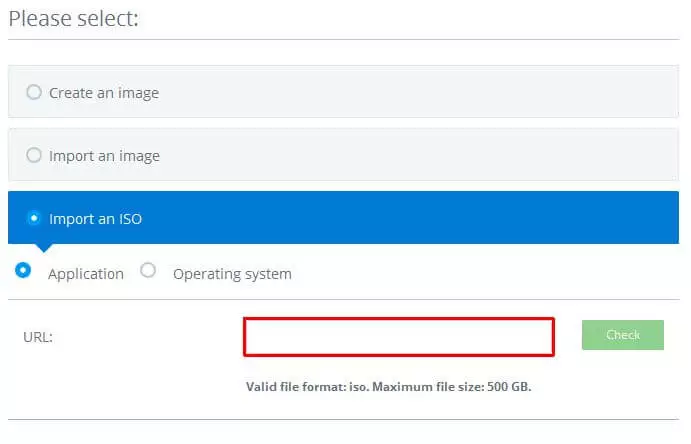
- Next, select the option ‘Import an ISO’ and indicate whether it is an image of an application or an operating system.
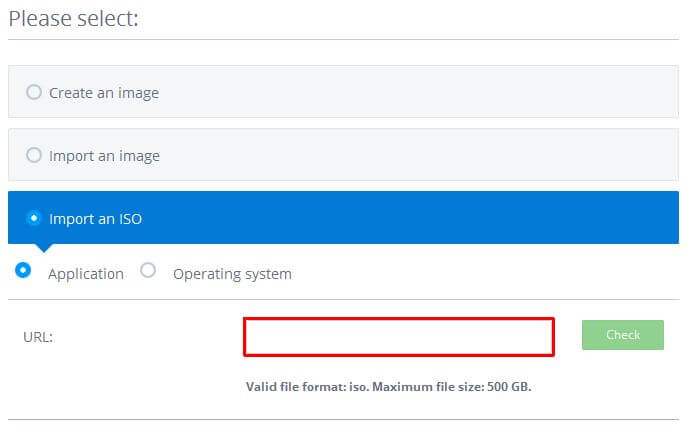
- The next field is where you specify the URL under which the ISO image is to be downloaded.
- Under ‘Additional Settings’, you can now select the required data centre by clicking on ‘Display’ before you start importing the ISO file after clicking on ‘Create’.
After the import process is finished, you can see the absolute size of the image in the overview.
Reviewer

Christian Heldmaier
Christian Heldmaier is an experienced online marketing and SEO specialist from Karlsruhe. He has been working as an SEO Manager at IONOS since July 2020.